Argyll Free Press

Growing News Network

Monday, January 19, 2026
Log in
  • Business
  • Finance
  • Sports
  • Tech & Science
    • HP Envy 4500 Review
    • LG Optimus 170 Review
    • iPod Touch 6th Generation Review
    • HTC One M8 Accessories Set-up
    • Surrealist Games You Must Play
    • Hisense Sero 8 Review
    • Dell Latitude e7440 Review
    • HP Laserjet 1536dnf mfp Review
    • Garmin Fenix 2 Review
    • Skype Vs Viber
    • Best Video Conferencing Software
    • Sony mdr 1r Headphones Review
    • Canon Rebel t3i Review
    • Sennheiser Momentum 2-0 Review
  • Travel
  • Headlines
  • Health
  • United States

Settings to Change on the Nexus 6

March 14, 2015 By Roxanne Briean Leave a Comment

Google finally announced late last year its new smartphone called the Nexus 6 along with the Nexus 9 tablet, Android 5.0 Lollipop and the Nexus Player. While Lollipop and the new smartphone do have a lot to offer we present to you some settings to change in the Nexus 6.

There are numerous reasons to get a Nexus 6 instead of an iPhone or a Samsung Galaxy S5, especially hardware wise. There are also some software, features and settings that also make this quite an impressive smartphone. Here are some settings to change on the Nexus 6.

These settings can really improve the battery life, experience and will help you take full advantage of your new Nexus 6. Increasing the font on the phone, enabling the battery saver setting and adding some additional security are only a few of the numerous settings you can change on the Motorola-made Nexus 6.

Google announced yesterday that the new Android 5.1 Lollipop will be coming to the Nexus 6. While our Nexus 6 isn’t running the latest software, the device will do so in the near future. It’s highly unlikely that the settings and options we present to you will change so there’s no need to panic. With that being said, let’s dive right in.

The Nexus 6 has a great 2K 6 inch display that everyone will love. You can really enjoy watching a movie on the huge screen and because of the dual speakers on the front of the device. Not to mention that this is the first Nexus that comes with great battery life. While there definitely are numerous things you can love about the device, there are some that may be improved on it.
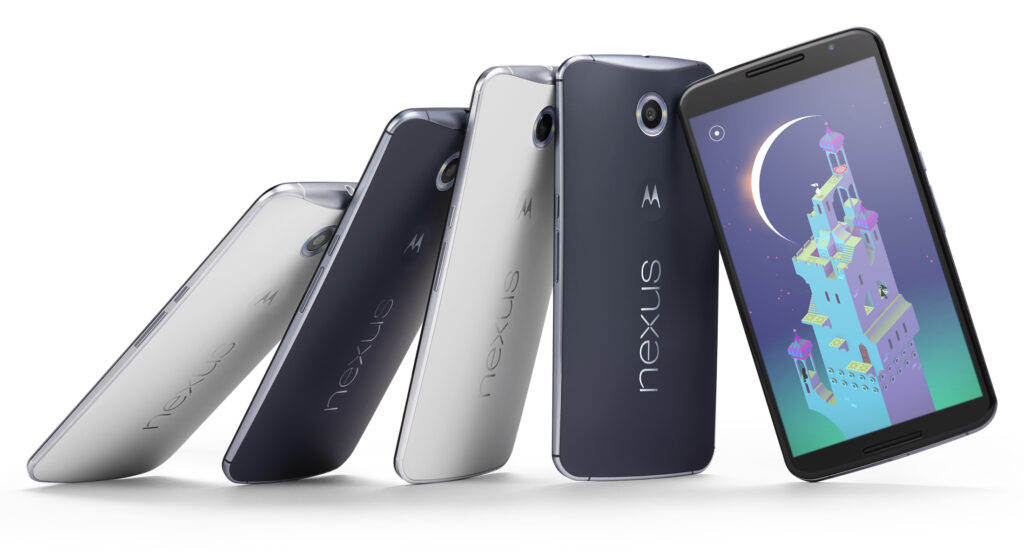
Settings to Change on the Nexus 6

Font size

The large display of the Nexus 6 combined with the very high resolution of 2,560 x 1,440 means that the text may appear small to some people. Even though every graphic and line is clear and crisp, some people will still find that the text is a little too small for the screen. But thankfully, there is a way to change the font size on the Nexus 6 and it doesn’t even require any effort.

Inside the app browser, go to Settings or swipe two fingers downward on the screen then select the settings menu. After you select it, tap on Display. Search for a setting called Fonts and tap on it. There you will find four different options to choose from: Huge, Large, Normal (this one is the default) and Small. While most people tend to use Normal, the Large one may suit you better.

Disable the emergency broadcast alerts

It’s true that this isn’t the most in your face feature available on the new smartphone, but when you have to deal with it, it can get a little annoying. I’m talking about the emergency broadcast alerts, of course. This will make your phone start an alarm out of nowhere, in full volume, regardless of what settings you use. Most of the times, this is to alert you of severe weather conditions, Amber alerts or other broadcasts sent out by your city or state.

You may want to keep some of them enabled just for emergencies, but they tend to be very loud and annoying so make sure you disable the ones that you don’t want to have anything to do with.

Go into Settings and tap on More, then on Emergency broadcasts. From this menu simply deselect all the ones you don’t need. I left the Extreme alerts still turned on but I’ve turned off all of the rest, mostly because I don’t want my phone to scare me half to death when I least expect it. Make sure you also deactivate the vibration option as it will vibrate for a long time and very loud, at full power.

Enable battery saver mode

The huge display on the new smartphone is the biggest battery killer. Even though the Nexus 6 has a 3,220 mAh battery and a Turbo Charge feature that allows you to use the phone for 6 hours with only a 15 minute charge, sometimes this is simply not enough. Google added a Battery Saver option in the Android Lollipop and you’ll definitely want to turn this on from time to time.

Go into Settings, then Battery at the bottom, tap on the three dots on the right of the upper part of the screen and tap on Battery Saver. Even though this isn’t a setting that you should use permanently, it does come in handy occasionally. The Battery Saver option kills background data and lowers the brightness of the screen to give you more battery life.

It’s true that you won’t be allowed to do most things but your Nexus will last for a very long time and you will be able to make phone calls or send texts. It’s a very useful feature that you should be aware of. Make it enable itself when your battery reaches 15% and it will automatically do so, giving you enough battery life when you absolutely need it.

Security

Android is great for syncing your Gmail account and other features but it generally lacks one important thing: security. You can set up a pattern lock or a passcode in under one minute which will protect your smartphone against strangers in the event that you lose it or that it’s stolen. Android 5.1 even brings a new security feature that’s called device protection. When this feature is enabled, even after a factory reset, your phone won’t be able to be used unless your Google account is signed in. This being said, you will want to secure your smartphone.

Slide the notification bar down and go to settings then Security, Screen Lock and from that select PIN, Password or Pattern.

In this menu there’s also an option called “Owner info” that will appear on the lockscreen. You can add your phone number, Facebook account or any other information. Be sure to fill in some information that will help you get your phone back in case an honest person finds it.

There are two more useful security options that you should be aware of. Go to the Google Play Store and enable the password protection for in-app purchases in the settings menu. This will make sure that you won’t get billed with app purchases in case you lose your phone. Also, your kids won’t be able to make purchases without your permission. Go to the Android Device Manager and prepare your smartphone for the services. By doing this, you will be allowed to lock, call and erase the data on your phone in case you lose it or it’s stolen.

Many people should think about securing their devices, but most of them don’t. This is the first thing you need to make sure when using a new device and the Nexus 6 is no exception.

Disable ambient light

A cool feature on the Moto X and many Motorola smartphones called Active Display (Moto Display) is the ability of the phone to pulse off and on with information and notifications. This was also added to the Nexus 6 but it was renamed Ambient Display. The phone knows when you pick it up and will give you a black and white screen with recent notifications and it’ll turn itself off shortly after. While this is a great feature, a single tap of the screen will fully light it up and you’ll often pocket dial people and will cause your screen to be on when you don’t need it which will drain the battery.

The feature is pretty cool in theory but it was one of the first features I turned off on the Nexus 6. Slide the notification bar down and tap the settings button. Go to Display and you will find the setting there. Tap on the Ambient Display option and you will turn it off. That’s the only thing you need to do to get rid of the feature.

This is a great feature and I really like it but Google should update this to be more precise or I’ll always keep it turned off.

Change default text messenger app

The default text messenger app was changed to Hangouts ever since Android KitKat. The new Nexus 6 also uses the Hangouts app as the default one but you may want to change this. You will be happy to know that you can actually do this.

To change the default app head to Settings and then More. Tap on the Default SMS option and you will see all the apps that are installed on your device. I personally like Textra SMS but feel free to use whatever you want if the stock one isn’t to your liking.

This is all that you have to do to change the default text messenger app.

Conclusion

There are numerous options, features and settings you can change on the Nexus 6 running on Android Lollipop. A few other features you might be interested in are the Do Not Disturb Notification options, the Smart Lock option and several other new ones in the Lollipop operating system.

The Nexus 6 is certainly a great device but everyone has different needs and you will have to play around with its settings to see what works for you. This was our list of settings to change on the Nexus 6.

Image source: 1
Filed Under: Tech & Science Tagged With: android lollipop, change nexus 6 settings, Google, Google Nexus 6, improve nexus 6, lollipop, Nexus 6, nexus 6 settings, settings on the nexus 6, settings to change on the nexus 6

Nexus 6 Features Review: Design, Camera, Battery: Google’s Best Android Phone

November 20, 2014 By Roxanne Briean 1 Comment

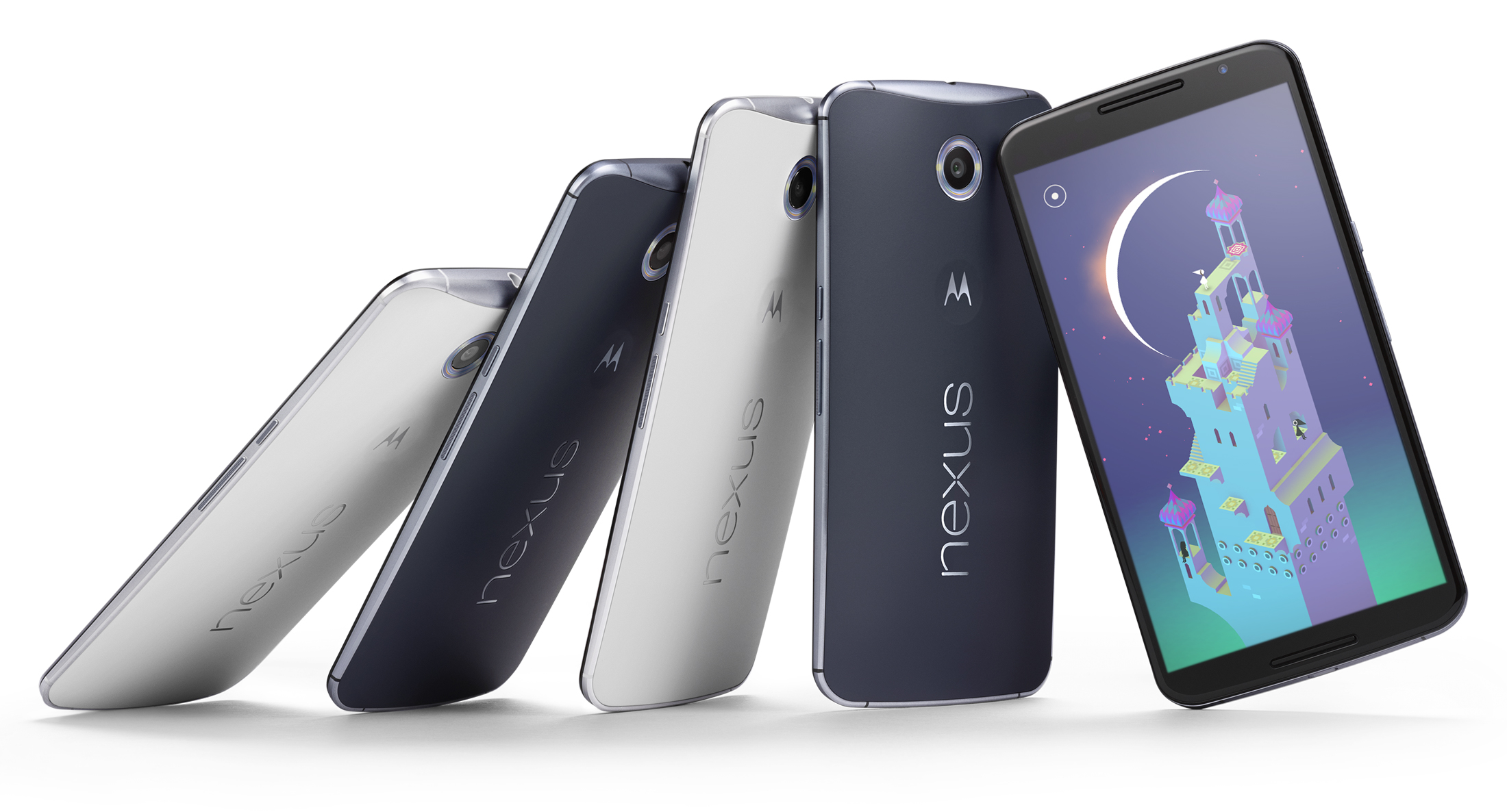
The wait is finally over. As we are nearing the end of a year that has been particularly eventful in the area of mobile device hypes, Android lovers can rejoice with one of the most awaited launches – the powerhouse that is Google Nexus 6.

As it is no surprise to the well-versed of the mobile world, the newest Nexus launch – in essence Moto X’s bigger, sleeker brother – is the first one to sport the latest Android 5.0 Lollipop operating system and has officially leapt out of the trend set by the previous Nexus devices.

It’s huge, it’s powerful, and the first smart device pertaining to the Nexus family to have also been built to be water resistant, which will be a quiet relief for most of us. Take note however, that “water resistant” is not the same as “waterproof”, so refraining from taking your phone for a swim might be a good call.

The Qualcomm Snapdragon 2.7 GHz Quad-Core processor and 3 gigabytes of RAM are beautifully contained in a 0.4 inch slim device with a shameless display of no less than 6 inches; well, alright, 5.96”. It comes in either the 32 GB or 64 GB versions, sadly with no possibility of adding any memory card to it.

nexus-6-review-phone-623-80

This Midnight Blue or Cloud White wonder however, surprises us with the price that it has been listed at: $649 for the 32 GB version, or alternatively $699 for the 64 GB, undoubtedly a courageous jump up from its predecessor’s price on launch ($349). The ambitious design definitely takes the Nexus 6 out of the modest class of mobile devices and sets it to battle the biggest names in the industry. Sure, it’s got a lot to say for itself, no doubt, but let’s see if the spiked up price can justify itself through the features it provides.

Full Specs:

  • CPU: 2.7GHz Qualcomm® Snapdragon™ 805 with quad-core CPU (APQ 8084-AB), Adreno 420 GPU
  • Memory (RAM): 3 GB
  • Storage (ROM): 32 GB & 64 GB
  • Dimensions: Height: 159.3mm ( 6.27 inches); Width: 83.0 mm ( 3.15 inches); Curve: 3.8-10.1mm (0.15-0.39 inches)
  • Weight: 184 grams (6.49 ounces)
  • Display: 5.96” AMOLED, 1440×2560, 16:9 aspect ratio, 493 ppi, Corning® Gorilla Glass® 3
  • Battery: 3220 mAh; Mixed usage up to 24 hours; Qi Wireless charging support
  • Water Resistant: Yes
  • Rear Camera: 13 MP IMX 214 Image Sensor, f/2.0 aperture, Optical Image Stabilization, Ring flash with dual LEDs, 4K UHD video capture 2160p (4K) UHD, 1080p HD and 720p HD video capture modes (30fps) 4X digital zoom, HDR+, Panorama, PhotoSphere and Lens Blur​
  • Front Camera: 2 MP
  • SIM Card: Nano-SIM
  • Connectivity: Micro USB, 3.5mm headset jack; Bluetooth version 4.1 LE; Wi-Fi 802.11ac 2×2 (MIMO)
  • Speakers: Dual Front Facing Stereo Speakers
  • Video Capture: 1080p HD and 2160p Ultra HD Video, 30fps (MPEG4, H.264)
  • NFC: Yes

Nexus 6 Design

The shockingly huge device stands out as soon as it is taken out of the box. As mentioned before, the Nexus 6 will immediately remind you of Moto X, both in shape and looks. The edge-to-edge display presents a glass insert molding with 2.5D curved glass – the best choice for all of your swiping needs and a perfect fit represented through slightly rounded glass edges around the device screen, perfectly integrating into the side metal frame.

The hard plastic back of the Nexus 6 adopts the familiar Moto class curve, making the phone comfortable to hold and fit in the palm of your hand. Surely, the mere size of the phone might make handling it two-handed a more effective way of doing it, but the materials used for the outer layer of the phone prevent slipping and ensure minimal smudging.

n6-moreeverything-1600

Outside of that, the design of the phone is simple and effective: the volume and power buttons rest on the right-hand side of the edge, the latter presenting a textured surface to easily differentiate itself from the former and prevent slipping when keeping it held down.

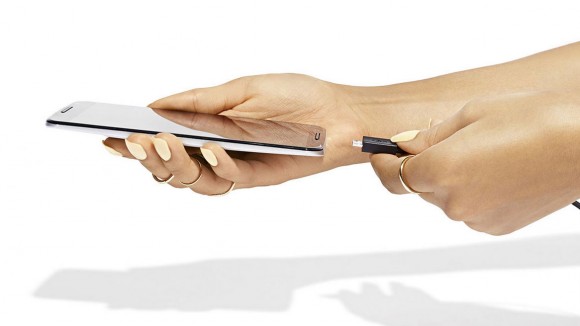
The top of the phone is home to the headphone jack, comfortably placed for your hands-free experience and the insert slot of the nano-SIM. The charging socket is a comfortable micro-USB, further supporting the ultra-thin model design of the device.

Nexus 6 Display

What is a 6-inch display without more impressive numbers to match? The Nexus 6 surely has a few things to show off with. With a more-than-decent 493 pixels per inch and 2560 x 1440 resolution, it matches most high-end LG and Samsung devices, permitting you to enjoy games and videos alike in vivid colors and 1080p HD quality.

We will admit that we’ve never been particular fans of ‘phablets’, because they are difficult to use with one hand. However, the multitude of features packed in the Nexus 6 justify the size of the device. The multi-touch display fares exceptionally well even in sunlight and doesn’t fade or blur out to the eye when the device is angled.

As a combination of utility and efficient power usage, the display does light up on partial brightness when the phone is picked up and is protected with Corning Gorilla Glass 3, making it resistant to damage without having to trade on thinness.

Is the Nexus 6 too Large?

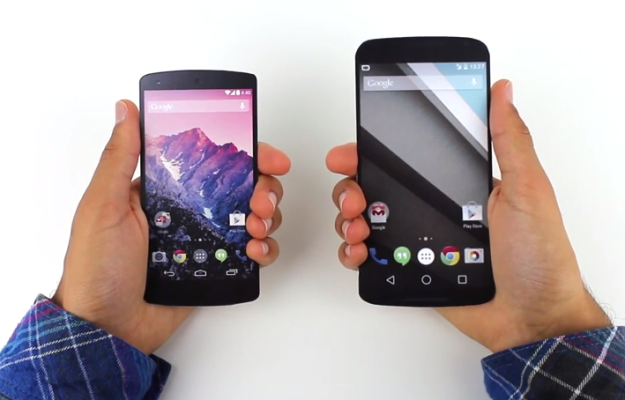
Some will say yes, while others will answer no. That’s because it ultimately depends on personal preference. If you’ve never held a smart-phone in your life you will become accustomed to the Nexus 6 with great difficulty. On the other hand, phablet enthusiasts will quickly adjust to the Nexus 6.

Also, it seems that huge devices are the latest trend nowadays (see Apple’s iPhone 6 models and Samsung’s Note line-up). We are happy that the selection extends to the Nexus 6 as well.

Camera

The rear camera is respecting itself with no less than 13 megapixels and up to a resolution of 4128 x 3096 pixels and a circular dual-LED flash meant to light up the entire area photographed uniformly. The upgrade from previous Nexus models is easily tangible in quality and a powerful zoom that will capture details with surprising accuracy and a keen fluency in video recording at the same time, at a 2160p quality with 30 frames per second.

The application accompanying the camera does not present any new, state-of-the-art particularities but will provide sufficient editing tools for a regular mobile device, a strong panorama tool and HDR capabilities.

Nexus6-Press-03-580-90

The front camera does limit itself to 1080p quality and 2 megapixels, but in terms of its regular usage, it’s still one of the strongest out there and will provide excellent video conferences, albeit grainier and more darkened when used in low lit environments.

Both cameras do however present the optical image stabilization technology and with the help of plenty editing tools available on the App Store, your Nexus 6 can easily replace a regular camera in most situations.

Nexus 6 Performance

The powerful Quad-core 2.7 GHz Snapdragon processor and 3 gigs of RAM memory, along with the dedicated Adreno 420 GPU certainly do the work and bring the device closely to the specifications of a tablet.

Unmistakably, the effort that Motorola put into this particular device brings it up to par with the most powerful mobile phones on the market right now – more specifically the Samsung Galaxy Note 4, iPhone 6 Plus and Samsung Galaxy S5 – ranking second in the Geekbench 3 benchmarking test with a score that once again nearly places it in tablet territory.

screen-shot-2014-10-03-at-12-40-21-pm

Navigation through the system is incredibly fluid, Android v5.0 Lollipop also helping out in the matter. Nexus 6 can easily run multiple applications at the same time with minimal, if any slowdown of the system, performance marginally suffering when the device is either very low on battery or nearing a full HDD – which after all is understandable for every single gadget and piece of technology out there in 2014, not just mobile devices.

The multitasking capability of the phone is made easier to explore through the familiar Recent Applications functionality and does not seem to hiccup even when put to a stress test.

In terms of connectivity, Nexus 6 has been given everything you would ever expect from a new-generation mobile device: 4G capability – including the long-term evolution (LTE) technology – dual-band Wi-Fi, Hotspot capability, GPS, Bluetooth and even the practical and on-the-go near field communication feature; the receivers are solid and thus interference reduced to a minimum.

Lastly, the device is equipped with sensors such as accelerometer, gyro, proximity, compass and a barometer to enhance the mobile experience wherever you are.

Nexus 6 Interface

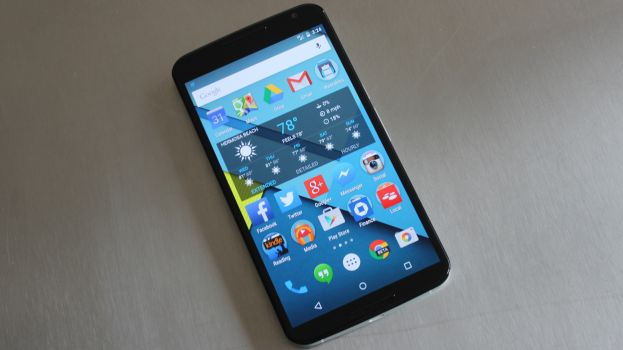
With the addition of the Android v5.0 Lollipop OS, the user interface of the Nexus 6 has kept its basic functionalities that we are all accustomed to, while giving the system a refreshed, less loaded feel. The new look sported by the latest Nexus prodigy goes under the name of Material Design, with a few modifications that we greatly enjoyed.

The interface has been slightly altered to give it a more tridimensional look, featuring shadows and ambient lights, while maintaining a flat design look for the menu itself. The functionality of the lock screen has been revamped, now presenting a drop-down like menu for the notifications, replacing the hidden swipe-down function of older Android OS versions, thus making important information easily accessible without even having to unlock your phone.

google-nexus-5-by-lg

The new notification system is highly customizable in regards to the type of alerts you want your phone to prioritize, means of notifying and even muting said notifications for pre-determined periods of time.

Quick Settings are easily accessible by typing the keyword of what you are looking for, and many other clumps of information have been finally made easier to view rather than being forced to navigate through multiple sub-menus to find out your current memory or network usage.

Certainly, this is mostly on behalf of the new operating system that comes with the device, but the specs of the device run in perfect tandem and are subject to improvements and optimizations via the constant updates that Google does not hesitate to deliver. They are onto a new approach to interacting with your mobile device and Nexus 6 is a living proof.

Nexus 6 Battery

Nexus 6 is equipped with a 3220 mAh battery that stands out through overall battery life but still will encounter medium amount of time you can spend happily tapping away at your mobile phone before you will have to look for a power socket. The battery is however sealed away in the phone and cannot be removed and/or changed, unlike almost all of the Android predecessors. The operating system has put emphasis on battery optimization itself and has so far received highly positive feedback.

We kept the best for the last. Qualcomm has come up with a very clever piece of technology, which luckily is included in this device. They call it QuickCharge 2.0 and basically allow you to ensure at least 6 hours of battery life in only 15 minutes of charging using the special adaptor.

This charger comes included in the package so no additional expenses for this nifty gadget are even necessary. So if you expect yourself to be heavily using your phone, keeping this portable charger with you can turn out to be quite the life saver.

Nexus 6 Verdict

Though it was originally rumored that the Nexus lineage was going to come to an end after the Nexus 5 launch, reality turned out to be quite the opposite, Motorola surprising us with what turned out to be a top competitor for high-end devices on the market right now.

The price of this miracle worker may be worrisome for some, but in the end it still falls short in comparison to other devices of same statistics and capability. For those who are worried about device size, Google promises that one week with the 5.96-inch display will help users adjust and never want to go back to a smaller device. Ultimately, it falls down to personal preference and expectations from the phone that will follow you around for a while.

nexus-6-review-phone-623-80

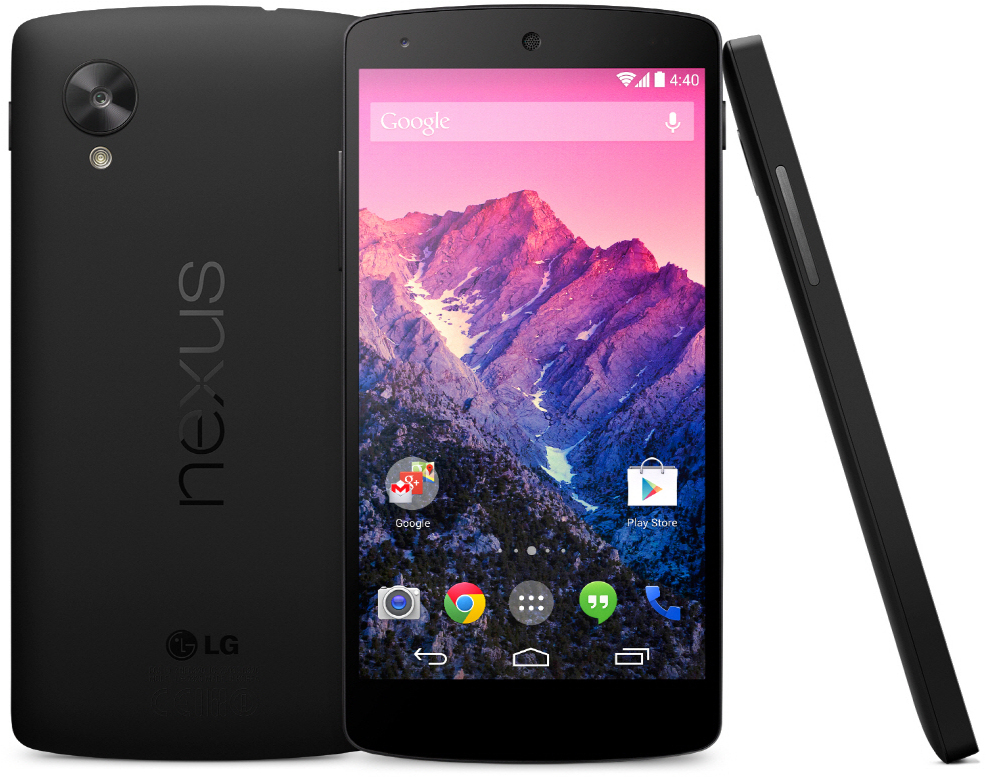
In our opinion, everything about the Nexus 6 is better than previous models. Its predecessors, the Nexus 5 and 4, were designed with usability and affordability in mind. Motorola decided to step up its game and provide with a smart-phone that could easily compete with other high-end models on the market. It succeeded beautifully.

So as a last note, here’s a list of pros and cons we could gather after a close look over everything that the Nexus 6 has to offer.

Pros:

  • Sleek design and maneuverability;
  • High-end hardware specifications;
  • Excellent display for media and applications;
  • Fast-charging technology;
  • Superior camera capabilities;
  • The first host of the new and improved Android v5.0 Lollipop OS

Cons:

  • The price range that it falls into is not as accessible as Nexus fans are accustomed to;
  • The size can prove to be a disadvantage as well;
  • Changes to functionalities might prove to be harder to deal with in the beginning;
  • Battery life is better than predecessors but still average.

This concludes our review of the Nexus 6. Do you own such a device? Have you had the chance to play around with it? We would love to hear your impressions about it in the comment box below.

Filed Under: Tech & Science Tagged With: Google, Google Nexus 6, Nexus 6, Nexus 6 review, Review

Subscribe to Blog via Email

Enter your email address to subscribe to this blog and receive notifications of new posts by email.

Join 10 other subscribers

Recent Articles

police handcuffs man

German Man Probed In Poisoning That Killed 21 Employees Since 2000

June 29, 2018 By Kenneth Scott Leave a Comment

Chicken wings bar

Intoxicated South Carolina Man Punches Waitress Who Refused to Serve Him Alcohol

June 29, 2018 By Karen Jackson Leave a Comment

gaming

New Zealand gamer Who Flew Halfway Across The World for Virginia Teen Gets Shots By Her Mother

June 28, 2018 By Cristopher Hall Leave a Comment

party

Former Virginia Tech Freshman Sentenced to 50 Years in Prison for Stabbing a Girl to Death

June 28, 2018 By Roxanne Briean Leave a Comment

bonfire

British Couple Sentenced to Life in Prison for Torturing and Murdering French Nanny

June 27, 2018 By Deborah Campbell Leave a Comment

pay phone

Texas Father of Girl Disappeared in the 80s Ignored by Authorities

June 26, 2018 By Cristopher Hall Leave a Comment

bottled water

San Francisco Woman Threatened to Call Police on Girl Who Sold Ice Water for Disneyland Trip

June 25, 2018 By Roxanne Briean Leave a Comment

Maplewood Park

Missouri Man Robbed by Date and Accomplice in Park

June 22, 2018 By Nancy Young Leave a Comment

coding

New York Man Sentenced in Cyberstalking Former Girlfriend, Mailing Drugs to Her Dorm

June 22, 2018 By Deborah Campbell Leave a Comment

headphones

Bose Poised to Launch Sleepbuds, In-Ear Headphones That Help You Sleep

June 21, 2018 By Nancy Young Leave a Comment

Police light

Intoxicated Female Driver in Custody for Pulling Arresting Officer by the Hair

June 21, 2018 By Kenneth Scott Leave a Comment

kitchen

Restaurant Manager Arrested and Charged in Shooting Death of Co-Worker over Negative Yelp Reviews

June 20, 2018 By Karen Jackson Leave a Comment

plastic container

Pennsylvania Couple Charged in Violent Death of Infant Discovered Buried in Cat Litter

June 19, 2018 By Cristopher Hall Leave a Comment

tailpipe

Minnesota Teen Gets Head Stuck In Oversized Tailpipe Winstock Music Festival

June 18, 2018 By Karen Jackson Leave a Comment

Pages

  • About Us
  • Contact us
  • Privacy Policy
  • Privacy Policy GDPR
  • Staff
  • Terms and Conditions

Recent Posts

  • German Man Probed In Poisoning That Killed 21 Employees Since 2000 June 29, 2018
  • Intoxicated South Carolina Man Punches Waitress Who Refused to Serve Him Alcohol June 29, 2018
  • New Zealand gamer Who Flew Halfway Across The World for Virginia Teen Gets Shots By Her Mother June 28, 2018
  • Former Virginia Tech Freshman Sentenced to 50 Years in Prison for Stabbing a Girl to Death June 28, 2018
  • British Couple Sentenced to Life in Prison for Torturing and Murdering French Nanny June 27, 2018
  • Texas Father of Girl Disappeared in the 80s Ignored by Authorities June 26, 2018
  • San Francisco Woman Threatened to Call Police on Girl Who Sold Ice Water for Disneyland Trip June 25, 2018

Categories

  • Business
  • Entertainment
  • Finance
  • Headlines
  • Health
  • Life
  • Nature
  • Science
  • Sports
  • Tech & Science
  • Travel
  • Uncategorized
  • United States
  • World

Copyright © 2026 ArgyllFreePress.com
About · Privacy Policy · Terms of Use · Contact