Argyll Free Press

Growing News Network

Tuesday, January 20, 2026
Log in
  • Business
  • Finance
  • Sports
  • Tech & Science
    • HP Envy 4500 Review
    • LG Optimus 170 Review
    • iPod Touch 6th Generation Review
    • HTC One M8 Accessories Set-up
    • Surrealist Games You Must Play
    • Hisense Sero 8 Review
    • Dell Latitude e7440 Review
    • HP Laserjet 1536dnf mfp Review
    • Garmin Fenix 2 Review
    • Skype Vs Viber
    • Best Video Conferencing Software
    • Sony mdr 1r Headphones Review
    • Canon Rebel t3i Review
    • Sennheiser Momentum 2-0 Review
  • Travel
  • Headlines
  • Health
  • United States

Chromebit HDMI Stick Finally Launched by Google and ASUS

November 17, 2015 By Roxanne Briean Leave a Comment

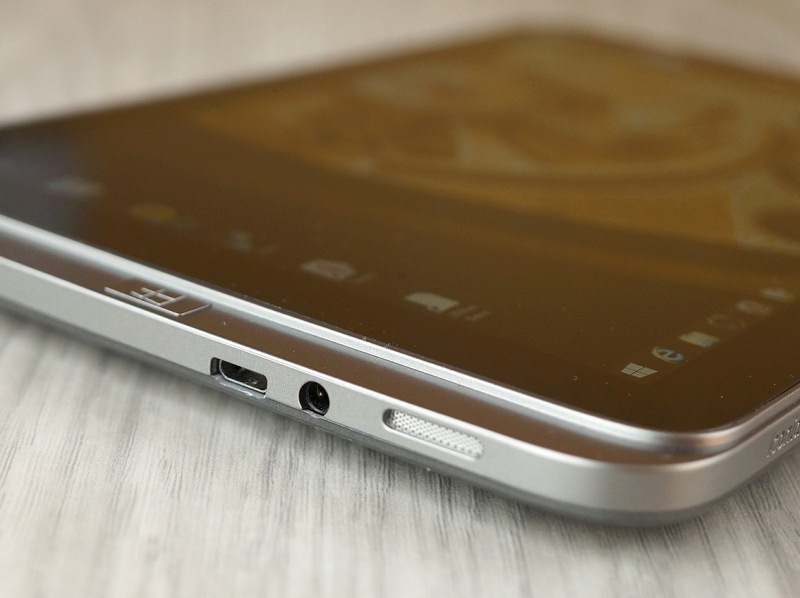
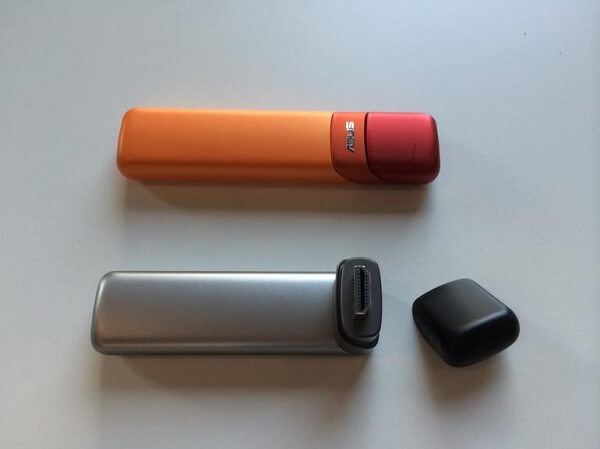
Chromebit HDMI stick is developed by ASUS and Google

The Chromebit HDMI stick, which is basically a Chrome OS-based tiny computer on a stick, has finally launched. It costs $85 and it was developed by two tech industry giants – Google and ASUS.

It weights 75 grams, that is 2.6 ounces, and you can stick the Chromebit into any HDMI port – you can hook it to a large TV screen, or the average computer monitor. Regardless of what you choose, it just needs to have an HDMI port. It has 16 gigs of internal storage – slow and cheap eMMC storage, however; and 2 gigs of RAM.

In more than one way, it resembles the old Chromecast OS on a stick. Yet, the Chromebit is larger and bulkier. It ships with its very own charger, and it has a built-in USB port, unlike the old Chromecast.

You can find it in two colours – Tangerine Orange and Cacao Black. Yet, I don’t find a motive for picking colours for this kind of product. It will most certainly disappear behind your screen. Considering this, I don’t even understand why there’s a bright orange model.

The USB port is a great addition. Owners can pair the stick with a Bluetooth keyboard and mouse. You can also hook wired peripherals to the Chromebit. Given that USB hubs exist, owners could very well connect multiple devices to it.

It’s best used in the edu district – read, schools; call centers and enterprises that require web based apps for their day-to-day work. The Chromebit can very well turn your living room into a tight media center as well. Also, considering that it can turn any screen into a modern app boutique, hotels and stores can take full advantage of the Chromebit HDMI stick.

Don’t expect a power-house. Its quad-core Rockchip SoC, which is the life-line of the stick, isn’t designed with performance in mind. It is aimed at outputting a reliable and easy to get into experience.

Chromebit will be available in the U.S. at Fry’s, Amazon and Newegg. Quite interesting, Best Buy, which is Google’s old Chrome OS buddy, isn’t part of the list of vendors – at least, for the moment.

The Chromebit HDMI stick will be available in the UK, Canada, Australia, Denmark, Japan, Finland, Norway, New Zealand, Sweden, Spain and Taiwan also.

Google is constantly finding new ways to alleviate the burden of not having a PC. With the Work and Education service, customers can opt it for the new single-app kiosk mode for $24 a year, per user.

Yet, Google for Work and Education is only available in the U.S. and Canada.

Image Source: 1
Filed Under: Headlines Tagged With: asus, Chrome OS, Chromebit, Chromebit HDMI stick, Google, HDMI stick

Google and ASUS Release A New OnHub Wireless Router

October 30, 2015 By Deborah Campbell Leave a Comment

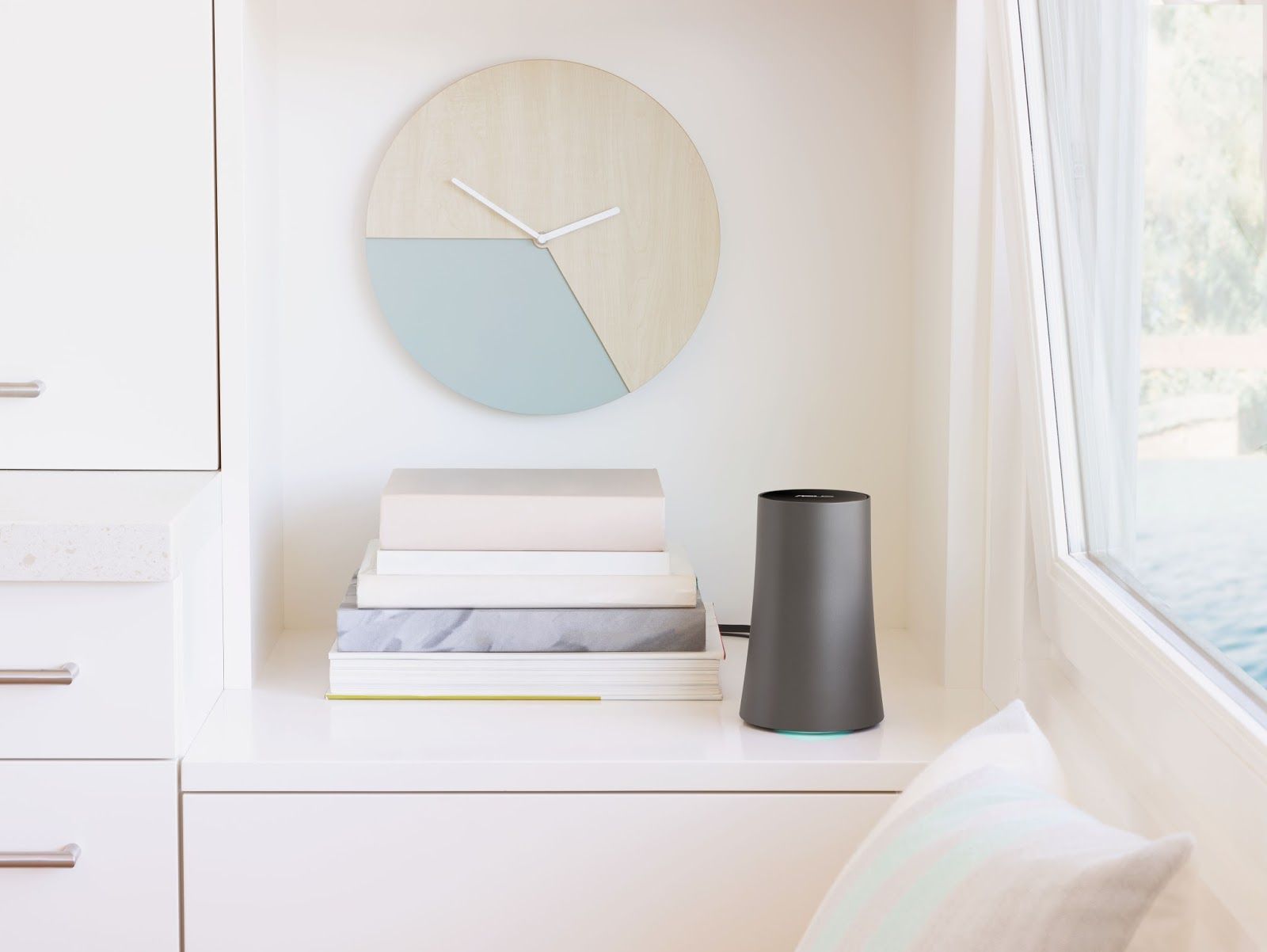
The New OnHub Wireless Router from Google in partnership with ASUS was released.

Google has just released a second OnHub wireless router in what is envisaged to be a “growing OnHub family”, as the company states on its website. This time, their partners were ASUS, while the first OnHub wireless router was created in partnership with TP-Link and released this past summer, in August.

That first one represented a bold step forward as regards design and functionality. Because due to its minimalist design and sleek vase-like appearance it means it does not have to be placed out-of-sight. Like regular routers tend to be, in an attempt to hide what many homeowners consider ugly antennae and messy cables sprouting from them like the tentacles of a small alien kill-bot.

From a functionality point of view, this first OnHub was created with the purpose of having an easy to setup, mobile app controlled router that can better manage the wi-fi signal distribution to all your devices in accordance with their actual needs, as opposed to traditional routers which use proximity to them as the criteria.

So, the first OnHub’s fixed that problem by allowing you to prioritize a single device, making sure it gets the fastest speed as well as sporting a front-facing antenna reflector that could boost signal range in that direction.

So if the first OnHub did that, why did Google and ASUS release a new OnHub wireless router so soon?

Because this new version, apart from having all the general characteristics of its predecessor, replaces its one direction boost approach to the signal distribution problem with an even better one. You can now boost wi-fi on any particular device with a wave of the hand over the top of the unit, giving you complete control which device you boost, not just in one direction, but wherever it is in the house at the time.

And even when not boosting a particular device, the new OnHub wireless router “will intelligently select the best combination of antennas to direct Wi-Fi to your devices, based on their location and orientation” using proximity sensors.

The unit comes with a power adapter and an Ethernet cable. Once powered and with the Ethernet cable connected to your Internet-giving source, all you have to do is install the Google On app and set up the router (easily done).

After that, the Google On app takes care of everything. It shows you your network’s status: if everything is working ok (and suggestions to help if not), how many devices are connected, how much wi-fi they each use. With one tap, it reveals your password and “lets you text or email it to friends”. And it automatically updates your router software “when your network is quiet so it won’t interrupt your connection”.

OnHub ASUS sells for 219.99 $ and can connect up to 128 devices at one time.

Image source: 1.

Filed Under: Headlines Tagged With: asus, Google, Google OnHub, Google OnHub ASUS, Google second OnHub, new Google OnHub ASUS

Asus ZenFone 2 With 4GB of RAM, 16GB Storage Costs $229

September 21, 2015 By Nancy Young Leave a Comment

Asus ZenFone 2

Asus ZenFone 2 is the first smartphone to house 4 gigs of RAM

If you’re looking for a cheap mid-range smartphone, then the new variant of Asus ZenFone 2 might tickle your fancy.

The new Asus ZenFone 2 variant houses 4 gigs of RAM, 16 gigs of internal storage and it costs $229.

Previously, the Taiwanese-based phone manufacturer had only two ZenFone 2 models. According to tech-reviewers it has a great price to value ratio and it offers exactly what Asus claims their smartphone can do.

  • For $199 you can get an Asus ZenFone 2 with 2 gigs of RAM and 16 gigs of internal storage;
  • For $299 you can get an Asus Zenfone 2 with 4 gigs of RAM and 64 gigs of internal storage.

Their new smartphone is a blend between the two – the new $229 model packs the built-in storage from the cheaper version, but adds more RAM. Reviewers note that it’s the cheapest smartphone that houses 4 gigs of RAM.

The new Asus ZenFone 2 model touts a few different specs also.

For starters, it has the same  quad-core 1.8GHz Intel Atom Z3560 CPU as Asus’ ZenFone 2 ZE551ML – which was recently unveiled in India.

The ZenFone 2 new variant comes equipped with a dual-Sim capability and microSD card support. It has a 5.5-inch full HD IPS display, protected by Corning Gorilla Glass 3.  It has a 3000mAh power-unit and its main camera consists of a 13-megapixel unit.

The smartphone’s secondary camera unit boasts 5-megapixels.

The product description for the Asus ZenFone 2 notes that the company’s new smartphone was designed with the user in mind. It has a completely new layout and a physical rear key, which is part of the product-line’s new Ergonomic Arc design.

Everything comes natural now – selfies, lowering or increasing volume, searching for websites and more. All of this can be easily done regardless of the user is left or right-handed.

ZenFone 2 versus Note 4

ZenFone 2 versus Note 4

The ZenFone product line will include new variants that Asus showcased at this year’s IFA event. In the near future, the company will add: Deluxe, Max, Laser, Selfie, and Zoom.

The Deluxe version, which is the line’s top-notch device, has a staggering 256 gig of internal storage built-in. Yet, if you’re living in North America don’t get your hopes too high. The Deluxe variant is only available in Brazil. For what reason, we don’t know at the current moment.

What we do know is that 2015 is witnessing a surge of cheap mid-range smartphones that destroy the trend of buying a flagship smartphone. Take a look at the ZenFone line, but more importantly take a look at the OnePlus 2 flagship killer.

Why would you want to buy a $700 smartphone when you could pay almost half and get the same performance out of a mid-range device?

Image Source: 1, 2

Filed Under: Headlines Tagged With: asus, Asus ZenFone 2, ZenFone, ZenFone 2

The Top Tablets That You Can Buy Right Now!

May 21, 2015 By Michael Turner Leave a Comment

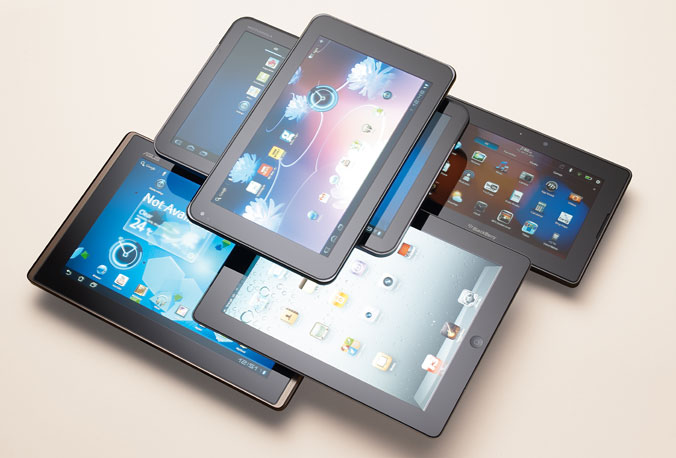
The Top Tablets Available Right Now

A couple of weeks ago we wrote a quick list of affordable laptops that you can buy in 2015, and I think this is the perfect time for a round-up for the top tablets that are available right now!

Whether you’re on a budget, or you want to throw money at retailers, you’ve come to the right place.

In an era where everyone has to get their information as soon as, possible people tend to buy a device that won’t suit their needs. You don’t just go out and buy a tablet, or a smartphone, you do some research before, read a couple of reviews, and settle on one that you think it’s best for you – don’t impulse-buy devices just because you love how they are designed; sure, it does matter, but in the long run, you want a tablet that won’t need to be recharged 2 times a day.

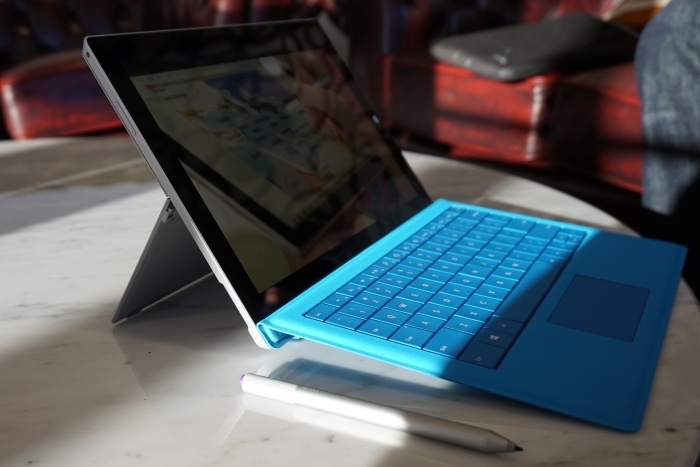
The Top Tablets #1 Microsoft Surface 3

The Top Tablets #1 Microsoft Surface 3

Is Microsoft’s third iteration of its Surface line good? Well this reviewer thinks so. It seems like Microsoft has learned from past mistakes, and it’s starting to listen more and more to consumers. It’s a hybrid actually, but the team behind the Surface 3 has developed it with tablet specifications in mind – but this doesn’t mean that it won’t work pretty great as a low-end laptop.

The display is its strong point – a beautiful bright, and crisp glossy IPS display will have no problems on a sunny day, and it makes surfing the web outside a pleasure. The Windows tablet is 10.8-inches in size, and at 1920 x 1200 pixel-resolution it allows the user to enjoy movie marathons without a problem – there is no issue with viewing angles, so you don’t need to worry sitting in bed all day and binge watching Netflix series.

The display is incredibly responsive, and offering a full 10-point multi-touch you can rest assured that it’s going to be as easy as pie surfing the web, and playing video-games.

If you’re an avid traveller –  whether it is business related, or pleasure, you definitely need a variety of ports. The Surface 3 sports a MiniDisplay port, a micro SD card reader, headset jack, a cover port, and a micro-USB charging port. Unfortunately it doesn’t have a USB Type-C port, and Microsoft has decided to go with a USB 3.0, but maybe they’ll jump on the band wagon with their next installment.

The Top Tablets #1 Microsoft Surface 3

If you’re tired of looking at the small screen, you can also connect your device to a big HD TV using its HDMI port.

The detachable-keyboard is kinda sluggish, and I have had some problems with it, but nothing serious. Although, if you’re not used to typing, you’ll find it a little bit frustrating. The keys are narrowed, and this makes them feel more cramped, but at least the trackpad is decent.

The Microsoft tablet, pardon me, hybrid, will come with a built-in Windows 8.1, go figure, and you’ll have the possibility of upgrading your OS to Windows 10 for free when the time comes.

  • Specs

– Quad Core Intel Atom x7-78700 processor with 2MB Cache, 1.6GHz turbo boost to 2.4GHz

– Integrated Intel HD Graphics

– 4 GB of RAM

– 128 GB of flash memory

Pretty great considering it’s about $500. You’ll definitely not use it to play GTA V, or the just released Witcher 3: Wild Hunt, but you don’t buy a hybrid for gaming, you buy it because it’s super portable, and because the battery will last you long enough to fulfil your day to day tasks.

The Top Tablets #1 Microsoft Surface 3

This isn’t to say that you can’t play out-dated video-games. I installed Team Fortress 2 to see if I can make it work, and what do you know? It played smooth at 30 fps with all the graphics settings set on low. Sure, it looks kinda ugly, but yet again, you don’t buy a hybrid for gaming – at least, not yet.

Talking about battery life, I managed to squeeze almost 10 hours out of it, meaning that if you use it all day, you will have to recharge it before you go to sleep.

I’m all for super-thin devices, but what about some love for battery longevity?

Anyway, the Surface 3 has two cameras. The rear facing 8-megapixel camera has autofocus, and its quality output is more than enough for Facebook shares. Its front facing camera is set at 3.5-megapixels. It’s okay’ish for Skype and such, but I wouldn’t praise it being the best camera on the market.

The Top Tablets #1 Microsoft Surface 3

The tablet computer has built-in speakers that are loud enough if you plan on watching movies without using headphones.

I’ve seen it in stores for the low price of $500.

  • Pros

– Top-notch display

– Quality build

– Super-portable

  • Cons

– Uncomfortable keyboard

– Low storage space

– Mediocre front-facing camera

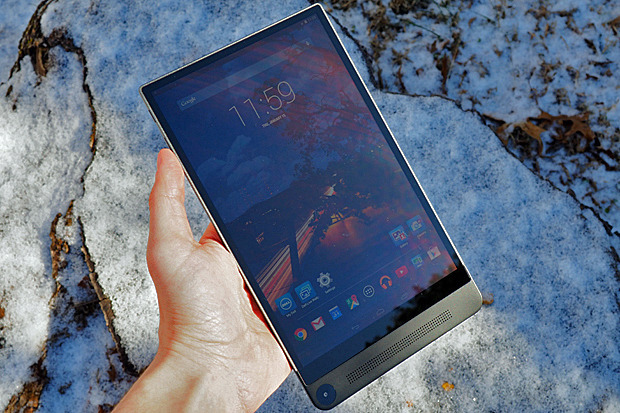
The Top Tablets #2       Dell Venue 8 700

The Top Tablets #1 Dell Venue 8 700

If you’re looking for cheap tablets, then you should consider looking into the Dell Venue 8 700. It’s $400, and guess what? It’s the titled holder for the World’s Thinnest Tablet, but there is more to it than just its title – beautiful design, and great performance output from a device so cheap.

Even though it’s considered the world’s thinnest tablet you should know that its challenger, the Samsung Galaxy Tab S 8.4, is marginally thicker.

Design-wise Dell deserves some applause – I don’t really know why I love it so much, but something speaks to me when I’m looking at it, or holding it.

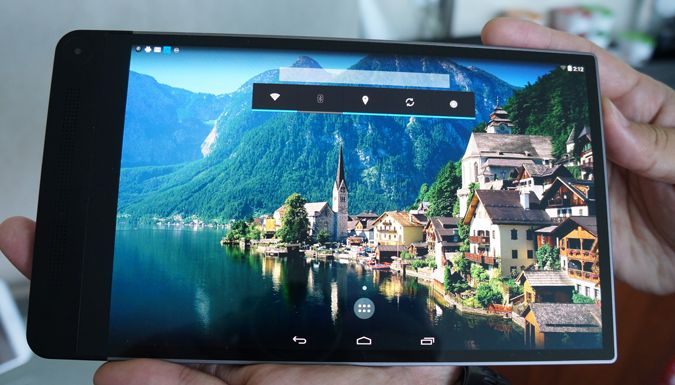
The Dell tablet sports a 8.4-inch OLED display that can output a 2560 x 1600 resolution at 361 ppi – seriously not bad, and it overpasses the previous discussed Surface 3 hybrid.

Dell’s edge-to-edge display is quite a marvel on their part, and I seriously can’t understand why the tablet is priced at just $400. There must be something wrong with it. What’s the catch? Fortunately there isn’t really one. Although it sports a 361 ppi, when you try to use it during a sunny day you’ll have some issues with it, but readability is still over the average rankings.

The Top Tablets #2 Dell Venue 8 700

It features Intel’s Sensing Assist, but you may want to turn it off because it can suck your battery dry – Sensing Assist wakes the device from its dormant state when it senses motion, but it isn’t that great. Let’s say you want to move the tablet from point A in your bedroom to point B in the kitchen for whatever reason. You don’t want it to turn on just because you change its place in the house.

It runs a stable version of Android 4.4 KitKat, and you can upgrade its software to 5.0 Lollipop. It will still run smoothly – no problems in this department.

Although the majority of tablets on the market have moved to Qualcomm Snapdragon processors, Dell still uses Intel as its primary chip-maker.

  • Specs

– Intel Atom Z3580 quad-core 2.3 GHz 64-bit processor

– Imagination PowerVR G6430 graphics chip

– 2 GB of RAM

– 16 GB of storage space

Don’t leave just yet! Yeah, it had 16 GB of storage, and the tablet’s user will most likely have 10 GB available, but you can add up to 512 GB of extra storage through its micro SD slot.

The Top Tablets #2 Dell Venue 8 700

It’s not the best tablet on the market if you take performance into consideration, but for $400 the quad-core 2.3 GHz processor paired with that GPU, and 2 GB of RAM is more than decent. I can give you this, 2 GB of RAM is fairly low considering that the majority of tablets sport 3 GB or more, but it does its job well, and you won’t see any performance issues like lag, or sluggish surfing.

Now its battery life falls a little bit short, and it can only last up to 9 hours, but that’s because Dell sacrifices a couple of things in order to make it super-portable and super-thin.

I have said this countless times over to my friends – stop using your tablet to take pictures, it just looks ridiculous. More so, if you plan on going to a concert, for the love of whatever you think is holy don’t be that guy who takes pictures using his tablet – last time I went to an event, someone from the crowd threw a beer at the doofus with the tablet. He deserved it!

The Top Tablets #2 Dell Venue 8 700

Now, you got 4 cameras, and they take advantage of Intel’s new RealSense Snapshot Depth Camera technology. The rear facing camera stands at 8-megapixels, but it’s surrounded by two other 720p shooters. The front facing camera sports a 2-megapixel output, and I don’t really recomend it for Skyping.

I found myself obstructing the cameras with my big hands, so be warned. If you have clumsy big sausages for fingers like me, you’ll have some issues taking that perfect photo.

I’ve seen it in stores for the low price of $400.

  • Pros

– Beautiful display, and its ppi is just astounding

– Pretty great camera

– Super-thin 

  • Cons

– A little bit slower than other tablets on the market

– Really low storage space

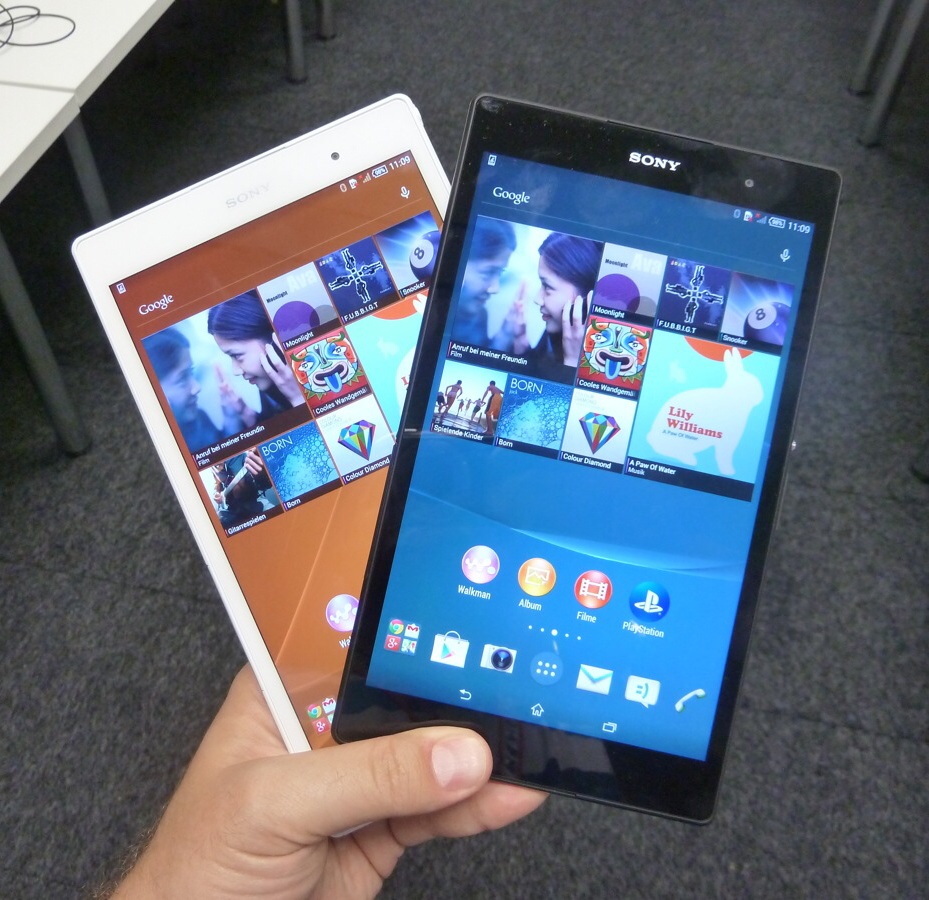
The Top Tablets #3         Sony Xperia Z3  

The Top Tablets #3 Sony Xperia Z3

At first touch the Sony Xperia Z3 looks, and feels like a 2013 device, but that’s just because Sony thinks it should push down our throat their somewhat out-dated design. It costs about $600, and for this price you may be swoon by a certain Samsung Galaxy tablet – the 8.4 S model. But before you make your final decision, you should know that the Xperia Z3 has some aces in its sleeve.

One of the device’s selling points is that you can hold it easily in one hand – it makes the perfect tablet for kids too. Secondly, it’s waterproof, so no need to worry about taking your tablet with you to the local pool, and coming back home heartbroken – it uses rubber seals on all of its ports, except for its headphone jack, which is already specially treated.

I just love how it looks, and because it’s so thin and small – not the smallest though; it can fit easily in your backpack, or purse.

The Top Tablets #3 Sony Xperia Z3

To me, its design inspires high-tech, more than the covered in aluminium iPad Mini 3. Even though it’s entirely made out of plastic it’s the good kind, not the cheap and tacky one. It also feels good to the touch – better than the Nexus 9 if you want a comparison.

There are some little bits of metal here and there, especially on its corners – probably to save it from utter destruction if mister clumsy hands over here drops it. I haven’t performed this test, so please don’t throw your tablet at the wall.

The 8-inch LCD screen stands at 1920 x  1200 resolution, but it’s really not that crisp, and clear like others at the same price range. It suffers from poor viewing angles, and I don’t recommend you using it on a sunny day in the park – readability is really low, and you’ll just annoy the living hell out of yourself trying to find that perfect place with shade.

The Android tablet comes with a built-in 4.4 KitKat, but you can easily upgrade it to 5.0 Lollipop.

  • Specs

– Qualcomm MSM8974AB Snapdragon 801 Quad-core processor 2.5 GHz Krait 400

– Quad-core 2.5 GHz Krait 400 graphic chipset

– 3 GB of RAM

– 16 GB of storage space

You can add more storage space by adding a micro SD card up to 128 GB.

More RAM, and a better processor than the previously discussed Dell Venue 8 700 doesn’t make it the best tablet, but you surely won’t experience lag, or any performance issues.

The Top Tablets #3 Sony Xperia Z3

The top-shelf processor, paired a quad-core graphic chipset, and 3 GB of RAM makes it a beast when it comes to gaming, and the 1080p screen is stands tall, even though is not the best one.

Before they launched it, Sony was praising themselves that the Xperia Z3 will last about 15 hours. I almost immediately started to ridicule them and send them letters with only Liar, Liar pants on fire written in the body. Gee, can you imagine how humiliated I was after I tested it, and figured that it can last more than what they’ve stated? Almost 16 hours of battery-life time make it one hell of a behemoth.

Its 8-megapixel rear facing camera matches the quality its challengers can output, and it actually shoots pretty great photos come to think of it. I wouldn’t frame any of them, and nor would I go out of my way to show them to my friends, but for Instagram, Facebook, and Twitter is more than enough.

The Top Tablets #3 Sony Xperia Z3

The secondary camera is a measly 2.2-megapixel unit – as I said before, don’t expect high quality Skype video calls.

The actual selling point for this device is the fact that it supports PS4 remote play. A very limited number of Android devices support PS4 Share Play, thus making it one hell of a device for gamers if you have a PS4. You can easily connect a DualShock 4 controller to the tablet, and just stay in bed all day long playing Call of Duty, and telling your enemies, or team-mates about how many sexual relations you’ve had with their mothers.

I’ve seen it in stores for the low price of $600.

  • Pros

– Superb battery life

– PS4 Share Play

– Super-thin and super-portable

  • Cons

– Its screen is not that great

– Somewhat out-dated design

– Horrible secondary camera

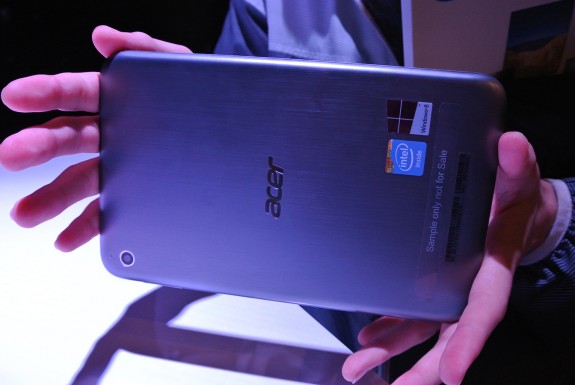
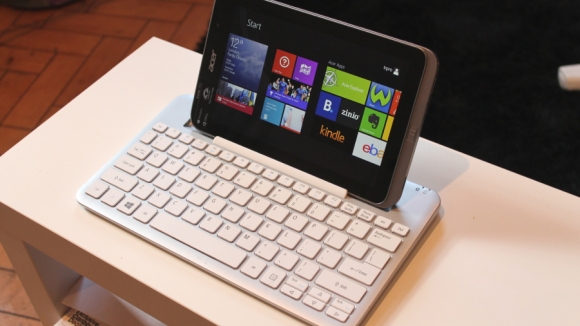
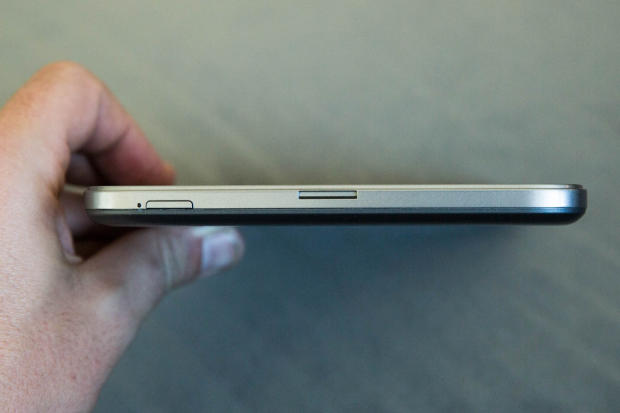
The Top Tablets #4         Acer Iconia W4

The Top Tablets #4 Acer Iconia W4

One of the cheapest tablets for sale – and I think I’ve even found it in the Walmart tablets section; the Acer Iconia W4 is set at an astonishing low price of $350!

Sure, there are different models that offer more storage space, but the entry level one is a must-buy.

Last year’s W3 was the first 8-inch device to feature Windows 8.1, but it it didn’t do it good – actually it was kinda’ horrible if you think about it. Grainy low quality display, and a low performance processor managed to offer a poor experience.

The Iconia W4 has polished all of its older brother’s failures, and it made major improvements in key areas where W3 fell short.

Some think of it as highly evolved, but I really don’t applaud it that much. Sure, it learned from past mistakes, but has it seriously improved that much in order to fight in the tablet pits? I don’t think so.

The Top Tablets #4 Acer Iconia W4

Don’t get me wrong, I think it’s pretty great, and at $350 if you have never experience a high-end tablet before, you should definitely buy it. More so, you should definitely buy it if you’re looking for budget tablets.

The Ace Iconia W4 received mixed to positive tablet reviews mostly because it was launched at the right time, at the right price. It features a 1280 x 800 pixel resolution on the 8-inch device – it didn’t receive the award for best tablet of 2014 that’s for certain. It’s a tried and test resolution that seems to work for Acer. I, for one, don’t really like it that much – maybe because I’m accustomed to high-end devices.

At 186 ppi it falls behind the average tablet, and the display just doesn’t cut it – don’t plan on using your device outside. Readability is inexistent.

  • Specs

– Intel Atom Z3740 Quad-core processor 1.33 GHz

– Intel HD Graphics

– 2 GB of RAM

– Standard Edition comes with 32 GB of storage

You can’t add any more storage space, but the built-in storage is actually a SSD, and it works pretty fast.

You definitely won’t be using it for HD gaming, but it can run almost anything on the store. You’re going to have some minor performance issues because it only features 2 GB of RAM, and the processor even though it works on 4 cores it doesn’t make up for its speed – 1.33 GHz is really low.

The Top Tablets #4 Acer Iconia W4

I’ve experienced lag after opening up more than 4 apps – it eventually lead the tablet to freeze, and I had to restart it. Didn’t liked it one bit.

I tried to install a couple of games on it, to see if the device can at least start them. Skyrim was my first choice – I know, I was reaching for the sky, but guess what? At the lowest settings, and resolution it run at 15 fps. It’s unplayable I know, but it surprised me. Afterwards I decided to have a little bit more confidence in the little Iconia so I installed Left4Dead. Pleasantly surprised that it reached a peak of 20 fps, but when multiple zombies flooded the screen it went down to 10. It was an enjoyable experience until the undead horde attacked.

The last one that I tried out was Valve’s Counter-Strike: Source – 20-25 fps on average, but if a flash-bang, or a grenade goes off near you, you’re dead – not from the damage, but from the screen freezing instantly. You could try to play with bots, but no on-line play, unless you want your team to constantly yell at you.

The Top Tablets #4 Acer Iconia W4

Acer said that the W4 will last up to 10 hours of usage – I proved them wrong. It completely died after almost 8 hours and 30 minutes. Not much, and it ranks on the same level with other average tablets.

Iconia W4’s rear primary camera is actually great – even if it stands at 5-megapixel. It may be sub-par to what you’re used to, but don’t let the low number unit fool you. In the right settings it takes some awesome photos – crisp, and well-saturated images. It does have its issues in low light conditions.

It can also take video footage at 1080p at 30 fps – not bad young one.

The secondary front-facing camera is another story though. Lowering the number to two, the small camera unit can only be used for Skype video calls, and even then it will output low quality.

The Top Tablets #4 Acer Iconia W4

Why am I even recommending or adding it to our list? Fair and simple. It’s the best entry-level tablet, and at $350 it’s one of the cheapest devices.

I’ve seen it in stores for the low price of $350.

  • Pros

– Low price

– Windows 8 tablet

  • Cons

– Performance issues

– Low resolution

– Horrible secondary camera

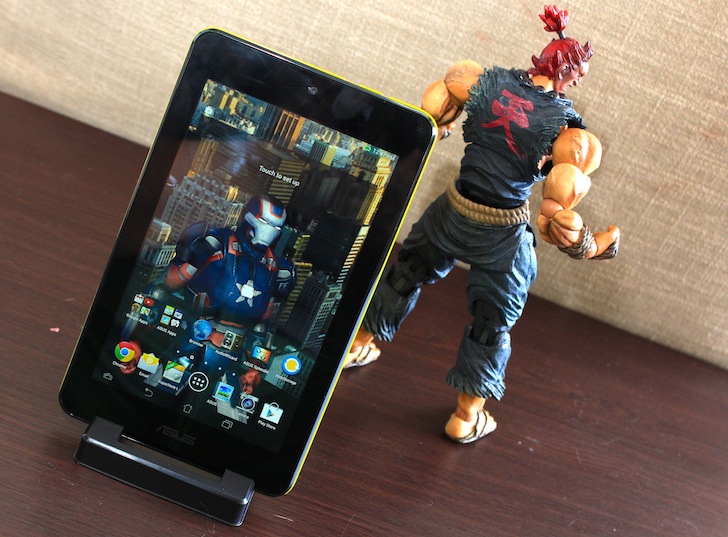
The Top Tablets #5           Asus Memo Pad HD 7

The Top Tablets #5 Asus Memo Pad HD 7

This Asus tablet has a MSRP of $120, and by partnering with Google, Asus went from unreliable tablet manufacturer to the de-facto leader in the small tablets market. Low price, awesome capabilities, and world-wide availability made the Memo Pad HD 7 one of the best 2014 tablets.

You may think of me as an insane man, but I really do love this so-called Google tablet. What’s to hate?

It weighs just about 302 grams, and the 7-inch IPS LCD screen outputs a 1280 x 800 resolution at 216 ppi – more than the Acer Iconia W4 which is almost three time its price.

The tablet is made out of slippery plastic – it was constantly dropping out of my hand in the first day, or so; luckily I’m quite a bright man, and figured the issues as soon as I put my hands on it. Slippery plastic means cheap plastic, which eventually leads to a horrible slimy feeling. In order to not utterly destroy your device, I highly recommend you grip the tablet with both of your hands.

The Top Tablets #5 Asus Memo Pad HD 7

Moving on to the 7-inch IPS LCD screen – it’s crisp, and sharp, and you can try to use it on a sunny day. Since it has 216 ppi you’ll be able to read off of your device, but at the same time, you’ll be struggling with it. Find a shade covered bench, and you’ll have no problems. The colours seem to favour a yellow-ish tint, but there are no major complaints that I know of.

It has Android 4.2 Jelly Bean built-in, and you can upgrade it to 4.2.2 – don’t expect KitKat or Lollipop because it ain’t gonna happen.

The Top Tablets #5 Asus Memo Pad HD 7

You won’t be able to play the latest things available on the store. Hell, you won’t be able to play the majority of cool things, but there are still plenty of old games and apps for you to enjoy. Facebook will work super slow; Messenger, and WhatsApp will annoy you each time you try to text someone.

  • Specs

– Mediatek MT8125 Quad-core processor 1.2 GHz Cortex-A7

– PowerVR SGX544 graphics

– 1 GB of RAM
– 16 GB of storage space

You can add more storage space by adding a micro SD card up to 32 GB.

The 1.2 GHz quad-core Mediatek processor is uhm, not that good. Even though Mediatek is known for their ways of revolutionizing the industry, they also build low-end procs. Pair it with only 1 GB of RAM and you’ve signed your own death-wish. Lag will be present all the time, so be patient young grasshopper, because good things may come to those who wait.
The Top Tablets #5 Asus Memo Pad HD 7

Use the Memo Pad with care – not only it can slip out of your hands, but it takes a little while to start apps, games, and surf the web.

Do you know the surprising thing? It didn’t freeze once. Yes, it lagged, and yes, I got really annoyed trying to use Facebook, Reddit, and other apps, but it didn’t once freeze. Sure, it closed the app because it wasn’t responding any more, but I didn’t even have the chance of realizing this, and the error was immediately prompted telling me to close the app.

I’m not saying this is an extraordinary thing, but it ain’t a bad thing either.

It has a small 15Wh capacity battery that will keep your device alive for about 10 hours. It seriously isn’t that bad considering it’s only $120. You can watch about 4 to 5 movies on a long flight, and because it has a standard micro USB port you can recharge it almost anywhere you please.

The Top Tablets #5 Asus Memo Pad HD 7

The Memo Pad’s primary camera is a 5-megapixel unit, but unfortunately it doesn’t take good photos, hell it doesn’t even take mediocre ones. It outputs low quality images, and don’t think for a second that the secondary camera is better. The 1.2-megapixel front-facing camera is a laughable unit – you can’t use it for anything, it’s just there for the sake of existing.

I’ve seen it in stores for the low price of $120.

  • Pros

– Super-low price

– Sharp screen

– All the things considering, it has a great battery-life

  • Cons

– Performance issues

– Horrible primary, and secondary camera

– Low storage space

Image Source: 1, 2, 3, 4, 5, 6, 7, 8, 9, 10, 11, 12, 13, 14, 15, 16, 17, 18, 19, 20, 21, 22, 23

Filed Under: Headlines Tagged With: acer, Android Tablets, asus, Dell, microsoft, sony, Top Tablets, Windows tablets

Asus Zenbook UX305 Review

May 7, 2015 By Roxanne Briean Leave a Comment

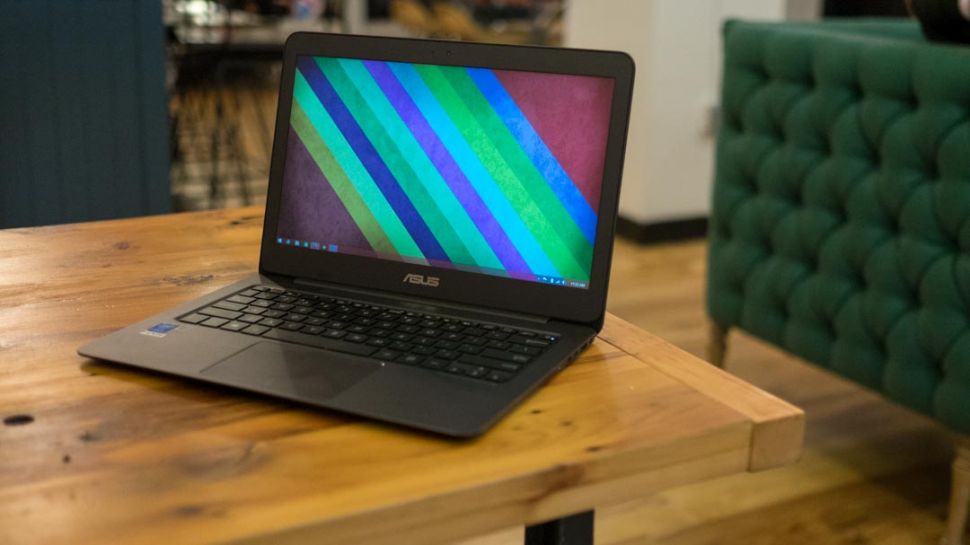
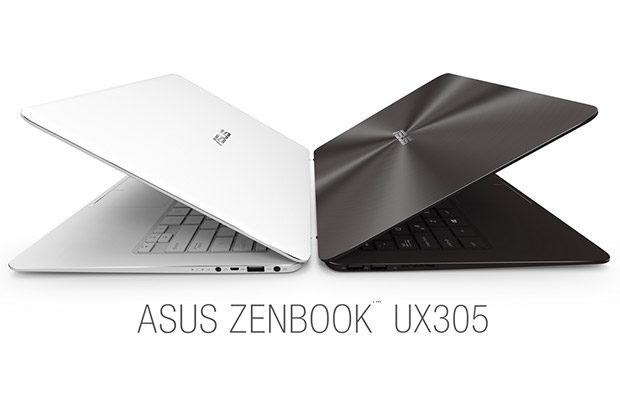
There are a lot of reasons why you should be very interested in the Asus Zenbook UX305: it has a light and slim metallic body, fanless hardware, a high resolution display and a very attractive price. However, the laptop does have some quirks and we’ll tell you everything about them right here.

While the Asus Zenbook UX305 isn’t as powerful as many ultrabooks out there, it still does a decent job in handling everyday activities. The laptop can easily handle music, videos, browsing and Office use. But on the other hand, the laptop from Asus won’t function as well with demanding chores and software and it isn’t going to be as fast as a Haswell U or a Broadwell U device. However, if you don’t mind these shortcomings, the Asus Zenbook UX305 may be just the thing for you, but if you’re looking for power you might want to look elsewhere.

Here is our Asus laptop review.

Asus Zenbook UX305 Review

Specs

  • Processor: Intel Broadwell Y Core M-5Y10 CPU
  • Graphics: Intel 5300 HD
  • Memory: 8GB LPDDR3
  • Storage: 256GB SSD
  • Connectivity: Bluetooth, LAN, Wireless
  • Screen: 13.3 inch, 3,200×1,800 IPS, non touch screen, matte
  • Ports: 3 x USB 3.0, SD Card Reader, Headphone Jack, micro-HDMI
  • Battery: 45Wh
  • OS: Windows 8.1
  • Size: 324x226x12.3mm
  • Weight: 1.2kg
  • Colors: Obsidian Stone, Ceramic Alloy

Design

The Asus Zenbook UX305 is a very slender laptop with a 12.3mm body. The computer weighs only about 1.2 kilos and is also pretty compact. It’s almost as compact as the 2014 model of the Dell XPS 13, and this can be seen from the very narrow bezel that surrounds the screen.

Despite being a very slender machine, the build quality of the Asus Zenbook UX305 is actually top-notch and it certainly feels like it’s very strong. The entire case, including the underbelly is made out of metal. Its hood has the well-known Asus logo and a ripple pattern which we’ve seen on all the Zenbooks. The interior is made from a smoother and simpler material. The review unit was the Obsidian Stone one but Asus also offers the laptop in Ceramic Alloy. While that color may look very great, it’s possible it might scratch a lot easier.

The screen hinge is also made of metal and as a matter of fact the only plastic used on this laptop is the bezel that surrounds the screen, but even that piece of plastic certainly feels premium. However, in our reviews we noticed that the plastic bezel is very tight on some of the laptops which can cause some light bleeding on the screen. But aside from this small problem, there isn’t much you could complain about regarding the design and the build quality of the Asus Zenbook UX305.

This laptop from Asus is also practical in addition to being pretty. There are four rubber feet on its belly which will make sure the computer will sit tightly on your desk. The palm rest is also quite spacious and will allow you to type very comfortably. On the side of the machine you’ll find an SD card reader, a headphone/microphone jack, a micro-HDMI output, 3 USB 3.0 slots and some LEDs. There is also a USB to LAN adapter included in the pack but Asus doesn’t include a micro-HDMI to normal HDMI adapter, which is a shame. However, the laptop does come with a nice protective sleeve.

There are no USB 2.0 ports on the laptop, which can be a hassle if you have some older accessories that you might want to use with it and there is no DP port, which can cause issues if you want to use an external monitor with high resolution at 60Hz.

Asus Zenbook UX305 Review

Keyboard and Trackpad

The trackpad and the keyboard use up most of the interior space of the Asus laptop.

While the typing experience is pretty enjoyable, it isn’t very spectacular. Asus had to sacrifice, because of how thin this laptop is, key travel, but it’s far better than most of the other ultrabook laptops you’ll read about in our reviews. The layout of the keyboard is basically standard except for the arrow keys that are pretty tiny and the power button which is the top right key, integrated on the keyboard itself. It’s very easy to hit the power key by mistake, hoping to reach the delete key, which will put the laptop to sleep. This can get really annoying, really fast.

But what’s more annoying regarding the keyboard is that it doesn’t have a backlight. In my opinion, a backlit keyboard should be present on all higher end laptops. The trackpad on the Asus Zenbook UX305 is smooth, spacious and has a chamfered contour that neatly separates it from the palm rest. It’s a little noisy because it’s a clickpad and it can seem a little stiff if you aren’t used to these kinds of trackpads. It can get pretty annoying as even the gentlest of taps will cause the laptop to make noises.

Taps and swipes work generally well on the trackpad, even if the gestures that you’re trying to make require precision. I didn’t encounter any fake or palm clicks and the gestures also worked incredibly well. The surface works well when you keep one finger on the click area and swipe with the other. This is one gesture that usually creates problems on most Windows laptops.

But because this is a trackpad made by Asus, you will have to use Asus’s own drivers and the Smart Gesture application, which doesn’t really allow you to fine tune the trackpad to your liking. The velocity of the cursor and the speed between taps were some features I really wanted to improve upon. As a matter of fact, these issues were the ones that really made me have mixed feelings about the trackpad implementation. While it’s not bad per se, the trackpad isn’t extremely good either.

Screen

The screen of the Asus Zenbook UX305 is a matte, non touch screen display. The fact that it is matte is actually pretty awesome, seeing how most ultrabooks have glossy touchscreen displays nowadays. This means that you can comfortably use the laptop outside in the sunlight without having to deal with glare and reflections.

The overall quality of the panel is top notch, as you will see in the info below:

  • Panel Hardware ID: Samsung SDC374A
  • Coverage: 99% sRGB, 77% Adobe RGB, 73% NTSC
  • Max brightness in middle of screen: 338cd/m2
  • Measured gamma: 2.2
  • Contrast: 330:1
  • White point: 7000K
  • Black on maximum brightness: 1.03cd/m2
  • Average delta: 1.69 calibrated, 1.76 uncalibrated

The lower end model comes with a 1080p screen but our review unit came with an IPS panel with a higher resolution of 3,200×1,800. The brightness, sharpness, gamma, white point and viewing angles were excellent. However, the contrast is a little poor but this is mostly due to the fact that the blacks aren’t all that deep. The colors are pretty accurate but the blues and yellows do seem a little muddy.

Hardware, Performance and Upgrades

Our test unit had an Intel Core M 5Y10 CPU, 8GB of RAM and a 256GB M.2 SSD from SanDisk. This is the most powerful configuration of the laptop available.

The memory of the Asus Zenbook UX305 is soldered on its motherboard which means that you’ll be stuck with what you choose from the beginning. However, you will be able to upgrade the storage with compatible drives. To do this you will have to open the back of the laptop and while this isn’t very complicated, you should be aware that there are some screws hidden behind the rubber feet of the machine.

The Core M platform isn’t very fast and won’t deliver groundbreaking performance, as one might expect from this kind of chipset, after all it’s not an Intel i7 or an i5. But as long as you’ll use it for basic activities such as watching videos, browsing the web, listening to music, editing documents and talking with your friends you’ll be just fine. That being said, you won’t be able to use the laptop for hardcore gaming and you might encounter some issues when switching back and forth between several applications. But this isn’t such a big deal if you try to keep multitasking at a bare minimum on the laptop.

The browsing experience in Google Chrome isn’t as good as in Firefox or Internet Explorer. You’ll have a hard time trying to watch YouTube videos in Chrome than in Internet Explorer. It’s safe to say that the Core M still isn’t very well optimized for Google Chrome and you should consider sticking to Mozilla Firefox or, even better, Internet Explorer.

The Core M processor on the laptop is bundled with the HD 5300 from Intel which is a low to mid-end solution. Because of this, the Asus Zenbook UX305 won’t be able to handle the most recent gaming titles but it will perform well when playing older games.

The speakers on the laptop are decent enough. They are positioned on its belly and aren’t extremely loud and they aren’t very capable of producing great quality of sound but they get the job done. They don’t distort or cause any vibrations in the casing and will produce decent enough sound for a laptop this size.

The webcam, which is placed on top of the screen, is decent as well. While it’s usually grainy, the webcam is good enough for the occasional Skype calls.

Asus Zenbook UX305 Review

Battery Life

The Asus Zenbook UX306 comes with a pretty large battery. The 45Wh battery occupies most of the space inside the laptop, but the Core M does drain the battery pretty quickly.

Asus claims that you can get up to 10 hours of battery life from the machine but you won’t reach those 10 hours unless the laptop stands idle. You can expect around 5 to 8 hours of battery life in everyday use.

Below you will find out how much the battery will last, depending on your activities.

  • Around 13 hours of use in idle, Power Saving Mode, 0% brightness and Wi-Fi turned off;
  • Around 7 hours of use with light browsing and text editing, Balanced Mode, 40% brightness and Wi-Fi turned on;
  • Around 6 hours of use with 1080p YouTube videos in IE, Balanced Mode, 40% brightness and Wi-Fi turned on;
  • Around 5 hours of use with 1080p video in VLC Player, Balanced Mode, 40% brightness and Wi-Fi turned on;
  • Around 4 hours and 15 minutes of use with 1080p YouTube videos in Google Chrome, Balanced Mode, 40% brightness and Wi-Fi on.

The Asus Zenbook UX305 comes with a 20W compact power brick with a pretty long cable. The power adapter will charge the laptop with maximum 20W an hour, which means that a full charge will take about 2 hours and 30 minutes, because it trickles near the end.

Wrapping up…

If you want a light and compact 13 inch laptop that is very quiet, powerful enough for daily activities and which comes with a nice display, the Asus Zenbook UX305 might be just the right laptop for you, especially since it’s a lot cheaper than any other similar ultrabooks.

The major selling points of this laptop are the slim body, the matte screen, solid build and the fact that it is very quiet because it’s fanless. However, the non-backlit keyboard, performance and the average battery life might make you want to consider buying a different product. That being said, keep in mind that for $699 you won’t be able to buy another ultrabook that offers 256GB SSD storage, 8GB RAM, an IPS display and such a great quality build. It’s because of these things that the Asus Zenbook UX305 is such a good deal, if you don’t mind the performance.

PROS

It has a sturdy and beautiful build.

It comes with a great matte display.

It has fanless hardware.

It’s fast enough for everyday use.

It has an excellent price.

CONS

The keyboard isn’t backlit.

It can get pretty hot.

It can be a little slow on Wi-Fi when it’s not near the router.

It offers average battery life.

So there you have it. This was our Asus Zenbook UX305 review.

Images source: 1, 2, 3

Filed Under: Tech & Science Tagged With: asus, asus laptop review, asus laptop reviews, asus laptops review, asus ux305, asus zenbook, Asus Zenbook review, Asus Zenbook UX305, Asus Zenbook UX305 Review, zenbook review, zenbook ux305, Zenbook UX305 review

Asus EeeBook X205TA Review

May 6, 2015 By Roxanne Briean 1 Comment

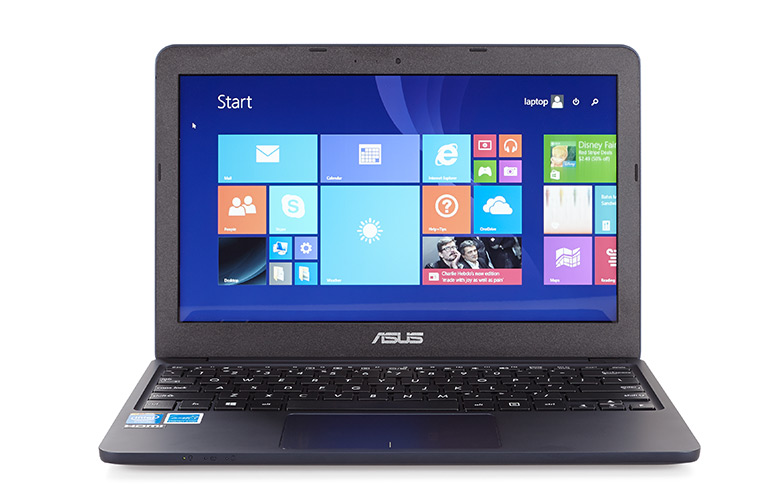
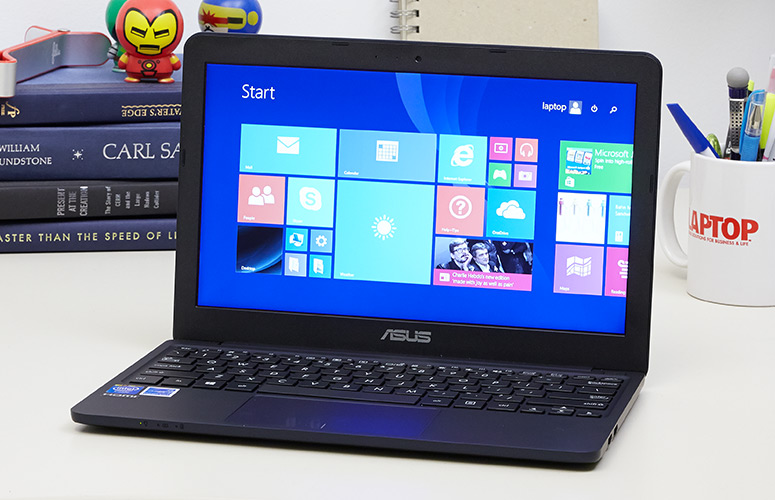
The Asus EeeBook X205TA comes with Windows 8.1, which means that it will allow you to run all the applications that you’re familiar with and while the X205TA is by no means powerful, it does get the job done for its cost. Here is our Asus EeeBook X205TA review.

Let’s take a quick look at the specifications of the Asus EeeBook X205TA first.

Asus EeeBook X205TA Review

Specs

  • Hardware: Intel Atom BayTrail-T Z3745D CPU and Intel HD Graphics
  • Memory: 2GB RAM
  • Storage: 32GB Flash
  • Screen: 11.6 inch 1,366×768 non touch screen display
  • Ports: 2x USB ports, microSD card reader, headphone jack, proprietary PSU, micro-HDMI
  • Connectivity: Wireless N, Bluetooth
  • Battery: 38Wh
  • Operating System: Windows 8.1
  • Size: 288mm x 196mm x 18mm
  • Weight: 954g (2.1 pounds)

Hardware

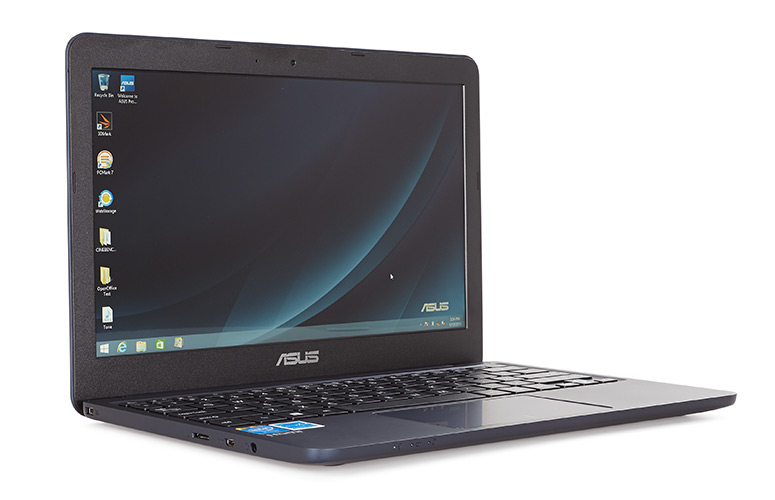
Asus EeeBook X205TA Review

The Asus EeeBook X205TA is primarily designed for everyday use. The laptop will handle pretty well your web browsing between numerous tabs, listening to music and watching videos and editing documents. The laptop comes with a trial version of Office, which means that it will handle Microsoft Office just fine. The release version of the laptop will come with a 12 month subscription of Office 365 Personal and if you choose so, Adobe Photoshop. However, make sure you don’t ask too much of this machine when using Photoshop. It will get the job done but it will hiccup here and there, especially if you’re working with very complex images.

This is mostly due to the fact that the Asus EeeBook X205TA is built with high-efficiency low-power hardware. The laptop comes with an Intel Z3745D CPU, 2GB RAM and 32GB of storage. However, because the eMMC and the RAM are both soldered to the motherboard, this will become really annoying, really fast.

You will be left with very little storage space after the installation of the operating system (around 14GB), which means that Asus had to cut corners in order to make this laptop as affordable as it is. This will leave you with two options: you will either have to use the cloud space offered by Asus for free in the WebStorage environment or expand the storage of the machine by using a microSD card.

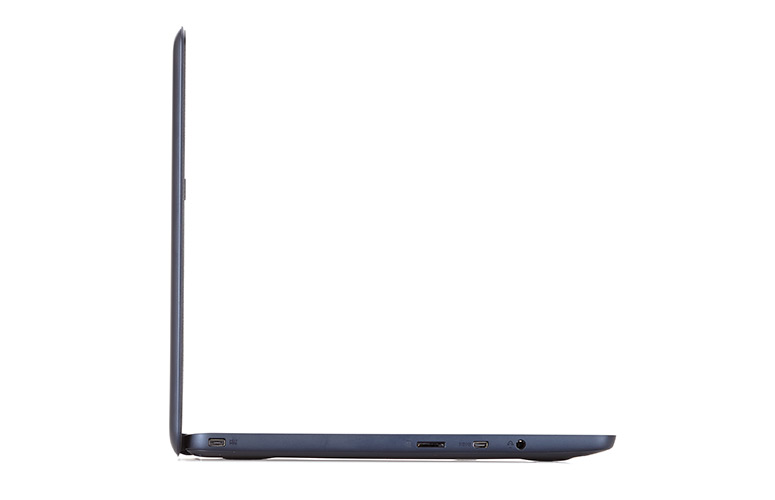
To be perfectly honest, I was very disappointed that the Asus EeeBook X205TA doesn’t support standard SD cards. This would have been very useful for transferring photos from cameras while on the run. However, this probably isn’t such a big deal for most people. All in all, the Asus EeeBook X205TA is a pretty capable notebook and it will be able to handle most things.

It comes with pretty punchy and loud speakers that are located on the belly of the laptop. The experience is even greater due to the fact that the machine doesn’t have any movable parts in it or any fans to make noises.

The Wi-Fi chip on the laptop is pretty good as well. While it won’t match your Internet speed if you have a great connection, it won’t lose its signal either when you move away from the router. We were able to stream 1080p YouTube videos on it without having to wait for the buffer or having to download the media file without any hiccups. So in my opinion, this is amazing for a computer that sells for only $199.

The belly of the laptop doesn’t have any cuts for cooling in it and, as a matter of fact, it doesn’t even need any. Because it doesn’t have any cuts in it, this leads to a very beautiful and simple design. You can access all the internals of the laptop by simply unscrewing the Philips screws on its back.

That being said, gaining access to all the internal things in the laptop won’t be of much help to you because everything is soldered on to the motherboard. As a matter of fact, the motherboard is pretty small as it is, most of the space inside the laptop being used for the battery. The good thing is that the battery is also held in place by some screws and, if needed, it can be easily replaced.

It would have been great to be able to update its storage but there is no dedicated storage stick inside the machine. This means that you won’t be able to upgrade that 32GB of internal storage. This is pretty annoying, seeing how most of that space will be occupied just by Windows. To be fair, you can use Linux on the laptop and Mint or Ubuntu will probably work just fine on the laptop, but if you’re not such a huge fan of that particular operating system, you will be stuck with Windows.

The case of the Asus EeeBook X205TA remains pretty cool under everyday use and won’t get very hot when putting the laptop through a lot of stress either. The internals reach around 80 degrees Celsius under a lot of stress and both the GPU and CPU will run under the default frequencies. However, you should keep in mind that the Asus EeeBook X205TA is designed for everyday activities and not demanding multitasking and other chores.

Keyboard and Trackpad

Asus EeeBook X205TA Review

The typing experience isn’t all that bad on the Asus EeeBook X205TA because the keyboard is pretty good and the position is comfortable. The laptop has a very generous palm rest which will allow you to type easily on it.

The keys on the Asus EeeBook X205TA are pretty firm and have a decent feedback and travel, considering the size of it but they do feel somewhat cheap. The layout is also cramped vertically because Asus chose to use rectangular keys on the device and not square ones. The arrow keys are also very small, but this is to be expected as we’ve seen this issue in other Asus laptop reviews.

But because the keys are smaller, this will leave a lot of space for the palm rest and the trackpad. While I did face some issues with the trackpad in everyday use, most of the times it worked just fine. However, sometimes it does double click by itself and will occasionally send your cursor flying on the screen but this generally happens when you put the laptop under a lot of stress.

That being said, this is one of the issues that definitely need tweaking on the Asus EeeBook X205TA. But seeing how the erratic cursor is most of the times a software issue, it could be resolved by future updates.

Asus EeeBook X205TA Review

Design and Build Quality

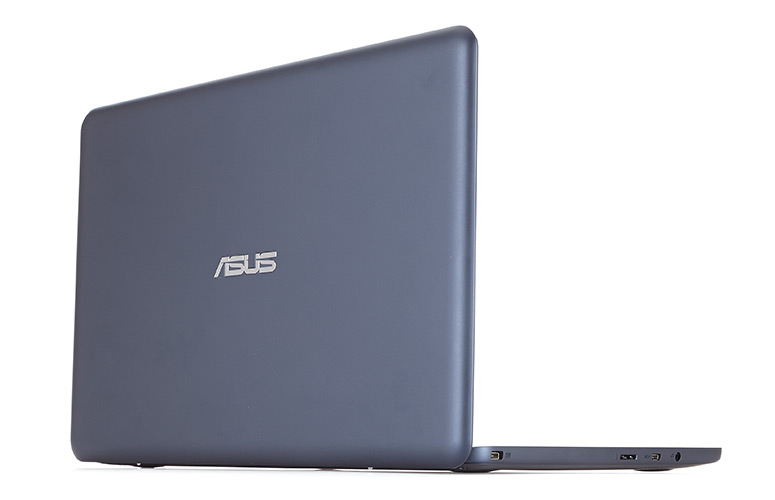
The Asus EeeBook X205TA weighs just less than 1kg and also has a compact footprint along being very thin. It will easily fit in a bag or a backpack and the laptop is also pretty tough and has a nice design. If you grab the machine and give it a little squeeze it will make some creaks, which are usually associated with cheap plastic laptops, but considering how little money this computer costs I have to say that it’s pretty well built and has a really nice finish to it.

The case is made out of soft matte plastic that is present on the interior, the lid and the belly of the laptop. While the bezel around the screen is the only thing that remains black on this laptop, Asus offers the device in various other colors. The materials used to build the laptop feel very pleasant to the touch and there aren’t many things you could complain about the quality of the finish either.

But to be fair, there are two things that can annoy you regarding the laptop. The case catches finger oil and smudges pretty easily and will be very visible if you purchase the dark blue model of the laptop and the lid flexes a bit. While this doesn’t really affect the integrity of the screen, if you do press a little harder on the lid you will see some ripples on its screen. This means that you should consider purchasing a sleeve for it and you should be very careful when carrying it in a backpack.

Display

The laptop comes with an 11.6 inch non touchscreen display with a resolution of 1,366×768, a glossy finish and a TN panel. This means that it has pretty poor vertical viewing angles and the colors will quickly fade when viewing it from awkward angles, but this is to be expected with such low priced screens. That being said, if you look at the laptop heads-on, you shouldn’t be very bothered by this aspect.

The screen leans to around 140 degrees to the back, which is pretty good, but not perfect. The laptop is lifted on two plastic feet which will leave more space under the laptop for cooling and will raise the keyboard for a better position for typing.

The display is pretty decent despite the following measurements:

  • Panel Hardware ID: AU Optronics AUO235C;
  • Coverage: sRGB 58%, AdobeRGB 43%, NTSC 41%;
  • Measured Gamma: 2.3;
  • Maximum brightness in the middle of the screen: 247cd/m2;
  • Contrast at maximum brightness: 90:1;
  • White point: 7900K;
  • Black on maximum brightness: 2.78cd/m2;
  • Average Delta: 4.37 calibrated, 8.48 uncalibrated;

The screen does have some problems displaying very accurate blacks when used at a high brightness and the colors might sound a little awful but the fact is that the display isn’t as bad as the numbers above would suggest. Asus could have chosen to equip the laptop with a matte screen, since the display is not touchscreen but they chose to make it glossy which will prove to be problematic when using the laptop in bright sunlight.

Battery

The laptop comes with a 38Wh battery which will give you around 10 hours of battery life in everyday use. This includes editing documents, browsing the web, listening to music and watching YouTube videos with Wi-Fi turned on. The laptop was also capable of lasting for around 9 hours on 60% brightness when looping a 720p mkv file in WMP-HC. The laptop ran for 8 hours when looping a 1080p video on YouTube.

The laptop will last for weeks in stand-by and the Always Connected feature from Intel will make sure that all your emails and updates will be ready for you when you wake the machine up. The Asus EeeBook X205TA comes with a compact 10Wh power brick and a pretty long cable. You will be able to charge the battery from 5% to 99% in around 2 hours and 15 minutes.

Asus EeeBook X205TA Review

Wrapping up…

All in all, Asus did a pretty good job with the Asus EeeBook X205TA. After using the computer for some time, there was only one thing that annoyed me the most: its trackpad. Also, the microSD and micro-HDMI slots can prove to be problematic along with the fingerprint magnet case, but these are in no way huge problems. The storage space should be neatly organized and probably left only for Windows.

However, this is pretty much it. You can’t really complain about a $200 laptop that performs and looks as good as this one does. Because it’s so sturdy and light and also because it lasts so long on a single charge, the Asus EeeBook X205TA can be a really nice travel companion. It can also be a great laptop for kids, because it’s so cheap and you won’t mind if they break it. The Asus EeeBook X205TA can also be a good pick for someone who is looking for an inexpensive and small computer that can handle Windows 8.1 and all the software that is compatible with the operating system.

That being said, you should keep in mind that the Atom CPU inside the machine won’t be able to handle very demanding tasks and hardcore gaming. But if you plan to only use the laptop for daily activities, you really can’t go wrong with this $199 machine.

PROS

It’s very light and sleek.

It has a decent keyboard.

It is able to handle multimedia activities and most daily tasks.

It lasts for a very long time on a single charge.

It’s very affordable.

CONS

It comes with miniaturized ports.

The touchpad is pretty erratic.

It has limited internal storage.

So there you have it. This was our Asus EeeBook X205TA review. Make sure you check our other Asus laptop reviews if you plan on buying an Asus computer.

Images source: 1, 2, 3, 4, 5


Filed Under: Tech & Science Tagged With: asus, asus eeebook review, Asus EeeBook X205TA, Asus EeeBook X205TA Review, asus laptop review, asus laptop reviews, asus laptops reviews, eeebook, eeebook x205, eeebook x205ta, EeeBook X205TA Review

Best Gaming Laptops On the Market

February 27, 2015 By Nancy Young 1 Comment

Finding the best gaming laptop can be really hard for those people that compare the price of a gaming laptop to that of a PlayStation 4, which costs around $500.

Learning about the laptop’s specifications should give you a clue why it’s priced the way it is. Most gaming laptops come with 1080p displays, the best performing Intel CPU and 16GB or more RAM.

We present to you some of the best gaming laptops on the market today.

1. Razer Blade 14

Best Gaming Laptops

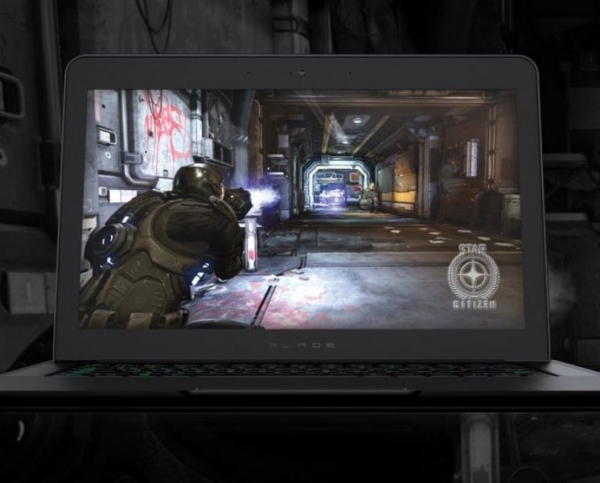
This is a very sleek laptop that is just 0.70 inches thick. It has a gorgeous QHD+ display and 16GB of 1600 MHz DDR3L RAM and up to 512GB SSD storage. Having SSD means that it is able to deliver speeds of up to four times faster than traditional hard disk drives, which allows the machine to boot a lot faster and launch games quicker.

It has an Intel Core i7 4720HQ processor, an Nvidia GeForce GTX 970M graphics card and an IGZO display that is more than gorgeous.

2. Alienware 17

Best Gaming Laptops

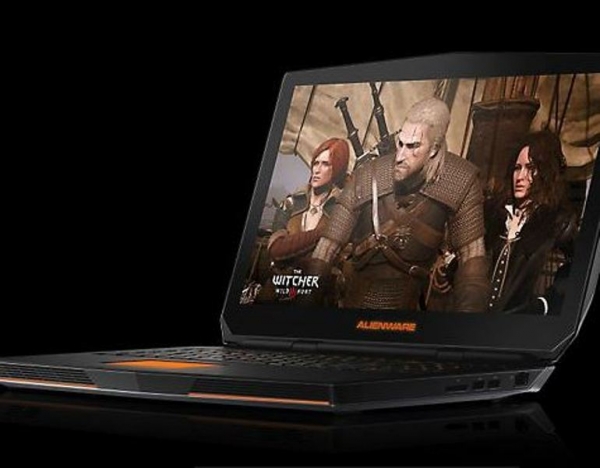
The Alienware 17 features high-end graphics and CPU with a carbon fiber design and copper heat sinks. This gaming laptop is designed to deliver a great gaming experience.

Other features on the laptop include the IPS LCD display, full sized keyboard, a 2.0MP Full HD webcam, Quad-Core Intel i7 CPU, great audio powered by Creative SoundBlaster, pre-installed software called Alien Autopsy and AlienFX API.

3. Gigabyte Aorus X3 Plus

Best Gaming Laptops

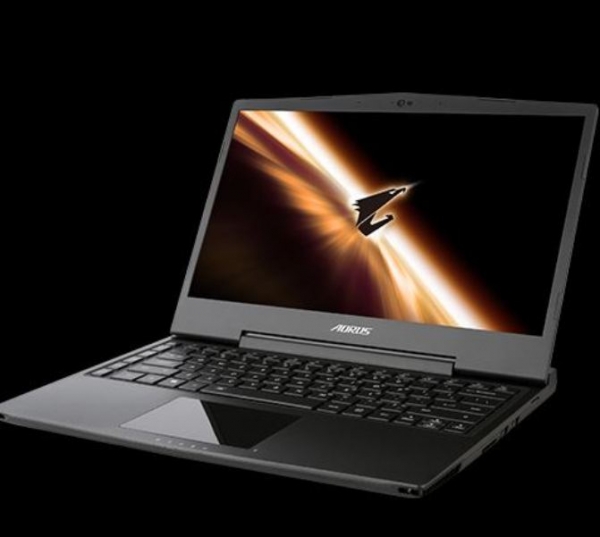
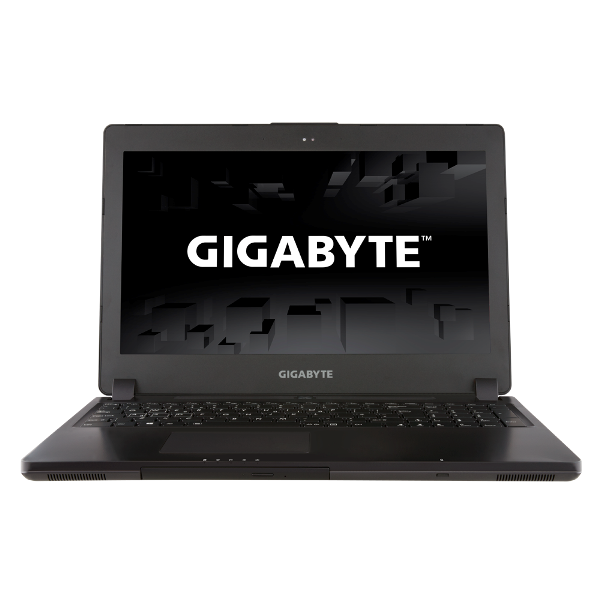
The key features on the gaming laptop from Gigabyte are its 13.3 inch display with a resolution of 3,200 x 1,800, an i7-4860HQ CPU, two 256GB SSDs and a GeForce GTX 870M graphics card. The laptop weights 1.8kg and is only 23mm thick. It’s a very portable gaming laptop and you can easily fit it inside a standard backpack. The screen is gorgeous and beats its competitors in terms of black levels, color accuracy and contrast ratio. The laptop also boasts a pair of very good speakers that offer highly detailed and great sound, a very suitable keyboard and a great battery life of up to 5 hours and 20 minutes.

4. Gigabyte P35W v2

Best Gaming Laptops

This beautiful gaming laptop comes with a 4th gen i7 CPU paired with a great GeForce GTX 870M graphics card with 6GB video memory. The laptop also has a dual fan cooling system that keeps it very cool and supports two HDDs and two SSDs. If you opt for a full kit model you will be able to get a storage capacity of around 5TB. You can choose to replace one of the drives with a Blu-Ray. The display of this laptop is Full HD and has a very wide viewing angle. The Gigabyte P35W v2 also features a Mini Display Port that can display a 4K resolution.

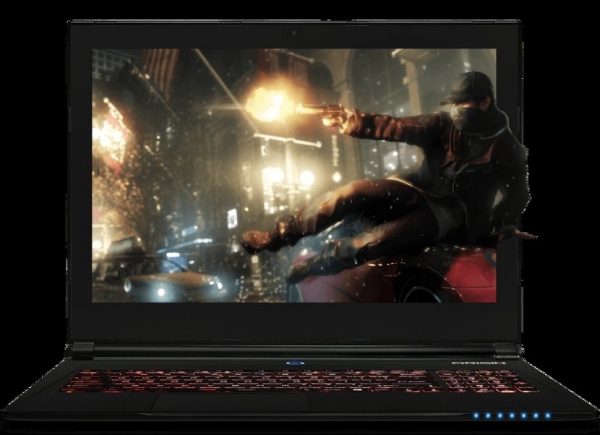
5. Origin EVO15-S

Best Gaming Laptops

This gaming laptop from Origin is only 0.78 inches in thickness and has great features and specs. It features a Quad-Core i7 CPU from Intel, a GTX 970M GeForce graphics card, 16GB of DDR3 RAM, a 128GB SSD and a 1TB HDD. The laptop features numerous USB 3.0 ports, a 720p webcam, an SD card reader and a choice between a matte or glossy 15 inch UHD IPS display.

6. Asus Rog G751

Best Gaming Laptops

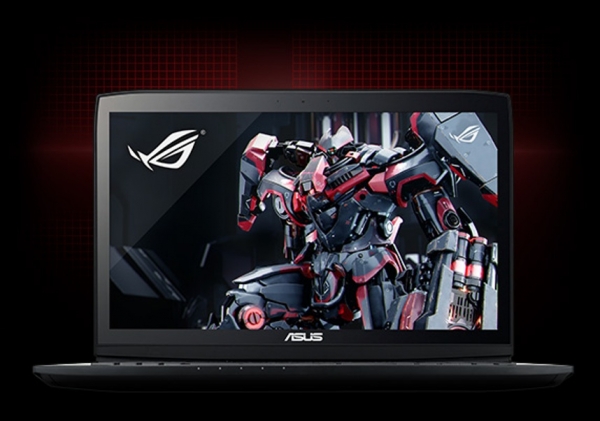
This laptop features a 17.3 inch Full HD IPS display and it’s one of the first laptops that can handle 4K games. It has up to 32GB RAM, dual fans with copper heat sinks and easy access game keys and programmable ones.

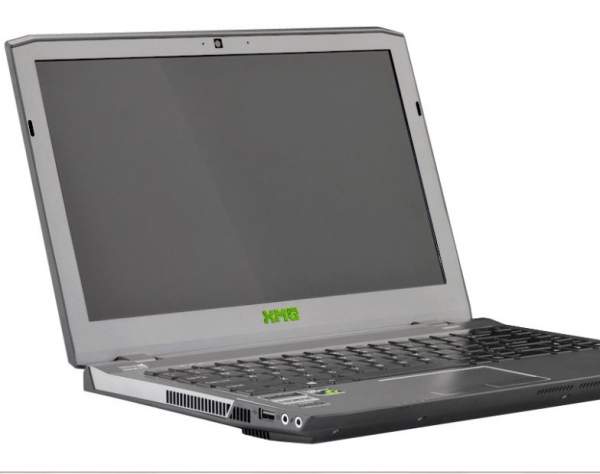
7. Schenker XMG P304

Best Gaming Laptops

This is a new breed of gaming laptops and features a 13.3 inch display and weights 2kgs. It also has a great battery life for how portable it is. You can play for up to 4 hours on a 40 percent brightness level. The display is great in terms of brightness, color accuracy and black levels. Other features on the gaming laptop include 8GB RAM, a 250GB Samsung 840 EVO SSD and an Nvidia GeForce GTX 860M graphics card.

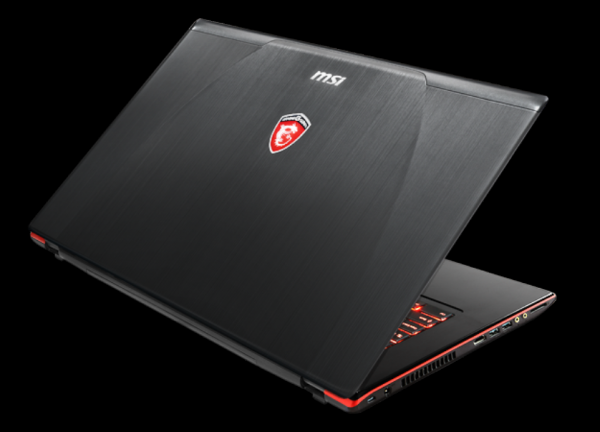
8. MSI GE70 Apache Pro-012

Best Gaming Laptops

This laptop is built with premium hardware that can easily enhance the gaming experience. It features an Intel Core i7-4700 HQ CPU that can be turbo boosted to 3.4GHz. The machine has 12GB of DDR3L RAM, a Steel Series Full Color Backlit keyboard and an Nvidia GeForce GTX 860M graphics card with 2GB of GDDR5 video memory.

This was our short guide on the best gaming laptops on the market at the moment. We hope you enjoyed it and wish you happy shopping.

Images source: techtimes.com

Filed Under: Tech & Science Tagged With: alienware, asus, best gaming laptop, best gaming laptops, best laptop for gaming, gaming laptop, gaming laptops, gigabyte, laptops for gaming, msi, origin, razer, schenker

ASUS ZenWatch Review

December 20, 2014 By Roxanne Briean 1 Comment

The future is now! We’ve got highly intelligent phones, ASIMO is getting smarter by the day and performing increasingly difficult tasks, we’ve uploaded the mind of a worm into a simple robot and even managed to send a decent rover over to the Red Planet.

If we were to put all of our eggs in one basket when it comes to the future of technology, smartwatches would be our number one choice. These things are taking off like nothing we’ve seen before and developers are coming out with more and more options for us, the public. Apple released the Apple Watch this fall; a very smart and beautiful watch that is selling like hot cakes. Moto 360 is a sleek and round smartwatch that looks like something from a Sci-Fi movie. They can track your steps and help you control your smartphone without needing to actually touch your phone. Smartwatches may be at the beginning of their journey, but we’re certain it’s going to be an impressive journey that is going to lead us to somewhere quite spectacular.

ASUS and Smartwatches

ASUS Zenwatch 3

ASUS is a Taiwanese electronics hardware that was founded in 1989. The company’s slogan is In Search of incredible and the ASUS ZenWatch is ASUS’ first stab at smartwatches. Personal computers are the company’s moneymaker, but after the ZenWatch, smartwatches could be, too.

The ASUS launched their first smartphones in the summer of 2014, so they’re pretty new on the smartphone market, too. The ASUS Zenfone 4, 5 and 6 were launched in July of this year and they’re all Android phones. You can pair up the ZenWatch with any other Android smartphone, naturally, but if you want to get the best of your wearable device, we recommend you pair it up with a Zenfone.

Here is what ASUS had to say about their ZenWatch in the press release that followed the announcement of the smartwatch:

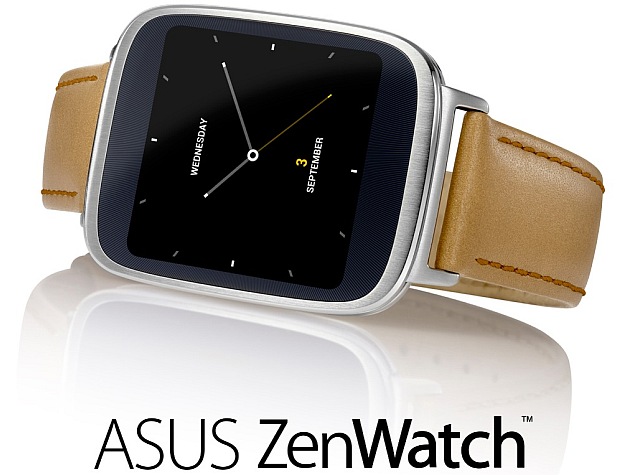
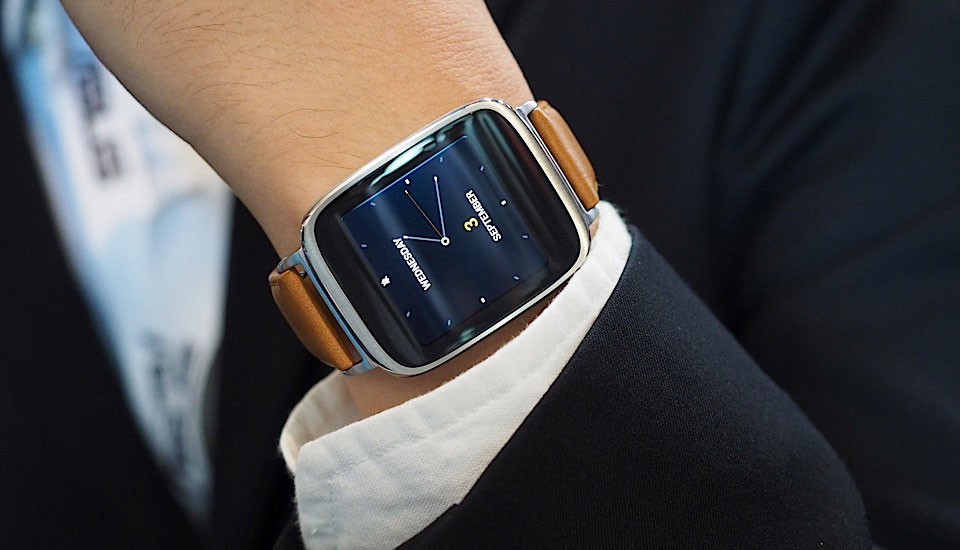
ZenWatch brings the luxury tradition of fine watchmaking to Android Wear, with an elegant, detail-focused design and use of high-quality materials. It is designed for supreme comfort, with a soft genuine stitched-leather strap and quick-release clasp. The 2.5D curved glass increases usability with a smooth and responsive touch experience. ZenWatch comes with a selection of instantly-changeable software watch faces, allowing users to customize ZenWatch easily to match their style. ZenWatch is much more than a sophisticated timepiece.

If you’re planning to get the ZenWatch after reading our review, then we recommend you also take a look at the Zenfone, maybe it will catch your eye and you’ll end up being a faithful new ASUS client.

Now, let’s take a look at the new ASUS ZenWatch and see some of its technical specifications, its features and how well this new smartwatch from ASUS performs. Here is our review and presentation of the new ASUS ZenWatch!

Technical Specifications

ASUS Zenwatch 2

In the tech spec department, the ASUS ZenWatch is up to par with all the other smartwatches out there on the market. It boasts a Qualcomm Snapdragon 400 processor with a speed of 1.2 GHz. With 512 MB of RAM and 4 GB of internal Flash storage, the ASUS ZenWatch is powerful enough to keep up with you and your smartphone. It has a stunning AMOLED 1.63’’ touch display with 320×320 and 278 pixels per inch. The cover lens is a 2.5D curved Corning Gorilla Glass 3, which is pretty much the best type of glass you can find on a smartwatch right now.

When it comes to sensors, it’s where the ASUS ZenWatch really excels: it has 9 axis sensor and bio sensor that perform flawlessly. The ASUS ZenWatch is equipped with Bluetooth V4.0 and has Micro USB on charging cradle, a built-in microphone and a polymer 1.4Wh battery. It has a water resistance of IP55 and it comes in silver and rose with a brown leather strap. The smartwatch itself weighs 1.7 oz (50 grams) and the strap, 0.8 oz (25 grams). Its dimensions are as follows: 50.6 x 39.8 x 7.9-9.4 millimeters (LxWxH). It runs the Android Wear operating system, the most advanced OS for wearable devices.

Performance

Well, now that we’ve seen what the ASUS ZenWatch has under the hood, it’s time to see how all those specification come together and perform for us. We’ve had the watch for a week and we must say that we’re impressed with its performance. Everything is quite fast and responsive and during this week in which we’ve tinkled with it, we can safelu say that we have not experienced any dropped frames or lag. Sure, the smartwatch itself doesn’t have a lot of functions to slow it down or confuse it, but the features it does have run smoothly.

Another feature that we love and consider it to be quite great is voice recognition. To be honest, we didn’t expect it to perform as well as it does. Google Now is your best friend with the new ASUS ZenWatch.

Another thing we really like about this watch is the fact that the heart rate sensor isn’t on the back of the device, but behind the bezel, underneath the screen. This gives a much more accurate reading and we believe that ASUS really nailed it with this one!

The only place where the ASUS ZenWatch delivers poorly is in the battery department. It only lasts around a day, and when compared to LG’s G Watch R (which lasts a bit more than two days), this pales in comparison. The charger is also pretty bulky and we think that ASUS could very well improve a lot in that area.

Android Wear

Android Wear was designed for smartwatches and other wearable devices. It was announced on March 18, 2014 with a preview, which pretty much knocked the socks off a lot of tech-savvy folks. The gist of it is that it gets paired up with smartphones running Android and you receive notifications from your smartphone on your watch, you get to answer calls, make appointments and send texts and mail. Android Wear also integrated Google Now and has the ability to download apps from the Google Play Store.

ASUS ZenWatch joins Motorola Moto 360, LG G Watch and G Watch R, Samsung Gear Live and Sony Smartwatch, as the latest smartwatch to feature Google’s latest operating system for wearables, Android Wear.

Although far from being perfect, many believe (us included) that Android Wear is the best operating system for wearables.

Smart Features

ASUS Zenwatch features

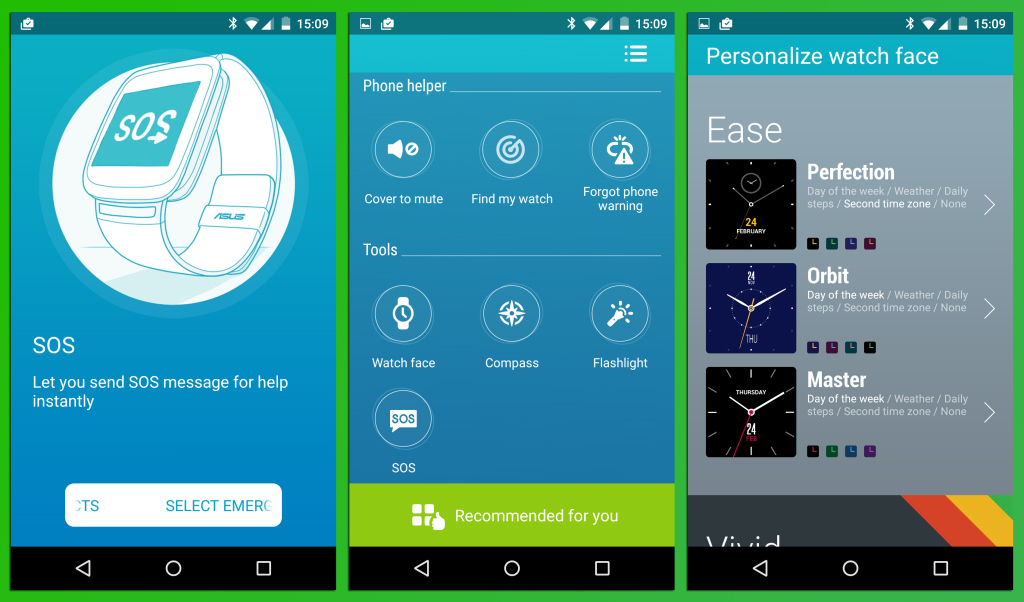
Aside from looking quite elegant, the ASUS ZenWatch has some pretty nifty apps that will help you out, more than you would think. It’s not just pretty, it’s smart, the ASUS ZenWatch! Here are a few features that the smartwatch proudly boasts and that have won us over!

What’s Next App

This simple, yet incredibly useful application keeps your world running every minute of the day, as the promo puts it. It feeds you only useful information when you need it the most, such as GPS data and it also reminds you when you’re running late and even helps you notify your contacts, so you don’t keep them waiting. It’s a basic need for any wearable device, to be able to sum up all the important and vital features/notifications of your smartphone and the What’s Next App does exactly that.

Unlock Phone

This cool feature allows you to unlock your phone easily. You see, when you’re wearing the ZenWatch, you no longer have to type in passwords, make puzzles or connect dots to unlock your phone. Because when your smartphone senses you’re wearing the ZenWatch that is paired up with it, it unlocks your phone in a split second. Quite a useful feature, if you think about it. No more fussing about on your phone when you’re in a hurry!

Cover to Mute

By far, our favorite smart feature of the ZenWatch is the Cover to Mute feature. If someone is calling you at a wrong time and you can’t silence it because it’s not in your reach, then all you need to do is cover your ZenWatch with you hand and your smartphone will be silenced. How awesomely cool is that?! Your phone will remind you to call them back later, naturally!

Find My Phone

We’ve all spend a good amount of time searching for our smartphones, right? But, with the Find My Phone feature on your ZenWatch, your wearable device will let you know when it moves too far from your smartphone. You will find your phone around the house and office in a matter of seconds. We absolutely love this feature and it will save you a lot of time that is usually spent searching for your home and asking other to call you so you can place it in space.

ASUS Remote Camera

Another nice smart feature of the ZenWatch is the ASUS Remote Camera. You can control your smartphone camera remotely with the touch of your watch. This opens up a plethora of new opportunities! Don’t think about spying on people, although that’s where our minds went at first!

Activity Tracker

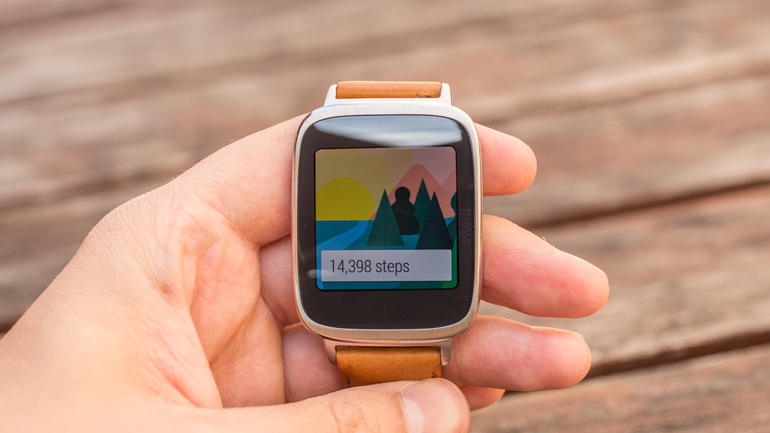
The Wellness Manager is very cool also! The Activity Trackers keeps tracks of your steps, charts your burned calories, heart rate and exercise intensity level. Paired with your smartphone, the ZenWatch can bring you daily and weekly reports from your wellness apps presented in summaries and timelines.

Price

The ASUS ZenWatch has plenty of pluses and almost no minuses! Almost doesn’t count, does it?! But to be honest, the best thing about this smartwatch, by far, has to be the price. The ASUS ZenWatch costs only $199.99, which makes it one of the most affordable Android Wear devices of the moment. Keep in mind that the LG G Watch R costs around $300 and while it does look a little bit more classic and cooler, it features the same Android Wear and almost the same specifications.

ASUS ZenWatch Vs the World

asus zenwatch vs motorola 360

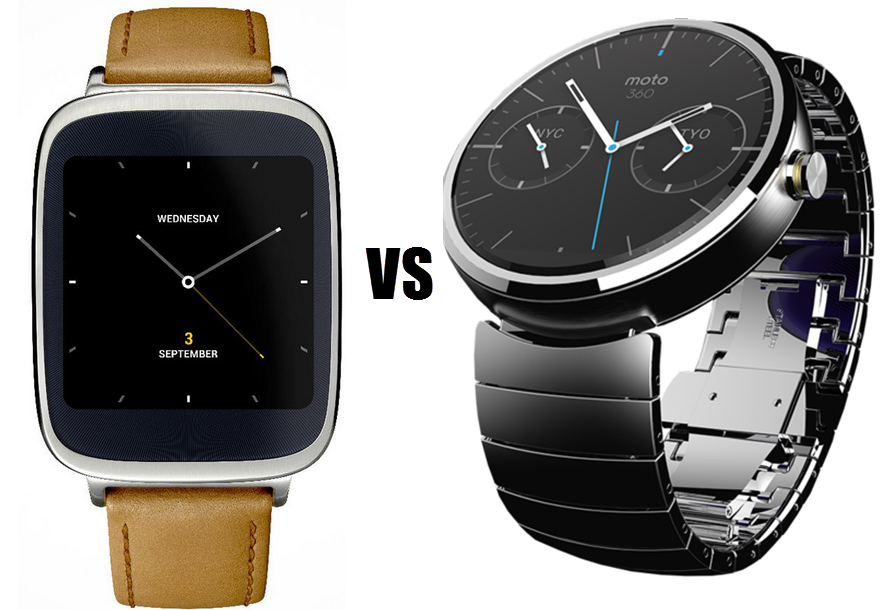
So, maybe you’re wondering how the ZenWatch compares to the rest of the Android Wear smartphones that are out on the market? Well, to be honest, it does hold its own. From an esthetic point of view, the ASUS ZenWatch is a beautiful device, as are the rest of the smartwatches that are on the market at this moment. From this point of view, what we really don’t like about the ZenWatch is the fact that it only comes with one single strap! I mean, is this the early 90’s, when we took things as they come without asking too many questions?! When you buy a wearable device, you pretty much want that device to be as customizable as possible. Yet, the ASUS ZenWatch, as smart as it is, it’s not pretty customizable, design-wise. The Moto 360 smartwatch is, in our view, the most attractive, esthetic-wise, smartwatch available on the market, because of its round shape, but that comes down to personal preference, in the end. The Apple Watch comes in second, just because it’s got all those strap/design options! We agree with Apple, in this respect, if you’ve made a smartwatch, make it as customizable as you can, because the general audience loves being able to change their watch design in order to match different styles.

Our biggest advice for ASUS: folks, if you want to put out a smartwatch, then give it a nice, round and classic display and many customizable options.

5 Reasons to Get the ASUS ZenWatch

ASUS Zenwatch 4

If, after reading our review and the technical specifications of this device, you still need a reason why you should get the new ASUS ZenWatch, then we’ve got 5 of them! Here are five reasons why you should get the ASUS ZenWatch for yourself or your friends or family:

1. The Price

We’ll admit it! The price of the ASUS ZenWatch is the number one reason why you should buy this device and wear it proudly. It’s $200, people! It’s an Android Wear smartwatch that will track your steps, measure your heart rate, silence your calls, act as a remote for your camera and presentations and give you many more other funky features. It’s an affordable smartwatch, which is something that we need more of!

2. Its Design

It may not have a rounded, classic design, but the ASUS ZenWatch is quite sexy looking! It’s sleek, light and smart. Even if it only comes with one single strap, you can rest assured that it’s going to match pretty much all of your outfits. We’re absolutely sure that if you plan on gifting the ASUS ZenWatch for Christmas, you’re not going to get any complaints!

3. Its Features

As we mentioned before, the feature that is pretty much the most awesome feature to come out of 2014 is the Cover to Mute one. Just imagine the possibilities! Silencing your smartphone by simply covering your watch?! That is completely brilliant, gentlemen!

4. Android Wear

Apple, hold on to your high horse, because we’re not going to say this twice: Android Wear is the most advanced operating system for wearable devices in the world. Even if you adore iOS, you’ll be blown away by Android Wear!

Conclusion

The ASUS ZenWatch is an intelligent smartphone with a great design and lots of great new features. Android Wear performs splendidly and we highly recommend it. The bottom line is that if you want a smartwatch, the ASUS ZenWatch is a great wearable device, especially if you’ve never owned a smartwatch before.

The tech specs of the ASUS ZenWatch are quite impressive, but so are the tech specs of all the other smartwatches on the market, so if you’re going to buy the ASUS ZenWatch for any other reason than the price, it’s going to be because it’s a very attractive and sleek smartwatch.

We’re going to jump ahead of ourselves and say that ASUS has quite a success on their hands!

Do you like the new ASUS ZenWatch? Are you planning to get one? Do you already own one? What are your thoughts on it?

Filed Under: Tech & Science Tagged With: asus, asus smartwatch, asus zenwatch, asus zenwatch review, asus zenwatch smart features, asus zenwatch tech specs

Subscribe to Blog via Email

Enter your email address to subscribe to this blog and receive notifications of new posts by email.

Join 10 other subscribers

Recent Articles

police handcuffs man

German Man Probed In Poisoning That Killed 21 Employees Since 2000

June 29, 2018 By Kenneth Scott Leave a Comment

Chicken wings bar

Intoxicated South Carolina Man Punches Waitress Who Refused to Serve Him Alcohol

June 29, 2018 By Karen Jackson Leave a Comment

gaming

New Zealand gamer Who Flew Halfway Across The World for Virginia Teen Gets Shots By Her Mother

June 28, 2018 By Cristopher Hall Leave a Comment

party

Former Virginia Tech Freshman Sentenced to 50 Years in Prison for Stabbing a Girl to Death

June 28, 2018 By Roxanne Briean Leave a Comment

bonfire

British Couple Sentenced to Life in Prison for Torturing and Murdering French Nanny

June 27, 2018 By Deborah Campbell Leave a Comment

pay phone

Texas Father of Girl Disappeared in the 80s Ignored by Authorities

June 26, 2018 By Cristopher Hall Leave a Comment

bottled water

San Francisco Woman Threatened to Call Police on Girl Who Sold Ice Water for Disneyland Trip

June 25, 2018 By Roxanne Briean Leave a Comment

Maplewood Park

Missouri Man Robbed by Date and Accomplice in Park

June 22, 2018 By Nancy Young Leave a Comment

coding

New York Man Sentenced in Cyberstalking Former Girlfriend, Mailing Drugs to Her Dorm

June 22, 2018 By Deborah Campbell Leave a Comment

headphones

Bose Poised to Launch Sleepbuds, In-Ear Headphones That Help You Sleep

June 21, 2018 By Nancy Young Leave a Comment

Police light

Intoxicated Female Driver in Custody for Pulling Arresting Officer by the Hair

June 21, 2018 By Kenneth Scott Leave a Comment

kitchen

Restaurant Manager Arrested and Charged in Shooting Death of Co-Worker over Negative Yelp Reviews

June 20, 2018 By Karen Jackson Leave a Comment

plastic container

Pennsylvania Couple Charged in Violent Death of Infant Discovered Buried in Cat Litter

June 19, 2018 By Cristopher Hall Leave a Comment

tailpipe

Minnesota Teen Gets Head Stuck In Oversized Tailpipe Winstock Music Festival

June 18, 2018 By Karen Jackson Leave a Comment

Pages

  • About Us
  • Contact us
  • Privacy Policy
  • Privacy Policy GDPR
  • Staff
  • Terms and Conditions

Recent Posts

  • German Man Probed In Poisoning That Killed 21 Employees Since 2000 June 29, 2018
  • Intoxicated South Carolina Man Punches Waitress Who Refused to Serve Him Alcohol June 29, 2018
  • New Zealand gamer Who Flew Halfway Across The World for Virginia Teen Gets Shots By Her Mother June 28, 2018
  • Former Virginia Tech Freshman Sentenced to 50 Years in Prison for Stabbing a Girl to Death June 28, 2018
  • British Couple Sentenced to Life in Prison for Torturing and Murdering French Nanny June 27, 2018
  • Texas Father of Girl Disappeared in the 80s Ignored by Authorities June 26, 2018
  • San Francisco Woman Threatened to Call Police on Girl Who Sold Ice Water for Disneyland Trip June 25, 2018

Categories

  • Business
  • Entertainment
  • Finance
  • Headlines
  • Health
  • Life
  • Nature
  • Science
  • Sports
  • Tech & Science
  • Travel
  • Uncategorized
  • United States
  • World

Copyright © 2026 ArgyllFreePress.com
About · Privacy Policy · Terms of Use · Contact