Argyll Free Press

Growing News Network

Saturday, February 14, 2026
Log in
  • Business
  • Finance
  • Sports
  • Tech & Science
    • HP Envy 4500 Review
    • LG Optimus 170 Review
    • iPod Touch 6th Generation Review
    • HTC One M8 Accessories Set-up
    • Surrealist Games You Must Play
    • Hisense Sero 8 Review
    • Dell Latitude e7440 Review
    • HP Laserjet 1536dnf mfp Review
    • Garmin Fenix 2 Review
    • Skype Vs Viber
    • Best Video Conferencing Software
    • Sony mdr 1r Headphones Review
    • Canon Rebel t3i Review
    • Sennheiser Momentum 2-0 Review
  • Travel
  • Headlines
  • Health
  • United States

The Best 7 Apple Watch Apps!

May 12, 2015 By Roxanne Briean Leave a Comment

Apple Watch apps

Are you a proud owner of an Apple Watch? Well then you must stay in the loop with what kind of apps developers release, but it’s tiresome to try all of them out, and figure that most of them are just garbage. That’s why the team at AFP has decided to test them, and pick only the very best. The store isn’t full with apps, so we didn’t had that much of work to do, but we expect a huge burst of releases in the near future – Apple Watch is selling like crazy!

So for now, here’s our top 7 Apple Watch apps!

  • The Best App for Your Car –  BMW i Remote
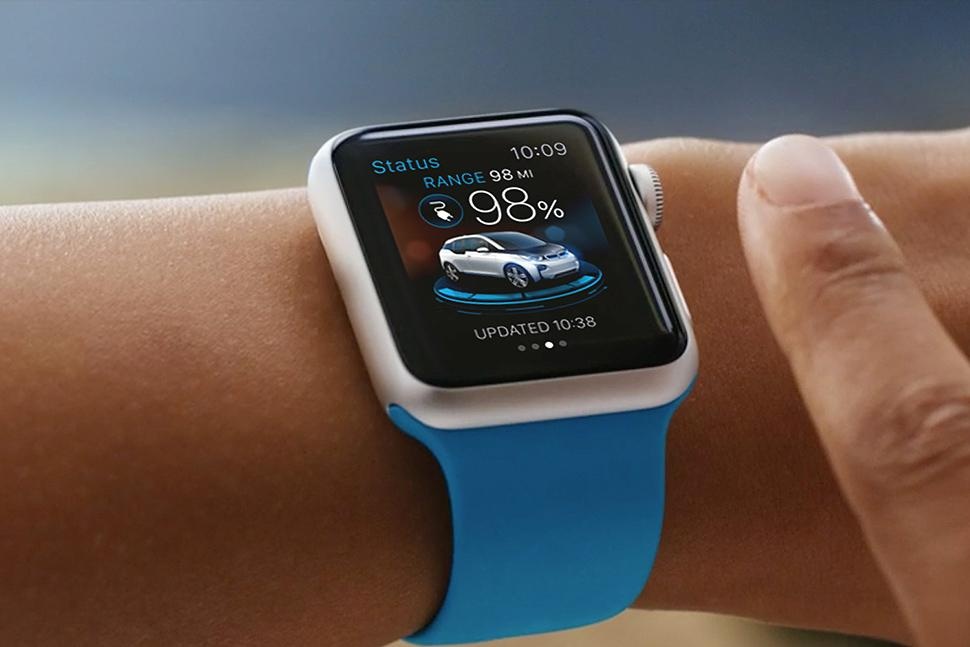
The Best Apple Watch App for Your Car

Sure, it depends on what car you’ve got, but the BMW i Remote is an awesome app. If you have a BMW and an Apple Watch and you didn’t install the i Remote you’re missing on a ton of cool features.

You can turn the heating on by using the smartwatch. Just think of those pesky winter months – start the heating 15 minutes before you go to your car, from the comfort of your kitchen, while you drink your last sip of coffee.

The app guides you to your car if you somehow forgot where you parked it. Also, you can honk your horn using the app in case you can’t figure out which BMW in the parking lot is yours. Of course, people will use it to terrorize clueless pedestrians – and of course, it’s going to be fun as hell.

Unlock your car before you even leave the house using the app – don’t know why anyone would want to do this, but hey, you’ve got the option, it’s up to you if you want use it or not.

The BWM i Remote was specifically designed with BMW i3 plug-in runabouts and the i8 hybrid with the Assist option in mind, so the app works perfectly with those two.

Also, you can monitor your driving efficiency, and the app offers the best departure times for best battery efficiency.

It’s free!

  • The Best Travel App – Uber

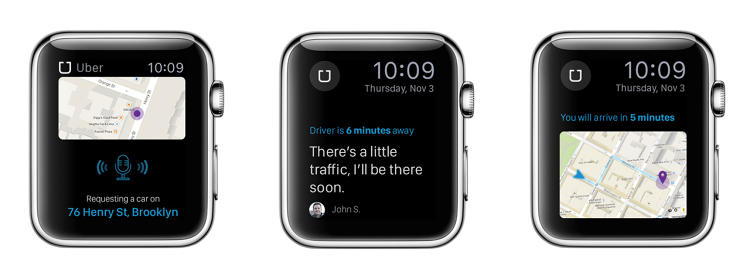
The Best Apple Watch Travel App

Uber is the best mobile-app-based transportation network. It doesn’t come as a shock that the app has been released for Apple Watch users.

It looks exactly like the iPhone app, and it has all of its features. The travel app allows its user to get a ride from absolutely anywhere were the Uber service is provided – it has been banned in several countries since its release. If you plan on using Uber in Belgium, France, Germany, Romania, India, and The Netherlands, you’re going to have a bad time, because the service is illegal in those countries.

Anyway, the app will offer details about the driver, how much time he has until your destination, and also it features a map where you can view where your driver is.

It’s free!

  • The Best Fitness App – RunKeeper

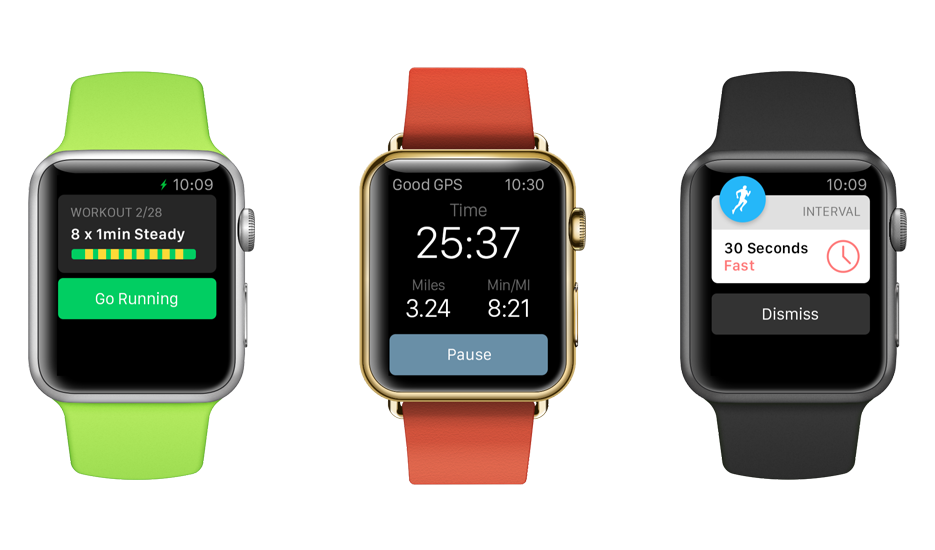
The Best Apple Watch Fitness App

RunKeeper has a pretty long history with Apple. Released in 2008, it has garnered a huge following, and it’s the to go app when you want to track how you workout!

It feels a lot better to check your wrist for stats, rather than get your phone out of your pocket. The user can also track his heartbeat with the app.

One great feature that comes with the smartwatch app is the option to turn every single notification off. If you get easily distracted by e-mails, messages, phone calls, or Facebook notifications, you better turn it on and experience pure ignorance while you workout – You know the saying Ignorance is bliss!

It’s free!

  • The Best Productivity App – Evernote

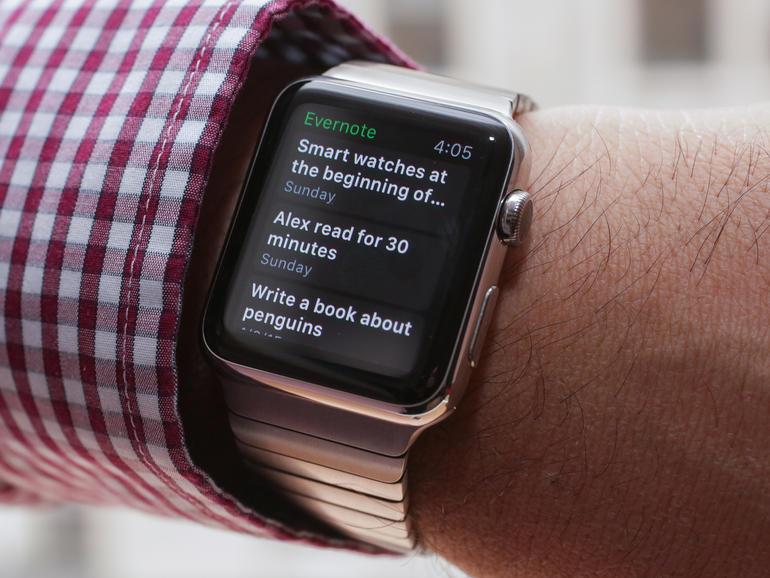
The Best Apple Watch Productivity App

Evernote has been wildly popular since the Apple’s smartwatch release, and for good reasons too. It’s the best tool for users who want to dictate, view, and update their notes through dictation on the watch. Any data can be synced to the user’s account so it’s at a touch of a button regardless of the hour, or device – no, unfortunately you can’t synch your notes to your high-tech toaster, but in the near future, hopefully, we’ll get toasters that will run iOS or Android.

It’s free!

  • The Best App to Keep Track of Your Finances – Mint
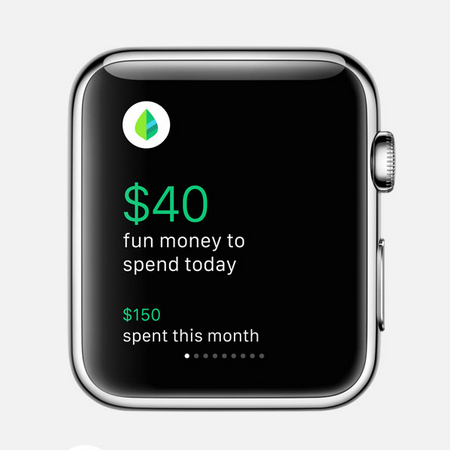
The Best Apple Watch App to Keep Track of Your Finances

You don’t need to be cavalier with your finances, and adulthood is all about managing your money in order to live another day. It’s going to be really hard at first, but you’ll get there – I remember the first few months when I started to really be on my own, and how at the end of the month, with almost  10 days before my pay check was due, I didn’t have any money at all. I just ate whatever I had in my fridge, and I have to tell you, mustard with bread for a whole week will make you hate yourself like you’ve never done before.

Now, let’s get back to Mint. The app allows its user to set a limit of how much you want to spend a month, and track your limit of spending. It also shows you how much money you’ve spent in a specific period of time, so you can berate yourself at night, before you go to sleep – you seriously didn’t need to buy all those games from amazon, regardless if they were on sale or not.

It’s free!

  • The Best Game – Watch Tag

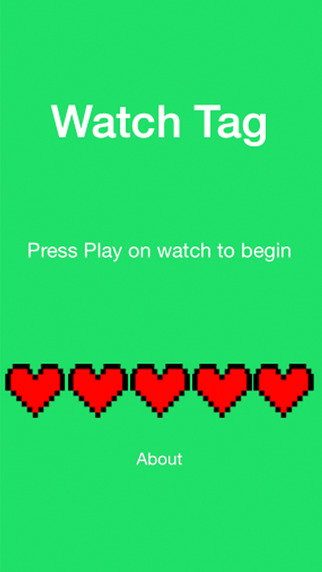
The Best Apple Watch Game

The Watch Tag game is one of the most social games that I have had the pleasure of playing. It’s only for Apple Watch users, so if you want to be part of the fun, get on the bandwagon and buy yourself Apple’s smartwatch. How does the game work? Well, users have points on their device, and there is a target set to your wrist. In order to win the game you must tap the targets on your enemy’s wrist – every time you do so, you deduct a point from Timmy. At the end, he who has the most points wins the crown to the kingdom – it’s usually a cup of coffee, or a Snickers bar.

It costs $0,99!

  • The Best Smart Home App – SmartThings

The Best Apple Watch Smart Home App

Surprisingly, the SmartThings app is available for Apple’s smartwatch. Why surprisingly? Well, because SmarThings is made by Samsung, and the two companies don’t really get along that well. The user can control all of the sensors straight from their wrist. You’ll receive notifications, and in the future, the developers have been reported to state that more functionalities will be available for their app.

It’s free!
Image Source: 1, 2, 3, 4, 5, 6, 7, 8

Filed Under: Headlines Tagged With: Apple, apple watch, Evernote, smartwatch, uber, Watch Tag

How to Manage Apple Watch Notifications

May 8, 2015 By Roxanne Briean Leave a Comment

How to Manage Apple Watch Notifications

It won’t take long until you start to get annoyed by all the Apple Watch notifications. The constant vibrating and alarms throughout the entire day are enough to drive anyone insane. However, Apple gives people who purchased its Watch the ability to customize what sorts of notifications go to the device. Here is what you need to know that will help you manage Apple Watch notifications.

Alerts and Privacy

On your iPhone, open the Apple Watch companion app and go to Notifications. There is a list here with all the services and the apps that make your Watch constantly buzz. There are two very important settings on the top: Notification Privacy and Notifications Indicator. These two settings are turned on by default.

When Notifications Indicator is enabled it will make your watch display a tiny red dot to show you that you have unread notifications. The Notification Privacy setting will keep all your notifications private until the moment you interact with them. Should you want to turn off any of these two, or both of them, simply use the switches to disable them.

Preinstalled App Notifications

The section on top of the Notifications menu is meant for the preinstalled apps on your Apple Watch, like emails, text messages and activity tracker. The notifications from preinstalled apps can be customized to fit your needs, unlike the ones from third party apps that just mirror the notifications you receive on your iPhone.

If you only want to get a buzz when you receive a text message and not a sound alert you should follow these steps. Go to the Notifications menu inside the Apple Watch companion app, tap on Messages, then Custom and finally turn off the sound switch. As another example, if you don’t want to be bothered by the Apple Watch to remind you every hour to stand, simply access Activity and turn off the Stand Reminders.

Third Party App Notifications

The Apple Watch mirrors the notifications automatically from your iPhone by default. This thing can get really, really annoying very fast. I was constantly annoyed by useless notifications from Twitter, Instagram and Facebook. To select which notifications you want coming through from your iPhone go to Settings and tap on Notifications.

You can disable all the app notifications you get on the Apple Watch to stop them from appearing at all. Go in the Apple Watch companion app on your iPhone, go to Notifications and scroll to the bottom of the section. There is a list there of all the apps for Apple Watch that you have. All you have to do here is simply disable all the notifications from the apps you don’t want to be bothered by.

I turned off pretty much all the notifications from third party apps, but this might not be the case for you. Make sure you explore in detail the Notifications menu in the Apple Watch companion app and customize all the alerts to fit your needs.

So there you have it. We hope this answers all your questions on how to manage Apple Watch notifications.

Image source: 1

Filed Under: Tech & Science Tagged With: Apple, apple watch, apple watch disable notifications, Apple Watch notifications, apple watch turn off notifications, disable apple watch notifications, how to manage apple watch notifications, manage apple watch notifications, notifications apple watch

iPhone 6s Display Rumors

March 18, 2015 By Roxanne Briean Leave a Comment

iPhone 6s Display Rumors

iPhone 6s rumors are beginning to surface and several details regarding the iPhone 6s display have already started to make their way on the Internet.

The new Apple smartphone saw the biggest upgrade regarding its screen, increasing its size from a 4-inch display to the current 5.5-inch one present on the iPhone 6 Plus and the 4.7-inch display on the iPhone 6. Despite this change in size, the screen uses the same LCD found in previous models, meaning that consumers are pretty excited about a possible change in technology in the new iPhone 6s.

Here are some exciting iPhone 6s display rumors.

iPhones were always built with great displays and were one of the first smartphones to have high resolutions, ever since the iPhone 4 which launched in 2010. Since that model, Apple offered the Retina display in all its phones, the biggest one being the 1080p Full HD one inside the iPhone 6 Plus.

Now it seems like things are about to get even more exciting as a lot of rumors are regarding the display inside Apple’s next generation phone.

OLED Technology

There are rumors that Apple will use an OLED display inside the iPhone 6s. It’s a known fact that OLED displays are better than LCD ones but they cost more to make. Time will only tell how the price of the new iPhone 6s will be affected by the possible use of an OLED display.

OLED displays use a technology that allows each pixel on the screen to be built with an organic material that lights up when electrical current passes through it. This means that OLED displays (Organic Light-Emitting Diode) don’t need any backlighting and thus are a lot lighter and thinner than traditional LCD ones. This also means that OLED displays can be curved and bent, which will allow Apple to experiment with numerous designs.

This kind of technology is more popular nowadays and many TVs use OLED screens as well as some smartphones. That being said, it’s still a new technology and it’s understandable that Apple waited a bit before using it in its iPhones. However, this might be the perfect time for Apple to use this screen inside the iPhone 6s.

iPhone 6s Force Touch

Many people claim that this technology included in Apple Watch will also be used inside the new iPhone.

Force Touch on the Apple Watch lets users trigger actions depending on how much pressure they apply to the screen. For example, a light tap can be used to select an item, while a heavy press can display a menu or a set of options. It’s pretty similar with how a right and left click function on a mouse and it wouldn’t be surprising if Apple decides to use this technology in its new smartphone.

A similar technology was revealed earlier this week in the new MacBook. The laptop’s trackpad was improved upon and even though it’s manufactured out of glass, it’s now pressure sensitive which will allow the user to click anywhere on its surface. Up until now, the user could have only clicked from one side on the trackpad.

This technology is used by Apple for what it calls “force clicks” which, for example, will let users click harder on an address inside the Mail app to get a location of said address. Apple also showed how you can use it inside Finder to get a preview of what a folder contains.

It looks like Apple is expanding this new technology to be used inside different devices and it wouldn’t come as a surprise if it will also make its way onto the new iPhone 6s.

Glasses Free 3D

To be fair, this is pretty far-fetched, but it’s not entirely impossible. There have been rumors that the next generation iPhone will feature a glasses-free 3D display.

The new report claims that this kind of technology can’t be used with the display found in the iPhone 6, which means that an entirely different screen must be used in order to take advantage of it. It’s unlikely that Apple will redesign the iPhone this year and it’s safe to assume that if in fact a glasses-free 3D technology will be used inside the iPhone, it won’t be used until 2016 when the iPhone 7 will be released.

A 3D screen is possible but if the Amazon Fire Phone has taught us something is that consumers aren’t all that excited about this kind of technology. The Amazon Fire Phone wasn’t such a great hit.

It’s a rumor that has to be taken lightly but Apple did experiment a bit with 3D with the Parallax Effect option present in iOS7 and iOS8. The Parallax Effect gives the illusion that the display is 3D and it was first introduced in Apple’s iOS 7 and was eventually used in iOS 8 as well.

It seems a bit odd that Apple would wish to put this technology inside its iPhone, seeing how consumers aren’t all that keen on it. However, the company is known to improve upon technologies in such a way that they become unique and useful to the user. That being said, it’s not completely crazy to expect a next generation iPhone to come with a glasses-free 3D display.

So there you have it. This was our list of iPhone 6s display rumors. Only time will tell if Apple will indeed use any of these inside its new smartphone or not.

Image source: 1

Filed Under: Tech & Science Tagged With: Apple, iPhone, iphone 6s, iphone 6s display, iphone 6s display rumors, iphone 6s new display, iphone 6s new features, iphone 6s new screen, iphone 6s rumors, iphone 6s screen, rumors iphone 6s

Apple Watch Differences between Models

March 17, 2015 By Roxanne Briean Leave a Comment

Apple Watch Differences

Apple recently released some details regarding their upcoming new device called the Apple Watch. The company also confirmed the rumors that they will manufacture 18k gold watches that will cost more than $10,000, but what are the Apple Watch differences?

On March 9 at the Spring Forward event, the tech giant said that Apple Watch Sport will retail at a price of $349 for the version for smaller wrists at 38mm and $399 for larger wrists at 42mm.

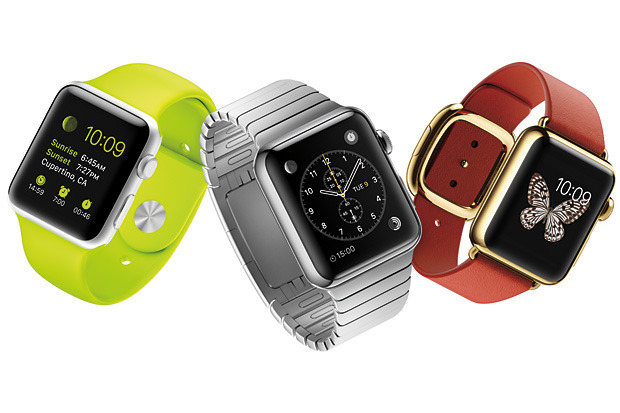
The Apple Watch Sport is made out of anodized aluminum which the company claims it’s as light as normal aluminum but significantly stronger. Its screen is made out of an ion strengthen glass and the back of the watch is built out of plastic. Apple Watch Sport comes with a wrist band made out of fluoroelastomer which comes in five different colors: black, white, pink, green and blue.

The Apple Watch Sport comes with a magnetic charging cable, two wrist bands, a USB adapter, three months of technical support and a year of hardware warranty. For an extra fee, the user will be able to extend the technical support to two years.

The 38mm Apple Watch will cost $549 and the 42mm one will cost $599. The bands will determine how much it will cost. The prices listed above are for the models with a white or black band. You can also buy an Apple Watch with a Milanese loop or a classic buckle for $649 for smaller wrists or $699 for the bigger 42mm model.

The 42mm Apple Watch is also available with a stone, light brown, black leather or bright blue leather loop for $699. The bands on the Apple Watch are made out of Venezia leather which will be handcrafted in Italy. The 38mm model also comes with a modern buckle for $749. The buckle is made in France and has an inner coating made out of Vectran weave. This is the same material NASA used for the airbags used for landing on the Mars rover. The buckle comes in black, brown, soft pink and midnight blue.

There is also a link bracelet made from the same material Apple used for the case of the watch and the 38mm one costs $949 while the 42mm one is $999. The black model will cost $1,049 for smaller wrists and $1,099 for larger ones.

The Apple Watch has a sapphire screen and a back made out of ceramic, just as the Apple Watch Edition.

The smaller version of the Apple Watch Edition will retail at $10,000, while the larger one will cost $12,000. These are the prices for the watches that come with a simple white or black fluoroelastomer band. The 42mm Apple Watch Edition also comes with a classic buckle for the price of $15,000 and the smaller one is also available with a rose gray or bright red modern buckle and it will cost $17,000.

The Apple Watch Edition comes with an 18k yellow or rose gold case, a ceramic back and a sapphire crystal screen. These models will come with all the accessories included with the other models as well as a two year warranty that will cover technical support and hardware repair.

All the Apple Watch models are water resistant and feature Force Touch and Retina display. The Apple Watch also features an ambient light sensor, a gyroscope, an accelerometer, a digital crown and a heart rate sensor. All the models come with a microphone and speaker which can be used for dictating messages and answering calls. The Apple Watch also has Bluetooth and Wi-Fi built in. You can get up to 18 hours of battery life on a single charge. This is better than most people anticipated but it will still require the user to charge the Apple Watch every night.

Apple demonstrated some of the functions in the event, such as using the Apple Watch as a TV remote, checking stocks, browsing through Instagram, dictating notes on Evernote and unlocking a Starwood Hotel room door.

You will be able to pre-order all the models on April 10 and Apple will start to sell the models on April 24.

If you’re curious about the Apple Watch price we’ve made a list of all the models, complete with their specific prices:

  • 38mm Apple Watch Sport – $349
  • 42mm Apple Watch Sport – $399
  • 38mm Apple Watch (Fluoroelastomer Band) – $549
  • 42mm Apple Watch (Fluoroelastomer Band) – $599
  • 38mm Apple Watch (Classic Buckle) – $649
  • 42mm Apple Watch (Classic Buckle) – $699
  • 38mm Apple Watch (Milanese Loop) – $649
  • 42mm Apple Watch (Milanese Loop) – $699
  • 38mm Apple Watch (Modern Buckle) – $749
  • 42mm Apple Watch (Leather Loop) – $699
  • 38mm Apple Watch (Stainless Steel Link) – $949
  • 42mm Apple Watch (Stainless Steel Link) – $999
  • 38mm Apple Watch (Black Stainless Steel Link) – $1,049
  • 42mm Apple Watch (Black Stainless Steel Link) – $1,099
  • 38mm Apple Watch Edition 18k Yellow/Rose Gold (Fluoroelastomer Band) – $10,000
  • 42mm Apple Watch Edition 18k Yellow/Rose Gold (Fluoroelastomer Band) – $12,000
  • 42mm Apple Watch Edition 18k Yellow Gold (Black/Midnight Blue Classic Buckle) – $15,000
  • 38mm Apple Watch Edition 18k Rose Gold (Rose Gray Modern Buckle) – $17,000
  • 38mm Apple Watch Edition 18k Yellow Gold (Bright Red Modern Buckle) – $17,000

Image source: 1

Filed Under: Tech & Science Tagged With: Apple, apple watch, apple watch differences, apple watch gold, apple watch model, apple watch model differences, apple watch models, apple watch price, apple watch prices, differences apple watch, iwatch, price apple watch

20 Apple Watch Features

February 16, 2015 By Roxanne Briean Leave a Comment

The Apple Watch is a new smartwatch that will connect to your iPhone and accomplish numerous tasks. You’re probably very familiar with the new device’s name that’s coming out soon by now, but you want to know more about the things you can do with it, am I right? The Apple Watch release date will be set in April and until then we want to share with you 20 Apple Watch features that we believe are the best and most exciting.

More Apple Watch features are sure to be reveled in the near future in an event where the company will share the exact release date of the new device and its full specifications. Even though there are a lot more features we don’t know about the Apple Watch, we do know some things this new smartwatch can do as the company revealed much of them in 2014.

The price of the Apple Watch starts at $349 for the Sport edition but we expect that the high-end models to reach up to and over $1,000.

To use the Apple Watch you will need an iPhone, of course, because many of the things that you will be able to do with the smartwatch rely on the connectivity between the two devices. This smartwatch won’t replace the iPhone; it just offers a way to access more quickly your daily activities. Even though this device is not the first smartwatch on the market and not even the first to connect to an iPhone, it’s still the most anticipated one.

To help you decide whether the Apple Watch is a great investment or not, we made a list of 20 Apple Watch features that we believe are the best and most useful.

1. Answer calls

answer-calls

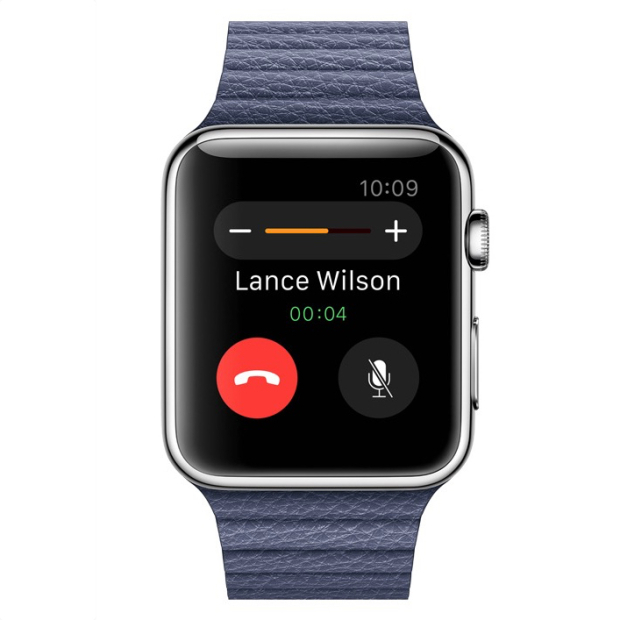
You can use the Apple Watch to answer calls by using it as a Bluetooth speaker. However, after using the Samsung smartwatch that has a similar feature, we now know that you should only use this for small conversations and never answer calls that you wouldn’t take on speakerphone either.

2. Monitor your heart rate

monitor-your-heartrate

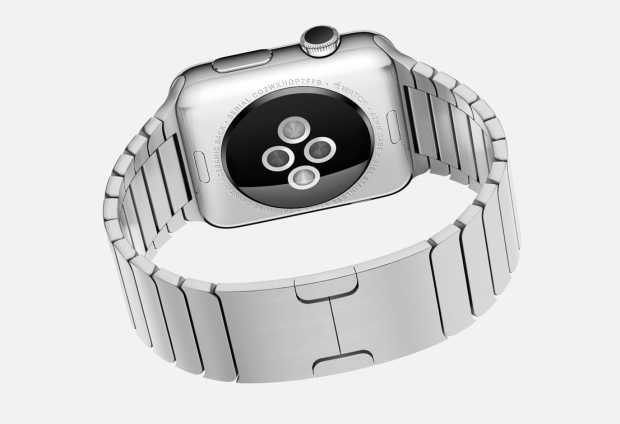
The Apple Watch has sensors on its back that can monitor your heart rate. However, it’s still not clear whether the smartwatch will record your resting heart rate or not, so the usefulness of this feature will definitely depend on how regular the watch will monitor it. We really hope to find out more about this feature at an event held by Apple in 2015.

3. Glances

glances

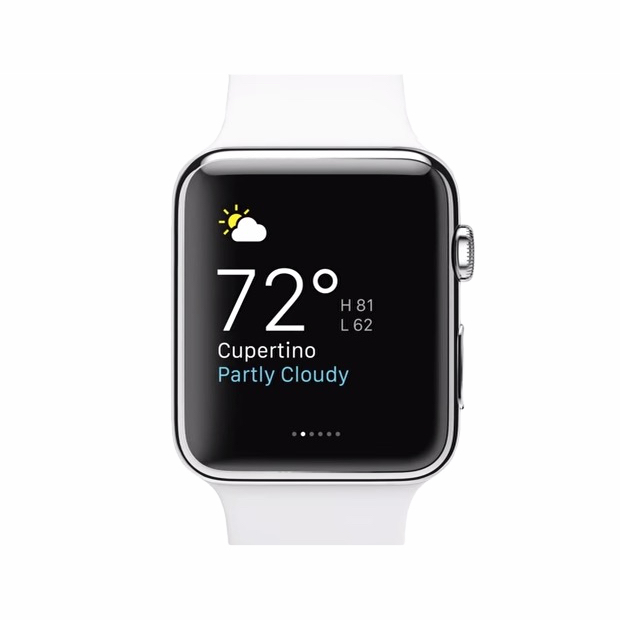
The smartwatch has a feature called Glances. These are small pieces of info that you can look and swap through on your Apple Watch. They can include sports scores, maps, stocks, meetings and the weather. They aren’t the same thing as the notifications on your iPhone, but are similar in nature to the Today panel in Notification Center on your phone. Third party apps can also share Glances on the screen of your watch.

4. Change the watch faces

change-watch-faces

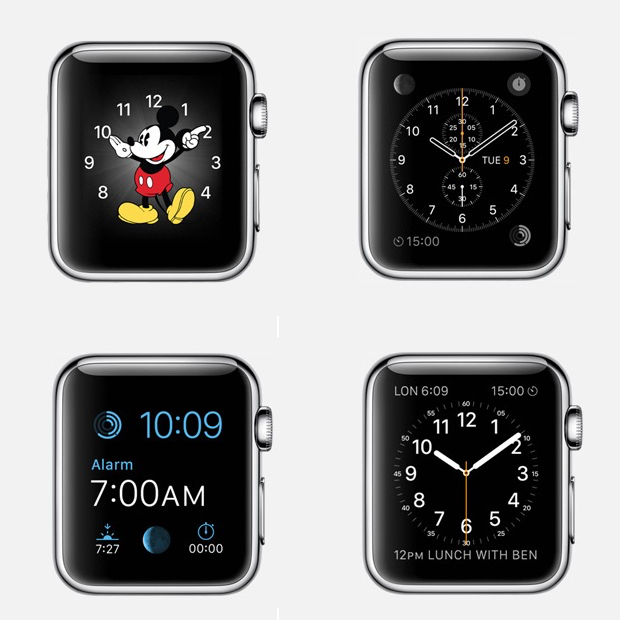
You can pick a new face for you Apple Watch to be relevant to the event you’re taking part of. We’ve seen 12 faces that range from functional and fitness to formal. There is a classic analog look, a face with Mickey Mouse, numerous digital ones and others that include info from the calendar and details such as the sunset and sunrise.

5. Track your fitness activity

track-fitness

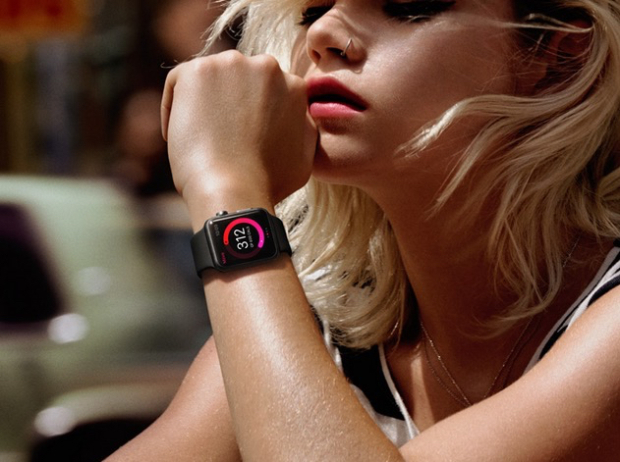
The smartwatch from Apple makes use of numerous sensors to track your movement and your fitness activity progress. You will be able to see your progress in three categories: exercise, time spent standing and movement. Your fitness activity information will also be available on your iPhone.

6. Tickets on your Apple Watch

tickets-apple-watch

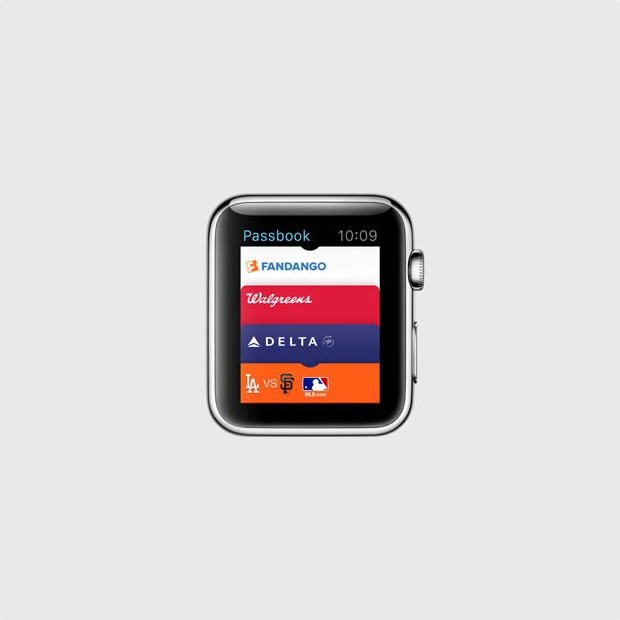
With the Passbook app on your Apple Watch you will be able to have tickets and loyalty cards right on your wrist. When you will need a ticket you will only have to show your watch to the gate agent or cashier and you will be all set to go.

7. Find your iPhone

find-iphone

You can find where your misplaced iPhone is with your Apple Watch, as long as it’s connected to it. However, you can’t find a stolen or lost iPhone, or even one that’s out of the Bluetooth range but it’s still a pretty useful feature for those who are constantly misplacing their phones.

8. Remote viewfinder for your iPhone camera

remote-viewfinder

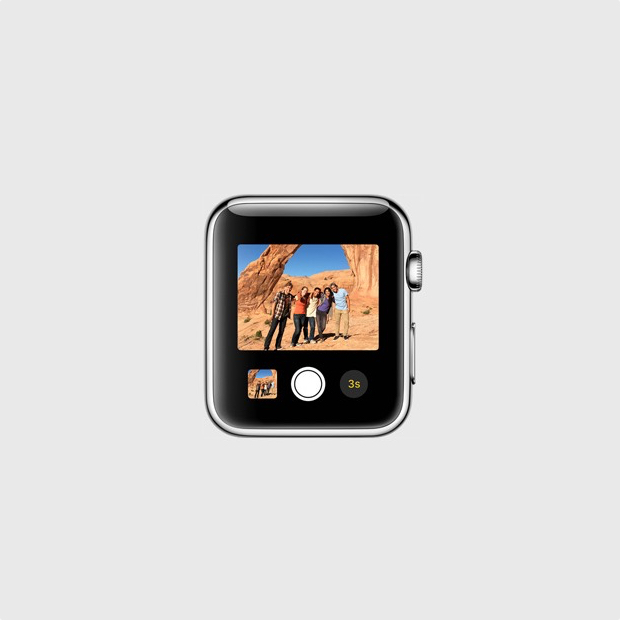
You can use your smartwatch as a remote viewfinder for the camera on your iPhone. By using this function you can place your iPhone somewhere, then get into frame and take the shot. It’s a way easier and better way of taking your own shot without the front facing camera or with the help of a selfie stick.

9. View and reply text messages

view-reply-text-messages

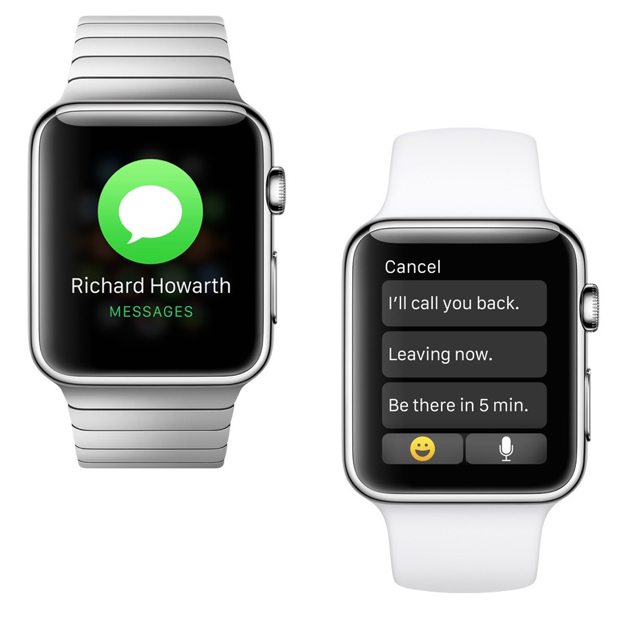
You can see the iMessages or text messages you receive on your wrist with the help of the Apple Watch. You may also reply to them with template messages. It’s a pretty useful feature that will save you the trouble of constantly taking out your iPhone out of your pocket. On top of this, you will also be able to use Siri to compose messages.

10. Check your emails

check-your-emails

You can get email notifications on your Apple Watch. You will also be able to flag, delete or read them on the watch or open them on your iPhone for full view. This features works with the Mail app on the iPhone and it’s unclear at the time whether it will work with third party apps too, or not.

11. Browse through all your Apple Watch apps

browser-apple-watch-apps

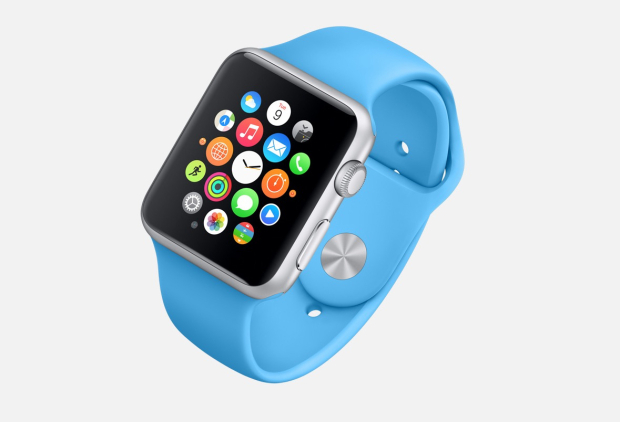
There will be a lot of apps that you will be able to install on your Apple Watch even though it may be a while until a vast library of apps will be available for it. However, the apps will appear as small circles on the screen of the watch and you will be able to browse through them by using the small Digital Crown on the side of the smartwatch to leave the screen empty for better viewing.

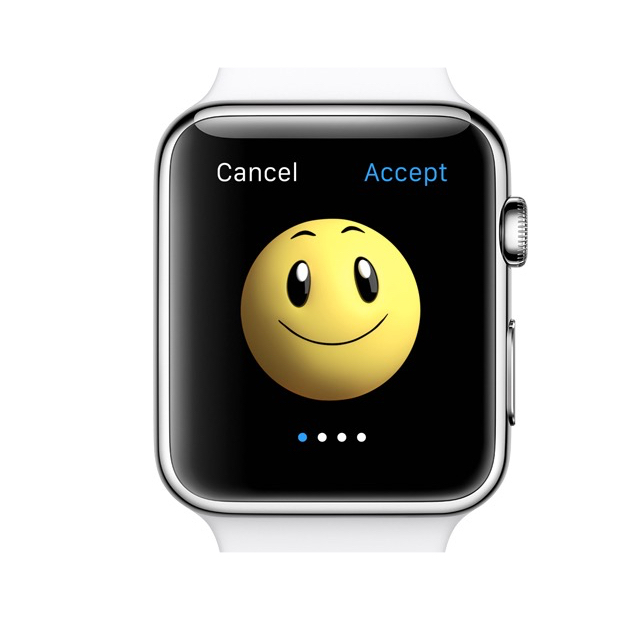
12. Send Emoji

send-emoji

If you’re a big fan of Emoji on your iPhone, you’ll be glad to find out that you will be able to send better, bigger and animated Emoji from your watch.

13. Get notifications from your iPhone

get-notifications

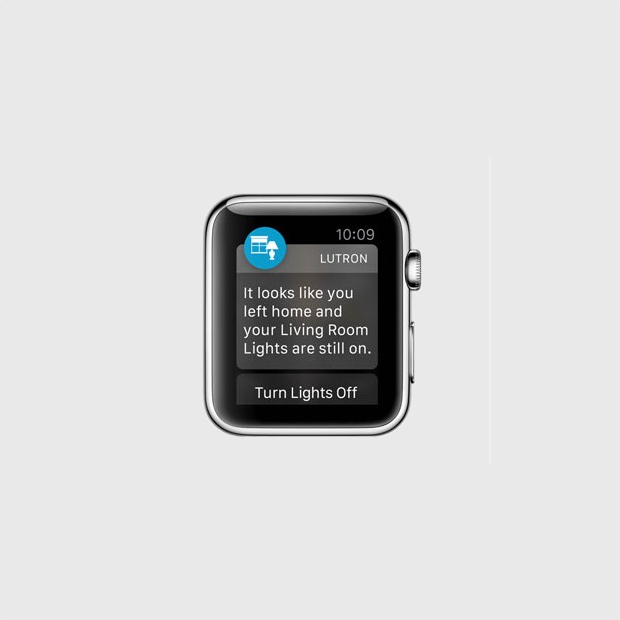
The smartwatch can display the notifications from your iPhone. This includes notifications from third party apps such as Gmail, Facebook and pretty much anything you can think of. You can customize the notifications you will receive so you won’t be overwhelmed by invites from Candy Crush and other apps that send annoying, frequent notifications.

14. Share your heartbeat with other Apple Watch users

share-your-heartbeat

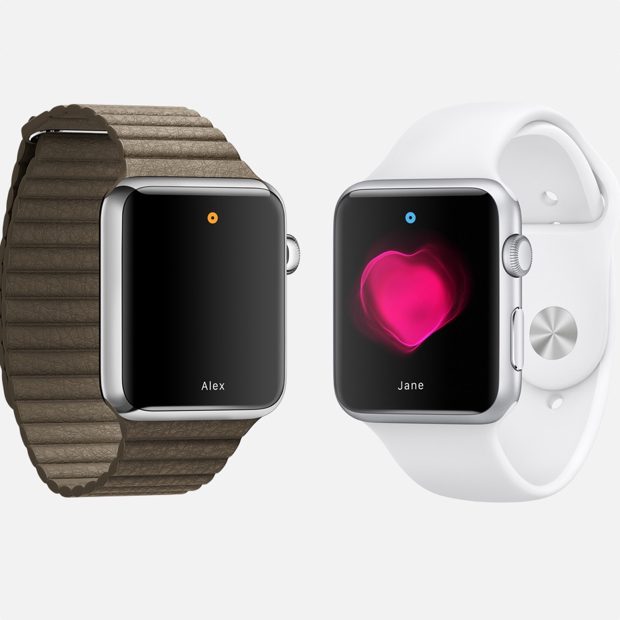
The smartwatch can track your heart rate and fitness activity, but this is not all it can do. If you want, you can share your heartbeat with a friend that also has an Apple Watch. When you share this with a close friend, an animation will appear on the other person’s watch that will show your heartbeat. Apple says that this is an intimate way of showing someone how you feel.

15. Use Apple Pay

use-apple-pay

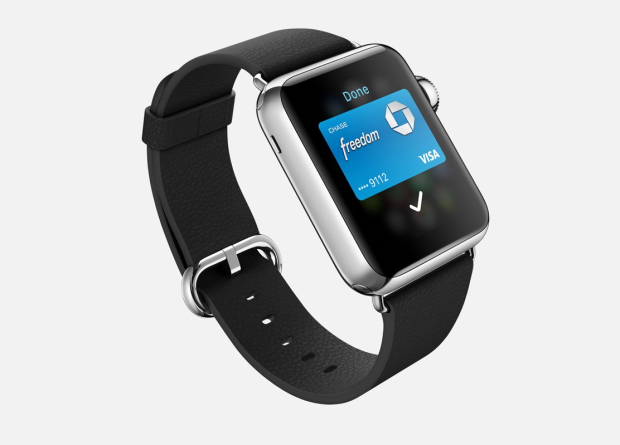
You won’t need to take your iPhone out of your pocket to make a payment through Apple Pay; you can do so just with the help of your watch. Apple Pay allows you to add multiple credit cards in the service so you won’t have to worry about carrying them with you. The service allows you to pay with your Apple Watch in stores that support this kind of payment.

16. Exercise reminder

exercise-reminder

If you’re getting a little lazy and you’ve been sitting around doing nothing for quite some time, Apple Watch will remind you it’s time to get up. While this isn’t the first smartwatch to do this thing, it’s a very nifty feature.

17. Access contacts

access-contacts

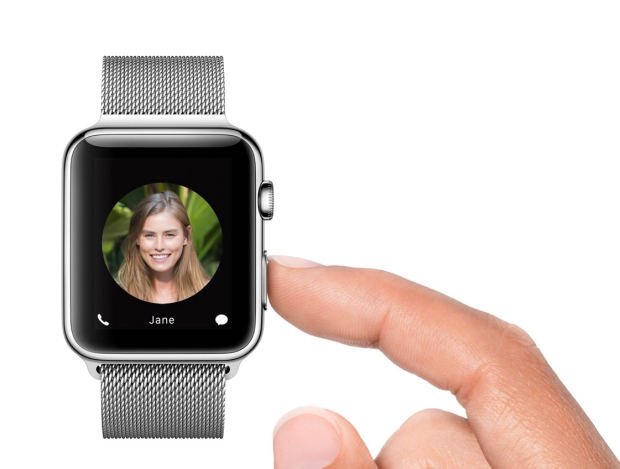
You can push a small button next to the Digital Crown on your Apple Watch to quickly access all your contacts. By doing this, you can select a contact to send a message to or call. This is also how you send your heartbeat to someone, a tap or a drawing. The tap feature is similar to the Facebook poke.

18. Use Siri

use-siri

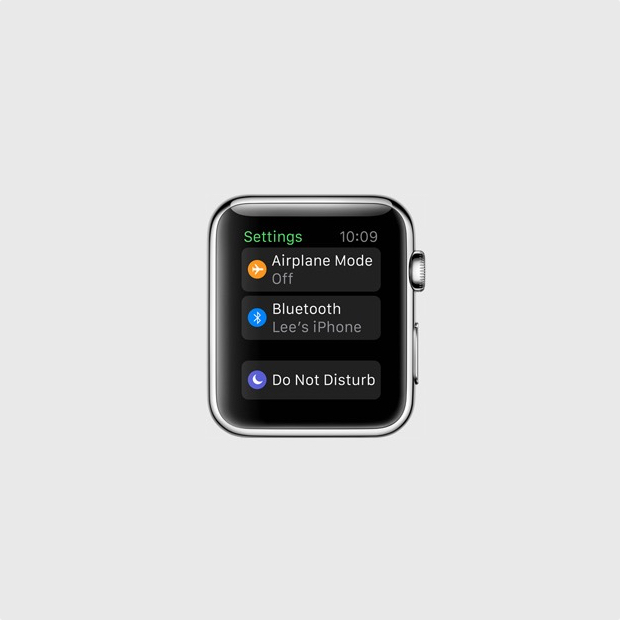
You can access Siri on your Apple Watch by saying “Hey Siri” or by holding down the Digital Crown button. To use this feature you will have to have your Apple Watch connected to your iPhone.

19. Share your current location

share-current-location

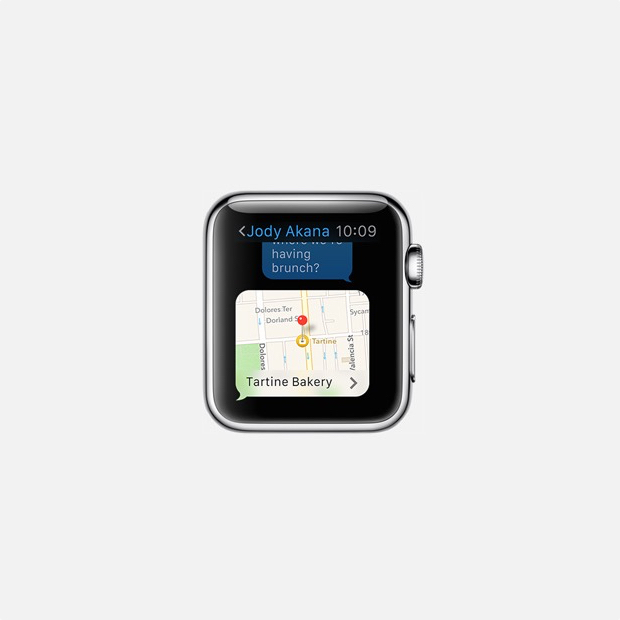
Apple Watch can be used to share your current location with a friend. This feature is already available in Messages on the iOS 8 and makes it easier for people to know where you currently are and in the near future you will be able to do the same thing through your Apple Watch.

20. Control your music and Apple TV

control-music-apple-tv

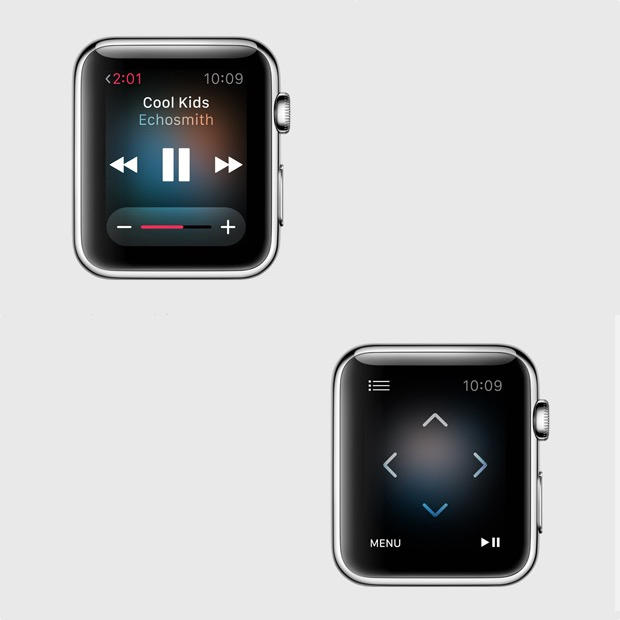
You can use the smartwatch as a remote control for iTunes and Apple TV. This is a pretty cool feature as it’s almost never easy to find that small remote and you sometimes really need to pause the music or TV when you can’t do so by using the iPhone Apple TV remote app. You can use the Apple Watch to browse through lists, menus, choose the movies you want to see and listen to the radio or music on iTunes.

So there you have it. This was our list of the best 20 Apple Watch features so far.

Images source: gottabemobile.com

Filed Under: Tech & Science Tagged With: Apple, apple smart watch, apple smartwatch, apple watch, apple watch details, apple watch features, apple watch price, apple watch release date, apple watch rumors, iphone watch, iwatch

Tablet Sales Are Declining

February 4, 2015 By Roxanne Briean Leave a Comment

tablet-sales-are-declining

Image source: apple.com

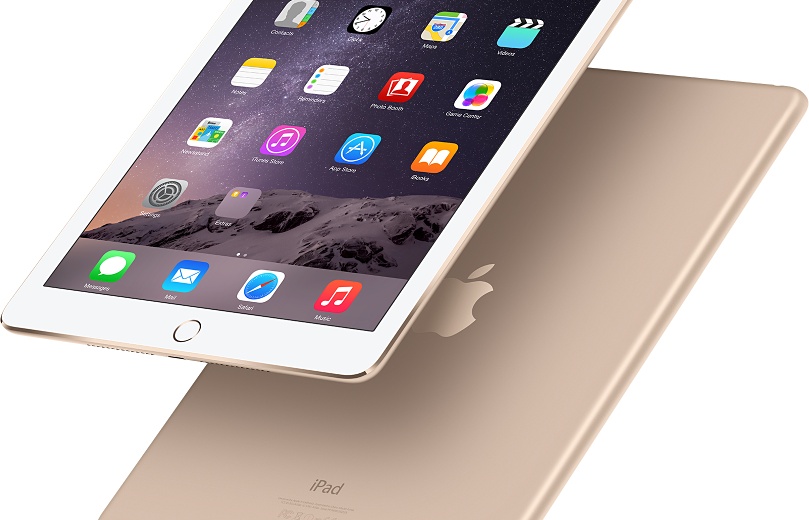
We were all shocked when the former CEO from BlackBerry, Thorsten Heins said back in 2013 that within five years the tablet will be dead. His prediction doesn’t quite seem as ridiculous now, just two years after he made it, seeing how tablet sales are declining. IDC claims that for the first time ever, the sales of tablets have declined in the fourth quarter. This basically means that consumers have ignored tablets during this holiday season and focused more on other devices such as drones, Chromebooks and fitness trackers.

The decline

Four from the five major tablet manufacturers, including Apple, have reported serious declines in sales. Even though Apple released the new iPad Mini 3 and iPad Air 2, the tech giant saw negative growth of around 18 percent. Similar declines were reported by Samsung as well. However, Apple still dominates Samsung in terms of market share.

The fourth quarter is still a very successful one for Apple because of the iPhone 6 and iPhone 6 Plus. Despite this, Apple’s CEO Tim Cook said the iPad is facing challenges.

We may get a new iPad in the future called the iPad Pro. This new device is said to have a 12 inch display and better multitasking capabilities. However, an analyst at IDC, Jitesh Ubrani said the new device won’t be able to take back the fortunes that Apple has seen in the market.

Amazon seems to have taken the biggest blow in the tablet market. The company’s growth declined by 70 percent and we wonder if the Fire smartphone had anything to do with this. But Ubrani thinks there is a much simpler explanation than that. The fact is that Amazon dominated the low-end of the market until now but companies such as Asus, Acer, RCA and E Fun are taking over.

There are other things that are responsible other than dropping prices. The innovation of these devices has simply disappeared. All the people who wanted a tablet in the past all have one at the moment and the small differences from one generation to the next one are simply not enough of a reason for people to upgrade.

It seems that the only big improvements on next generation tablets are better cameras, better screens and relatively faster CPUs. The truth is that there is not dire need to upgrade to a newer generation as long as all the games and apps work just as well on older ones.

Some people also believe that the phablet trend is more or less responsible for the death of the tablet.

Microsoft’s Tablet PC was intended for the masses but ended up being successful only with field workers and professionals. The iPad was able to reinvent the market by being able to put apps and the Internet at everyone’s fingertips. However, smartphones with bigger screens are able to do the same thing right now which means that tablet manufacturers will have to focus on more specific things their tablet devices could offer.

The tablet is currently being reinvented for smaller audiences such as kids and gamers and even though the tablet market will probably never see the attention it has seen in the past this doesn’t necessarily mean these devices are dying.

Filed Under: Tech & Science Tagged With: Apple, iPad, samsung, tablet, tablet is dying, tablet sales, tablet sales are declining, tablets, tablets are declining, tablets are dying, tablets are fading, tablets sales

LifeProof iPhone 6 Fre Case Review

January 25, 2015 By Nancy Young 1 Comment

lifeproof-iphone-6-fre-case-3

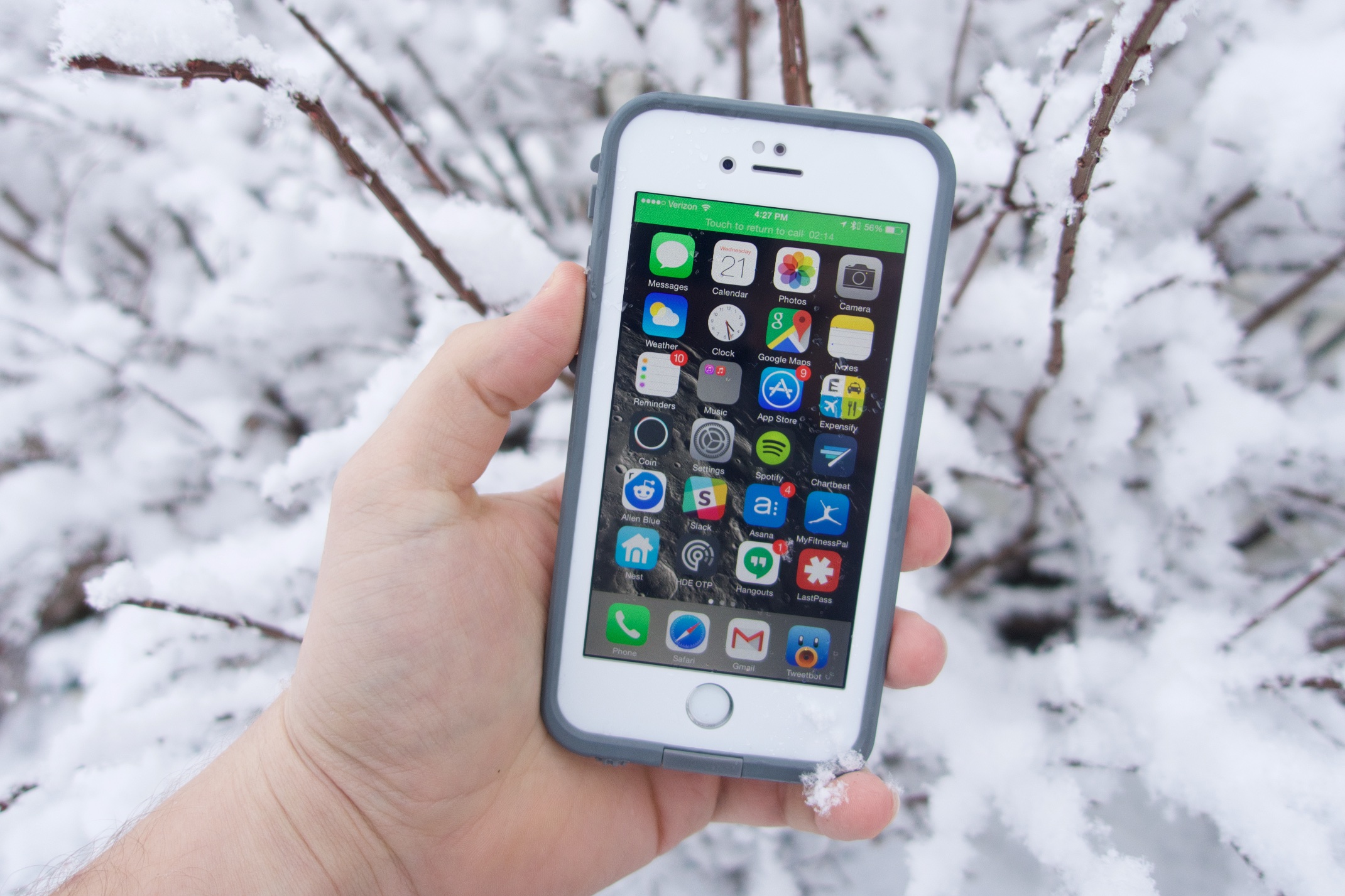
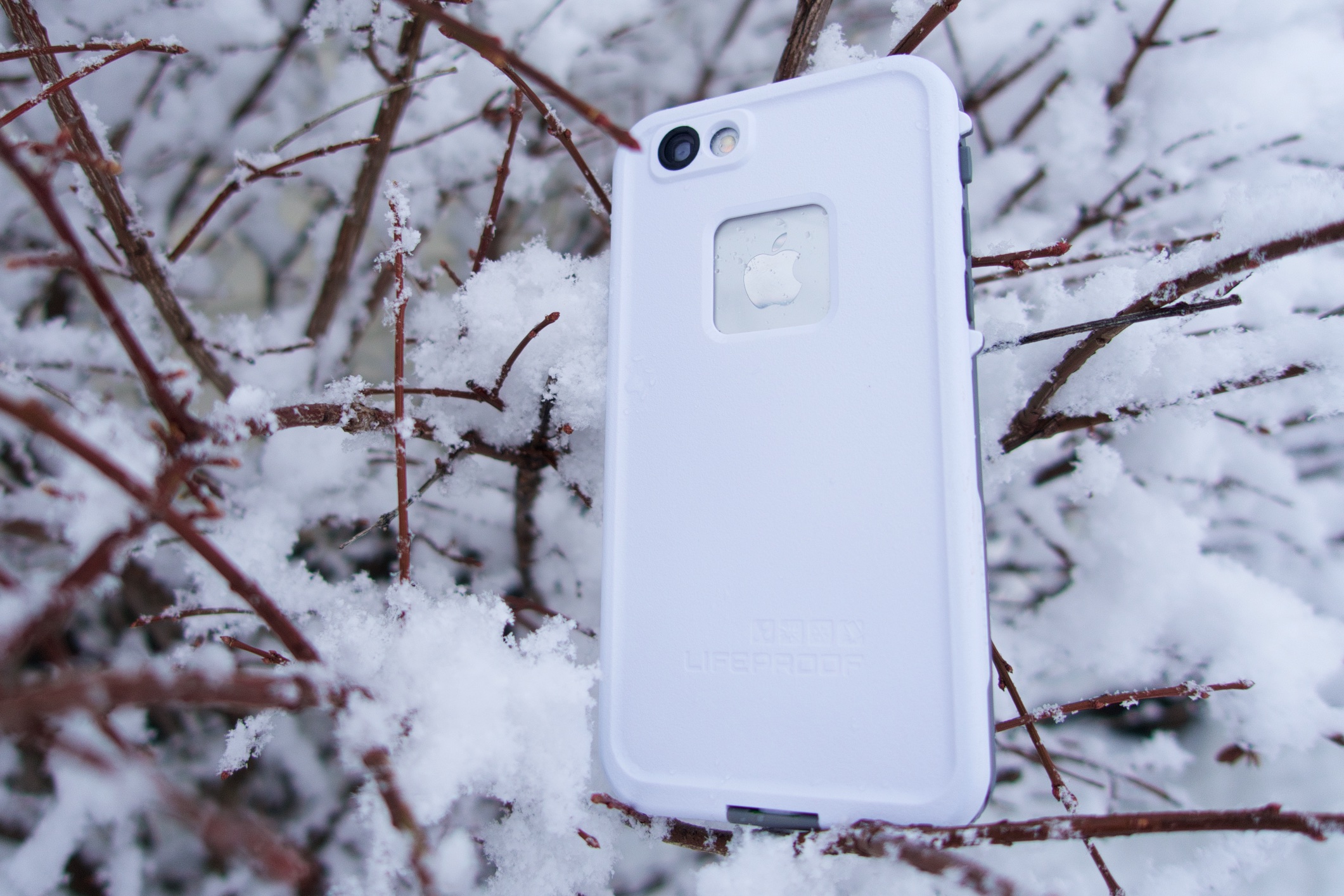
The new frē case from LifeProof protects your iPhone from water, dust, snow and drops. This new case is also the thinnest waterproof one we’ve even seen on the iPhone 6 and it also allows Touch ID functionality. There is a whole series of iPhone 6 cases from available from the company but this is our LifeProof iPhone 6 fre case review.

With this kind of waterproof case, like the fre case from LifeProof you can take your smartphone wherever you want – to a pool or hot tub, in the snow or in the shower where you can listen to music or watch YouTube videos (although we don’t think a lot of people watch YouTube videos in the shower). Many people are looking for a case from LifeProof that protects their smartphones from water, snow, drops or any other threats that come from using the device daily.

lifeproof-iphone-6-fre-case-2

We tested the case thoroughly and put it through different scenarios over the time, including letting a kid watch videos on it in the bath tub. You don’t have to have children to know just how much sense a LifeProof case makes. However, if you do have children and regularly give your expensive iPhone to them this accessory is something you should purchase.

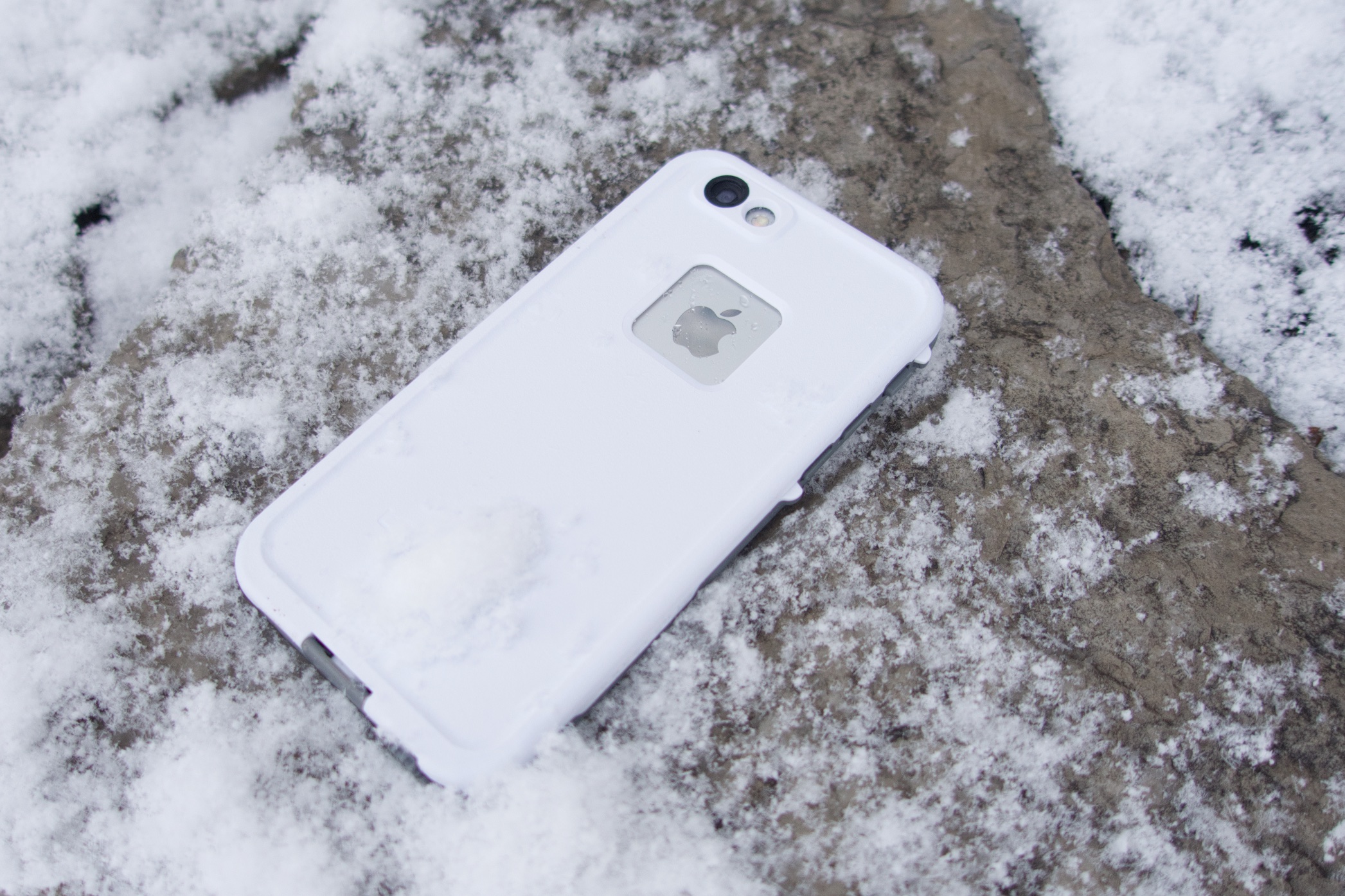
The LifeProof case comes in six different colors including pink, red, purple, blue, white and black so you can choose whatever color fits you best. There are also grey cases offered by LifeProof so you won’t lose your expensive phone in the snow.

The case provides great protection and for its size and thickness this is one of the best iPhone 6 cases available at the time. There are some bad things about the case but is one of the most protective cases available for anyone and will certainly protect your device against every season and every environment it is used in.

lifeproof-iphone-6-fre-case-1

The LifeProof iPhone 6 frē case costs $79.99 and you can purchase it directly from the company and they also offer free shipping. There is another case from LifeProof called nüüd that covers on the screen but doesn’t include protection for the display like the frē does that is going to be available soon on the iPhone.

You might expect from a waterproof case to make your iPhone look a lot bulkier and make it difficult to handle the device with just one hand but the frē case doesn’t add much to the iPhone’s thickness and is about the same size as a standard leather case from Apple.

You still have to adjust to using the iPhone with just one hand with the case, but this doesn’t mean it’s difficult to do so. There are also some cases when it will be easier for you to hold the iPhone 6 with just one hand when the case is covering it than without the case.

The case design hides the curviness of the iPhone 6 but it looks really good and its edge combines great with the screen protector and keeps the display protected against scratches and cracks.

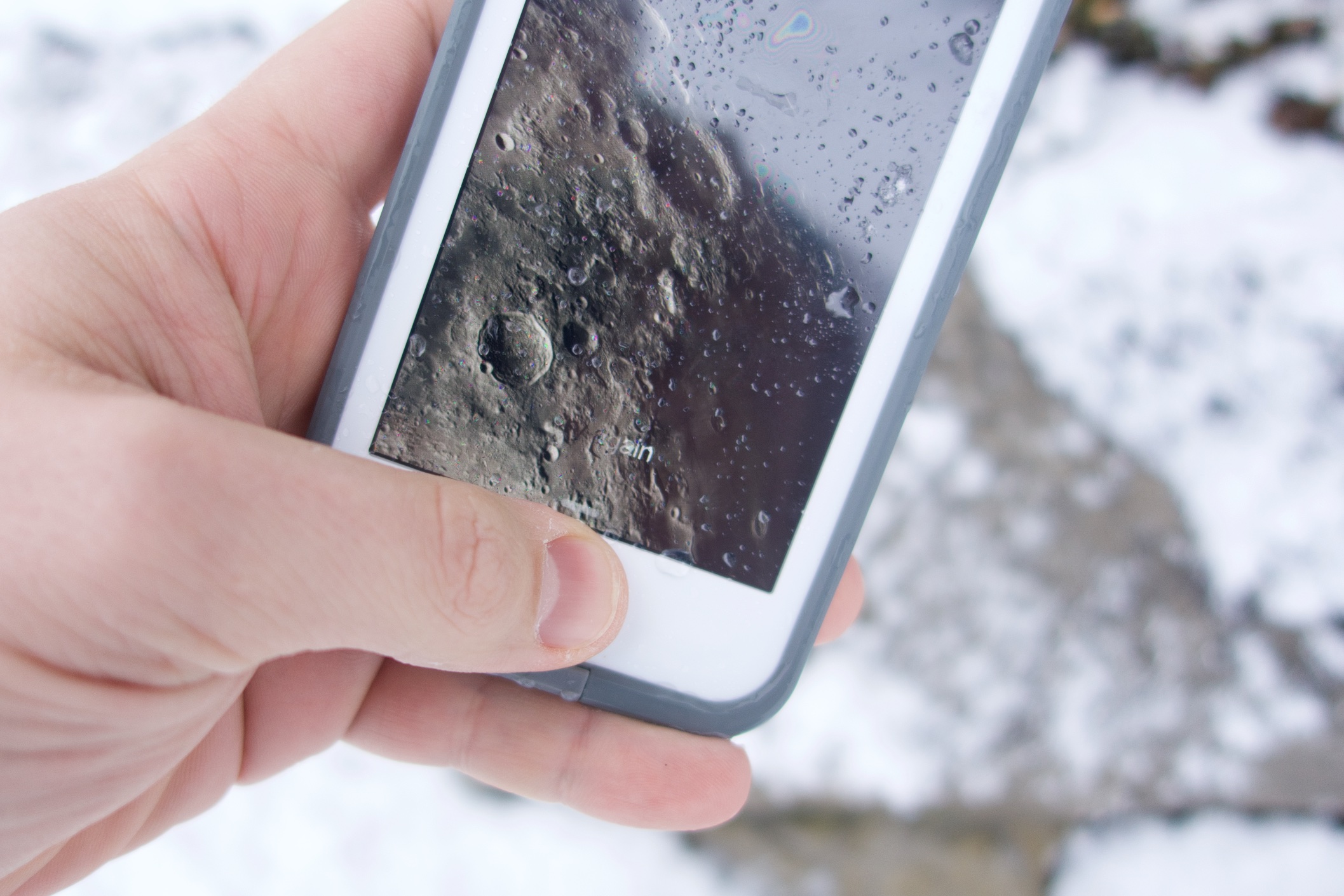
The case protected our iPhone 6 from water when doing dishes and in the shower. It also protected the device against snow during shovel trips and longer ones when playing and enjoying the snow. Even though we didn’t use extreme measures to test the frē case also protected the iPhone 6 from falls on tough surfaces from the waist.

Even though you can still use Touch ID with the case installed, it is not as dependable as it is when the smartphone isn’t covered by it. But it is still easy to use functions even with the edge of the case on the screen. The protector isn’t as good as a glass one but it is still pretty reliable and looks very good.

lifeproof-iphone-6-fre-case-4

There is a jack cover that you have to unscrew for you to plug in some headphones into your iPhone. The jack cover stays attached to the case so you won’t lose it when listening to music. Even though you can plug Apple EarPods in the iPhone without the adapter LifeProof included in its package, the device won’t be waterproof. You will have to use the included adapter to hold water away from the device and to use different kinds of headphones.

There is another flap that covers the Lightning port. The flap folds down when you have to access the port and it came off when we didn’t snap the flap when taking the case off of the device. It is pretty easy to put back but you should remember to open it before taking the frē case off.

The microphone and speakers are also covered and while they do degrade the audio quality a little bit, we believe it is a small price to pay for how well the cover protects the iPhone 6. LifeProof did improve sound quality from previous cases, however. All buttons are still accessible and the frē case has a nifty toggle that switches the iPhone to silent mode pretty easily.

The LifeProof iPhone 6 frē case is a great way to protect the smartphone and is an accessory that you should own if you want a waterproof case or don’t wish to purchase AppleCare+.

The case protects the device from pretty much everything. Snow, dirt, lots of dropts and water do nothing to the device when it is tucked inside the frē case.

The case isn’t as stylish as other cases out there, including LifeProof’s Nuud series, but it does offer great protection and we consider this to be much more important. The plastic screen protector is a step backwards from glass, which we like a lot more and are used to and the sound is a little bit disappointing. The case also has small ports for the Lightning cable and the headphone jack. Apple connectors work well on the case but if you have a third party connector or cable you might find it’s difficult to plug into your smartphone.

PROS

– The case is thinner than ever before

– It’s waterproof, snow proof, dust proof and is resistant to shocks

– Volume, Touch ID and camera work well

CONS

– Lightning cable and headphones port require smaller connectors

– Plastic screen protector seems cheap and gets pretty dirty

Images source: gottabemobile.com

Filed Under: Tech & Science Tagged With: Apple, apple iphone 6, fre case, fre case review, fre review, iphone 6 case, iphone 6 fre case, iphone 6 fre case review, lifeproof fre case, lifeproof fre case review, lifeproof fre iphone 6 case, lifeproof iphone 6 case, lifeproof iphone 6 fre case review

A Guide for Making the Switch from Android to iOS

January 2, 2015 By Roxanne Briean 2 Comments

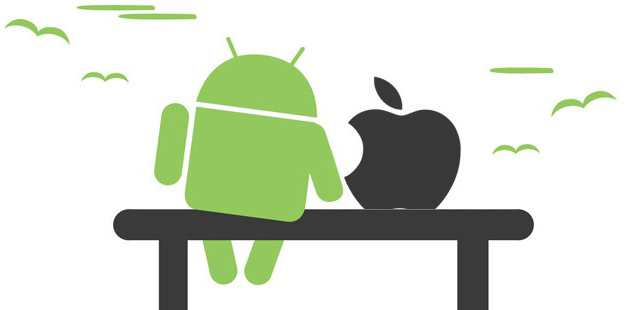
The two most popular smartphone operating systems in the world, Android and iOS, couldn’t be more different! The two camps have been at it for almost a decade now and there doesn’t seem to be a clear winner. Today, we’re going to address the delicate issue of switching from Android to iOS. Whether you’re tired of Android or you’re just in the mood for a change, you are going to need a bit of help during the process. You’re going to need to know what to expect and how to deal with the changes. So, for those people who are planning to move from Android to iOS, we have a small guide that will help them during the process.

Before we begin we would like to say that you need to prepare yourself emotionally before you make the switch. The two operating system are completely different and you will get frustrated at times. You need to be calm about it and remind yourself that you made a calculated decision and that you can always switch back if you and iOS don’t become friends.

android to ios

Another thing is that you need to do a little bit of research about how you’re going to transfer all of your contact and data from your Android smartphone to the iPhone. Fortunately, Apple is willing to help you out with that, but it only began offering information about the switch later this year. Up until now, when you bought the iPhone, you could have asked for information, but there was no official info about the switch. Another route would be forums, but they’re not always easy.

So what is Apple saying about the switch from Android to iOS?

Later this year Apple finally released some information on their official website about how to approach a switch from Android to iOS. The precious information will show you how to set up a new mail account, move your contacts mails and calendars from your Android phone to your iPhone, how to use an app, how to copy various data from Android to iOS, how to sign in to social media, how to move photos and videos from Android to iOS, and even how to use an app.

Apple knows that iTunes isn’t the easiest program to use, so they will show you how to use it to transfer photos, music and movies from your computer to your iPhone. You’ll also be instructed how to move books and PDFs, access eBooks from other apps, install Numbers, Pages and Keynote apps, set up iCloud and upload documents to iCloud.

What to Expect When Moving from Android to iOS

The most important advice we can give you about the switch from Android to iOS is to keep an open mind and be patient. With that in mind, here are a few things you should now and expect when making the big move from Android to iOS.

The Significant Changes

Customizability is Vastly Different Between the Two OSs

One of the most important differences between Android and iOS refers to customizability. As an Android user, you’re used to customizing your whole operating system according to your needs and this is probably the best part of Android. Well, when you make the switch from Android to iOS you should know that you’re going to lose a lot of that customization and you are going to miss it for a while. iOS does not have screen widgets and you can’t place app icons wherever you want. You also can’t change some of the default apps and quite a few other things. But if you’ve never been the type of person who enjoys Android’s customizability, then iOS will feel like a sweet release.

The App Selection Is Quite Different

We’re going to flat-out say it: iOS apps are better built than Android ones. This is not because Android is inherently worse than iOS, but because there are hundreds of different Android devices out there, while iOS ones, just a few, which allows developers to better control their apps. The most popular applications are available on both iOS and Android, but once you move to iPhone, you’ll see that the apps you’re going to use on a daily basis are going won’t be as buggy as they were on Android and they won’t crash nearly as often.

Also, one other reason why the apps are much better is that the iTunes App store is much more policed than the Google Play one, which translates into zero malware and spam.

You’ll Still be Able to use Google Services

Switching to iOS doesn’t mean that you’ll never have to touch Google again! In fact, you can still be very much involved in the Google universe with popular apps such as: Hangouts, Google Play Music, Google Maps, Gmail, Google Chrome, Google Docs and Google Search. Unfortunately, you won’t be able to use the newly improved Google Calendar, Google Goggles, My Tracks and other Google specific apps and features, but Apple makes up for all that with their own great apps.

iOS Is Definitely Easier to Use

Ask anyone who has used Android and has made the switch to iOS and they will tell you that iOS is much easier to use than Android. It is much more intuitive and it allows for easier and faster navigation within the operating system than Android does. Nobody’s saying that Android is a tough cookie, but iOS is truly a breeze to learn and use. It will feel like a weight has been lifted off your shoulders!

The Interface Differs Immensely

Never mind all the above features we’ve talked about! When it comes to the interface, Android and iOS are completely different. iOS hasn’t changed much since it was launched on the market, while Android varies depending on the manufacturer’s brand. You’ll get used to the little updates that don’t really change too many things on your phone!

The Not So Significant Changes

Now, let’s take a look at the minor things a former Android user and new iOS user is going to experience.

There’s No Back Button in iOS

And thank the Lord for that! Sure, if you’ve been using Android all your life you’re going to find it strange that iPhone don’t have a back button, but that’s the beauty of an iPhone, its sheer simplicity. The only front button that iPhones have are the Home Button, with which you can go back and even close apps.

Unlocking Your Phone

This may seem like a really mundane issue, but it’s an issue! Unlocking your phone in iOS means swiping right from left and in Android means lifting up from down. First world problems right here, but it will take you a while to get used to this.

iMessage is surprisingly good

If you’ve got lots of friends who own iPhones, then you’re not going to need as many messaging apps as you did when you were using Android. Sure, WhatsApp can still be useful, but iMessage is really simple and effective.

It’s natural for things to feel strange at the beginning, but we’re certain that in a couple of weeks you’re going to get the hang of iOS and you’re going to love it!

Filed Under: Tech & Science Tagged With: android a, android to iOS, Apple, switch from android to ios

Apple iOS 8.1.2 Update – What’s Apple Up to Now?

December 12, 2014 By Roxanne Briean Leave a Comment

Apple has sold around 500 million iPhones, since the release of the original iPhone in 2007, which officially makes the iPhone the most popular phone in history. Smartphone users are usually divided in two: Android users and iOS users. You cannot really like both, because they’re very different, so clashes between the two groups have been going on for 5 years, or so.

But not matter what operating system you use, there will be bugs, there will be issues and there will be annoyances. Because there is no perfection, especially when it comes to operating systems. Still, if you were to ask any tech-savvy person, they will tell you that, as a rule, iOS is a bit more stable and bug-free than Android. Apple is releasing updates almost every other month, and while sometimes, an update isn’t really needed, other times, they are imperative.ios logo

Two days ago, Apple released an update to their iOS, called iOS 8.1.2. The decision to release this now took many by surprise, as it was quite unexpected. Today, we’re going to analyze this decision to launch a new  iOS update, we’re going to take a look at what the update implies and we’ll see the issues iOS has dealt with in the recent past.

iOS is believed by many to be the best operating system for smartphones in the world. As mentioned earlier, when compared to Android, iOS gets no viruses, less bugs and system crashes. Android proponents argue that Android is much more customizable and personal. But in the end, it all comes down to personal preferences, really! Saying that one is simply better than the other, is not going to help anyone.

Apple’s iOS and iPhone

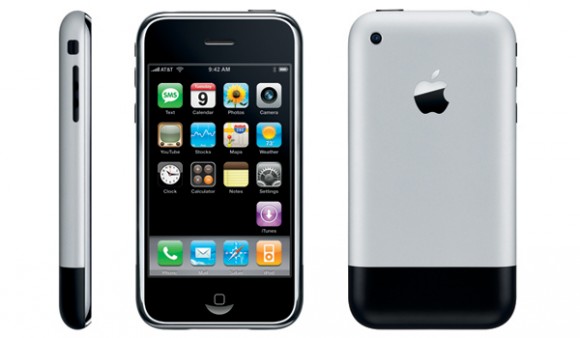
The first iPhone was launched in 2007, but Steve Jobs started planning the iPhone in 2005. The original iPhone was launched in June 2007 and the first iOS was announced on January 9, 2007 and released with the original iPhone. It was a smartphone operating system like the world hadn’t seen before. Keep in mind that the first version of Android was released in 2008 and before the iOS, there was Symbian and other clumsy operating systems that worked great for non-smartphones.

iphone 1

Apple really did invent the smartphone operating system and because of that, many people consider Apple to have a clear advantage over Android. iOS shaped the way we perceive smartphones and it will continue to do so until something better comes along.

Life after iOS 8.0

But let’s return to more recent iOSs. Out of all the versions of iOS put forth by apple, iOS 7.0 has to be one of the most successful ones. It had a fairly uneventful life, it did its job right, had minimal bugs and issues and people were even happy with it. But then came iOS 8.0, iPhone 6 and iPhone 6 Plus to stir things up. Maybe it was the fact that the launch of the iOS was quite hurried because of the pressure put on it by the new iPhones, maybe they should have worked more on it, but iOS 8.0 had a plethora of issues and people in general weren’t happy with it at all. Little did they know that the update meant to fix all those issues would be the biggest fail in the history of Apple.

Ever since Apple launched their new iPhones, the iPhone 6 and the iPhone 6 Plus, in the fall of 2014, they have had a string of unfortunate mishaps that have begun to chip away at the shiny Apple armor. First came Bendgate, the scandal about the iPhones that would bend in back pockets and then the now infamous iOS 8.0.1 fail.

The iOS 8.0.1 update went so horribly wrong, that many people were left unable to use their phones. The most complains had to do with dropped calls and TouchID fingerprint malfunctioning. Wondering just how many people were affected by the faulty iOS 8.0.1 update? Apple revealed the numbers and they are quite staggering: 40,000 iPhones had issues following the update.

After some serious, but swift, consideration Apple decided to pull the iOS 8.0.1 update. It was something Apple had never done before, launch an update and then only hours later, pull it off the market. Not only that, but before removing the update, Apple told their customers not to update. So many people found it hard to believe that Apple would do such a thing, that it issued a statement to confirm that they had indeed pulled iOS 8.0.1:

We have received reports of an issue with the iOS 8.0.1 update. We are actively investigating these reports and will provide information as quickly as we can. In the meantime we have pulled back the iOS 8.0.1 update.

The next day after they pulled the iOS 8.0.1 update, Apple released a new update, iOS 8.0.2. Many have joked that Apple engineers pulled an all-nighter, but we don’t think it’s a joke at all. We believe that some heads rolled at Apple and most did crazy overtime hours. Apple released this following statement along with their iOS update:

iOS 8.0.2 is now available for users, it fixes an issue that affected iPhone 6 and iPhone 6 Plus users who downloaded iOS 8.0.1, and includes improvements and bug fixes originally in iOS 8.0.1. We apologize for inconveniencing the iPhone 6 and iPhone 6 Plus users who were impacted by the bug in iOS 8.0.1.

Apple Pay and iOS 8.1

After the waters were called down by iOS 8.0.2, Apple released iOS 8.1. The most important update that came with this new operating system, aside from the fixes of bugs and various other tweaks, was the much anticipated Apple Pay. The company had been advertising this new service for quite a while, so when it was finally here, there was some serious buzz around it.

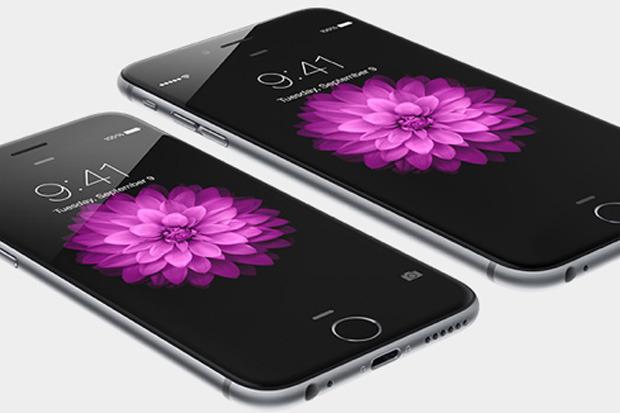
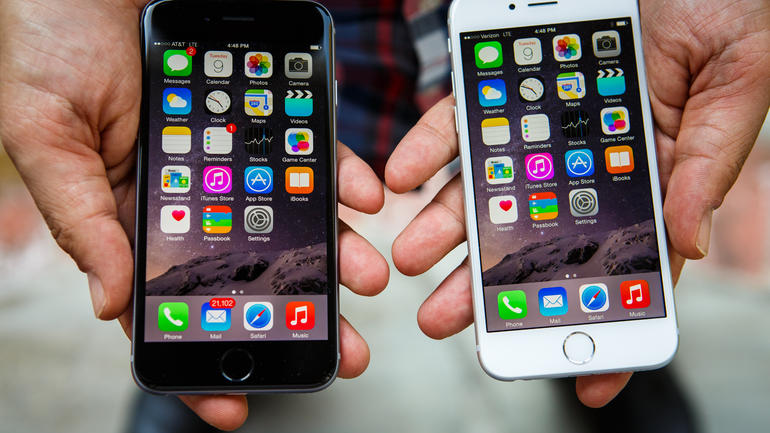
Unfortunately, Apple Pay only works on iPhone 6 and iPhone 6 Plus because the service uses the dedicated secure chip and NFC (Near Field Communication) connectivity to communicate with retailers. These two iPhone models also have a secure element that will store credit card information on the smartphone. In addition, they have a device account number, that is unique to each iPhone and that is going to add to the security of your information. With Apple Pay, your credit card information is completely safe!

iphone 6 and iphone 6 plus

Apple Pay supports credit cards and debit cards from MasterCard, Visa and American Express, issued by banks including the Bank of America, Citi, Chase, Capital One and Wells Fargo. Did you know that these banks make up 83% of credit card purchase volume inside the United States?

Another very important update that came with iOS 8.1 was the return of the classic Camera Roll. Apple decided to remove the feature without any notice when it introduced iOS 8, but hey had received so many complaints about it, that they decided it was wise to listen to their clients and have the feature return.

The Latest Apple iOS Update – iOS 8.1.2

At the beginning of this week, Apple released their latest iOS Update, the iOS 8.1.2. The update is a small one, around 20MB, but that cannot really tell us anything about the changes that will happen to your smartphone, once you download it. iOS 8.1.2 is available for iPhone 4s, iPhone 5, 5C and 5S, iPhone 6 and iPhone 6 Plus and all versions of iPad Air and iPad Mini.

Even though the iOS 8.1.2 update has only been on the market for a few days, some iPhone users have already started complaining. The main complaints dealt with battery life issues, installation problems, messages issues, the usual range of Wi-Fi problems and problems with front-facing camera and email, but there is no big issue so far. Not one that would require another less-than timely update.

No iOS release was ever perfect; in fact, if it were, there would not have been any need to improve it and update it. The bottom line is, however, that iOS 8.1.2 is not ridden with issues. It does, have some, but not many. For example, if you have an iPhone 5 and have updated to the new iOS 8.1.2, then you might notice a decrease in performance, but that really doesn’t have anything to do with the update itself, but with the fact that updates are optimized for the latest model of phone, and the older your phone is, the weaker its configuration gets and the worse the operating system performs.

We strongly advise all iPhone users to simply stop updating at some point, preferably right before iOS 9, which will most likely slow down your iPhone 5 quite a lot. Apple doesn’t allow all of its iPhone to upgrade to the latest operating system and this is exactly why, because the tech specs simply can’t handle it. But this is also a way to compel people to upgrade their phones.

iOS 8.1.2 Jailbreak

One more thing you need to keep in mind if you’re planning to stay with iOS 8.1.2 is the fact that you can jailbreak the update. It’s highly uncommon for Apple to release an update to its operating system that can be immediately jailbroken. Usually, when Apple release an update, hackers go back to the drawing board and start coming up with hacks for the new update, but this time that won’t happen because iOS 8.1.2 can be jail broken with the exact same tools as the previous version. We don’t know if Apple did this on purpose, or it was an oversight (quite a large one, might we add), but if you would like your latest iOS to be jailbroken, you can do that!

How to Downgrade to iOS 8.1.1 from iOS 8.1.2

As we mentioned earlier, Apple released their new operating system, the iOS 8.1.2, earlier this week and the main reason why they released it without much notice was to fix a serious issue that affected purchased ringtones. Many iPhone users who bought ringtones from App Store, found that they couldn’t use them if they switched their devices. This caused Apple to speed up the release of their iOS 8.1.2 ahead of its time.

As always, for a very limited period of time (until Apple stops singing it), Apple gives people the option to downgrade if they are not happy with the new operating system. Because even if the iOS 8.1.1 was flawed for some people, it worked perfectly for others. Even if iOS 8.1.2 offers bug fixes for many people, it also comes with bugs and flaws for others.

Next, we will tell you how you can downgrade to iOS 8.1.1 if you’re not happy with the new iOS 8.1.2. If you want to downgrade to iOS 8.1.1, then we recommend you do it as soon as possible, because it’s going to be impossible to do it in a week or so. Then, you will never be able to downgrade. It’s something that has worked for Apple for years and we think they’ll never permanently put the possibility for downgrade on the table.

Let’s begin! To downgrade you need to know that you can’t just open iTunes and downgrade from there. The first thing you need to do is to back up our device because downgrading will erase everything from your iPhone of iPad.

xerxes-1708-033

Next, you will need to head over to this website and then download the iPSW iOS 8.1.1 for the iOS device you have. We warn you that the files are pretty big, so depending on your internet connection it could take from anywhere from 3 minutes to a few good hours to download it.

Once the file is in your computer, you need to connect your iOS device to your computer and then open iTunes. Head over to the device’s summary page and then, if you’re using Windows, hold down the Shift key on your keyboard and the Option/Alt key if you’re using a Mac. When you click Restore, you need to be holding the key down. This will allow you to browse to find the iPSW file, which iTunes will use to start and complete the restore iOS 8.1.1 process on your iPhone or iPad.

After the installation process is complete, your iPhone or iPad will be running the old iOS 8.1.1! How you proceed after this is entirely your business, but we do recommend that you restore your backup by going to iTunes and click on Restore Backup. Depending on how much you had on your device, the whole process of restore will take around 2 to 20 minutes. Once that is done, you’ll be operating your device as you were before the iOS 8.1.2 update.

We suggest you do the downgrade only if you are experiencing some major issues with the updated iOS 8.1.2. Otherwise, you’re just wasting your time with the downgrade. Also, you could wait for the mysterious iOS 8.2 major update which is believed to be approaching with fast steps.

iOS 8.2 – What and When?

Yes, the iOS 8.2 is coming and hopefully it will bring with it less bugs than we’ve seen with iOS 8.1.0, iOS 8.1.1 and now the iOS 8.1.2. There is no denying that iOS 8 has been causing more issues than all of the previous versions of iOS and many hope that this will change with the release of iOS 8.2.

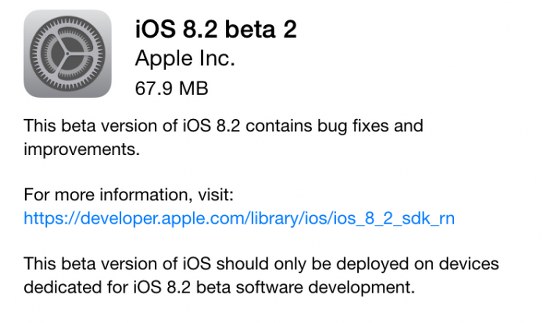
ios 8.2 beta

On Wednesday, Apple released the beta version of the iOS 8.2 to developers. This release saw the implementation of additional support for the WatchKit SDK and it fixed a number of issues related to languages. A beta version of any operating system is first released to developers for testing, in case you needed things cleared out.

If you, like the majority of Apple lovers, are not a developer, then you’re going to have to wait just a little longer, before you can download the new iOS 8.2 for your iPhone and iPad. But if you’re a developer and you’re lucky enough to have gotten your hands on the new update, then we wish you good luck on developing your app for the Apple Watch. Because this is what WatchKit does; with the new iOS 8.2, we should expect plenty of new apps made especially for the Apple Watch.

With the new iOS 8.2 beta, Siri now supports Singapore English and more information about international languages should be made available soon. If you are an Apple developer, then you can download the iOS 8.2 beta via the Apple Developer Center or as an over-the-air update.

Have you experienced any problems with iOS 8.1.1? Did you update to iOS 8.1.2? What do you think about it? Are you planning to downgrade or upgrade? Drop us a line and tell us about it!

Filed Under: Tech & Science Tagged With: Apple, Apple Pay, iOS 8.1.1, iOS 8.1.2, iOS 8.1.2 jailbreak, iOS update, iphone 6, iphone 6 Plus

  • « Previous Page
  • 1
  • 2
  • 3

Subscribe to Blog via Email

Enter your email address to subscribe to this blog and receive notifications of new posts by email.

Join 11 other subscribers

Recent Articles

police handcuffs man

German Man Probed In Poisoning That Killed 21 Employees Since 2000

June 29, 2018 By Kenneth Scott Leave a Comment

Chicken wings bar

Intoxicated South Carolina Man Punches Waitress Who Refused to Serve Him Alcohol

June 29, 2018 By Karen Jackson Leave a Comment

gaming

New Zealand gamer Who Flew Halfway Across The World for Virginia Teen Gets Shots By Her Mother

June 28, 2018 By Cristopher Hall Leave a Comment

party

Former Virginia Tech Freshman Sentenced to 50 Years in Prison for Stabbing a Girl to Death

June 28, 2018 By Roxanne Briean Leave a Comment

bonfire

British Couple Sentenced to Life in Prison for Torturing and Murdering French Nanny

June 27, 2018 By Deborah Campbell Leave a Comment

pay phone

Texas Father of Girl Disappeared in the 80s Ignored by Authorities

June 26, 2018 By Cristopher Hall Leave a Comment

bottled water

San Francisco Woman Threatened to Call Police on Girl Who Sold Ice Water for Disneyland Trip

June 25, 2018 By Roxanne Briean Leave a Comment

Maplewood Park

Missouri Man Robbed by Date and Accomplice in Park

June 22, 2018 By Nancy Young Leave a Comment

coding

New York Man Sentenced in Cyberstalking Former Girlfriend, Mailing Drugs to Her Dorm

June 22, 2018 By Deborah Campbell Leave a Comment

headphones

Bose Poised to Launch Sleepbuds, In-Ear Headphones That Help You Sleep

June 21, 2018 By Nancy Young Leave a Comment

Police light

Intoxicated Female Driver in Custody for Pulling Arresting Officer by the Hair

June 21, 2018 By Kenneth Scott Leave a Comment

kitchen

Restaurant Manager Arrested and Charged in Shooting Death of Co-Worker over Negative Yelp Reviews

June 20, 2018 By Karen Jackson Leave a Comment

plastic container

Pennsylvania Couple Charged in Violent Death of Infant Discovered Buried in Cat Litter

June 19, 2018 By Cristopher Hall Leave a Comment

tailpipe

Minnesota Teen Gets Head Stuck In Oversized Tailpipe Winstock Music Festival

June 18, 2018 By Karen Jackson Leave a Comment

Pages

  • About Us
  • Contact us
  • Privacy Policy
  • Privacy Policy GDPR
  • Staff
  • Terms and Conditions

Recent Posts

  • German Man Probed In Poisoning That Killed 21 Employees Since 2000 June 29, 2018
  • Intoxicated South Carolina Man Punches Waitress Who Refused to Serve Him Alcohol June 29, 2018
  • New Zealand gamer Who Flew Halfway Across The World for Virginia Teen Gets Shots By Her Mother June 28, 2018
  • Former Virginia Tech Freshman Sentenced to 50 Years in Prison for Stabbing a Girl to Death June 28, 2018
  • British Couple Sentenced to Life in Prison for Torturing and Murdering French Nanny June 27, 2018
  • Texas Father of Girl Disappeared in the 80s Ignored by Authorities June 26, 2018
  • San Francisco Woman Threatened to Call Police on Girl Who Sold Ice Water for Disneyland Trip June 25, 2018

Categories

  • Business
  • Entertainment
  • Finance
  • Headlines
  • Health
  • Life
  • Nature
  • Science
  • Sports
  • Tech & Science
  • Travel
  • Uncategorized
  • United States
  • World

Copyright © 2026 ArgyllFreePress.com
About · Privacy Policy · Terms of Use · Contact