Argyll Free Press

Growing News Network

Tuesday, May 5, 2026
Log in
  • Business
  • Finance
  • Sports
  • Tech & Science
    • HP Envy 4500 Review
    • LG Optimus 170 Review
    • iPod Touch 6th Generation Review
    • HTC One M8 Accessories Set-up
    • Surrealist Games You Must Play
    • Hisense Sero 8 Review
    • Dell Latitude e7440 Review
    • HP Laserjet 1536dnf mfp Review
    • Garmin Fenix 2 Review
    • Skype Vs Viber
    • Best Video Conferencing Software
    • Sony mdr 1r Headphones Review
    • Canon Rebel t3i Review
    • Sennheiser Momentum 2-0 Review
  • Travel
  • Headlines
  • Health
  • United States

Star Wars Merchandise to Celebrate the Latest Movie With

December 17, 2015 By Roxanne Briean Leave a Comment

Star Wars Merchandise Header

Well, it’s here folks! The much anticipated and oh so long awaited for sequel to the Star Wars movie series has started hitting the cinemas, with the rest of North America following suit. And for all the Star Wars fans out there, this might’ve just scored to be one of the best events of the year for sure. But instead of going ahead and telling you all about the movie and risk spoiling it for the few of you who haven’t yet seen it, we’re going to do something else.

Considering Christmas is less than two weeks away and that having seen or planning to see the new movie soon, the hype is surely hitting an all-time high once again, what better way is there to feed our undying passion for the series than to splurge out pocket money on some of the craziest and fun pieces of Star Wars merchandise we found in stores and online?

Don’t worry, if you haven’t seen the movie yet, we’ll keep everything spoiler free. Here’s a list of the best items we’ve found so far. Mind you, some are a little eccentric and shouldn’t be taken that seriously; they’re just fun – and at times ridiculous – things you can either get as a present for your most dedicated Star Wars fan friends or even get for yourself as a Christmas present.

1. Star Wars Merchandise – Star Wars Chess Set

Star Wars Merchandise Chess

Let’s start with something light, shall we? We’ve found a fair few types of Star Wars inspired chess boards, figurines included of course. No, sadly, it’s not 3D, but still a marvel to look at and a damn fun thing to make use of. Now, you can either go for a simpler, more plain version of the Star Wars Saga Edition chess set that we’ve found here on eBay for just $29.99. While we’re at it, there is a The Force Awakens version, if you’re willing to whip out another $10 extra.

For the absolutely dedicated, however, we’ve found a more advanced, and downright more expensive Star Wars Chess Game Board. It goes for $350 but it includes faithfully modelled collectible figurines (hence the spiked out price), made after the original Star Wars characters. Who cares about playing with the white or the black pieces when you get to choose whether you play with Darth Vader or Luke Skywalker, Yoda or Darth Maul?

2. Star Wars Merchandise – Star Wars BB-8 Interactive Talking Figure

Star Wars Merchandise BB-8

The Disney Store graces the devotees of the Star Wars: The Force Awakens with a cute little robot that will roll and bleep its way into your house and your heart as soon as you power it up. It uses a dented wheel underneath its body, making it omnidirectional, and has a surprisingly huge amount of upright stability even if the robot wobbles about a lot when moving. He can also talk and interact with anyone who spares him the attention through simple voice commands. With a vast collection of lights, sound effects and several play modes, he’s a really fun toy for anyone who wants their very own BB-8 rolling about (he can’t be remotely controlled).

The BB-8 Interactive Robot can be found on the Disney Store for $34.95. And if you don’t know who BB-8 is, might as well not look into it until after you’ve seen the Star Wars: The Force Awakens movie.

3. Star Wars Merchandise – Star Wars Dog Tags

Star Wars Merchandise Dog Tags

Easy to collect and a bunch of great looking trinkets, the Star Wars dog tags feature either the Rebel Alliance, Galactic Empire or Boba Fett. Whether you use them as dog tags are meant to be used, on your key chain or whatnot, they remain a very nicely designed gift or collectible. You can get them for $10.99 a piece on eBay and Amazon.

4. Star Wars Merchandise – Star Wars Headphones

Star Wars Merchandise Headphones

I have to say, these pairs of headphones may not be the absolute highest quality of sound rendering you can find, but they’re fairly well performing and a sight for sore eyes. With a sturdy and foldable build, a detachable cable that includes an on-wire mic and remote so you can use them with your phone, the SMS Audio Street by 50 Star Wars Edition headphones are outstandingly fashionable. There’s two editions that you can get these in, with slight differences between them. Furthermore, the first edition features either Rebel, Stormtrooper or Boba Fett color pallete and design, while the second edition comes in Rebel, R2-D2 and Darth Vader versions. Ranging between $120 and $150, you can order yourself a pair of those on Amazon but you might want to hurry – they’re low in stock at the moment and the next batch will only be made available on the 24th of December, meaning you might not be able to get them on time if you’re planning to gift them.

5. Star Wars Merchandise – Star Wars R2-D2 Projecting Clock

Star Wars Merchandise R2-D2 Projecting Clock

“Help me Obi Wan Kenobi, you’re my only… way of telling the time!” Yeah, sadly, there won’t be any holographic Leia grinning at you from the R2-D2 figure, but this sure is a fun alternative to a plain old clock in your room. It can project the time and date on any plain surface. It may not be all 3D and holographic and just relies on simple light projections in the form of red lasers.

For this one, however, you’ll have to keep an eye out on Amazon as it’s currently unavailable for purchase and instead redirects you to other providers with slightly inflated prices. Normally, you should be able to get it for about $50 and not the $175+ that I’ve recently been spotting it going for.

6. Star Wars Merchandise – Star Wars Death Star Ice Molds

Star Wars Merchandise Death Star Ice Molds

Maybe not very appropriate for this time of the year, but at least for future reference you may want to get this lovely tray that makes Death Star shaped ice cubes for your beverages. They’re surprisingly high-detail too, making you feel a little bad when they start melting. However, still a great thing to have in your cupboard for any Star Wars themed party and a nice surprise to anyone who stops to notice the ice cubes in their glasses. You can get the Jollylife Silicone Mold Ice Cube Death Star Tray for as little as $7.49 on Amazon.

7. Star Wars Merchandise – Star Wars Death Star Planetarium

Star Wars Merchandise Death Star Planetarium

This one is a bit of a 2 in 1, as you might’ve been able to tell by the name alone. It comes in a nice Death Star figure that you can use as a simple decoration with no remorse as it’s nicely designed to start off. However, once you take off the top half cover and reveal what’s underneath, the whole device receives a whole new meaning. The glass layer is inscribed with an entire map of the entire Star Wars Galaxy that will project on your walls thanks to the light inside. There’s also an Earth’s night sky projection dome included in the package which will only project stars all around your room at night. Did I say 2 in 1? Make that 3 in 1.

The Star Wars Science Death Star Planetarium is available on Amazon for $39.99.

8. Star Wars Merchandise – Star Wars Lightsaber Chopsticks
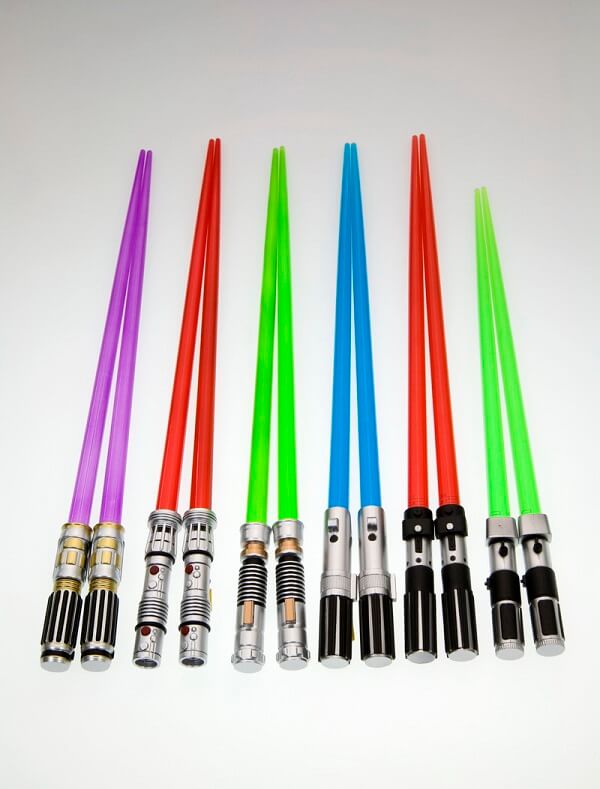
Star Wars Merchandise Lightsaber Chopsticks

Now I’ll be frank with you, I own two pairs of those, one in red and one in blue. Actually using them for meals – be it from Asian cuisine or not – is really not the ideal experience as they tend to slip a lot. They’re great as a novelty to show off on your shelf or use as hair sticks when you’re sporting a bun. Bet you didn’t think about that, did you?

The chopsticks are a loyal as it can get replica of the light sabers from the series, with the only design exception that they’re a lot more conical for practical purposes. You can get them for $15 a pair; and much to my enthusiasm, there seems to also be a Mace Windu version of purple chopsticks and Yoda’s very own green version.

9. Star Wars Merchandise – Star Wars Lightsaber Wall Light
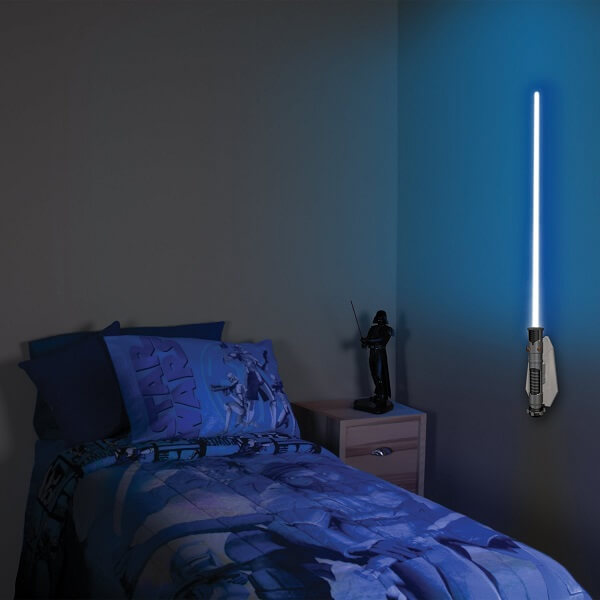
Star Wars Merchandise Lightsaber Wall Light

Once again, a great Star Wars novelty that one may find intriguing and pretty cool to say the least is this very appealing lightsaber replica that you will use as a wall light out of all things. While I’m sure you already own an actual lightsaber replica, together with the woosh and everything else, this one you can simply hang and display on your wall. At 25” and 8 different light effects, you can get a suitable hue for your room, at the risk of going all non-canonical (colors included are red, orange, yellow, green, turquoise, blue, purple and… pink. Actual pink, not Mace Windu-like manly purple).

Regardless, it’s available on Amazon for $29.99.

10. Star Wars Merchandise – Star Wars R2-D2 Pop-up Storage Bin

Star Wars Merchandise R2-D2 Pop-up Storage Bin

Who doesn’t want a new R2-D2 trash bin as a present for Christmas? I’m pretty sure I’ve seen a listing of that once. However, this one is a more respectful storage bin that can fold up and be stored away basically anywhere. Whether you use it for clothing or random objects that you really have no more room for, the R2-D2 Pop-up Storage Bin is a fun alternative for the Star Wars fan.

The only place where we’ve managed to find it available for purchase is BigW however, where it goes for $39.

11. Star Wars Merchandise – Star Wars Darth Vader Force Glove
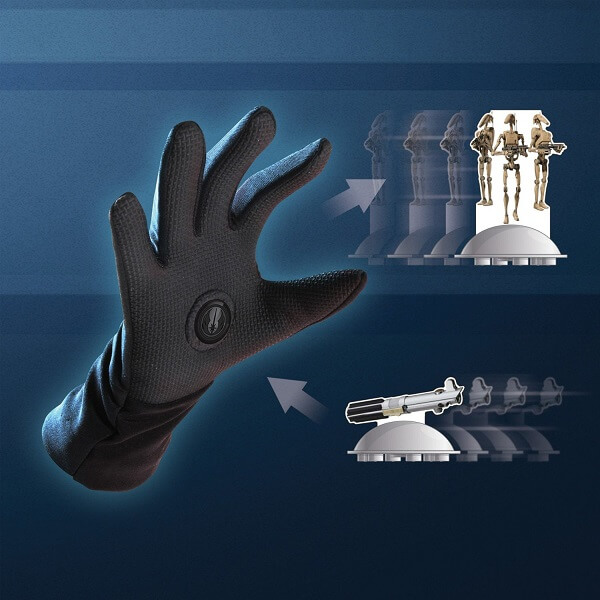
Star Wars Merchandise Darth Vader Force Glove

Let’s take it up a notch on the roleplaying ladder and take a look at a toy that not only your kids will enjoy. I’m sure everyone wished that the Force existed at at least one point throughout their lifetimes. Or that one would be able to make metallic objects go crazy like X-Men’s Magneto. You don’t see the connection? Take a look at the Star Wars Darth Vader Force Glove and you will: by combining the magical powers of magnets with a loyal replica of Darth Vader’s most fashionable glove, you get to play pretend at the next level. You’ll have to explain why your outstanding control over the Force only seems to work around magnets and metallic objects, but up until that question arises in your conversation, you can have an unusually large amount of fun just pushing and pulling things around with your Force-tastic glove.

Uncle Milton Store has it for only $19.99.

12. Star Wars Merchandise – Star Wars Chewbacca slippers

Star Wars Merchandise Chewbacca slippers

I don’t see anyone wearing these for anything else but a downright laugh, but hey – why not? This one is pretty straight forward if I do say so myself; you get the warmest, the furriest and the most comfortable Chewbacca-faced house slippers to wear around your home on those colder and colder days. They only come in large sized but at least on Amazon you can gift wrap them too and have them on their way to their soon-to-be warm and comfortable owner. Currently purchasable for up to $30 a pair.

13. Star Wars Merchandise – Star Wars Chewie Costume Hoodie

Star Wars Merchandise Chewie Costume Hoodie

Oh my god, they killed Chewie and made a coat out of him! Not really, but the chewie hoodie is a fun thing to wear though I would expect you won’t be taking it with you and wearing it to any galactic conferences anytime soon. Or any conference or other formal events for that matter. However, those cinemas get awfully cold at times and you wouldn’t want to be shivering while you’re trying to get immersed and enjoy the latest Star Wars: The Force Awakens movie, would you?

We’ve found it for sale via the thinkgeek.com store website for just $69.99.

Note: No real Wookiees were harmed in the making of these fake fur hoodies.

14. Star Wars Merchandise – Star Wars Chewbackpack

Star Wars Merchandise Chewbackpack

While we’re still caught in the apparel category, we’ve got one final item that will allow you to finish your Wookiee clothing collection, even though it comes more as an accessory than anything else: the Chewbackpack. This one won’t just attempt to make your back as hairy as Chewie’s, but instead mounts a smaller scale Wookiee right on there, awaiting a piggy-back ride, with storage space included of course. He even sports a Rebel insignia and a strap that matches Chewie’s bandoleer.

You can purchase it on eBay for $32.99.

15. Star Wars Merchandise – Star Wars Episode VII Star Destroyer BT Speaker
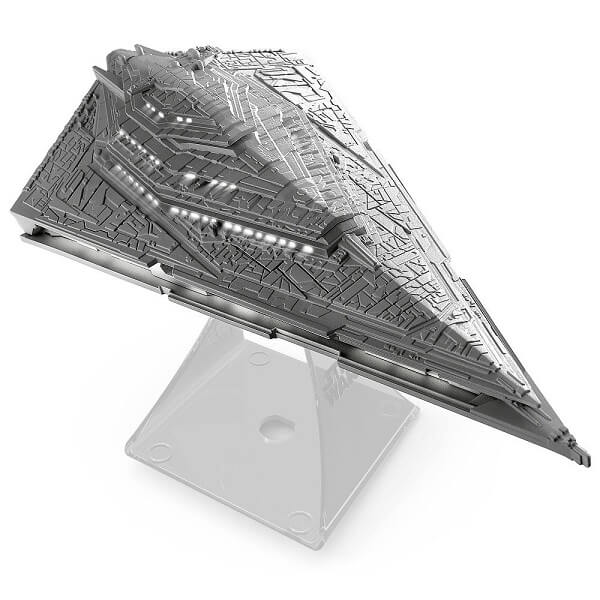
Star Wars Merchandise Star Destroyer BT Speaker

I’ve actually come to appreciate and greatly enjoy products that mix fun with utility. It takes away some of the guilt I feel spending money on things that other people would consider pointless. This Star Destroyer is a great example of items that go well in the list of excusable merch. Keep it turned off and all you’ve got is a Star Destroyer replica that already looks amazing by itself. Turn it on and sync it to your phone via Bluetooth, and suddenly you’ve got your very own Star Destroyer-shaped wireless jukebox speaker to carry with you throughout your house in order to listen to music. With a range of up to 30 feet, its very own charging docking station that looks more like a pedestal than anything else, the Star Destroyer Speaker is available on thinkgeek.com for just $49.99.

Image Source: 1, 2, 3, 4, 5, 6, 7, 8, 9, 10, 11, 12, 13, 14, 15, 16

Filed Under: Headlines Tagged With: star wars gifts, star wars merchandise, Star Wars The Force Awakens, star wars the force awakens merch

Fallout 4 Tips and Tricks: The Fallout 4 Survival Guide

December 11, 2015 By Roxanne Briean Leave a Comment

Fallout 4 Tips and Tricks Intro

It’s been just over a month since Bethesda finally put an end to our torment and released the much awaited Fallout 4. 7 years of pent up excitement for the continuation of the series pretty much resulted in a fair few individuals downright disappearing off the face of the planet for 2 to 3 days after leaving just one note for their friends to see: an inconspicuous screenshot of the freshly bought Fallout 4 in their Steam Library.

However, not everyone managed to get their hands on the game as soon as it came out and we’re here to help the late gamers who’re just about preparing to take their turn with disappearing into the Wastelands by providing them with our very own Fallout 4 Tips and Tricks list. The Fallout 4 world is ridiculously large, easy to get lost into, especially when you’re the kind of player who really likes to inspect every single corner of every little building, collecting everything and even taking the time to go back to the settlement to get rid of all the 1 cap value trash you picked up and refused to throw away until you became overencumbered.

The level design is even more complicated than the one we’ve seen in Fallout 3 – and that’s saying something. If you’re just preparing to start off and you don’t want to find yourself having to start over few hours into your gameplay because you’re unhappy with one thing or another, here’s our very own list of Fallout 4 Tips and Tricks. And don’t worry, we’ll keep the spoilers to a minimum.

Fallout 4 Tips and Tricks – Leveling & Perks

When I Level Up I Want to Be an Astronaut!

The entire leveling and Perks system in Fallout 4 feels familiar and yet very much different. Your base stats are still decided by the S.P.E.C.I.A.L. attribute system but the entire perk system is very much changed from the bland and unexciting list of upgrades you granted yourself when leveling up in Fallout 3.

Fallout 4 Tips and Tricks Perk Chart

Firstly, there’s no level cap and thank god for that. Unlike Fallout 3’s case, where you stopped your in-game self-improvement when you hit level 20, there’s no limit to how amazing and powerful you can get in its mighty successor. I expect that the game can get particularly dull when you’ve run out of story, things to do AND enemies to slay since they don’t scale with your level. There’s only so many times you can throw yourself off of cliffs for a laugh.

As a last mention before we dive in, be wise and make a save game file right before you ride the elevator up from Vault 111 – this marks the last chance you get to respec your character and skip the tutorial, were you to start a new game. You can’t reset the way you distribute your S.P.E.C.I.A.L. attributes nor your perks unless you resort to console-related tricks and downright cheats.

The Perks of Being a Fall…outflower

Yeah, I can’t make that title better. Instead of the very unexciting interface Fallout 3 gave us when leveling up our characters, you get an extensive perk tree screen where all of the available upgrades in the game are listed under their respective stat of the S.P.E.C.I.A.L. variety.

Before I move onto talking about perks in detail, please make note of this very important note: do not make the same mistake as I did and not realize that you can actually skill up any of your stats (strength, perception, endurance, charisma, intelligence, agility or luck) by actually clicking on their respective icons at the top of the list. Every level allows you to either level up a perk or a stat. Anyway, moving on.

Fallout 4 Tips and Tricks Charisma Attribute Perks

Each existent perk in the list can have anywhere between 2 and 5 ranks – each rank further increasing its focus or even providing some extra bonuses on top of the original one. There is a total of 10 levels of perks for each attribute in particular.

So whether you want to be an amazingly sturdy and aggressive ogre-like warrior that uses his arms and harsh language to defeat its enemies or a highly intuitive, downright ninja-like tactical analyst, it’s all up to you. Maybe you don’t want to be good at anything in particular and just have a little of each attribute perk.

It’s Not All About Perk Charts and Difficult Decisions

There are other ways for you to get access to various perks and extra S.P.E.C.I.A.L. attribute points. Though in case of the former, they’re not the same as the ones you get in the perk chart and often not as impactful.

  • Magazine Perks. These are perks that provide a smaller amount of bonuses to various aspects of the gameplay, but come with many more ranks than the ones in your perk chart. Reading an issue from each particular magazine will grant you a different effect in some cases, while in others you’ll just keep increasing in a particular trait.

For example, Issue 13 of Astoundingly Awesome Tales magazine will grant you 5% extra damage against ghouls and issue 12 allows your canine companion to permanently take 10% less damage. Meanwhile, the entire collection of the U.S. Covert Operations Manual will make it more difficult for enemies to detect you while you sneak with every issue that you read.

Fallout 4 Tips and Tricks Astoundingly Awesome Tales

  • Companion Perks. If you choose to not be a misanthrope and actually opt for a companion on your trek, any of the choices you make can ripe into a perk once you max out your relationship level with them. For example, one may give you +20% weapon damage when you’re below 25% health, while another will offer you x2 XP for conversations and location discovery.
  • Bobbleheads. There is a total of 20 collectible Bobbleheads that can either increase a particular S.P.E.C.I.A.L. attribute or improve one of the following skills to some degree: Barter, Big Guns, Energy Weapons, Explosives, Lock Picking, Medicine, Melee, Repair, Science, Small Guns, Sneak, Speech or Unarmed.

Fallout 4 Tips and Tricks – Inventory

The Winds of Change Blew in Another Direction

If you recall Fallout 3’s inventory being an absolute drag to navigate through as you got lost in the midst of small gun ammo, tins, Radroach meats and other radioactive goodies that you had no idea when you were going to use but looked important and useful (mostly because they were valued at 10 caps and not 1, be honest), Fallout 4 will be much more of a blessing for you. Or at least that’s how it would be on paper, considering all of the inventory changes.

Sadly, I can’t say that with a hand on my heart because you’ll be spending more time in the game trying to figure out what else to throw away to stop being overburdened and actually be able to fast travel back to a vendor (you can’t fast travel when you’re exceeding your carrying limit).

Fallout 4 Tips and Tricks New Inventory

Much inventory interface change. Very wow.

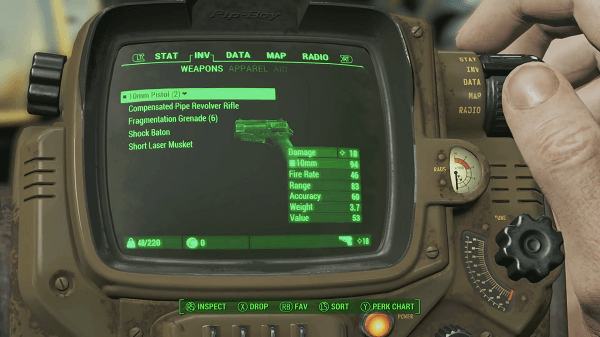
Regardless, your Pip-Boy has now decided to add 2 different categories of items to the default 5: Mods – the add-on thingamajigs you can use for your guns and armor – and Junk (basically everything that is junk enough to not fit in any other category because it can be stripped down into crafting materials and nothing more but not junk enough to not make it into a collectible part of the world). Considering that you’ll be carrying a lot of junk with you at all times because everything you find in the game is useful in some way, browsing through your inventory is still a relative pain; maybe a little less so considering you can at least scroll through your never-ending lists faster.

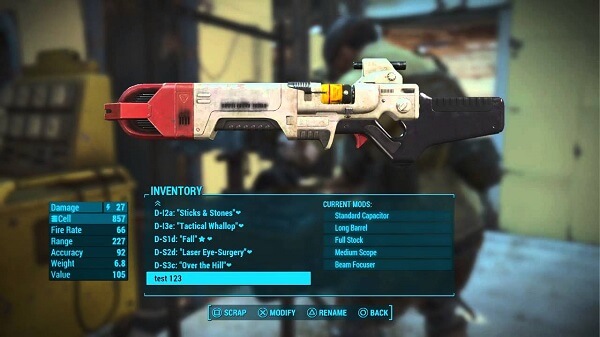
Because things end up getting so messy and clogged with all the absolute trash (absolutely useful trash I mean!) you’ll be carrying, the system allows you to rename items or set them as favorites so you don’t accidentally sell or drop them. If you want to move a particular item to list at the beginning of your list, you don’t necessarily need to scour your imagination to come up with cleverer names that are not A, AA or AAA. Instead, you just need type a dash before the name you want to give them and they’ll show up at the beginning automatically.

Fallout 4 Tips and Tricks Custom Names

You can change the color of your HUD too.

Hoarding Is Hurting… Or Is It?

Am I the only one who – when first playing Fallout 3 – made about 3 trips between Megaton and the Super Duper Mart just to make sure no cup, tin or empty milk bottle was left behind in the store? Caps, dude! While the hoarding attitude is fun and not worrying at all as long as it’s in a video game, I obviously soon began to give up simply because it was taking too long and really not worth it.

Well, come Fallout 4 and you kind of find yourself in the position where you have to be a hoarder. Everything in useful one way or another. Most scrubby weapons and pieces of armor can be stripped down to a wide variety of crafting materials, icky meats thriving on RADs can be made into less icky non-radioactive foods, and I’m sure that bent fork could play a major role in becoming my next blade-ended shotgun to shoo away the visitors from my settlement’s porch.

While that’s an obvious exaggeration of it, that’s how things really end up being. I hope you’re good at weighing the pros and cons of keeping an item or can quickly calculate whether you end up with an advantage if you’re to keep one item over another. On the go. As you loot that one ghoul. Out of the other 20 dead ghouls scattered around. Good luck!

Fallout 4 Tips and Tricks – V.A.T.S.

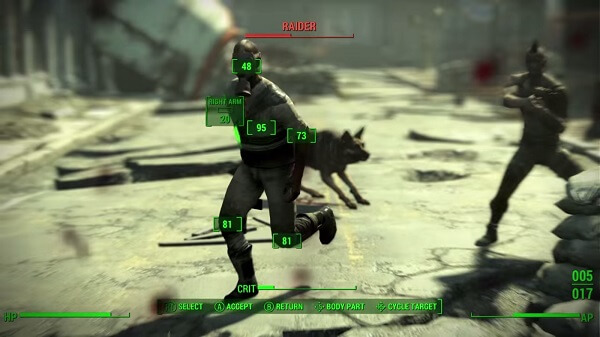
The Vault-Tec Assisted Targeting System is Fallout’s trademark combat system that allows you to be a lot less worse at… targeting, obviously, as well as aiming and landing critical strikes. Sure, you can try and play Fallout 4 like it was Call of Duty or like you got lost on a Knife-only Counter Strike server, but you’ll most likely end up disliking the game soon enough.

Fallout 4 Tips and Tricks New VATS

No way you’ll miss now.

V.A.T.S is great for a number of reasons – starting with cracking skulls and cracking them good and up to avoiding your imminent grenade-induced death. Here’s a rough list of reasons to use it:

  • You’re really bad at aiming and shooter games in general. Well, that’s a bit of a shame as action points usage felt a little higher so you will probably not get to enter V.A.T.S for 5 shots in a row. Plus, you wouldn’t have to enter V.A.T.S. in the first place as you can take all of the AP-available shots with one accessing of the feature. You can still use it to aim well placed critical shots at the stronger enemies out of the lot, while the rest of the time you’ll want to do your best with regular controls. Or go for a melee build and be done with it; you’ll end up 1-shooting enemies with a critical strike half-way through the game.
  • You’re not particularly good at making decisions. Thus, you require a slowing down of time in order to select your next course of action. And you get a helping hand in form of chance to hit percentages as well as the damage you’d do if the hit landed. However, do keep in mind you may not use V.A.T.S. as your designated pause button as time doesn’t stop. Just moves past a lot slower.
  • Dodge things like you’re Neo. If someone throws some potentially disastrous, dedicated, face melting device at you, you can enter V.A.T.S. to take a good shot at it and destroy it before impact. Same goes for taking out mines from a good, safe distance.

Fallout 4 Tips and Tricks – Crafting

Fallout 4 Tips and Tricks Workshop

Prepare Your Hammers and Pans

The crafting system in Fallout 4 goes beyond extensive. There’s so much stuff you can make and so many respective materials in the game that I actually nearly ended up not even bothering with it. Starting with an entire post-apocalyptic, futuristic cuisine set of skills that you can master that will allow you to turn any strange radioactive animal body part into a wide selection of buff-providing food, and ending with building – *gasp* – towns.

You can craft a huge number of things – starting with the very basic weapons and armor, up to the more Iron Man-reminiscent Power Armor, various drugs (good type of drugs), health-restoring dishes and settlements. Kind of like your very own In-Fallout Sim City… Simulator. Sadly, however, you don’t get to craft ammo out of any tin can rings.

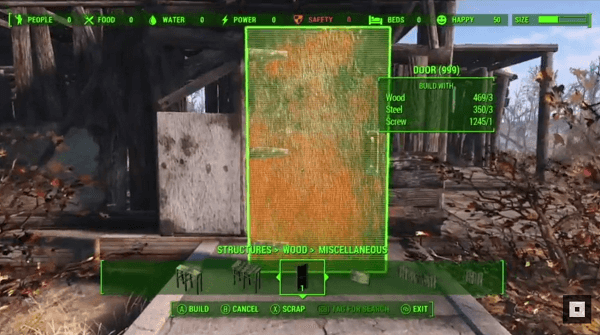
You remember how I said you should probably hold onto your seemingly useless junk? I hope you did if you’re planning to get well-versed into the intricate arts of crafting. Nearly anything can be scrapped down into crafting materials as long as you’re in “Workshop Mode”, which you can then use in the respective crafting stations. The bright side of the crafting and workshops is that you can alleviate some of that inventory pressure by dumping all of your scrapable junk into the workshop storage every time you’re around.

Fallout 4 Tips and Tricks Getting Material

Don’t mind me, I’m just scrapping down an entire house.

Fallout 4 Tips and Tricks – Weapon Crafting

This may be a little different than you expect when you first hear of it as you don’t get to craft weapons per se, but instead you get to craft upgrades and customizations for them. You can modify guns in no less than 6 ways: the receiver, the barrel, the grip, the magazine, the sights and the muzzle. Do keep in mind however, that you won’t be able to use the Weapon Workbench until you’ve completed a quest called “When Freedom Calls”.

Fallout 4 Tips and Tricks – Armor and Power Armor Crafting

By combining different parts of armor as you progress through the game you can ultimately construct your very own power armor – with its very own level of customization such as protection, weight, stats and various resistances. Modding works the same way as it would do for regular armor – same goes for repairing.

Fallout 4 Tips and Tricks – Building your own fortress of more or less solitude

Settlement building can be as easy or as complicated as you expect – depends on your level of involvement in it. I guess you can start with planting some walls and pillars with a threatening-looking turret at the far end of it, then decide you’re playing Fallout 4 to slay enemies, not play house. Afterwards, you may hear about that thing where you can completely furnish any building you put in, as well as even decorate it, get a constant supply of those much needed resources and even hire traders and make them work for you.

Fallout 4 Tips and Tricks Building a House

Don’t mind me, I’m just building a house with the scraps I got from scrapping down the other house.

So the hype begins again and you get back to work on your little personal haven. While even some of the developers admitted that they had Minecraft as their main inspiration for the entire crafting system in Fallout 4, there’s not so much you can do to terrain limitations as some of the locations where you want to build are difficult to work around in.

As soon as you gain a decent enough level – by that I simply mean don’t go there when you’re level 2 – you can venture to the south-east corner of the map where you’ll find Spectacle Island. It’s a mainly plain piece of land where you can go wild with your settlement building simulator. The only downside of this perfect building spot is that in order to build anything in it, you’ll pretty much have to bring in the crafting materials for it; at least until you get the very basics down.

Fallout 4 Tips and Tricks – Everything else crafting

The last things left in the list now are the kitchen and your chem lab. This part of the entire crafting system is pretty much self-explanatory: you make food to keep your health bar in the green when you’re out frolicking in the wastelands. You make chems to also keep your health bar in the green while you’re out on the field, but also keep down your RADs and give yourself a great number of buffs and other time or perception altering changes.

Fallout 4 Tips and Tricks – Companions

Dogmeat & Other Buddies

Some of our older friends from Fallout 3 not only make an appearance in Fallout 4, but also get to come with you on your untimely adventures out in the Wastelands. You only get one companion to act as your bodyguard, pack mule, meat shield, conversational therapist, comic relief, potential love interest, scapegoat, punching bag, story teller or muse at a given moment. However, you can easily switch through them as well as develop romantic interests for some.

Fallout 4 Tips and Tricks Dogmeat

Dogmeat, now in HD.

What Are Companions Good For?

Well, I just listed an entire selection of things they are good for, but here goes:

  • They can carry a fair amount of junk. Considering you can find a use for everything in the game, you can ask your buddies to hold some for you instead. However, it would seem that you’re not the only hoarder in this game because they tend to collect a lot of useless bulk as you go. So if you ever stop to transfer some of your items to your companion and they don’t have any room, you may want to check how many dozens of .30mm level 2 guns they may have picked up when you were looking somewhere else.
  • They can be fearsome combatants or someone to hide behind when things get tricky. Pretty self-explanatory: while some are more proficient in bashing your enemies’ heads in such as Strong, others can provide other types of combat help.
  • They allow you to get involved in the plot more to some degree. If you don’t care about that, might as well pick the Lone Wanderer selection of perks and be done with it.

Fallout 4 Tips and Tricks – Other Tricks You May Want to Know

While everything so far was a basic overview of things to watch out for when you actually get to playing Fallout 4, there are a few more odd mentions that we couldn’t just leave behind. Some of them will improve the quality of in-game life while others are… interesting to mention at least.

Fallout 4 Tips and Tricks – The Pip-Boy Flash Light

For all the times when things get dark and you’re busy navigating the labyrinth of dimly lit caves, the game gives you access to a handy flash light that you can bring out to light your path. With default controls, you can have your Pip-Boy serve as a flash light if you hold down on the TAB key.

Fallout 4 Tips and Tricks – Saving: Is that still a thing?

It should, because you never know when things will take a wrong turn – especially when playing on Survival Mode. You should make a habit of saving your game whenever a major decision is to be taken; in addition, it’s good to know that you can save your game while you’re in a conversation with an NPC too.

Another very useful thing you can do to improve the quality of your life in this game is to set your auto saving frequency to 5 minutes if you’re slow to develop a hand twitch to your save button every time you achieve anything.

Fallout 4 Tips and Tricks – Rare Ammo and Rare Resources are called “Rare” for a reason

While I’m sure you’ll feel an unspeakable urge to use your Fusion Cores on your newly acquired Power Armor to kick some rear with style, you may want to think twice before you blow it on some trivial area that you have no power passing through. Same goes for ammo – it’s not as easily found like in regular shooter games, so you may want to use it wisely.

Fallout 4 Tips and Tricks – In-game Plastic Surgery and… Gaming

If you’re unhappy with the result of the two hours you put into your character’s appearance and think you’ve got some more spare time to make a good representation of who your in-game avatar truly is, you can always visit the barber for a new hairdo or the plastic surgeon for a new facedo. Both can be found in Diamond City.

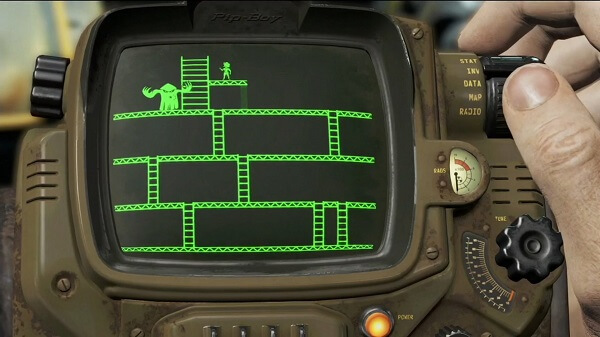
You can actually play mini games ON your Pip-Boy while you’re in-game if you get the respective items that allow it. Gameception! You get to choose between several games such as Red Menace or Atomic Command by placing their holotapes into your Pip-Boy.

Fallout 4 Tips and Tricks In-game Game

Yo, I put a game in your game so you can game while you game.

That’s about all of the basic Fallout 4 Tips and Tricks we could think would give you a helping hand if you’re just starting to play the game or haven’t started long ago. If there’s anything else you would like to see in this article or anything we haven’t mentioned, feel free to leave us a comment below!

Image Source: 1, 2, 3, 4, 5, 6, 7, 8, 9, 10, 11, 12

Filed Under: Headlines Tagged With: fallout 4 beginner's guide, fallout 4 guide, fallout 4 tips and tricks, things to know about fallout 4

iPod Touch 6th Generation Review – When Your Phone is Not Enough

December 5, 2015 By Roxanne Briean 2 Comments

iPod Touch 6th Generation Header

The iPod technology has gone a long way since its inception. The latest Apple iPod Touch 6th Generation release date was July 15th this year, making this device nearly half a year old now, and was a much needed upgrade to the series – considering it was the first it got since 2012. It came to compliment the iPod Touch family with hardware and features at least comparable to the iPhone 6 that got released at about the same time.

Enter 2015 and one asks themselves why you would ever consider a separate device for your music when you’ve got a hefty amount of storage space on your smartphone and there are more music streaming services than you can count. The reasons are plenty; for example, if you’re like me and you like to physically collect your entire collection of songs, storage vanishes when you least expect it. Furthermore, depending on your contract, streaming music may prove to not be as affordable when it comes to your data usage when you’re out and not connected to some Wi-Fi.

It’s already a running gag that people call the iPod Touch 6th generation an iPhone without the phone part. And from most perspectives that’s actually true: as long as you’re connected to the internet through Wi-Fi, you can pretty much do anything you would on your phone by just using your iPod. Not to mention that it looks just like a phone – a combination of the iPhone 5 size and the iPhone 6 design to be precise – with a few aesthetic and functional differences.

So if you’re considering hopping on the bandwagon of either taking some pressure off of your phone with music storage or just expanding your collection of Apple products and upgrading to the newest versions, here’s what you should be looking forward to as well as the less satisfactory parts of it all.

Pros:

  • Great technology
  • Great camera
  • Cheaper than an iPhone
  • Versatile

Cons:

  • Still expensive in terms of music players
  • Some may consider it small
  • It lacks some vital features such as GPS

iPod Touch 6th Generation Design

With the risk of repeating myself, I’m still undecided which iPhone the iPod Touch 6th Generation reminds me of. It’s like Apple put a little of each iPhone into this music player: the rounded edges seem a lot more similar to the iPhone 6 than the 5 for example but the size is reminiscent of the latter. Take a look at the home button and we’re actually taken back to the iPhone 4.

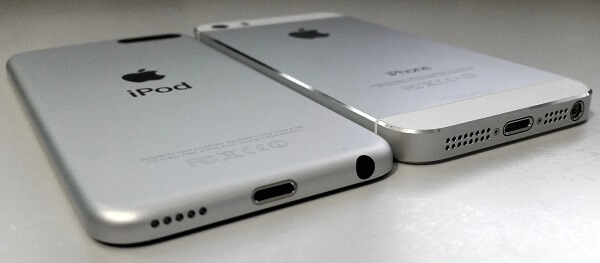
iPod Touch 6th Generation vs iPhone 5

Frankly, from an aesthetic point of view, not much has changed for the 6th generation of the iPod Touch: it looks identical to the 5th generation and actually shares the exact same dimensions: 123 x 59 x 6.1 mm. While that may be unsatisfactory for a number of people who are already more accustomed to much larger displays, the iPod is an amazingly light and sleek device. At only 88 grams, you’ll find it hard to believe that anything really changed, even from a hardware perspective.

Visually, the only distinction you will see when you put the 5th gen iPod Touch next to a 6th gen is the loop button on the back of the device. With the 5th generation of iPods, Apple had added a button you could press on the lower left of the device’s back that would pop out and allow you to put a strap on it kind of like they used to do on older mini digital cameras. The 6th generation however has given it up completely with no notice to speak of.

iPod Touch 6th Generation Back and Bottom

iPod Touch 6th Generation Back

Everything else – buttons, slots and whatnot – are in the exact same place Apple left them in with the 5th generation. The power button still rests at the top, similar to the placement on the previous generation as well as the iPhone 5 models. The volume rocker – or rather the two volume buttons – are still placed on the left hand side. The bottom of the phone hosts a 5-hole punctured speaker, the lightning charging port featured in all of the more recent Apple handheld devices as well as a classic 3.5 mm audio jack.

iPod Touch 6th Generation Volume Rocker

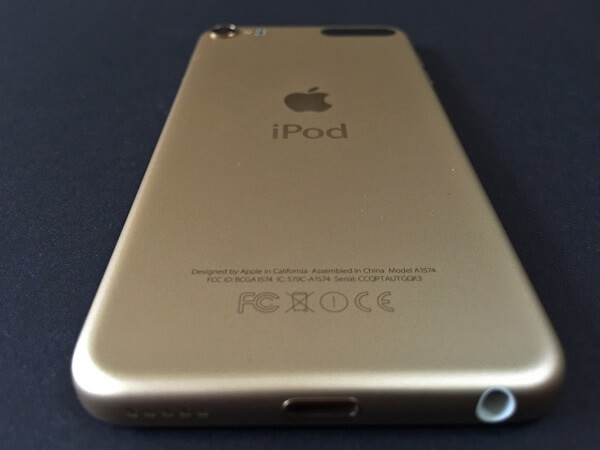
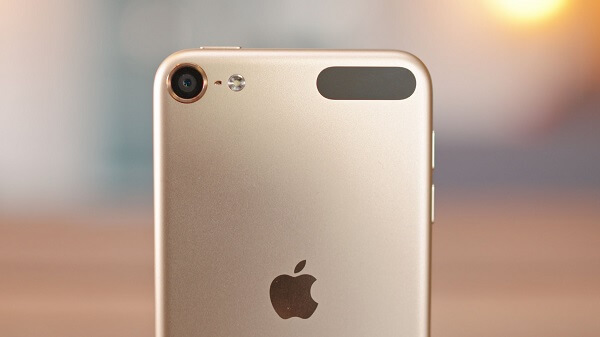
The back of the 6th generation iPod Touch still displays the Apple logo, the plastic strap on the top right side under which lie the Wi-Fi card as well as the Bluetooth receiver. The camera sensor protruding in the top left corner still maintains the design of its predecessor: while the edges around the sensor do stick out the tiniest bit, they shouldn’t worry you that much as they aren’t as exposed to damage as you would think. And chances are you won’t even notice them when laying the iPod Touch flat on a surface.

As a disappointment to some, the front of the new iPod Touch 6th Generation still hasn’t adopted a fingerprint reader similar to the iPhone 5 and beyond and is still stuck with the same classic Apple home button that only has the return to menu or screenshot functions. The top also hosts the front facing camera – not necessarily an outstanding piece of hardware (front facing cameras rarely are), but still one of the better ones you can get.

iPod Touch 6th Generation Color Variants

iPod Touch 6th Generation Color Variants

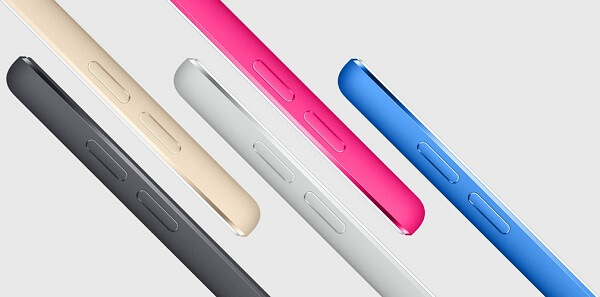
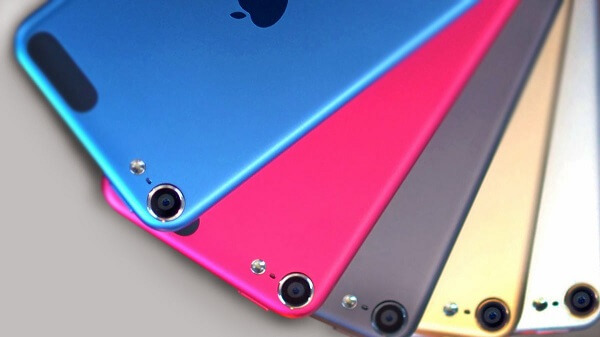
Just like its predecessor, it comes in a variety of colors for you to enjoy: Space Gray, Silver, Blue, Pink, Red and the new Matte Gold – replacing the old “Yellow” variant that could be found in the 5th generation of the iPod Touch.

iPod Touch 6th Generation Display

If there’s anything that Apple really excels in, it’s the great effort that the developers put into the display. While it may not reflect through resolutions and pixel density alone, there is a certain level of vibrancy and color sharpness. While Apple is really not the sole practitioner of amazing displays anymore and many others are really able to compete head to head with them, the iPod Touch 6th Generation really doesn’t lower the bar on the quality we’ve grown accustomed to.

iPod Touch 6th Generation Packaging

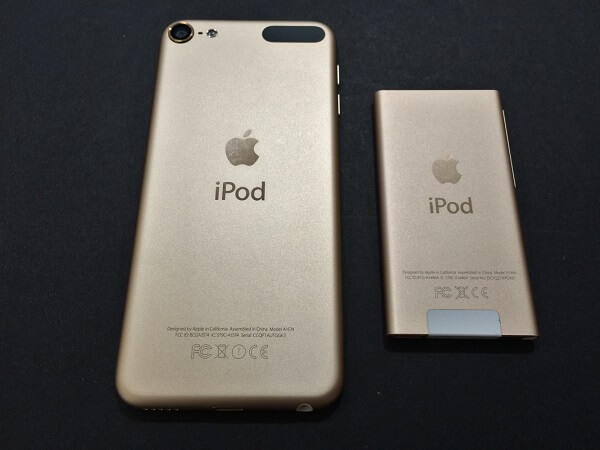
The display that it comes with is only 4 inches, and this is by far the biggest problem some people may encounter with the iPod Touch 6th generation. It’s a real shame too, considering that the iPod doesn’t skimp on features and capability of serving as a trusty entertainment medium. At least as long as you’re connected to Wi-Fi. Not to mention that at least when used as a music player, I find it hilarious that any one would truly care about the display size; especially when considering that the higher the display, the more difficult it is to carry and handle the device (remember the iPod Nano? That’s what I would call practical if it wasn’t for the limited space).

iPod Touch 6th Generation vs iPod Nano

The screen has a native resolution of 1136 x 640, which in combination with its overall size makes up for a pixel density of 326. While displays of smartphones can go up to much more than that doesn’t mean the iPod Touch display lacks in crispness. Reading small text is a breeze and images and video look clear and well defined.

Thanks to the 800:1 contrast ratio and 500 cd/m2 max brightness, the iPod Touch Retina display makes for a great tool to use for watching movies. While the whites are brilliant and the blacks are deep, there is a tangible difference between this device and the latest iPhone 6; you shouldn’t expect the same level of detail on the iPod as you normally would on your smartphone.

Just like in all of the other Apple products, the display is covered in a fingerprint resistant oleophobic coating. While that makes the screen relatively resistant to scratches and smudges, I’d still opt for a screen protector just for safe measure. One downside of the iPod Touch 6th generation iteration is that it doesn’t feature the Force Touch technology, however.

iPod Touch 6th Generation Specifications & Performance

While the outside of the iPod Touch 6th generation is identical to its predecessor, both in looks and on paper, the true difference lies inside the device. The whole purpose of the new update in the iPod family of products was to match up to the newer iPhone 6 standards. Much of the hardware that you can find in the iPod Touch doesn’t exactly come up to par with the one you can find in the iPhone 6 and 6 Plus, but it’s still an impressive set.

One of the most important upgrades that the iPod got is the shift from the A5 32-bit dual core @800 MHz processor to one of the newest A8 64-bit dual core @1.1 GHz core processing unit. That’s a considerable upgrade, especially given the fact that the technology adopted in the 5th generation of iPods would’ve been about 3 years old by now. Put side by side to run the same kind of applications, the two iPods’ performance display a huge difference.

The RAM memory also got an increase from the 512 MB found on the 5th gen to 1 GB that our focus device features. That’s equal to the amount you get on the iPhone 6, but less than the iPhone 6S models feature. That means that individual applications will really have no trouble running smoothly and without registering any frame drops but multitasking and switching from one app to another especially when you have multiple running may feel a little slower than what you’re used to on your state-of-the-art smartphone.

When it comes to storage options, Apple has added a fourth and largest variant – the 128 GB version compliments the 16, 32 and 64 GB iPods respectively. While it does spike up in price a fair amount, the 128 GB version will probably really cover anything you need, even for the most dedicated music aficionados. On the other hand the iPod Touch 6th generation 16GB version is probably better for individuals who split their interest in the device in both the jukebox and app perspectives.

iPod Touch 6th Generation Benchmarks

The iPod Touch 6th Generation scores surprisingly well on benchmarks too, keeping up and even exceeding some high-rated smartphones in the final ratings. The iPod scored 15,414 in the 3DMark Benchmark, 1,379 in Single-core Geekbench 3 and 2,440 Multicore Geekbench 3. As a comparison, the iPhone 6 scores 17,202 in the 2DMark benchmark, 1,623 in single-core and 2,913 in multi-core Geekbench 3 respectively.

iPod Touch 6th Generation Features

Luckily, the iPod Touch 6th Generation comes loaded with the latest iOS 9, including every single special feature that got released with it. In essence, if you own an iPhone, imagine you’d completely remove the mobile phone functionality from it. You don’t get to make or receive calls, or use texts and mobile data as you can’t buy a price plan from a carrier for it. Anything else that is part of your mobile phone experience however will be there for you to enjoy. So while you won’t be able to text, you should still be able to use any of the social media communication services – Twitter, Facebook, Whatsapp, you name it.

In addition, there are a few new things that came with the latest iteration of the iOS – features that you’ll be able to find on the iPod Touch too. One of them is the health app that’s made possible thanks to the sensors built into the device: a three-axis gyrometer and an accelerometer. The latter is the sole reason your phone will be able to track your steps and, along with your manual input or over 1500 third party health-related apps keep a good record of your health.

HomeKit is another addition that made its way to the latest version of the iOS and basically allows you to centralize of your home controls into one application that can be controlled through voice commands via Siri. Lights, appliances, doors and locks all can be controlled remotely through your iPod Touch.

CarPlay is the last brand new addition of the iOS 9 operating system update, which makes a point of giving you a safe way to use your Apple products while driving by allowing a combined control through voice commands and by letting the iPod become your dashboard interface.

iPod Touch 6th Generation Camera

There’s an undeniable upgrade that was brought to the iPod’s camera if we’re to compare the 5th generation of the device to the latest. While the iPhone 6 camera still comes out victorious in the quality duel, you can actually start considering your iPod’s cameras as realistic alternatives when you want to take photos. Or even shoot videos.

The rear camera is an 8-megapixel iSight that presents itself with an f/2.4 aperture – not the fastest out there but still pretty decent. Pretty much anything you could do with your iPhone camera you can do with the iPod Touch 6th Generation rear camera: that includes HDR photos, slow-motion video recording, time-lapse recording, panoramas and much more. Truthfully, video capture is capped at 30 frames per second when shooting in 1080p, but can still pull off 60 FPS when shooting in 720p. There are certain things you would be missing on when using this camera, however – continuous autofocus being one of them. Slow-motion video capture isn’t as proficient as you would find on the latest iPhones, but still does a decent job at the 120 frames per second it can go up to.

iPod Touch 6th Generation Rear Camera

The front facing camera hasn’t received any upgrade to speak of, as it remains a decent 1.2 MP one. While the videos recorded with it will always tned to look relatively grainy, it at least comes with smooth frames per second score. It’s capable of 720p HD video recording and has anything you would ever ask for when it comes to getting the perfect selfie, including timer mode, improved face detection, burst mode and exposure control.

iPod Touch 6th Generation Battery Life

I wouldn’t be able to say that the battery life has been the strongest point of Apple products, ever. Unless you count the first two generations of iPods maybe, and even then I have seconds thoughts as my 2nd gen iPod’s battery power started dwindling a year into using it and a full charge would actually last me less than it had few months prior.

Now take a look at the iPod Touch 6th Generation that packs a much stronger A8 processor and yet the battery pack that’s supposed to power it up doesn’t go further than 1,043 mAh, hardly an upgrade from the previous generation of iPods (1,030 mAh). That’s bound to come at a pretty taxing repercussion: Apple guaranteed up to 8 hours of video playback and 40 hours of music playback time. In reality however, things are a little different and highly dependable on the options you settle for. At maximum brightness and HD, video playback or gaming may actually end up eating up an entire charge in about 4 hours, while lower settings can earn you another hour.

The good news however, is the fact that charging is particularly swift with the Lightning connector that most Apple products nowadays come with. With it you can get from 0 to a full charge in roughly 2 hours, something that makes up for the fact that with heavy use you will most likely end up charging the iPod Touch on a daily basis.

iPod Touch 6th Generation Verdict

So to wrap up, is the iPod Touch 6th generation worth it? Just like any other gadget, it really depends on preference. If you’re just looking for a music player because you don’t want to clog your smartphone’s storage space and nothing more – I’m sure you can find some alternatives. If you’re planning to use it as more than just a jukebox and actually benefit from everything else it can do – apps, fitness tracker, anything you can do over Wi-Fi – then the iPod Touch is really not that bad of a choice, especially considering its much lower price than a full-fledged iPhone for example. The fact that it wouldn’t be coming with an extra monthly charge in the form of a price plan can be just a bonus for some individuals.

You can purchase it as well as an entire collection of iPod Touch 6th generation cases directly off of the Apple website as well as most retailers who support Apple. The new 128 GB model however, is an apple.com exclusive purchase and cannot be found anywhere else. The Apple iPod Touch 6th generation price is $199 for the 16 GB model, $249 for the 32, $299 for the 64 and spikes all the way up to $399 for the 128 GB version.
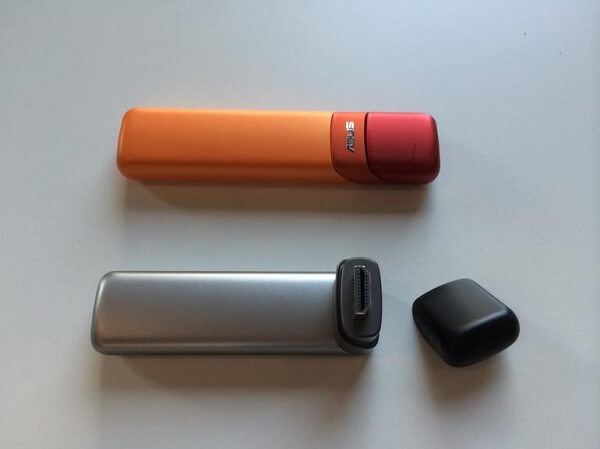
Image Source: 1, 2, 3, 4, 5, 6, 7, 8, 9, 10, 11

Filed Under: Headlines Tagged With: apple ipod touch, ipod touch 6g, ipod touch 6th generation, ipoud tough 6g review

A Little Girl Drives A Truck in A New Volvo Video

December 4, 2015 By Roxanne Briean Leave a Comment

Viewers were amazed as a little girl drives a truck in new Volvo video.

Who doesn’t love good marketing ideas? A new video released by a manufacturing company has dazzled numerous viewers. A little girl drives a truck in a new Volvo video along an obstacle course. But don’t let your imagination wander too far, since the four year old controls the vehicle from a safe distance by using a remote. However, it must have been ten times more entertaining than controlling one of those toy cars.

As shown in the video, the girl named Sophie Brown trashes a lot of obstacles such as concrete blocks and hay bales. Sophie seemed to have a blast as the truck also passed through a drainage pond and by a wooden crate which was swinging from a crane. Even though the tour ended with the vehicle crashing into a building, the truck did not sustain any terrible damage. The truck weighs about 18 tonnes and is worth $163,000.

The remote control that was used by the girl was highly sensitive in order to provide her with more control. She was able to operate the truck’s brakes, accelerator, steering and gearshift.

Richard Fritz, Vice President of Volvo Trucks, declared that in order to showcase the abilities of the truck, they wanted to give it a true challenge. As a result, they chose a four year old to test it.

So what is the purpose of this experiment? To prove the endurance of the truck with Volvo FMX technology. The vehicle is also equipped with Automatic Traction Control, which prevents it from getting stuck as it activates the front axle automatically. Volvo has previously set up scenarios such as this one featuring Jean-Claude Van Damme to prove the performance of its vehicles. It truly is a revolutionary method of testing vehicles without putting people into danger or damaging the environment.

The Launch Manager of Volvo Trucks, Gunnar Eliasson, stated that the test proves without a doubt the resistance of the truck, as well as its capability of coping with extreme environments.

The video can be watched on the official channel of Volvo on YouTube.

In the end, as a little girl drives a truck in a new Volvo video, it has become quite clear that viewers need tangible proof whenever a new product is created in order to be convinced of its capabilities. Furthermore, good promoting also needs to be creative and original in order to draw in the consumers.

Image Source: 1

Filed Under: Headlines Tagged With: A Little Girl Drives A Truck in New Volvo Video, drive test, FMX technology

LinkedIn Finally Launched A New Design for Its App

December 2, 2015 By Roxanne Briean Leave a Comment

LinkedIn finally launched a new design for its app, and it has received positive reviews.

The new design of the app from LinkedIn looks promising.

After receiving many complaints, LinkedIn finally launched a new design for its app on both iOS and Android devices. Having more than 396 million users, the online platform is trying to get them to use the application more frequently, and not just the website. So what are the changes they made?

First of all, they changed the design a bit, using now lighter colors, such as medium blue and white. There are only five tabs, which makes it easier to navigate and find the information that you need. These tabs can be accessed through the menu found at the bottom of the screen.

The “Home” tab brings together the activity feed of your connections and the news, as well as updates and posts from companies you are following. Furthermore, it also features recommendations for jobs or simply interests, based on your settings.

The “My Network” tab includes connection requests, as well as the option of sending requests and searching for people. The messaging tab has been properly upgraded to look much more like a chat box, thus abandoning the terrible email-like design.

Your profile can be accessed through the “Me” tab, which also serves for seeing the persons who viewed it and who is sharing your content, as well as commenting on it. There is also a “Search” tab, used of course for finding information, connections or jobs. Apparently it is 300 times faster than the older version.

The Vice President of LinkedIn for products, Joff Redfern, stated that their goal was to make a faster app that is much easier to use.

However, many users have been complaining over the years. For instance, the messaging feature was heavily criticized for looking like an inbox for emails. Many people stated that they don’t even check it anymore since it usually is full of spam.

The CTO of Ocho, a social video platform, Jourdan Urbach, was one of the users who asked Reid Hoffman, one of LinkedIn’s co-founders, simply why the application is heavily unresponsive as well as confusing. This happened during the event of Fortune Brainstorm Tech in Aspen, CO, at a session of questions and answers.

Even though LinkedIn finally launched a new design for its app, only time will tell if this will bring more people to use the application or not. Even though it is equipped with everything one would need in order to fully experience LinkedIn, many users might prefer to access the platform on their personal computers.

Image Source: 1

Filed Under: Headlines Tagged With: connections, criticism, LinkedIn Finally Launched A New Design for Its App, Users

9 Great Things About the New Xbox One Experience

November 23, 2015 By Roxanne Briean 2 Comments

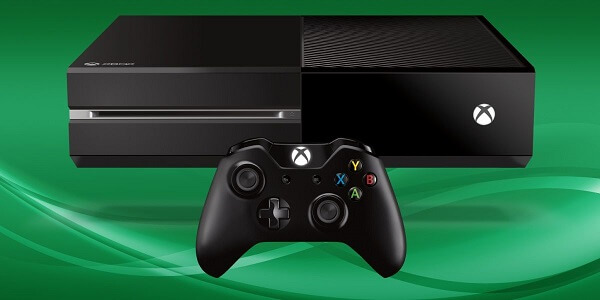
New Xbox One Experience Xbox One

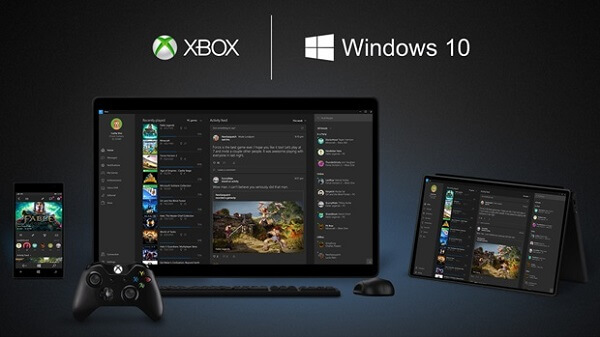
One of the most exciting updates that we’ve been waiting for on our Xbox One consoles is finally here: the fabled upgrade to Windows 10 has made it live and thankfully, it’s full of great things. Most likely, even skeptics will find one or two things to be enthusiastic about regarding this interface change. Now to clarify, the Xbox One will not be running Windows 10 per se, but instead a new and improved dashboard that is powered by the Windows 10 software – originally showcased in a beta version back at E3 in 2015.

There are a lot of things to discuss regarding this new dashboard; it brings numerous improvements to navigation as well as an obvious knack for performance. Also known as New Xbox One Experience, it’s great to look at it and realize just what a long way the dashboard has gone; and considering this is only the beginning of a long series of improvements that will be coming to it in the next months, Xbox One owners should rejoice.

Features don’t run short on it either. In addition to the superior functionality of the new dashboard, there’s a multitude of benefits console gamers will be getting with it – one that we find a dire need to mention straight from the start being the compatibility with older Xbox 360 games. But there’s much more than that cooked into the new interface and we’ve compiled a list of some that we found the most useful to know about beforehand.

1. An easily accessible visual heaven.

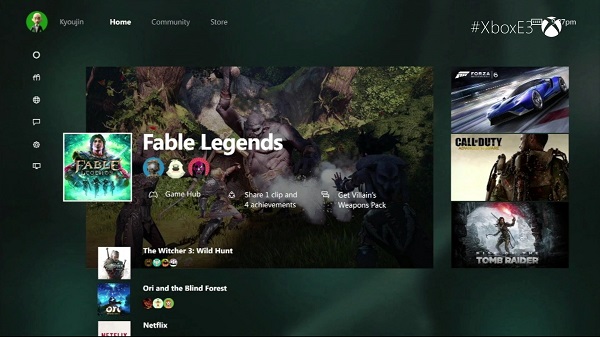
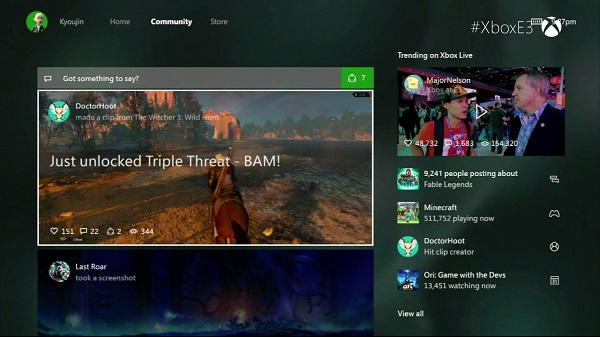
The user interface of the Xbox was never the aspect that you looked at and said “yeah, this is the best thing about it”. As a matter of fact – and I speak from personal experience here – I found the Xbox 360 UI relatively complicated and unnecessarily confusing, at least in comparison to its PlayStation counterpart. This is surely not the case here: as soon as you turn your Xbox on, you are greeted by the Home Page where you’ll find quick access links to your recently accessed content. There are separate windows to the Community, OneGuide and the Store at the top of your screen, while the left side is home to your options, friends and much more.

New Xbox One Experience UI

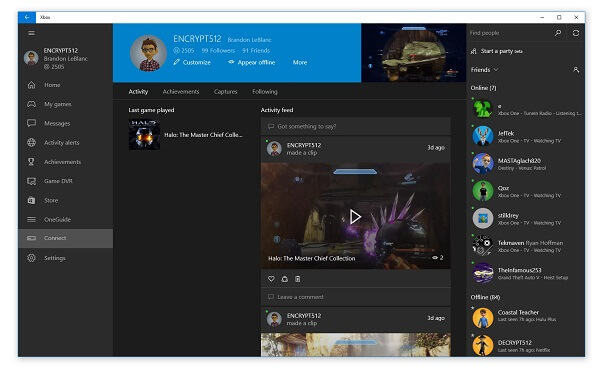
Home screen. Accessing any of your recent games via the home screen takes you to its personal hub of information: generic information about the game, a feed tab where you can find any sort of news regarding the game. Afterwards, there is an achievements tab where you can find unlocked titles as well as what else is left for you to do, plus personal stats such as Enemies Killed, Game Progress, Time Played and so on. Lastly, you will find a Friends tab where you can not only find out who else plays your game of choice but their progress in it as well, and a final tab named “Captures” where you’ll find everything you have recorded and immortalized so far in that particular game – be it image or video.

Pins and shortcuts. What easier way to access your content than by having a nice list of shortcuts added and bound to your controller’s RT? After you’ve set up your list of favorites that might not show up on your recent activity, you can easily access your entire list of games and services you think you will use more often by a simple tap of your right trigger directly from the home screen. You can set up a maximum of 28 pins for quicker access and a quick LT tap will bring you back up to the home screen.

Where are my settings? Everything regarding your Xbox One’s settings, friends and chats are now comfortably placed on the side panel, right underneath your profile name and picture on the home screen. Opening it will take you directly to your friends list, party creation interface, chats, notifications as well as a clean and simple menu to your settings. This way you can also access a great number of applications on your console, such as the media player, Microsoft Edge, OneGuide and the general Achievements panel. You don’t even have to try very hard to get to it such as using the D-Pad until you’ve scrolled through everything else until you get to the side and so on: all you need to do is do a double tap on the Xbox logo button of your controller.

2. OneGuide on the New Xbox One Experience – Streaming and TV in one place.

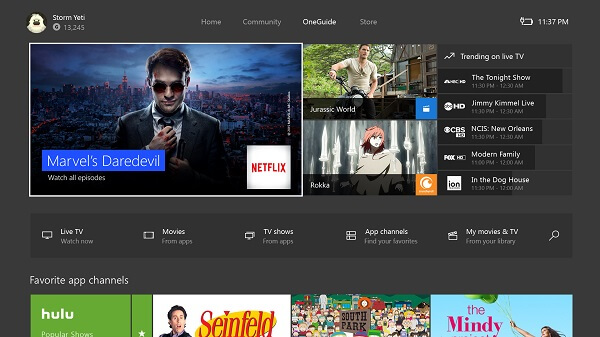
Considering we have already divulged one way of accessing the OneGuide interface, I’ll start by saying that the new and improved app is now smoothly incorporated into the system, and not separate as it was before. By tapping RB twice from the home screen, you’ll be taken straight to OneGuide – the place where you can find all of your streaming services, as well as a direct link to anything you may have recorded yourself. There is a considerable number of services that you can use to watch TV shows or movies, starting with YouTube and ending with Netflix.

New Xbox One Experience UI

Scrolling down a little will take you to a list of recommended content such as various channels and genres, displaying the icons of their respective top hits. The great news about it is that you get to customize these recommended selections so you don’t have to navigate through entire rows of comedies if you’ll be using the Xbox One to watch science fiction movies.

3. The store is within a button tap. Well, three taps.

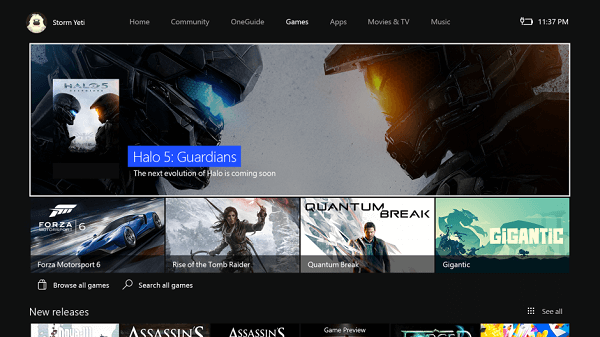
The OneGuide is not the only part of the New Xbox One Experience that got a major makeover. In order to not make things too difficult, you can access it by tapping RB three times in order to reach an extensive list of games, apps, music, movies and TV shows which you can purchase directly from here.

New Xbox One Experience Store Interface

The games section is separated into recommended, new releases, top-rated and genres. There is a “Browse All” option that will allow you to browse more than just games – expansions, add-ons, subscriptions and a box where you can enter codes already in your possession can be found here too, making your navigation as easy as possible.

4. Backwards compatibility, at last.

The most painful part of upgrading from an Xbox 360 to an Xbox One was the extremely limited number of titles you got to play with it when it first came out; especially at the cost of giving up the games you used to play on 360. Sure, maybe some of you only purchased an Xbox One because of exclusive titles such as Halo 5: Guardians, hoping that more content wasn’t a long way away from being released on it while you kept returning to the 360 for everything else. That, and waiting for remasters of older series on the new console is a thing of the past. Now, if anyone wishes to truly argue that one console is better than the other in the never-ending argument of Xbox vs PlayStation, the former has one huge advantage over the latter.

New Xbox One Experience 360 Compatibility

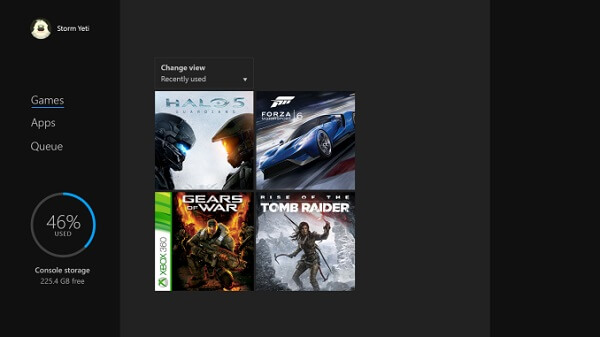
The way it’s all done is via an Xbox 360 emulator inbuilt into the software that comes online as soon as you insert a compatible Xbox 360 DVD into the tray. Any 360 titles that you may have attached to your account will show up in your library directly, branded by an Xbox 360 logo strip on its left side.

The best part of it all is the fact that you won’t even have to give up on your Xbox One’s features when you play older games – as you get full access to most of the great features X1 has to offer even with 360 titles. There is, however, a limited amount of things you won’t be able to enjoy – such as recording videos or taking screenshots of it. Still, it is a relatively small price to pay considering we can probably put our 360s on the shelf now.

5. Console fans unite with PC gamers.

For any of the non-exclusive titles out there that own a PC version as well, say hi to your friends directly off of your Xbox even if they’re playing off of their desktops. Currently, there is only one such titles that has been announced – and the first of its kind – that you’ll be able to enjoy with your PC gamer friends: Fable: Legends.

 New Xbox One Experience Via Various Platforms

6. The talking secret of New Xbox One Experience.

Originally accidentally found on the New Xbox One Experience interface, Cortana made a shocking appearance without any clear, previous mentions by the developers other than “it will happen sometime in the future”. When a few users stumbled upon what looked and felt like an alpha version of Cortana implemented in their Xbox One, developers finally started giving us some more information about it.

New Xbox One Experience Cortana

While accessing her nowadays cannot be done without employing some rather unclear tricks (scrolling up in your settings menu while tapping A several times), Cortana will become a reality to Xbox One Kinect users and Xbox One headsets alike. However, just like the mobile device Cortana, it will be controlled via voice recognition systems and not gestures as you would expect. With her assistance, you’ll be able to not only quickly access your games and apps, but use various other verbal commands too such as information queries.

7. Play from anywhere in your house.

If your couch is not your favorite spot to roll your games from anymore, nobody can stop you from playing your Xbox titles off of another device. Because of the new definition that streaming is given by the New Xbox One Experience, you can now play your exclusive titles off your any other device that runs Windows 10. If you’re running the new Windows version on your computer for example, you can sync it to your Xbox via the console interface or the other way around – wirelessly too.

New Xbox One Experience Streaming to PC

Sure, by using a cable to connect the two will provide you the better experience, but if your setup allows it, you can do it without its aid just as well. All you’ll need afterwards is for you to connect a wired Xbox controller to your PC. The company has already released a wireless USB adapter which you can use to connect either your Xbox 360 or Xbox One controllers to your PC – without the need for you to purchase a separate one meant for desktops and laptops alone.

8. The perks of DirectX 12 on the New Xbox One Experience.

Yup, that’s right, the latest DirectX is supported by the hardware of your Xbox One and you’ll be able to start making use of it with the DirectX 12 compatible games that are being released. You get plenty of perks by making use of the DirectX 12 – such as using Asynchronous shaders which are meant to improve the speed of graphic rendering of post-processing effects to a high degree. Thanks to DX12 you’ll also finally be able to make use of your Xbox One’s 32 MB of eSRAM – meant to optimize and reduce memory bandwidth usage, boosting the performance of your system.

New Xbox One Experience DX12

There is a certain improvement being cooked up for the graphic performance of your games. The DirectX 12 comes with some considerable solutions for the resolution issues some games may have had so far. Last but not least, thanks to the DirectX 12 that the New Xbox One Experience brings, everything will be made smoother and faster overall – not limited to your games, but extended to the navigation speed in the user interface too.

9. Keep proof of and mark your most epic moments.

Something that I have mentioned so far, but without elaborating on it – the New Xbox One Experience allows you to immortalize your fondest moments of your gaming sessions by not only taking screenshots but also downright recording your game as you play. Done via the Upload Studio, an application that requires 1 GB of storage space that anyone can get regardless of whether they have an Xbox Live Gold subscription or not, you can afterwards start editing the footage that you recorded. And because the New Xbox One Experience is a community-oriented interface, you’ll be able to share your recordings to your friends or followers, as well as even upload it to your SkyDrive account, accessible off of your PC.

New Xbox One Experience Screenshot

There’s no denying that the New Xbox One Experience is one packed with plenty of things to get excited about. The user interface that is New Xbox One Experience is finally not a drag to use, performance is expected to hike up a fair bit with the help of DX12 and considering this isn’t even its final form, that makes it even more enticing.

Image Source: 1, 2, 3, 4, 5, 6, 7, 8, 9, 10

Filed Under: Headlines Tagged With: new xbox one experience, Xbox One, xbox one compatibility, xbox one interface upgrade, xbox one ui upgrade, xbox one windows 10

The IBM Watson Trend App Predicts the Future

November 18, 2015 By Roxanne Briean 2 Comments

The IBM Watson Trend app is available only for iOS

Well, not really the future, but it forecasts trends and what products might sell out this X-Mas. The IBM Watson Trend app has officially launched today, and it’s the best way for consumers to understand the reasoning of trends and what popular products might sell out.

The IBM Watson Trend app can be downloaded for free from the iOS app store.

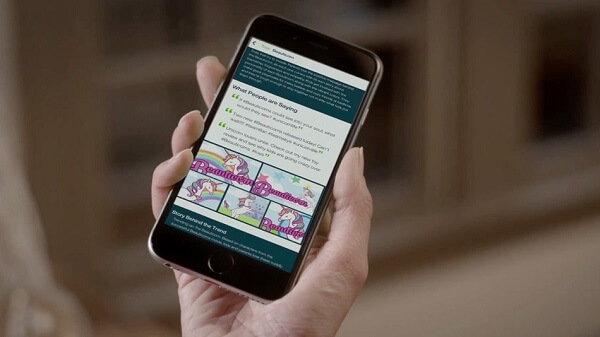
IBM’s new app basically searches millions and millions of conversations online. It does so by ransacking about 10.000 sources from social media platforms, forums, blogs, comments sections, reviews and ratings. It’s quite unique because, unlike any other app that just provides ratings for trendy merchandise, the Watson displays what consumers think about said product before and after purchasing.

Using its immense capability of understanding how language works, and Watson’s other learning abilities, the Trend app can easily surface why consumers choose a certain product or brand. It also uncovers the pattern that consumers tend to abide to.

More interesting, the app predicts the future with the help of analytics and it can pin-point when a trend is on a downwards spiral into obscurity or it’s going to skyrocket to the top.

Using natural language engine aggregates, it can provide insights on particular trend groups:

  • Sentiment,
  • Context and
  • Content.

By giving it a daily Trend Score, the Trend app displays the impact and the momentum of the trend by giving a group a number between 0 and 100. Display showcases how big the conversation is, and Momentum is the rate of growth of a particular conversation.

There are three categories at the moment – health and fitness, toys and consumers electronics. Users can view the top 100 products that are trending with the stories accompanying them. At the moment of writing this, November the 18th 2015, some of the top trends are:

  • Smartphone Photogs Drive Demand for Professional-Grade Cameras
  • Whether it’s Star Wars or Lego City, Buy Now Before It’s Too Late
  • Traditional Toys Go Back-to-School

Considering that Thanksgiving and Black Friday are knocking on our door, the IBM Watson Trend app predicts that, for the first time in existence, there will be more users using their mobile devices to seek deals than users turning to their desktops.

Mobile traffic is expected to rise by about 57%, during the five-day holiday. This is a 17% increase when compared to last year’s holiday. Also, it’s predicted that smartphone and tablet sales will increase by 36%, up from 34%.

The IBM Watson Trend app is available solely for iOS, Android users are out of luck. There’s no plan on bringing it to Google’s OS any time soon.

Image Source: 1

Filed Under: Headlines Tagged With: IBM, IBM Watson, IBM Watson Trend App, Trend App

Chromebit HDMI Stick Finally Launched by Google and ASUS

November 17, 2015 By Roxanne Briean Leave a Comment

Chromebit HDMI stick is developed by ASUS and Google

The Chromebit HDMI stick, which is basically a Chrome OS-based tiny computer on a stick, has finally launched. It costs $85 and it was developed by two tech industry giants – Google and ASUS.

It weights 75 grams, that is 2.6 ounces, and you can stick the Chromebit into any HDMI port – you can hook it to a large TV screen, or the average computer monitor. Regardless of what you choose, it just needs to have an HDMI port. It has 16 gigs of internal storage – slow and cheap eMMC storage, however; and 2 gigs of RAM.
In more than one way, it resembles the old Chromecast OS on a stick. Yet, the Chromebit is larger and bulkier. It ships with its very own charger, and it has a built-in USB port, unlike the old Chromecast.

You can find it in two colours – Tangerine Orange and Cacao Black. Yet, I don’t find a motive for picking colours for this kind of product. It will most certainly disappear behind your screen. Considering this, I don’t even understand why there’s a bright orange model.

The USB port is a great addition. Owners can pair the stick with a Bluetooth keyboard and mouse. You can also hook wired peripherals to the Chromebit. Given that USB hubs exist, owners could very well connect multiple devices to it.

It’s best used in the edu district – read, schools; call centers and enterprises that require web based apps for their day-to-day work. The Chromebit can very well turn your living room into a tight media center as well. Also, considering that it can turn any screen into a modern app boutique, hotels and stores can take full advantage of the Chromebit HDMI stick.

Don’t expect a power-house. Its quad-core Rockchip SoC, which is the life-line of the stick, isn’t designed with performance in mind. It is aimed at outputting a reliable and easy to get into experience.

Chromebit will be available in the U.S. at Fry’s, Amazon and Newegg. Quite interesting, Best Buy, which is Google’s old Chrome OS buddy, isn’t part of the list of vendors – at least, for the moment.

The Chromebit HDMI stick will be available in the UK, Canada, Australia, Denmark, Japan, Finland, Norway, New Zealand, Sweden, Spain and Taiwan also.

Google is constantly finding new ways to alleviate the burden of not having a PC. With the Work and Education service, customers can opt it for the new single-app kiosk mode for $24 a year, per user.

Yet, Google for Work and Education is only available in the U.S. and Canada.

Image Source: 1

Filed Under: Headlines Tagged With: asus, Chrome OS, Chromebit, Chromebit HDMI stick, Google, HDMI stick

Razer DeathAdder Review – The Epitome of Gaming Mice

November 17, 2015 By Roxanne Briean Leave a Comment

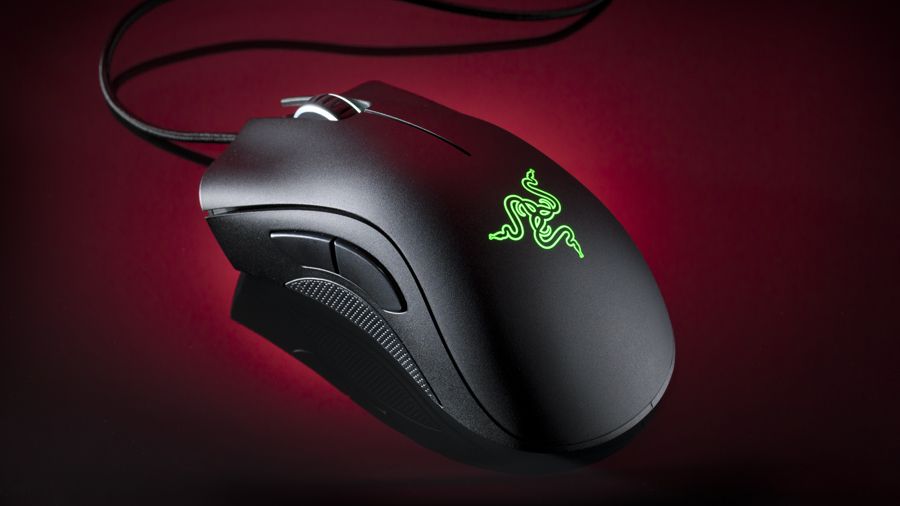
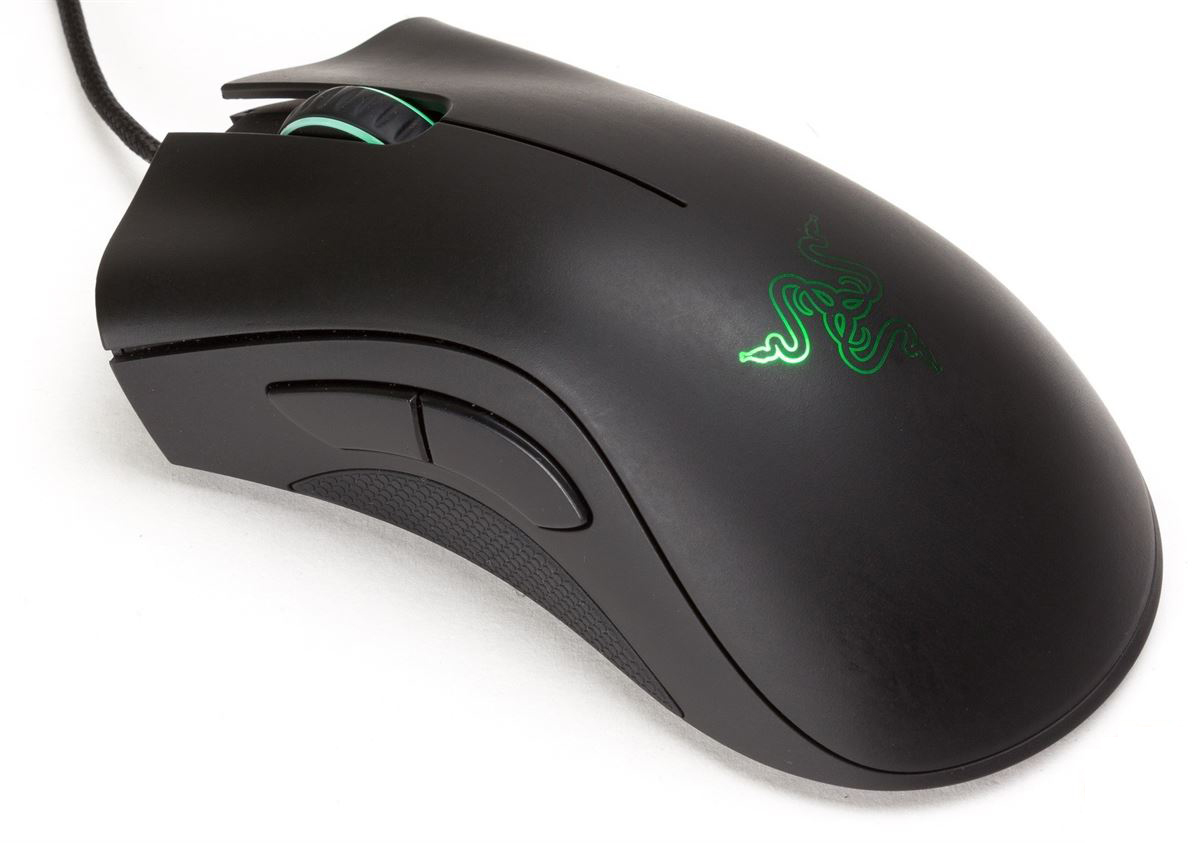
Razer DeathAdder 2013 Edition

With video and computer games becoming more than just mere hobbies people do in their spare time and developing into worldwide industries, so must the hardware that compliments them do. For more than a few years now tech giants such as Razer, SteelSeries, Roccat, Mad Catz and many others, who develop hardware and peripherals have designed a completely new portion of the industry – gaming-oriented equipment. Razer has been known as one of the leading names of this market; and ask anyone about the first product that comes to their mind when they hear Razer and you’ll probably get Razer DeathAdder in reponse 90% of the time.

The reason is not that hard to grasp – unless special mouse requirements such as a large number of buttons are wanted, the Razer DeathAdder is probably the best construction the developers have ever come up with – at least on par with other top gaming mice out there such as the SteelSeries Sensei wireless or laser variant or the Roccat Kone XTD Mouse. However, from many perspectives, the Razer DeathAdder will end up scoring superior results in the face of its direct competitors. While the design and build have gone through some improvements, the original concept for this mouse was first released back in 2006 – and in the 9 years it’s been since, Razer has learned a lot and improved a lot more to build the mouse that the Razer DeathAdder is today.

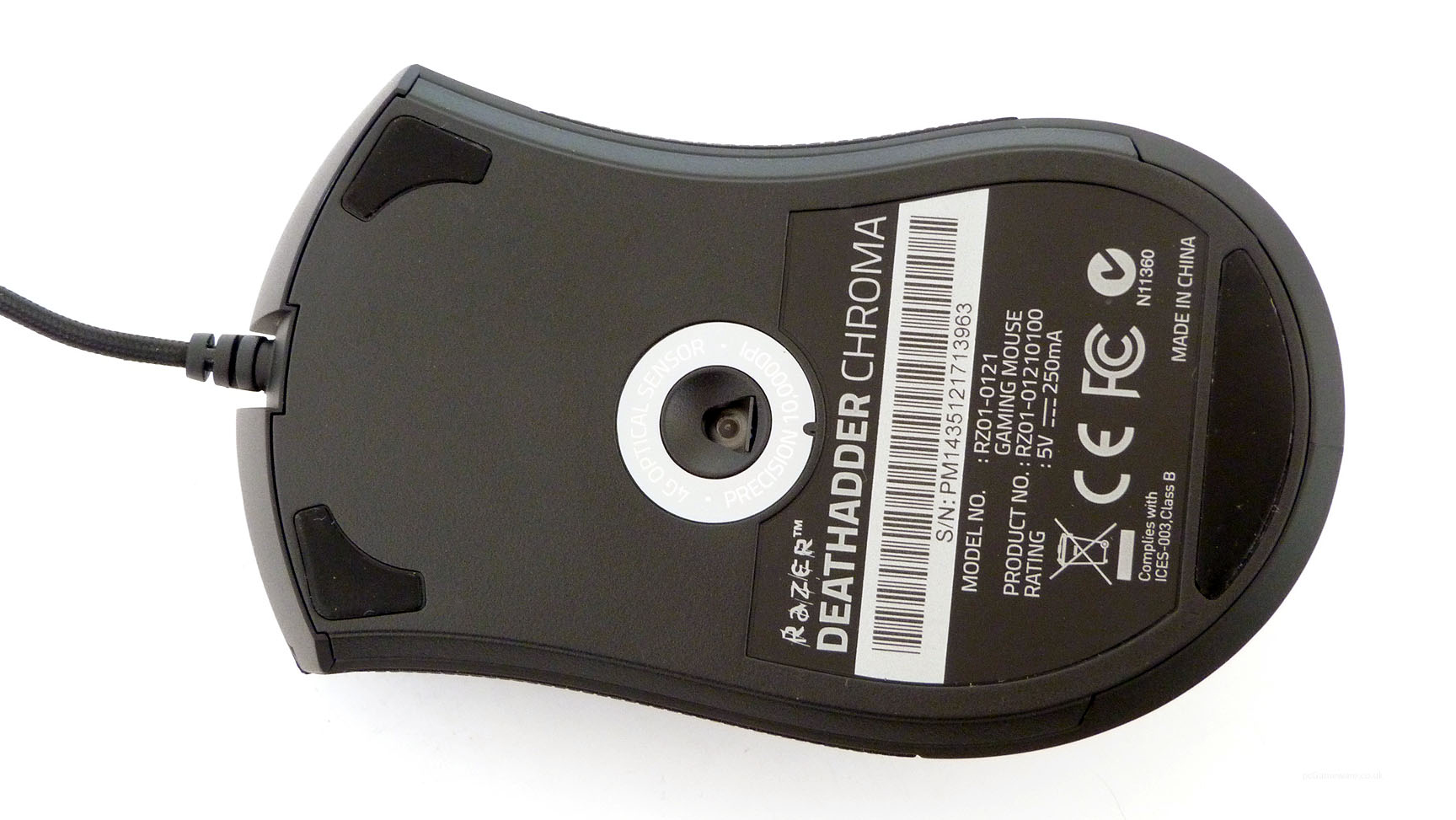
Regardless, the DeathAdder has a series of variations available for purchase directly from the Razer store. Along with personalized mice that come in various designs inspired by specific games such as World of Tanks, there is a left-hand edition and the new and improved Razer DeathAdder Chroma. For all intents and purposes we will be reviewing both the Classic Razer DeathAdder 2013 version and the Chroma variant.

Razer DeathAdder Classic

Razer DeathAdder Design

In comparison to the other Razer mice families developed by the giant, the DeathAdder, as well as the visually similar DeathAdder Chroma, the mouse has a very simplistic and minimal design. It resembles another gaming mouse that is normally used in e-sports by many tournament organizers – the SteelSeries Sensei Raw, however, the latter takes us back to very compact round edges of what older mice looked like. The DeathAdder doesn’t even come close to the crammed feel of the Roccat Kone XTD that packed up some extra buttons next to the scrolling wheel.

Razer DeathAdder Logo

The top portion of the mouse is made from one single piece that splits in two towards the upper end to make room for the scrolling wheel and cable. This is a worth mentioning improvement over the older mouse designs that used 2 different pieces for each mouse button – it provides some extra protection from damage that could occur to either part. Because it’s made of a new texturized plastic mold, the top piece of the DeathAdder is particularly sturdy yet elastic, taking an extremely long time until the material shows signs of wear and tear, even if it lives the hard life of gaming mice.

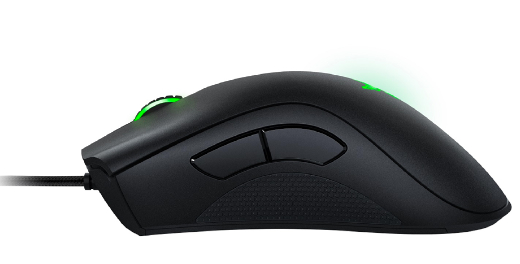
The sides of the DeathAdder feature honeycomb rubberized portions towards the bottom of the mouse where you normally hold your thumb and pinky finger respectively. This is particularly important because it reduces the risk of slipping as well as keeping your hands from sweating to a degree. It offers a good, stable grip and remains particularly cool even after entire hours of usage. One aspect which some users may find upsetting is that the DeathAdder is a relatively tall mouse and its design doesn’t offer a thumb rest, meaning you’ll be rubbing the side of your thumb against your mousepad quite a lot when using it. It’s not a disastrous aspect, but may become annoying when you pay attention to it.

Razer DeathAdder Sides

Thankfully, the Razer Death Adder mouse is wired and it comes with a gold-tipped USB jack at the end of a 7-foot long cable – easily enough for any desktop setup without creating any difficulties. Hardly something that professional gamers out there don’t know, a wired mouse is sincerely your only truly viable choice when it comes to video gaming. While there’s a number of great wireless mice out there that you can use just as well, there are two aspects that make wired mice win over wireless. One is the accuracy – no matter how good the signal the mouse transmits and how good the receiver station is, wirelessly sent signals will falter in face of cables; not to mention that there can be interferences created by other wireless devices or even the distance between the mouse and the station or the surfaces present between them.

The second aspect is the most mind-wrecking issue of batteries. Have you ever had your batteries run out right in the middle of an online game? Yeah, I hope not. Not to mention that once the battery in your mouse has reached low levels, signal is occasionally sent with intermittences, especially when far away from its receiver.

In terms of extra buttons, the DeathAdder only features two side buttons on the left hand side on both the 2013 and Chroma models, with a clickable mouse wheel which can be used for various functions as well. This makes for a great addition to a number of games, but doesn’t give you much functionality when it comes to massive multiplayer online games (MMO) where you can actually use the extra few. The Razer Naga mice are a much better choice in that regard, usually featuring as many as 12 extra buttons that you can assign to various commands and profiles. However, for your regular single player gaming and most games recognized as e-sports such as first person shooters (FPS) and multiplayer online battle arena games (MOBA), the DeathAdder remains a solid choice.

Razer DeathAdder Side Buttons

Lastly, the bottom of the mouse features an optical sensor which makes for an impressive responsiveness regardless of the surface you are using your mouse on, unlike the laser technology which very often will require a mousepad and will have problems working on surfaces such as glass or anything that is not perfectly smooth.

Razer DeathAdder Bottom

There is one aspect where the Chroma differs from the 2013 version: the Chroma comes with personalized lighting on the body of the mouse – more specifically the scrolling wheel and logo that sits on the top portion of the mouse. The LEDs behind them can switch through 16.8 million colors  which you can set up to either remain static on a selected color or constantly change hues automatically.

Razer DeathAdder Chroma Color Variants

In terms of size and weight, both variants of the DeathAdder have the same 127 x 70 x 44 mm build and weigh 105 grams.

Razer DeathAdder Specs

The most important specification that individuals will be looking at when picking out a gaming mouse is DPI (dots per inch). A higher value will translate into a faster moving cursor without having to move the mouse as much. While a very high DPI might accelerate your mouse movements too much to be able to keep them in control, it is not the only aspect that it improves. A high DPI will allow you to travel larger distances with your cursor in a short amount of time, while small detail accuracy will benefit more from lower DPI scores. The Razer DeathAdder 2013 features a 6400 DPI 4G optical sensor, while its Chroma counterpart hikes up all the way to 10000 DPI. Considering these are maximum values which can be optimized via software and your operating system, that’s a lot of room to work with for any type of game you desire to play.

Polling rate is another feature that you’ll be wanting to consider when purchasing gaming mice. In essence, the polling rate is a mouse’s capability, or rather frequency with which it reports its position to the computer it’s attached to. Both the 2013 and the Razer DeathAdder Chroma variants come with 1000 Hz Ultrapolling capability – that basically means that the mouse sends its signal to the computer every 1 millisecond, or alternatively 1000 times a second. This considerably decreases and downright removes any kind of input lag in the communication between the peripheral and the host computer.

The DeathAdder Classic also brings 200 inches per second max speed as well as 50 g acceleration, while its Chroma iteration takes it up to 300 inches per second. The acceleration factor weighs in close dependency to how fast you move your mouse physically. That means that slower movements will translate into a 1:1 ratio with the crosshair, while rapid movements will allow the movement in the game to be ampler, and circumstantially longer.

Razer DeathAdder Software

Both of the Razer DeathAdder models come with their own software – Razer Synapse 2.0 – a highly customizable mouse configurator. Before we delve into everything that you can do with this piece of software, it’s vital to note one aspect in which the DeathAdder really lacks in comparison to other gaming mice – there is no dedicated physical button that can allow you to change your DPI or sensitivity settings on the fly – something that some professional gamers will have to take the full brunt of if they require different DPI settings for different actions in a game.

The Razer DeathAdder driver per se installs automatically as soon as you plug in the mouse. Synapse software will allow you to do everything starting with rebinding controls, assigning macros to buttons as well as track statistics for your mouse usage over time. And the greatest part of it all is that Razer Synapse 2.0 also offers cloud services meaning you won’t have to redo all of your preferred settings every time you switch the machine you use it on – great for individuals who participate in LAN competitions or other tournaments.

There are four major menus that you will find on the Synapse software after you’ve installed it – Mouse settings, Macros, Chroma Apps and Stats.

The Mouse section comes with 4 sub-menus that will give you a particularly ample control of all of your DeathAdder’s aspects. The Customize sub-menu is where you can create or select different settings profiles – complete with button mapping and other functionalities. Under the Performance sub-menu you get a wide array of sensitivity, acceleration and polling rate that you can select from; on top of that there is an option that allows you to even configure sensitivity stages manually. Acceleration customization is set in stone, allowing you to choose from 10 different levels that you can set it at.

Razer DeathAdder Synapse Customization

Razer DeathAdder Synapse Customization

Lighting of the mouse for the DeathAdder Chroma variant is done from the third submenu available in the Synapse 2.0 – allowing you to do more than just turn your scrolling wheel and logo lights on or off to save power. There is a wide selection of color patterns that you can set for your mouse as well as an option that allows the mouse to turn off when the display it’s connected to is also off.

Razer DeathAdder Synapse Chroma Lighting

Lastly, the calibration sub-menu is a more recent addition to the software that allows you to calibrate your mouse to a specific surface – for example your preferred mousepad – which will record the surface’s properties such as color or topography and provide you with improved accuracy as the optic sensor moves over it.

The type of stats that you can track via the software mostly regard the areas where you click most, total distance travelled with your mouse movements or the number of clicks – average per session, specific sessions or total.

Razer DeathAdder Stats

Razer DeathAdder Competing Models

To list the entire selection of gaming mice on the market would take us about half of the day. However, there are at least a few models out there that may be an alternative to the Razer DeathAdder mouse for willing buyers. Do keep in mind that most gaming mice manufacturers release entire families of hardware that are usually each specialized in a particular sense – just like the Razer Naga is dedicated to the MMO player, thanks to its numerous side buttons. Most of the mice we have chosen for our list are all-round utility models – mice that will perform well in any game genre if you can rid yourself of specific utilities.

Roccat Kone XTD. This Roccat mouse comes close in build and utility to the DeathAdder Razer: with just two side buttons, relatively minimal design but with a solid looking case. Considerably taller than its Razer counterpart, it also features 2 additional buttons right below its scroll wheel which give you more room for mapping macros and commands. An aspect where the Roccat Kone XTD Gaming Mouse really shines is the software that comes with it. The Roccat Kone XTD driver and software interface provides even more customization than the Synapse does, in addition to its very own R.A.D. – Roccat Achievements Display.

Mad Catz Office R.A.T. Definitely not something I would normally even consider adding into a gaming mice list simply because it’s wireless, but I feel like the Mad Catz RAT needs some praise the very least. In terms of design it’s DeathAdder’s polar opposite: adorned with straight lines and sharp edges and a downright crazy design where you can see inside the mouse and whatnot – it’s quite something. This Mad Catz gaming mouse differentiates itself by the fact that it can adjust its size to fit your hand – through a mechanism that’s right below the upper side of the case.

Steelseries Sensei Raw. The Steelseries Sensei family has run for a long time in the gaming world. Everything that the series had to show for itself is not contained in the Sensei Raw, but caught into a minimalistic and smooth design. Currently known as one of the best gaming mice on the market and another tournament favorite for e-sports tournament organizers, what this mouse deserves is a SteelSeries Sensei review of its own. Along with the SteelSeries Engine 3 software, the customization of this mouse’s settings is near endless and its performance scaling up to amazing numbers. When comparing the Sensei to the DeathAdder, one always turns out better than the other in some respect, but overall their quality and performance average pretty much the same.

Razer DeathAdder Verdict & Price

In essence, the Razer DeathAdder – regardless of the model you opt for – is a very solid and robust mouse that specializes in professional gaming but isn’t limited to that, albeit you’ll get the most of it in that type of activity. The fine tuning and the specs it comes with, in addition to the ergonomic design give you an incredibly high rate of accuracy regardless of what you play. It is one of the best options you can find on the market, along with few others.

The price category that the Razer DeathAdder falls in is not that high given regular professional gaming devices, but will spike up to an impressive number if you compare it to regular use mice. You can get the Razer DeathAdder 2013 for $59.99 for either right-handed or left-handed models, the Razer DeathAdder Chroma for $69.99 and various personalized variants such as eSports Edition Counter Logic Gaming or World of Tanks Edition for $79.99.

Image Source: 1, 2, 3, 4, 5, 6, 7,

Filed Under: Headlines Tagged With: deathadder review, razer deathadder, razer deathadder 2013, razer deathadder chroma, razer mice, razer reviewd, razer synapse

Microsoft Shuts Down Zune Music Player

November 16, 2015 By Roxanne Briean Leave a Comment

Microsoft Shuts Down Zune Music Player

Microsoft shuts down Zune Music Player, officially – and it was about time they did so. The Zune music service was dead and gone, its body tucked away in a coffin, and all the nails in place.

Zune was dead, but not a ghost town as Yahoo. A few users were still coming back to Microsoft’s music service, even though Xbox Music launched – which, by the way, is now called Groove Music.

On the 15th of November 2015, Microsoft discontinued the Zune service for good. It was a dark Sunday for some, and for others, it was just an average day. Lucky Zune users can’t download or stream content any more. The gate has been closed.

You can read the official Zune retirement FAQ for more details.

But don’t despair, die-hard Zune fans. Microsoft is trying to entice you, the Zune core, to switch to their Groove Music service – it’s the company’s music streaming platform that has about 38 million songs.

Those of you who own a Zune music device can continue to listen and transfer music as usual. Yet, if you plan on using these devices to side with Groove Music, you are out of luck. Zune devices aren’t Groove-enabled, the following are.

  • Any Windows 10 capable device
  • Xbox One
  • Xbox 360
  • iOS
  • Android
  • Sonos
  • Any web browser

Unfortunately, don’t expect the same traits you used to have as a Zune user. The 10 free tracks per month feature is gone forever. Microsoft hasn’t specified if it will reiterate it within Groove Music, but I’m sceptical they ever will.

The main difference between Groove Music and Zune Music is that the Groove platform allows to store digital content on OneDrive – Zune didn’t. Also, the fact that Groove Music is available on a plethora of platforms – see above.

The Zune Player has been considered a failure since 2011 when reports showed really low sales. It was a means to compete with the ever-growing iTunes and the iPod era. Yet, Apple maintained its position as head dog, and controlled what music listeners tuned into. Hence, how now Apple Music has a big shot of becoming one of the biggest music streaming platforms in the world – along with Spotify and Google Play Music.

Microsoft’s Groove Music is witnessing more success than Zune. Go figure, giving users the possibility of listening to music on a plethora of devices and OSs actually means turning a profit.

If you are a Zune die-hard fan, you should know that if you want to switch over to Groove Music you have to cough up $9.99 a month. Want more? $99 per year to download and stream unlimited music.

Image Source: 1

Filed Under: Headlines Tagged With: microsoft, Microsoft Zune, Music Platform, music streaming platform, Music streaming service, Zune

  • « Previous Page
  • 1
  • …
  • 29
  • 30
  • 31
  • 32
  • 33
  • …
  • 59
  • Next Page »

Subscribe to Blog via Email

Enter your email address to subscribe to this blog and receive notifications of new posts by email.

Join 11 other subscribers

Recent Articles

police handcuffs man

German Man Probed In Poisoning That Killed 21 Employees Since 2000

June 29, 2018 By Kenneth Scott Leave a Comment

Chicken wings bar

Intoxicated South Carolina Man Punches Waitress Who Refused to Serve Him Alcohol

June 29, 2018 By Karen Jackson Leave a Comment

gaming

New Zealand gamer Who Flew Halfway Across The World for Virginia Teen Gets Shots By Her Mother

June 28, 2018 By Cristopher Hall Leave a Comment

party

Former Virginia Tech Freshman Sentenced to 50 Years in Prison for Stabbing a Girl to Death

June 28, 2018 By Roxanne Briean Leave a Comment

bonfire

British Couple Sentenced to Life in Prison for Torturing and Murdering French Nanny

June 27, 2018 By Deborah Campbell Leave a Comment

pay phone

Texas Father of Girl Disappeared in the 80s Ignored by Authorities

June 26, 2018 By Cristopher Hall Leave a Comment

bottled water

San Francisco Woman Threatened to Call Police on Girl Who Sold Ice Water for Disneyland Trip

June 25, 2018 By Roxanne Briean Leave a Comment

Maplewood Park

Missouri Man Robbed by Date and Accomplice in Park

June 22, 2018 By Nancy Young Leave a Comment

coding

New York Man Sentenced in Cyberstalking Former Girlfriend, Mailing Drugs to Her Dorm

June 22, 2018 By Deborah Campbell Leave a Comment

headphones

Bose Poised to Launch Sleepbuds, In-Ear Headphones That Help You Sleep

June 21, 2018 By Nancy Young Leave a Comment

Police light

Intoxicated Female Driver in Custody for Pulling Arresting Officer by the Hair

June 21, 2018 By Kenneth Scott Leave a Comment

kitchen

Restaurant Manager Arrested and Charged in Shooting Death of Co-Worker over Negative Yelp Reviews

June 20, 2018 By Karen Jackson Leave a Comment

plastic container

Pennsylvania Couple Charged in Violent Death of Infant Discovered Buried in Cat Litter

June 19, 2018 By Cristopher Hall Leave a Comment

tailpipe

Minnesota Teen Gets Head Stuck In Oversized Tailpipe Winstock Music Festival

June 18, 2018 By Karen Jackson Leave a Comment

Pages

  • About Us
  • Contact us
  • Privacy Policy
  • Privacy Policy GDPR
  • Staff
  • Terms and Conditions

Recent Posts

  • German Man Probed In Poisoning That Killed 21 Employees Since 2000 June 29, 2018
  • Intoxicated South Carolina Man Punches Waitress Who Refused to Serve Him Alcohol June 29, 2018
  • New Zealand gamer Who Flew Halfway Across The World for Virginia Teen Gets Shots By Her Mother June 28, 2018
  • Former Virginia Tech Freshman Sentenced to 50 Years in Prison for Stabbing a Girl to Death June 28, 2018
  • British Couple Sentenced to Life in Prison for Torturing and Murdering French Nanny June 27, 2018
  • Texas Father of Girl Disappeared in the 80s Ignored by Authorities June 26, 2018
  • San Francisco Woman Threatened to Call Police on Girl Who Sold Ice Water for Disneyland Trip June 25, 2018

Categories

  • Business
  • Entertainment
  • Finance
  • Headlines
  • Health
  • Life
  • Nature
  • Science
  • Sports
  • Tech & Science
  • Travel
  • Uncategorized
  • United States
  • World

Copyright © 2026 ArgyllFreePress.com
About · Privacy Policy · Terms of Use · Contact