Argyll Free Press

Growing News Network

Thursday, April 23, 2026
Log in
  • Business
  • Finance
  • Sports
  • Tech & Science
    • HP Envy 4500 Review
    • LG Optimus 170 Review
    • iPod Touch 6th Generation Review
    • HTC One M8 Accessories Set-up
    • Surrealist Games You Must Play
    • Hisense Sero 8 Review
    • Dell Latitude e7440 Review
    • HP Laserjet 1536dnf mfp Review
    • Garmin Fenix 2 Review
    • Skype Vs Viber
    • Best Video Conferencing Software
    • Sony mdr 1r Headphones Review
    • Canon Rebel t3i Review
    • Sennheiser Momentum 2-0 Review
  • Travel
  • Headlines
  • Health
  • United States

Hasbro Robot Pet Cat

November 20, 2015 By Deborah Campbell Leave a Comment

The Hasbro robot pet cat on someone's lap.

Do Androids dream of electric sheep? I don’t know, as I haven’t had the pleasure of conversing with one yet.

But our human peers at Hasbro, the American company that is one of the largest toy makers in the world, sure dreamed about electric pets. And not only dreamed, but acted upon this as well.

Because Hasbro has just launched a new toy which would fit perfectly in Philip K. Dick’s novel “Do Android Dream Of Electric Sheep” that I was not so subtly referencing above.

In the novel, a nuclear war has turned most of the Earth into a radioactive waste and rendered most animals extinct or endangered, which is why owning a live animal is considered a symbol of high social status (also being a great part of the religion of Mercerism based on empathy). So those that can’t find or afford to buy a biological animal order artificial robotic replicas instead.

Last time I checked, radioactive dust wasn’t falling down from the sky outside, so it looks like we’ve managed to get the perk of robotic animals without all the other bad stuff. Not so sure about that empathy being of the utmost importance in society yet, but I’m sure someone’s working on that as well.

The Hasbro robot pet cat, which the company calls the Companion Pet, has been designed with as much realism as possible in mind, featuring feedback to (some) outside stimuli, audio and motion outputs and the exterior aspect of a real feline.

In other words, if you move around the room it notices it and becomes awake (which also happens if you nudge its back). If you pet it it purrs (a feature which the company calls “Vibrapurr”). If you keep pet it it will lounge on its back and present you its belly, for rubbing. If you pet it even more it curls into a comfy position and goes to sleep. And if you touch its left cheek, it will emotionally blackmail you like a real cat, by moving said head into your hand. All of this while it is clothed in real fur which its creators endowed it with.

And there’s no hassle accompanying these positive manifestations mentioned above, as you don’t have to clean up after it or train it to use the litter or feed it. And most notably, it doesn’t have the typical feline moodiness that results in loving scratches and bites.

You do however have to remember to recharge it, because it works on batteries.

Part of Hasbro’s “Joy For All”, product line the robo-kitty was designed with elderly people in mind, of which studies have shown almost half to be constantly lonely and consequently depressed. The Hasbro robot pet cat hopes to alleviate some of that.

It costs 99$.

Image source: 1.

Filed Under: Headlines Tagged With: cat, Hasbro, Hasbro cat, Hasbro pet, Hasbro robot, Hasbro robot cat, Hasbro robot pet, Hasbro robot pet cat, pet, robot

Volvo Self Driving Car Concept 26

November 19, 2015 By Cristopher Hall Leave a Comment

The Volvo self driving car Concept 26

Concept 26 is a car concept from automaker Volvo, a company founded in Sweden in 1915. Though its headquarters are in Gothenburg, Sweden, the new car concept was recently unveiled at its Motoring and Concept Center in Camarillo, California, USA.

Of course, a road-worthy incarnation of the model does not currently exist, as is it is a concept. And furthermore, Volvo has said that it cannot anticipate whether it will produce a car based entirely on this concept and featuring all of the technologies and functionalities it incorporates.

But it is confident that these technologies will be implemented separately in at least some of its future models.

So, what is the Volvo self driving car Concept 26? The number at the end is not the number of concept cars that Volvo has imagined so far. It stands for the average number of minutes that an American driver spends in commute.

And it hints at the philosophy behind the whole concept. Because Volvo’s opinion (similar to Tesla’s) is that a self-driving car should, for now, still have a wheel and look pretty much like the cars we have today, instead of a simple container with the interior designed to transport humans (like a subway wagon or the futuristic pods we see in movies).

Even more, Volvo thinks that self-driving should be an option, not the only mode of operation and their Concept 26 envisages a car that you can either drive normally (read manually) or can switch to self-driving mode whenever you like, by pressing down two buttons on either side of the wheel.

You can program routes for the autonomous mode and some time before you reach the end of the route, when the car will switch back to manual, you will get an alert and a timer on the console. If you don’t respond and the timer reaches zero, the car will safely slow down, pull over to the side of  the road and stop.

Despite the interior not being completely stripped, while in self-driving mode, you can still enjoy the comfort that people normally associate with imagined self-driving cars. Because the Volvo Concept 26 features seats made of two parts (bottom and upper), which recline all the way back if you want (but not while in manual mode), a console tablet between the driver and passenger seats and a table and flat screen that slide out from their hidden places (the table from the driver door, the screen from the passenger side of the board).

The tablet’s position automatically adjusts according to the chair’s position. And there are “modes” programmed into it, like “create” which allows you to send e-mails and work or “relax” which makes the screen come out so you can watch a movie etc.

Overall a very interesting hybrid proposal from Volvo for a manual and self-driving car in one, considering the competition it faces from Tesla, (allegedly) Apple and most importantly, Google.

Image source: 1.

Filed Under: Headlines Tagged With: Concept 26, Volvo, Volvo concept car, Volvo self driving car concept, Volvo self driving car Concept 26, Volvo self-driving car

Hisense Sero 8 Review – A Budget Android Tablet

November 19, 2015 By Deborah Campbell 1 Comment


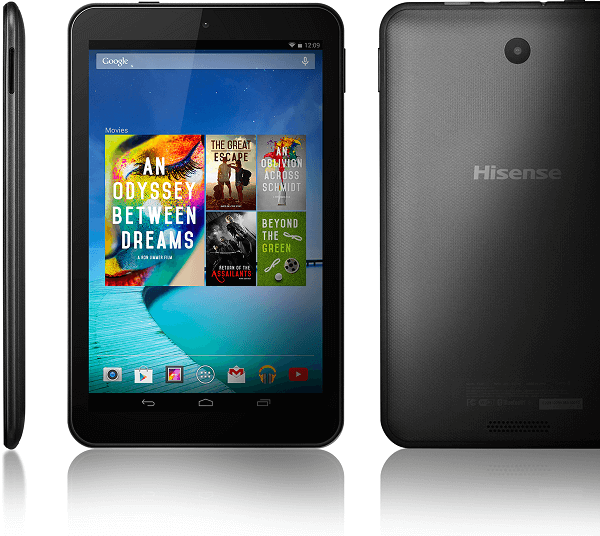
Hisense Sero 8 Header

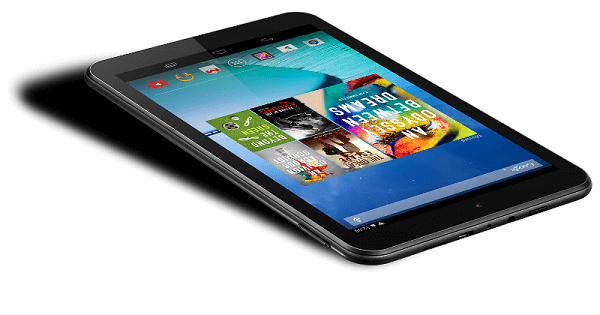
Continuing our expedition in the less known but highly affordable selection of gadgets, we came across a clever little tablet known as the Hisense Sero 8. Also a Chinese production that is aiming to build products that can expand their reach into the Western market just as well, the Hisense Sero 8 inspires reliability and a good investment when you weigh in the shockingly small amount of money you’ll be paying for it.

We recently reviewed another tablet in this sector that the Hisense Sero 8 reminds us of; more precisely, the Tesco Hudl 2. However, this one comes from a company that has sort of specialized in producing low-cost devices, this tablet obviously being the 8th iteration of the Hisense tablets series. The manufacturer seems to have taken the customer feedback that was received for the Hisense Sero 7 Pro tablet very seriously, and made a decision to improve directly on the various aspects that elicited most concern.

While the Hisense Sero 8 is anything but your brand new release in terms of budget tablets, having come out quite a while ago and even having a “Pro” variant that followed suit showcasing some new features that the crowds requested. But given that it’s nearing December, the time when your wallet ends up suffering tremendously with all the holiday shopping you have to do, shifting our gaze to the wide selection of budget gadgets on the market can turn into a life saver.

So what is there to expect from this highly accessible Hisense tablet? Is it worth its price?

Hisense Sero 8 Design

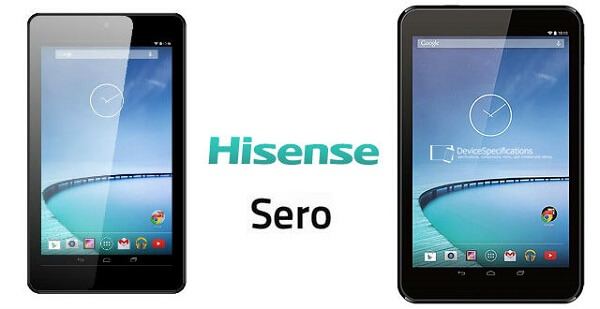
So what does the Hisense Sero 8 aspire to be? For an 8 inch display tablet, the dimensions that it comes with seem a little bulkier than they should be. At 208.55 x 129.8 x 10.5 mm, the tablet is both taller and thicker than you might be used to if you’ve used a smaller-scale tablet before. One aspect that some users may feel a little put off by is the width of the bezel, which even convinced the manufacturers to correct in the later released Hisense Sero 8 Pro. Even so, in terms of bezel size, it’s gone a long way from the Sero 7.

Hisense Sero 8 vs Sero 7

The thickness is also a slightly unsettling number that we don’t get to see much nowadays. At a thickness of barely over 1 centimeter, you could easily say it’s about the same size of two Samsung Galaxy Tab S2 stacked together; that may prove to be an issue if you’re trying to hold the tablet single handedly, but considering you’ll more often than not two-hand it when you use it, grip should not be a concern.

In order to make up for the extra thickness that the Sero tablet packs, the back of the unibody that the device comes with is covered with a textured plastic surface that makes the tablet easier to hold and handle. Considering its entire exterior is made of carbon fiber and not the more common aluminum alloy, you would think that this tablet spells bad quality and a frail chassis. Surprisingly enough, the Hisense Sero 8 feels like anything but cheap and prone to breaking. In terms of weight, the tablet doesn’t jump a long way away from the standard: no less than 450 grams.

Furthermore, the Hisense Sero 8 may feel as a pretty underwhelming design example for some considering that it’s relatively plain from an aesthetic sense; a fact only empowered by the color variants that it’s available in: only gray.

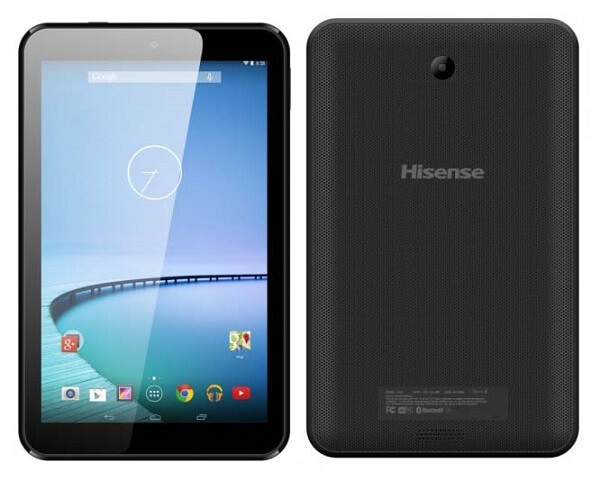
Hisense Sero 8 Front and Back

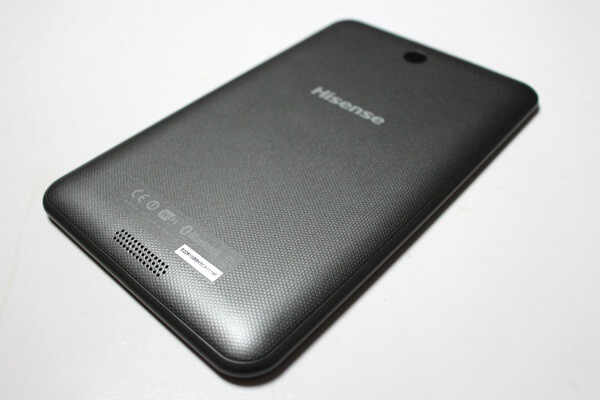
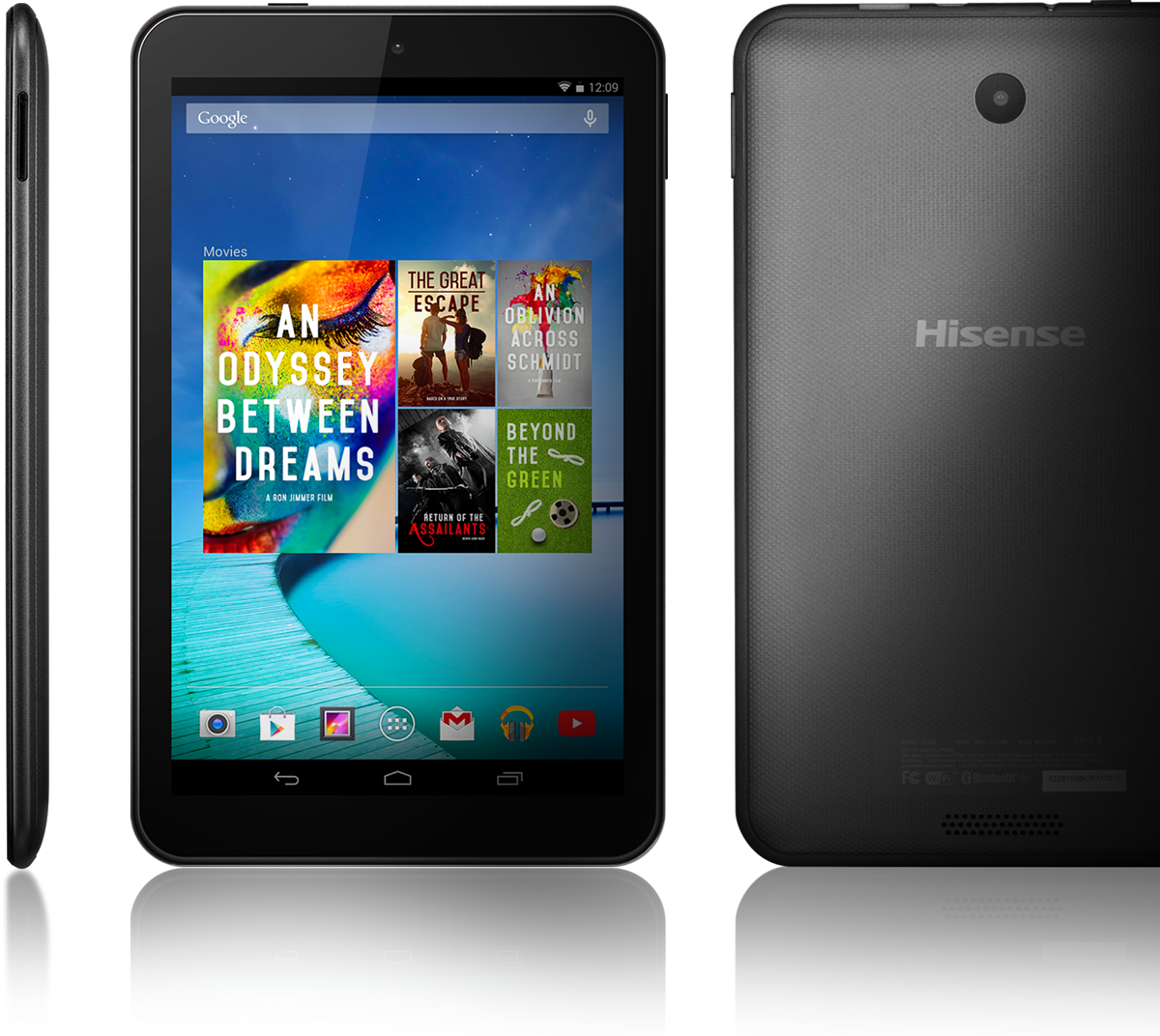
The back of the Hisense Sero 8 is very simplistic to begin with. A large, round camera sensor is nestled in the upper center of the cover, the Hisense logo resting a couple of inches below it. At the bottom of the tablet there is a strip of speaker holes, as well as the serial number and information regarding the product right above it. There is a chance that the consumer variant of this tablet does not incorporate that particular detail in its build, so if you consider it a problem, do check the retailer images of the product beforehand.

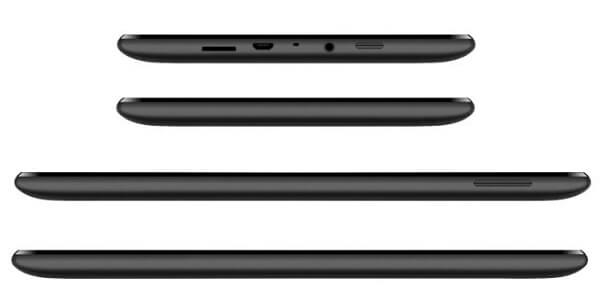
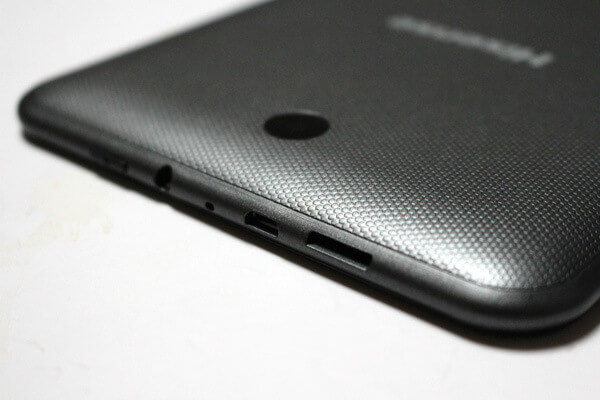
In terms of button placement, I found that the approach Hisense took with it is relatively clever. Aside from the volume rocker that you can find on the tablet’s right hand side (we consider that the default orientation is in portrait mode), all of the other function buttons, ports and slots have been clumped up on the top. Covered from nearly one end to another, this side of the tablet is home to the power button, the microUSB port that is responsible of data transfer and charging, a microSD card slot to expand your storage options as well as a regular 3.5 mm headphone socket.Hisense Sero 8 Rear

Hisense Sero 8 Button Placement

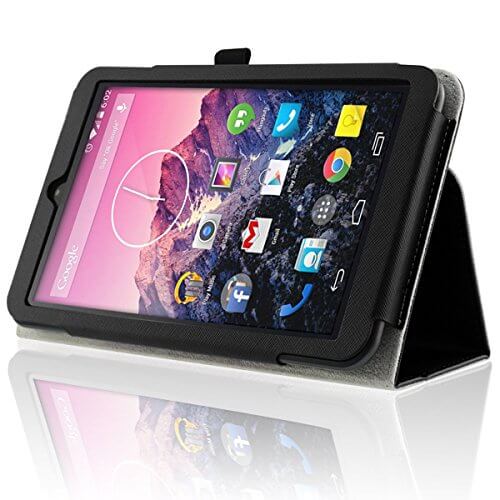
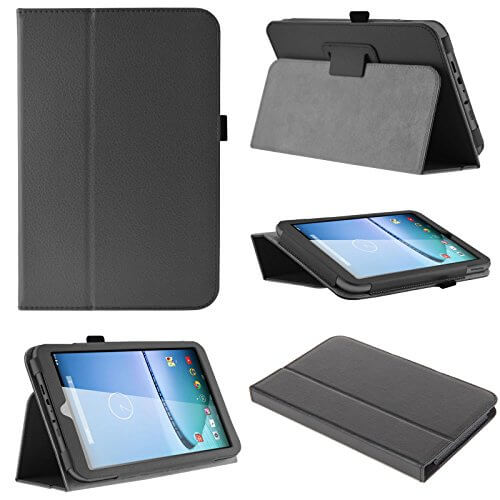
All things considered, the Hisense Sero 8 is not an outstanding piece of well-designed device architecture; if anything, it feels like it’s trying to appeal to the market and not bring up something new. On the upside however, the manufacturer does give you the opportunity to purchase a separate Hisense Sero 8 case to spike things up – some featuring a pattern on the back that make the tablet more visually appealing.

Hisense Sero 8 Cases

Hisense Sero 8 Case Design

Hisense Sero 8 Display

The display of the Hisense Sero 8 comes at a meager resolution of 1,280 x 800 pixel resolution, which – given the 8 inches diagonal it comes with – doesn’t end up in an outstanding pixel density: only 189 pixels per inch. Because of that the images rendered on the Sero 8’s screen won’t be outstanding in terms of clarity and detail, usually ending up looking a little pixelated at times. However, thanks to the IPS build, we can say that the display renders bright and realistic colors; contrast is the aspect that ends up suffering to a degree in comparison to the AMOLED alternative, which normally accounts for brighter whites and deeper blacks, but the colors look a lot more vivid and sharp on the Sero 8 than they would otherwise.

Hisense Sero 8 Screen

Viewing angles are pretty good, everything considering, the display managing to pull off a good job no matter how you’re looking at it. It fares relatively well in sunlit environments, though there’s a lot of obvious room for improvement. For the tablet’s price, I believe it’s not an overstatement to say that the display is one of the best you can find for the money you would pay.

Hisense Sero 8 Specs & Performance

Usually one of my favorite topics to discuss when it comes to phones and tablets, the Hisense Sero 8 is a device that gives plenty of room for praise; at least in close comparison to the amount of money the investment will consist of. To make a short list of the specs the Sero 8 packs in, we’ll be looking at a quad core Rockchip processor, 1 GB of RAM memory, an integrated Mali-400 GPU as well as 16 GB of storage.

The Hisense Sero 8 uses an ARM Cortex-A9 core processing unit with the Rockchip RK3188T clocked at 1,6 GHz. This is a relatively commonly employed piece of hardware that the Chinese companies implement in their handheld smart devices. Despite its popularity, the chip is far from the fastest on the market but scores decently on most known benchmarking scales. While this CPU falls behind plenty others, there are ways of improving its performance, most commonly by installing a custom kernel or ROM which will, in turn, allow you to overclock the core processing unit. However, that is not something to tinker with if not very well-versed in technology, which means that you’ll most likely have to stick with the speed it’s capable of straight out of the factory.

The Rockchip RK3188T SoC does however also implement an integrated ARM Mali-400 Mp3 @ 600 MHz graphics processing unit. Not as proficient as a dedicated GPU would normally be, this chip will ensure that you can smoothly run a great number of graphic-intensive apps, drastically falling behind with new titles or 3D rendered games. You won’t have much of a headache with most basic games, the tablet managing to sustain a fluent frame rate.

If you stop to compare the hardware that the Hisense Sero 8 tablet has got to show for itself, it won’t do that well when compared with a large number of comparable devices – some of which have been released as early as 2013. The tablet won’t give you a whole lot of trouble when using its basic features such as operating system navigation, emailing, watching movies, browsing the internet and social media and so on. However, if multitasking in its core sense and gaming are one of your main concerns, you might have to consider saving up for a more expensive but also more capable tablet.

The hard-drive potential may seem limited at first as it is only 16 GB in size but luckily the tablet can be upgraded in that respect via microSD, microSDHC or microSDXC cards that can pack up a few more dozen gigabytes of storage space. Given that on any device, the operating system and the basic apps will normally take up to 4 GB of space, you should start calculating the space you need starting at 12 GB instead.

Hisense Sero 8 Camera

Cameras are really not the strongest point of tablets out there, regardless of the manufacturer the device comes from. The cameras packed on the Hisense Sero 8 tablet are underwhelming to say the least – both rear and front facing. It’s safe to say that you won’t be switching your Sero 8 over your digital camera or even smartphone anytime soon. The only moment when I see that your Sero 8 camera will come in handy is really when there is no other alternative at immortalizing a moment on the go. And even then, the results might prove to be less than satisfactory in the absence of an optical image stabilization feature.

Hisense Sero 8 Camera

The rear camera is a 2 megapixel piece that can shoot photos in a maximum resolution of 1600 x 1200 pixels, but is also capable of recording videos in 720p at a maximum of 30 frames per second. The photos you take with it are not great looking to begin with, only losing even more on quality when you zoom in – either when you try to take a photo, or post-shooting.

The front facing camera comes with a questionable existence to begin with. At only 0.3 megapixels, it’s not that clear what the moment when you would even use this camera to begin with is. If lacking any other alternatives, the camera will do when you have to take a video conference right away and there is no other way for you to take it.

Hisense Sero 8 Software & Features

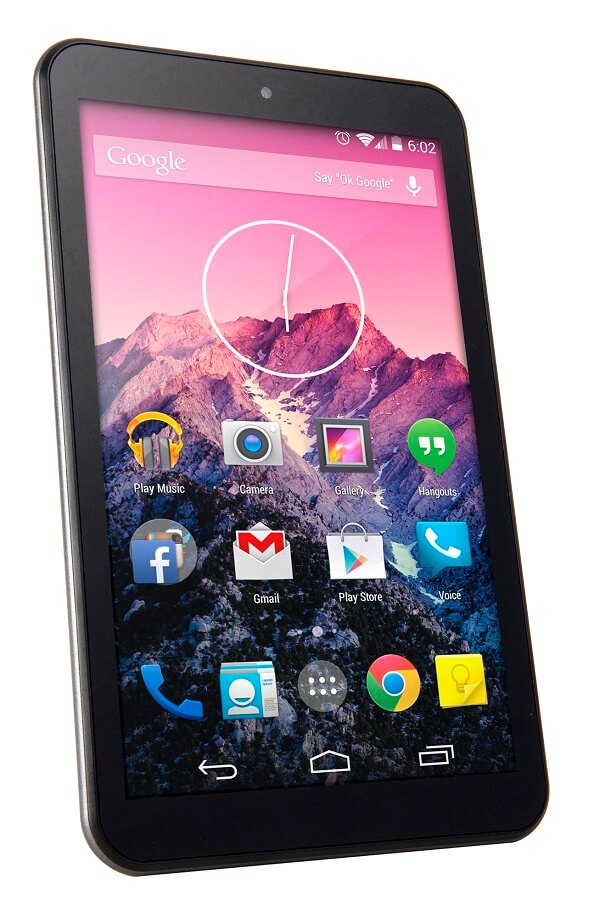
Surprisingly, the Hisense Sero 8 is one of the very few Chinese productions that rely on a stock Android version of the OS installed on it straight from the factory. It features an older version of it however, the Android 4.4.2 KitKat. Despite that, the tablet is thankfully free of any other, personalized skins that manufacturers opt for when they adopt Android. That means that there are no extra, third party apps clumping into the system, making its owner to wait for specialized updates once you purchase the tablet. The only native application to Hisense that you will be able to find on the Sero 8 is the remote app, implemented to allow you to control Wi-Fi based television sets, as well as a different video player.

Hisense Sero 8 KitKat 4.4.2

For the more advanced users, one very much possible aspect of the tablet is the Hisense Sero 8 root. Rooting allows the user to unlock areas of the system that more often you would not have access to. Because of that, you suddenly gain a lot of freedom to experiment with other ROMS and full control over the apps installed on it.

Hisense Sero 8 Battery & Verdict

The Hisense Sero 8 comes with a 4000 mAh battery which is relatively strong by itself to begin with. Given that the display of this tablet is not the brightest and most powerful out there equals with a more disciplined use of the battery – earning you a longer battery life and more uptime when it comes to device usage. Continuous use in form of web browsing for example will earn you about 6 to 7 hours with a full charge; alternatively, HD video viewing will not exceed about 4 hours. No matter how you look at it though, you will find yourself charging the tablet on a daily basis if you use it regularly.

So when is it worth getting the Hisense Sero 8 tablet? Mainly, you should be looking at this tablet as a great alternative when you’re on a budget. For any of the activities that it allows you to perform remotely and the comfort of not having to stick to your computer, the Sero 8 will do the job wonderfully. If entertainment holds a more special place for you when it comes to tablets, however, it’s a lot more advisable to try saving up a little more and go for another variant.

You can purchase the Hisense Sero 8 from a variety of online retailers for $106.45.

Image Source: 1, 2, 3, 4, 5, 6, 7, 8, 9, 10

Filed Under: Headlines Tagged With: affordable tablet, budget tablet, hisense sero 8, low-cost tablet, sero 8 review, sero 8 tablet

UMI Hammer S Review – A Phablet That Anyone Can Afford

November 18, 2015 By Karen Jackson Leave a Comment

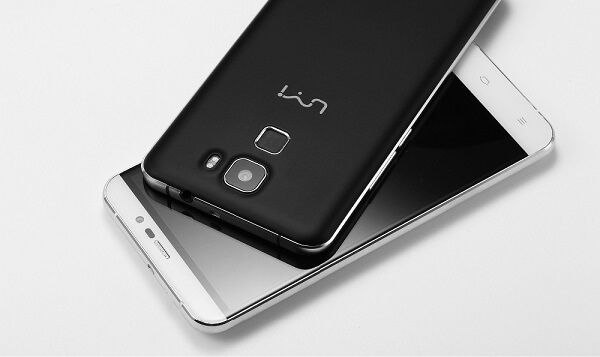
UMI Hammer S Phablet

Coming from the Chinese manufacturer that is not quite the first when you think about Chinese smartphones, the Umi Hammer S is a highly affordable, wallet-friendly phablet that is made to capture a few gazes in the Western market. For its price class, the Umi Hammer S is a relatively charming piece of technology – at least aesthetically. Manufacturer has claimed that the way it’s built makes it virtually unbreakable. However, considering that it’s one of the very few smartphones or phablets that actually feature a removable battery and a detachable back, I am just a very tiny bit skeptical.

Regardless, what the UMI Hammer S tries to achieve is to mix as much performance they can into a phablet that is visually pleasing for the Western market without being attached to an overzealous price. The result? Well, the experiment was a success. However, in terms of comparing this phablet with high-end devices on the market that, the results are not very joyful: while the UMI Hammer S is a pretty-looking device that doesn’t divulge its shockingly low price, the hardware is nowhere near the one found in its competitors.

Depending on what your expectations out of a phablet are and what you would be using it on, there’s no telling whether the UMI Hammer S will make the cut or not. In order to make up your mind, here’s a list of everything we feel like it’s important to mention in regards to this aspiring budget phablet.

UMI Hammer S Design

UMI Hammer S Back and Front

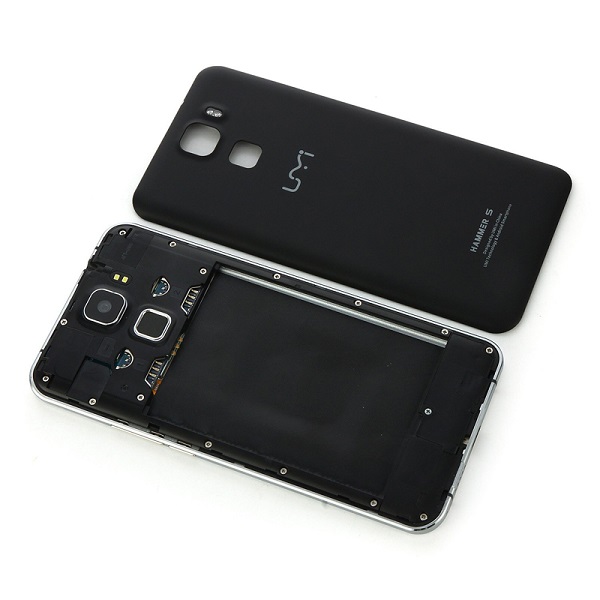
If we were to judge the UMI Hammer S based on design alone, chances are he would turn out to be an outstanding and definite winner; at least on first look. Sadly the body is not made of the more common aluminum alloy that is usually found in most top-end devices on the market right now. It does display portions of it that are metallic – the chassis of the phone is made of aluminum but considering the phone does not feature a unibody that can’t be opened, its back cover is unfortunately made of plastic. By removing the back cover you can gain access to the removable 3,200 mAh battery, two micro-SIM slots and a microSD card slot – a relatively unorthodox choice for the SD card given standards nowadays.

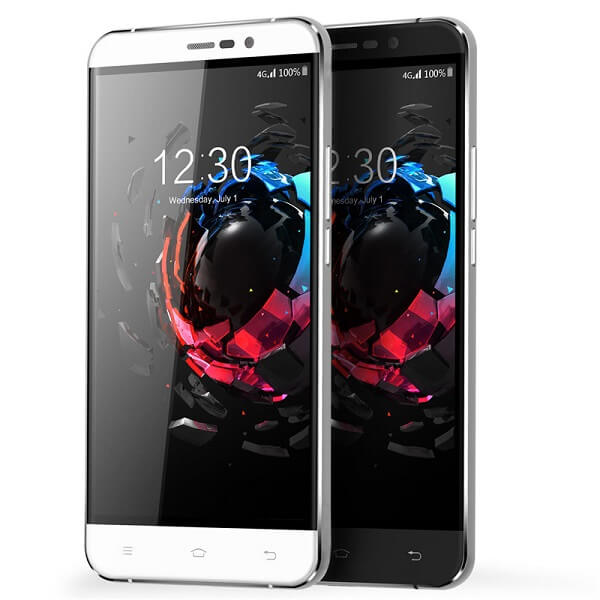
The phone is currently only available in two variants: black or white. In terms of overall size, the UMI hammer S is 154 x 77.4 x 8.5 mm, rating it as a minimally sized phablet (5.5 inches and above) but packing a much thicker design that your usual smartphone. This aspect may prove to be bothersome for some users as it gives the phone a relatively chunky and bulky feel at times. In addition to the 200 grams that the phone weighs, it may feel a little strange for you if you’re accustomed to the overly slim and light design of companies the like of Apple or Samsung.

UMI Hammer S Black & White

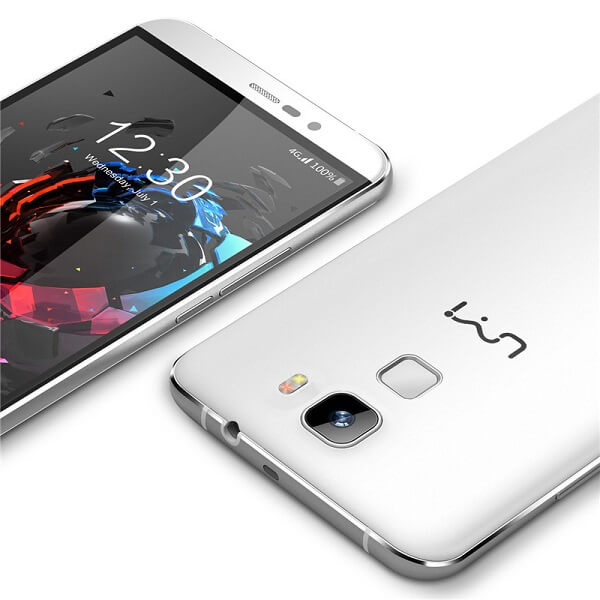
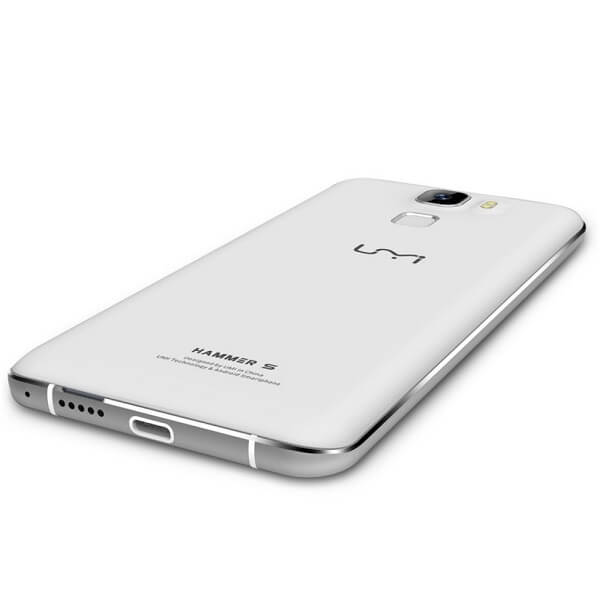
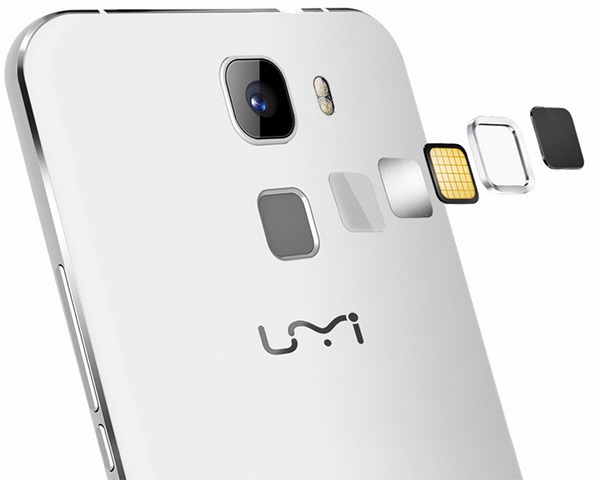
So while the front and the edges of the phone look adequately sleek, the back of the phone is a slight disappointment as it loses some of its aesthetic credibility. Regardless, it’s not as bad as it sounds as the UMI Hammer S has at least employed the most recent trend that we’ve been spotting on more than one device. Started by another Chinese company, Huawei, the decision to start placing fingerprint readers on the back of their respective devices can be noticed in case of the Hammer S as well.

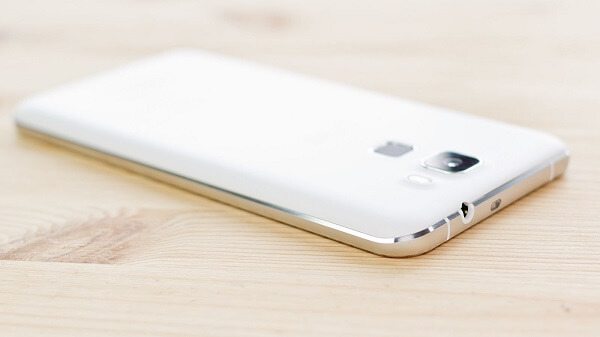
The company logo is a little lower on the back case, while the camera sensor and LED flash slightly protrude on the area above the fingerprint reader. Under no circumstance as upsetting as the Nexus 6P that has an entire strip jutting out of the design of the phone, but still there. While I doubt that there is any direct danger to the glass of the camera scratching or breaking, it’s most likely more susceptible to damage than the 100% incorporated versions of sensors. There is a distinguishable space between the sensor itself and the metallic frame going all around it which makes it a little unsettling as it removes a degree of the phone’s compactness.

UMI Hammer S Back

Nevertheless, the metallic chassis of the phone is nicely distinguished by the slim strip going all around the phone, only interrupted by the two sets of antenna lines – colored white for the white variant of the phone, and black for the darker alternative. The display is tugged into this frame, once again leaving some noticeable gaps where the two parts join.

UMI Hammer S Antenna Lines

The overall placement of ports and the speakers for example do resemble the design Apple had originally applied to their iPhone 6. The bottom of the UMI Hammer S displays a Type-C USB charger, something that we’re still not seeing on a regular basis in many of the recent and present releases in matters of smartphones and phablets. The Hammer S is probably one of the first phones to make use of this new type of chargers, and most likely the first low-budget phablet of the Type-C USB family.

A little to the right of the charging port, you can see a perforated strip of hole speakers, also slightly resembling iPhone 6’s design, albeit much smaller than its counterpart. While the right hand side of the phone covers the power button and the volume rocket to nobody’s surprise, the top is host to something a little more unusual. Beside the 3.5 mm headphone jack, right in the center of the top edge lies an infrared blaster. While there is a hefty amount of technology that can otherwise allow you to control your home electronics via your phone, the UMI Hammer S decided to do it the good old fashioned way: by giving the phone an IR blaster in order for it to be capable of turning into a remote by default, no other third party applications or software being needed.

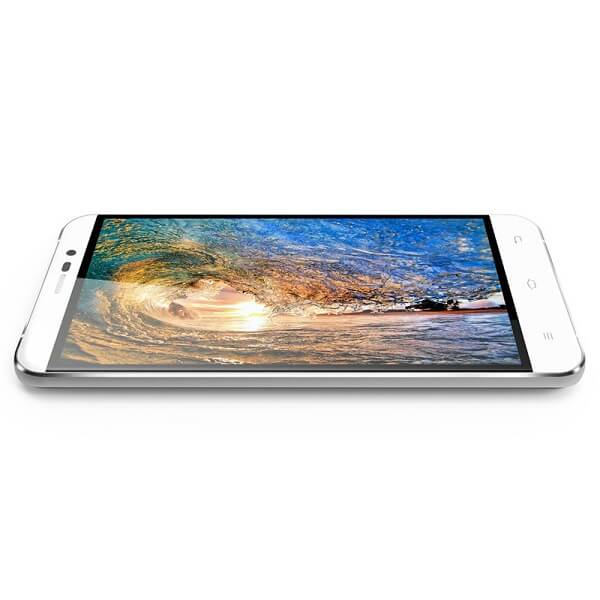
As a last note before we move onto the next section of our review, the screen tries to stand out a little by displaying slightly curved edges – not as prominent like they were in the Galaxy Note 4 Edge for example. Instead, it’s just an accent of curved glass that makes the phone look even classier.

UMI Hammer S Display

At 5.5 inches, the UMI Hammer S only just barely makes it into the phablet territory, 5.5” being the minimum display size that can qualify smartphones as phablet. While the display doesn’t seem to lack in the vividness of colors and a decent viewing angle, it’s less than impressive in all other aspects.

The developers have opted for an LCD IPS display covered by a layer of 2.5D curved glass. That makes up for a great color realism and vibrant hues all across your display. It comes however, with a poorer ability to display contrast – meaning blacks are not true and brightness doesn’t go amazingly high up.

UMI Hammer S Screen

The aspect where the UMI Hammer 5 falls behind terribly is the resolution that the screen is capable of. At only 1280 x 720 resolution, the display only manages to score an anticlimactic 267 ppi pixel density. Because of that, colors might not be able to make up for the fuzziness look of the images. The 720p display feels really underwhelming when placed next to the competition models, but that’s a factor for you to decide the importance of.

One aspect that some users have noticed and reported is the level of responsiveness that the display seems to be capable of; many individuals are reporting a slightly slow touch response level, enough for it to be noticeable that writing a text will take you longer on the Hammer S Display in comparison to other phones and phablets. By no means does this imply that the screen is unresponsive: it is simply an issue of how fast one is able to access and maneuver the phone via the touch screen. It’s not something you’ll be able to quantify that well using a stop watch, however. If anything, typing long texts may feel different because of it, but you won’t be able to find many other signs.

UMI Hammer S Hardware & Performance

I’m a little curious as to where all that thickness and weight of the UMI Hammer S come from. Considering that plastic and aluminum do not make up for the heaviest materials in the world, I’d be inclined to believe that that extra weight is caused by hardware. To some extent, that is true: considering the UMI Hammer S does not host the newest, slimmest and thinnest components out there, some extra bulk reminiscent of some time ago is there. Packed inside it there is a quad-core processor, 2 GB of RAM, a dedicated GPU and 16 GB of storage.

UMI Hammer S Specifications

The quad core processor is made up a single quad-core unit: a MediaTek MY673 64bit that can max out at 1.3 GHz. Because of it, the phone is capable of connecting to 4G LTE platforms, thanks to the power of the CPU. This particular core processing unit comes with its own integrated graphics in form of ARM Mali – 720 graphics. That GPU will unfortunately run older games without many problems, however becoming relatively problematic when it comes to newer and more graphic-intensive ones.

However, the Mali-T20 graphics processing unit manages to keep itself level enough to allow 1080p Full HD video recording and playback at 30 frames per second. In addition, the 2 GB of RAM memory do not come up to the likes of high end setups that usually feature 3 or even 4. But the subject of mobile phone RAM memory has been heavily debated in terms of how relevant it really is when performing usual tasks. Turns out that unless you’re subjecting your phablet to activities that are either extremely heavy on graphics or when you run multiple processes at the same time – usually taking a toll on the performance of the phone from one point onwards. Otherwise, RAM memory should not be regarded as a centric point of hardware packed in smartphones as there are very few types of applications that will put your memory under stress.

While the amount of storage space that the UMI Hammer S provides by default is far from satisfactory (16 GB), thankfully it supports the micro-SD alternative. However, you can only add up an additional 64 GB worth of space this way, making things better but not great still.

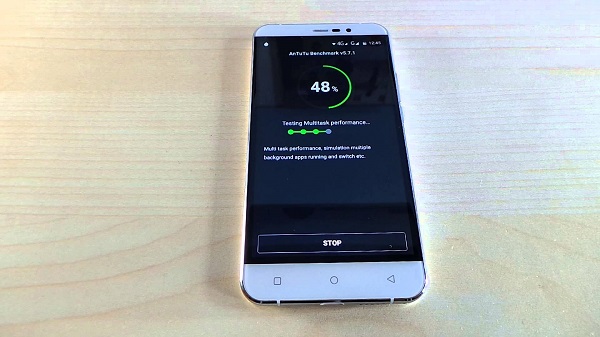
Were we to truly base our review on the benchmarks scores the UMI Hammer S managed to get, it would not gain too many fans. With a 1,346 score in Geekbench and 20061 in AnTuTu benchmarks, you might think the phone is not capable of much. However, in day to day use, the Hammer S seemed to hold itself pretty well – unless you stressed it out with graphic-intensive applications.

UMI Hammer S Camera

The camera on the UMI Hammer S unfortunately does not exceed average status. With a rear camera that advertises itself to have 13 megapixels, things are a little different than they seem. In fact, the camera is an 8 megapixel Sony IMX168 one instead that uses software-based tweaks that take it up to 13 MP. And in this situation “up to” is a more than accurate, necessary statement because the zoom value differs depending on things such as the format you want to shoot in: 4:3, 16:10, 16:9 and so on.

UMI Hammer S Camera and Fingerprint Reader

The photos taken with the UMI Hammer S rear camera are adequately vivid and crisp, with a noticeable decrease in quality when you zoom in, that being marked as the moment when the photo starts gathering a considerable amount of fuzziness. If there’s anything rather upsetting from the Hammer S camera, it’s the fact that it has no image stabilization meaning that you’ll not only take a long time to boot up the camera (that’s just how it is) but setting up to take a photo will be a more tedious process. If there’s anything that’s bad about the camera is its dwindling power when it comes to shooting in low-lit environments, earning you photos very rich in noise.

If there’s anything that’s good, it’s the software side of everything. While the feature that allows the phone to automatically capture a photo when it detects a particular gesture is a pretty fun thing to have, I understand why most individuals won’t jump up and down at the prospect. All of the post-processing that you can normally do to your own photos on most smartphones is here too, on top of a huge number of shooting modes that you can choose from, including something that seems very similar to the iPhone 6S’s GIF functionality.

In case selfies and voice conferences are not missing in your life, the developers have included a front-facing camera too: 3.2 megapixels, f/2.2 aperture and 1.12um pixels await for you on the front camera, for your daily needs.

To wrap up everything there is to know about the cameras displayed on the UMI Hammer S, the camera is by no means bad. It offers you what a normal camera would, without really adding any personal input or other improvements. All in all, it’s just a regular, decent camera that will get the job done but not manage to impress you with anything.

UMI Hammer S Software & Features

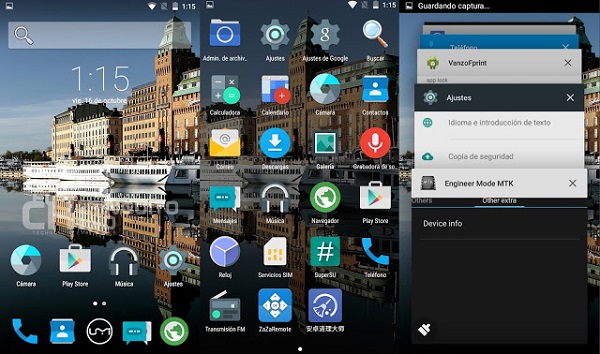
This will be a great thing for Android fans: the UMI Hammer S runs the Android 5.1 Lollipop OS. Surely, it’s not the stock interface version, but it’s not that far off either. UMI have only put their own personal imprint on the Android operating system in terms of skinning – the phablet being host to UMI’s own RootJoy interface. For someone who is accustomed to Android, navigating the system won’t be difficult at all, with only very few changes scattered here and there.

UMI Hammer S OS

However, there are aspects of the OS that some Android users might miss, especially with no news of a 6.0 Marshmallow update coming anytime soon. For example, there’s no Google Now or other default Google Apps; while that may sound worrying, rest assured to know that most can be downloaded and installed from the Google Play store.

There is a unique feature that the UMI Hammer S comes with, although not something that we haven’t heard of before. Known as “Smart Wake” gesture commands, they allow you to quickly boot up various apps of your phone – the music player, the camera and so on.

As soon as you turn on and setup your phone, you’ll be greeted by UMI’s own default applications for the browser, file manager, messages, music and so on, and the unique SuperCleaner app. This is yet another unique aspect of the phone that is a new and improved way of managing your memory usage, giving you a lot more control over the apps that you have installed and booting at startup

UMI Hammer S Battery & Verdict

The battery of the UMI Hammer S is definitely one of the better aspects of what this budget phablet has to give. At 3200 mAh, the battery included is considerably larger and more powerful that what we normally find in your regular smartphones. With a full charge, you will get about a day of activity on average use; intensive use however, will still earn you marginally longer than other comparable phones, and that’s considering plenty of screen activity uptime or demanding apps being run. The fact that the battery is removable and behind an easily detachable door is both a win and a loss. It’s a loss because that way the interior of your phone is not as well protected from various external factors that your phone might be exposed to (for example, accidental water damage). However, it’s also a win considering swapping out your battery is much easier – whether it needs replacing or whether you like practicing running with spares.

UMI Hammer S Battery Compartment

Last but not least, considering it is – surprisingly – bestowed with the new Type-C USB charger, the charging times of your battery will turn out to be much shorter than the microUSB variant that most of us are used to.

To wrap up, the UMI Hammer S is an interesting one. I can’t say that it’s proficient in anything in particular nor does it bring anything new to the market. However, considering its price class, it incorporates much more than you would expect a budget phone to carry in its case – a fingerprint reader and Type-C charging are only a very small portion of it. Hardware-wise it doesn’t really compete with any other higher end phablets, but it does come with a highly compatible and optimizable Android OS.

Whether you should purchase the UMI Hammer S or not falls purely within your judgement of what you expect from a phablet and how much of it this particular one would suffice for.

You can purchase the UMI Hammer S for $129.99 from various online retailers.

Image Source: 1, 2, 3, 4, 5, 6, 7, 8, 9, 10

Filed Under: Headlines Tagged With: budget phablet, chinese phablet, hammer s phablet, low cost phablet, umi hammer s

The IBM Watson Trend App Predicts the Future

November 18, 2015 By Roxanne Briean 2 Comments

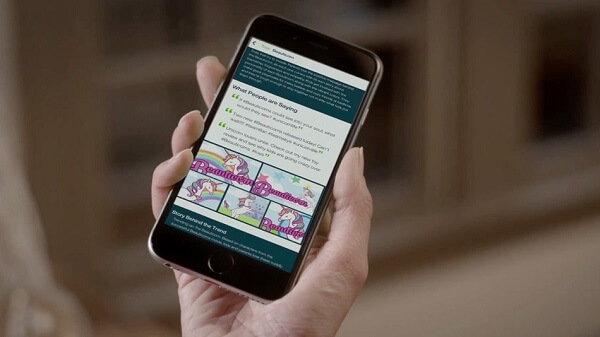
The IBM Watson Trend app is available only for iOS

Well, not really the future, but it forecasts trends and what products might sell out this X-Mas. The IBM Watson Trend app has officially launched today, and it’s the best way for consumers to understand the reasoning of trends and what popular products might sell out.

The IBM Watson Trend app can be downloaded for free from the iOS app store.

IBM’s new app basically searches millions and millions of conversations online. It does so by ransacking about 10.000 sources from social media platforms, forums, blogs, comments sections, reviews and ratings. It’s quite unique because, unlike any other app that just provides ratings for trendy merchandise, the Watson displays what consumers think about said product before and after purchasing.

Using its immense capability of understanding how language works, and Watson’s other learning abilities, the Trend app can easily surface why consumers choose a certain product or brand. It also uncovers the pattern that consumers tend to abide to.

More interesting, the app predicts the future with the help of analytics and it can pin-point when a trend is on a downwards spiral into obscurity or it’s going to skyrocket to the top.

Using natural language engine aggregates, it can provide insights on particular trend groups:

  • Sentiment,
  • Context and
  • Content.

By giving it a daily Trend Score, the Trend app displays the impact and the momentum of the trend by giving a group a number between 0 and 100. Display showcases how big the conversation is, and Momentum is the rate of growth of a particular conversation.

There are three categories at the moment – health and fitness, toys and consumers electronics. Users can view the top 100 products that are trending with the stories accompanying them. At the moment of writing this, November the 18th 2015, some of the top trends are:

  • Smartphone Photogs Drive Demand for Professional-Grade Cameras
  • Whether it’s Star Wars or Lego City, Buy Now Before It’s Too Late
  • Traditional Toys Go Back-to-School

Considering that Thanksgiving and Black Friday are knocking on our door, the IBM Watson Trend app predicts that, for the first time in existence, there will be more users using their mobile devices to seek deals than users turning to their desktops.

Mobile traffic is expected to rise by about 57%, during the five-day holiday. This is a 17% increase when compared to last year’s holiday. Also, it’s predicted that smartphone and tablet sales will increase by 36%, up from 34%.

The IBM Watson Trend app is available solely for iOS, Android users are out of luck. There’s no plan on bringing it to Google’s OS any time soon.

Image Source: 1

Filed Under: Headlines Tagged With: IBM, IBM Watson, IBM Watson Trend App, Trend App

Parrot Bebop 2 Drone

November 18, 2015 By Nancy Young Leave a Comment

Photo of the Parrot Bebop 2 Drone in flight.

Parrot, a US company founded in 1994 whose purpose is to create cutting edge products for smartphones and tablets, has recently released the second model of its original Bebop drone: the Bebop 2.

The basic design from the original Bebop was kept, meaning that the Parrot Bebop 2 drone is also a cylindrical main body which houses the camera and processor etc. and 4 arms extending from this body on the ends of which the propellers sit.

But despite the same overall look, the Bebop 2’s 12.9 inch by 12.9 inch span only results in a weight of 17.6 ounces.

And despite being this light, the Parrot Bebop 2 drone features a 14 megapixel camera with a fish-eye lens that is capable of a 180 degree view angle and also benefits from built-in 3-axis stabilization.

All of the drone’s functions can be controlled through an Android or iOS smartphone by downloading an easy to use free app. This includes adjusting the angle of the camera (which you can do with a few taps), taking 4:3, 16:9 and fish-eye ratio photos and 1080p video (which get sent directly to your phone’s screen) as well as actually flying the drone, the latter of which being made simple because of what the company claims is an intuitive, user-friendly interface.

For example, there is a button you can tap which controls the take-off and landing of the Parrot Bebop 2 drone.

Of course, if you want to make an upgrade, you can pay extra and get the Parrot Skycontroller which, along with allowing you to control the drone with even more ease and “feel”, by joysticks, and extending the range at which it responds to controls to 6,561 feet from the 984 feet it is capable of when it is controlled by smartphone.

And speaking of flight capabilities, the Parrot Bebop 2 drone can, in 14 seconds, reach top speeds between 13 -37 mph, depending on whether it is flying vertically or horizontally, respectively. It also stops pretty fast, meaning 4.5 seconds. And if you make it go vertically, it can reach 330 feet in a matter of just 18 seconds.

As a bonus, when controlling it by smartphone, you can pay 20$ extra to purchase, inside the app, a feature that allows you to plan your flights in advance.

And if anything happens to go wrong during said flight, the Bebop 2 also has a neat safety system in place, so that if its propellers hit anything they stop completely and automatically.

Possibly the most important upgrade from the original Bebop, its successor can fly for 25 minutes before its battery runs out, as opposed to the original Bebop’s 10 minutes. A marked improvement, indeed.

And the price tag for all the pluses that the Parrot Bebop 2 drone brings is 549.99 $ if you buy it without the controller, just 50$ extra from the Bebop 1. If you buy the drone + controller bundle, it costs 799.99 $.

Image source: 1.
Filed Under: Headlines Tagged With: Bebop, Bebop drone, Parrot, Parrot Bebop, Parrot Bebop 2 drone, Parrot Bebop Drone

New Japanese Supercomputer Targeting Number 1 Position

November 17, 2015 By Michael Turner Leave a Comment

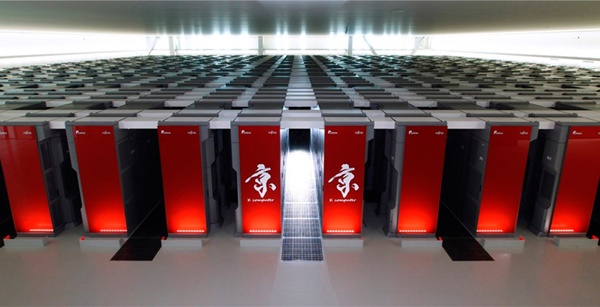
The current Japanese Supercomputer K, about to be replaced by the new Japanese supercomputer.

Barely about 70 years have passed since the first acknowledged computer in the modern sense came into being, namely the ENIAC in 1946, though there is a debate whether the British Colossus of 1943 deserves that title, or even the Atanasoff–Berry computer (ABC) first shown publicly in 1937.

Regardless of which of these ancestors you choose as “origin” though, you have to stand in awe of the massive leaps in… everything that Computer Science and all the other connected technological domains have made since then. I mean processing power, storage, design, human-computer interface, you name it. The computers we have today are in my subjective opinion, as evolved to those first computers as a sophisticated modern human to a primate.

And we have now reached a new level. Where more is desired than just a “plain” modern computer. Researches across the world have already developed supercomputers and are working on improving these technological wonder’s performance even further (not to mention changing the game considerably if we take into account research and progress being done with regard to quantum computers).

So, in this context, there should be no surprise that there is a race currently going on. For who can build the fastest supercomputer to dethrone the current title holder, the Chinese Tianhe-2 with a top performance of a boggling 54.9 petaflops.

To put things into perspective: the petaflop is the measuring unit for processing speed. One petaflop equals a quadrillion floating point operations per second (FLOPS). Now multiply that by 54.9 and you get the idea of how fast the currently fastest supercomputer can process floating point operations. I know, it’s hard to conceive doing just 2 or 3 of them simultaneously as a human…

But that’s a cinch compared to the goals that the three top participants in this race have set for themselves. China wants to beat its own record by making a supercomputer that can operate at 100 petaflops. The USA have announced a 180 petaflops capable system to be released by 2019 and Japan has just announced plans to release a new supercomputer by 2020 to replace its currently third-place holder, the K, which operates at 10.5 petaflops thanks to the 705,204 processing cores it is equipped with.

More details on the new Japanese supercomputer are being given to the public today at at the Supercomputer 15 conference in Austin, Texas.

What is clear so far is that Japan has declared its intentions to make the new K able to offer 100 more times application performance than its predecessor and that the same research institution that developed the current K will also develop the new one, in collaboration with Fujitsu and also that the system will be based on a Linux Operating System.

Image source: 1.
Filed Under: Headlines Tagged With: Japanese K, Japanese supercomputer, Japanese supercomputer K, new Japanese K, new Japanese supercomputer

Chromebit HDMI Stick Finally Launched by Google and ASUS

November 17, 2015 By Roxanne Briean Leave a Comment

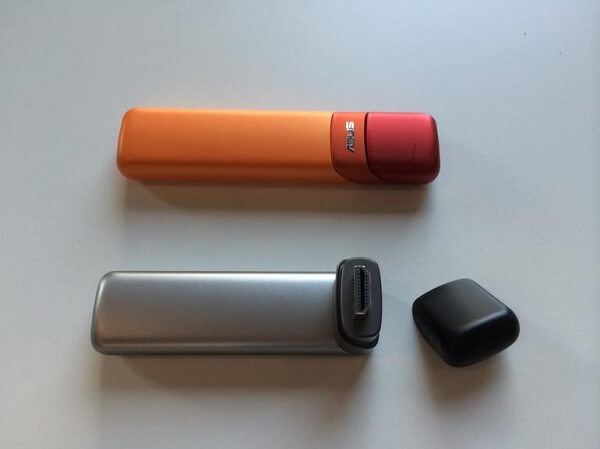
Chromebit HDMI stick is developed by ASUS and Google

The Chromebit HDMI stick, which is basically a Chrome OS-based tiny computer on a stick, has finally launched. It costs $85 and it was developed by two tech industry giants – Google and ASUS.
It weights 75 grams, that is 2.6 ounces, and you can stick the Chromebit into any HDMI port – you can hook it to a large TV screen, or the average computer monitor. Regardless of what you choose, it just needs to have an HDMI port. It has 16 gigs of internal storage – slow and cheap eMMC storage, however; and 2 gigs of RAM.

In more than one way, it resembles the old Chromecast OS on a stick. Yet, the Chromebit is larger and bulkier. It ships with its very own charger, and it has a built-in USB port, unlike the old Chromecast.

You can find it in two colours – Tangerine Orange and Cacao Black. Yet, I don’t find a motive for picking colours for this kind of product. It will most certainly disappear behind your screen. Considering this, I don’t even understand why there’s a bright orange model.

The USB port is a great addition. Owners can pair the stick with a Bluetooth keyboard and mouse. You can also hook wired peripherals to the Chromebit. Given that USB hubs exist, owners could very well connect multiple devices to it.

It’s best used in the edu district – read, schools; call centers and enterprises that require web based apps for their day-to-day work. The Chromebit can very well turn your living room into a tight media center as well. Also, considering that it can turn any screen into a modern app boutique, hotels and stores can take full advantage of the Chromebit HDMI stick.

Don’t expect a power-house. Its quad-core Rockchip SoC, which is the life-line of the stick, isn’t designed with performance in mind. It is aimed at outputting a reliable and easy to get into experience.

Chromebit will be available in the U.S. at Fry’s, Amazon and Newegg. Quite interesting, Best Buy, which is Google’s old Chrome OS buddy, isn’t part of the list of vendors – at least, for the moment.

The Chromebit HDMI stick will be available in the UK, Canada, Australia, Denmark, Japan, Finland, Norway, New Zealand, Sweden, Spain and Taiwan also.

Google is constantly finding new ways to alleviate the burden of not having a PC. With the Work and Education service, customers can opt it for the new single-app kiosk mode for $24 a year, per user.

Yet, Google for Work and Education is only available in the U.S. and Canada.

Image Source: 1

Filed Under: Headlines Tagged With: asus, Chrome OS, Chromebit, Chromebit HDMI stick, Google, HDMI stick

Razer DeathAdder Review – The Epitome of Gaming Mice

November 17, 2015 By Roxanne Briean Leave a Comment

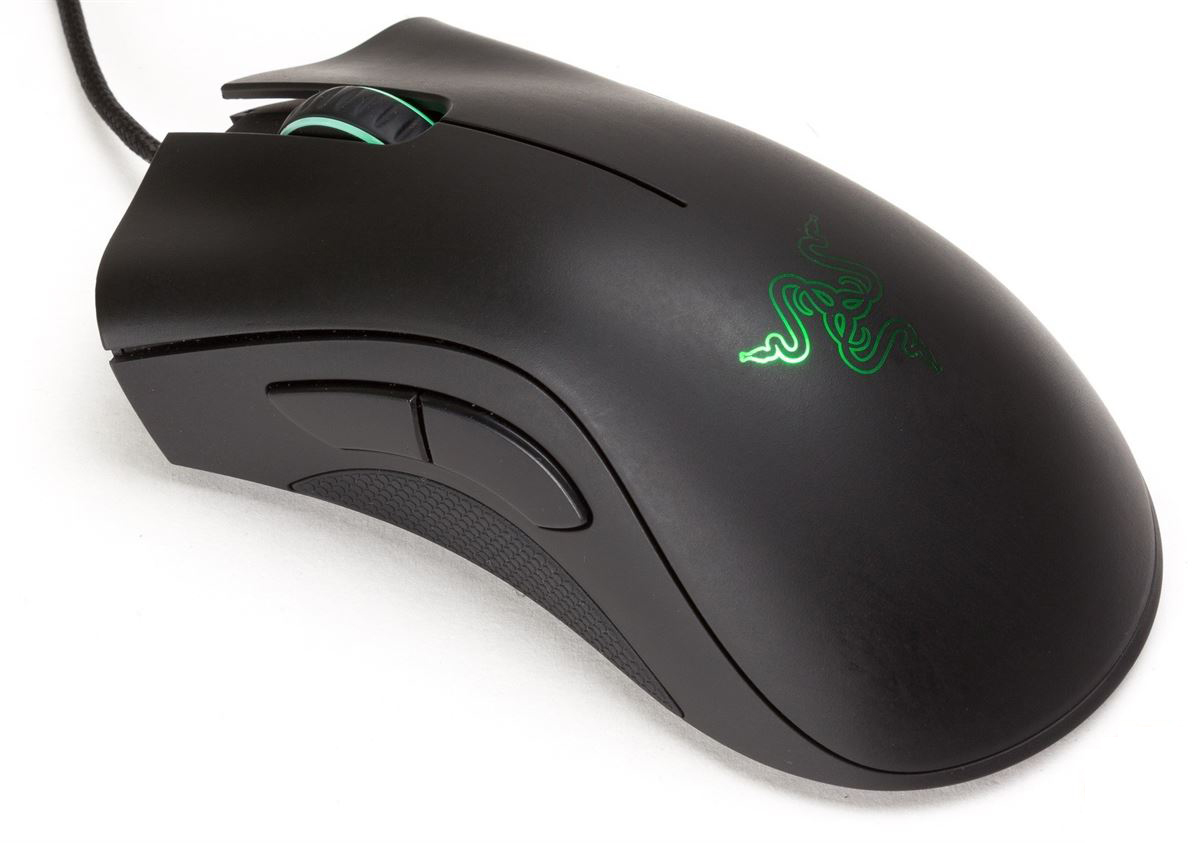
Razer DeathAdder 2013 Edition

With video and computer games becoming more than just mere hobbies people do in their spare time and developing into worldwide industries, so must the hardware that compliments them do. For more than a few years now tech giants such as Razer, SteelSeries, Roccat, Mad Catz and many others, who develop hardware and peripherals have designed a completely new portion of the industry – gaming-oriented equipment. Razer has been known as one of the leading names of this market; and ask anyone about the first product that comes to their mind when they hear Razer and you’ll probably get Razer DeathAdder in reponse 90% of the time.

The reason is not that hard to grasp – unless special mouse requirements such as a large number of buttons are wanted, the Razer DeathAdder is probably the best construction the developers have ever come up with – at least on par with other top gaming mice out there such as the SteelSeries Sensei wireless or laser variant or the Roccat Kone XTD Mouse. However, from many perspectives, the Razer DeathAdder will end up scoring superior results in the face of its direct competitors. While the design and build have gone through some improvements, the original concept for this mouse was first released back in 2006 – and in the 9 years it’s been since, Razer has learned a lot and improved a lot more to build the mouse that the Razer DeathAdder is today.

Regardless, the DeathAdder has a series of variations available for purchase directly from the Razer store. Along with personalized mice that come in various designs inspired by specific games such as World of Tanks, there is a left-hand edition and the new and improved Razer DeathAdder Chroma. For all intents and purposes we will be reviewing both the Classic Razer DeathAdder 2013 version and the Chroma variant.

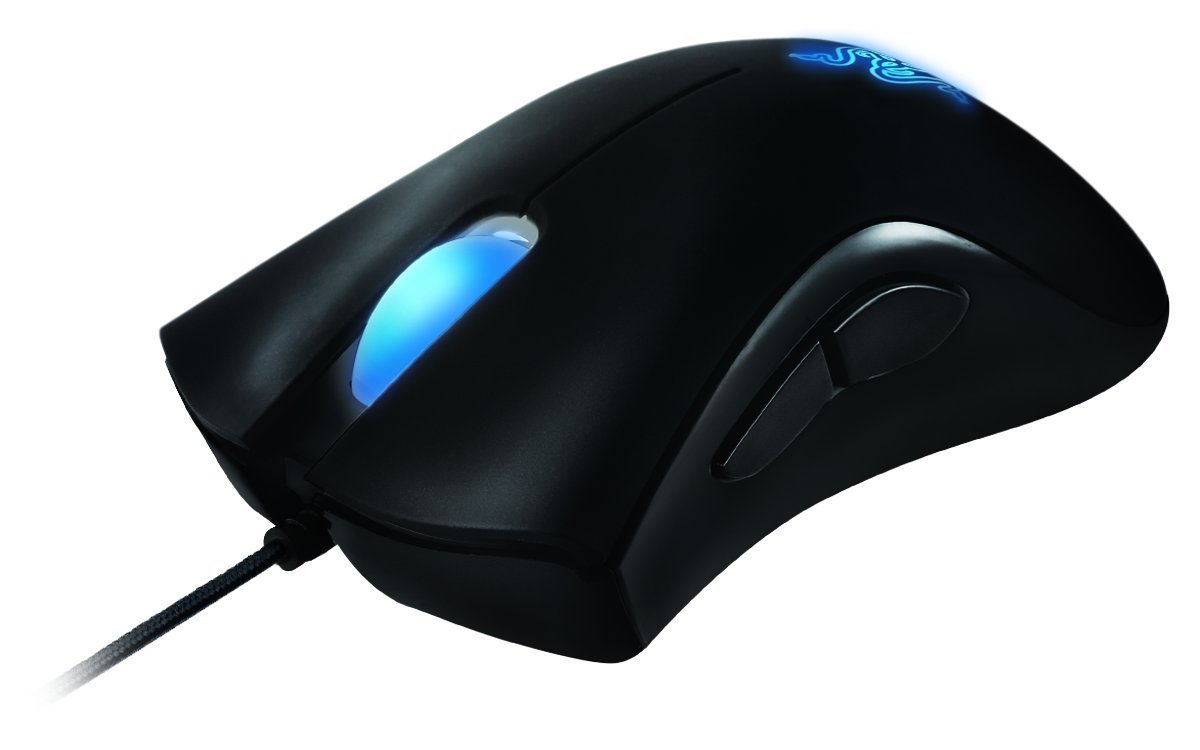
Razer DeathAdder Classic

Razer DeathAdder Design

In comparison to the other Razer mice families developed by the giant, the DeathAdder, as well as the visually similar DeathAdder Chroma, the mouse has a very simplistic and minimal design. It resembles another gaming mouse that is normally used in e-sports by many tournament organizers – the SteelSeries Sensei Raw, however, the latter takes us back to very compact round edges of what older mice looked like. The DeathAdder doesn’t even come close to the crammed feel of the Roccat Kone XTD that packed up some extra buttons next to the scrolling wheel.

Razer DeathAdder Logo

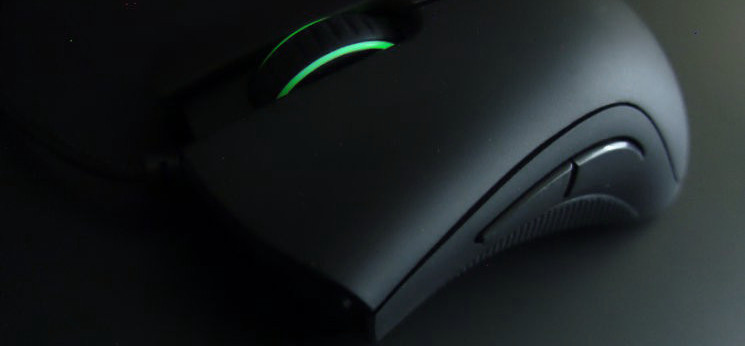
The top portion of the mouse is made from one single piece that splits in two towards the upper end to make room for the scrolling wheel and cable. This is a worth mentioning improvement over the older mouse designs that used 2 different pieces for each mouse button – it provides some extra protection from damage that could occur to either part. Because it’s made of a new texturized plastic mold, the top piece of the DeathAdder is particularly sturdy yet elastic, taking an extremely long time until the material shows signs of wear and tear, even if it lives the hard life of gaming mice.

The sides of the DeathAdder feature honeycomb rubberized portions towards the bottom of the mouse where you normally hold your thumb and pinky finger respectively. This is particularly important because it reduces the risk of slipping as well as keeping your hands from sweating to a degree. It offers a good, stable grip and remains particularly cool even after entire hours of usage. One aspect which some users may find upsetting is that the DeathAdder is a relatively tall mouse and its design doesn’t offer a thumb rest, meaning you’ll be rubbing the side of your thumb against your mousepad quite a lot when using it. It’s not a disastrous aspect, but may become annoying when you pay attention to it.

Razer DeathAdder Sides

Thankfully, the Razer Death Adder mouse is wired and it comes with a gold-tipped USB jack at the end of a 7-foot long cable – easily enough for any desktop setup without creating any difficulties. Hardly something that professional gamers out there don’t know, a wired mouse is sincerely your only truly viable choice when it comes to video gaming. While there’s a number of great wireless mice out there that you can use just as well, there are two aspects that make wired mice win over wireless. One is the accuracy – no matter how good the signal the mouse transmits and how good the receiver station is, wirelessly sent signals will falter in face of cables; not to mention that there can be interferences created by other wireless devices or even the distance between the mouse and the station or the surfaces present between them.

The second aspect is the most mind-wrecking issue of batteries. Have you ever had your batteries run out right in the middle of an online game? Yeah, I hope not. Not to mention that once the battery in your mouse has reached low levels, signal is occasionally sent with intermittences, especially when far away from its receiver.

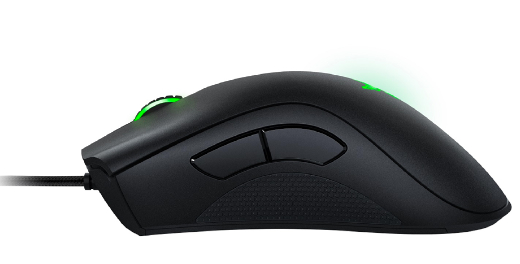
In terms of extra buttons, the DeathAdder only features two side buttons on the left hand side on both the 2013 and Chroma models, with a clickable mouse wheel which can be used for various functions as well. This makes for a great addition to a number of games, but doesn’t give you much functionality when it comes to massive multiplayer online games (MMO) where you can actually use the extra few. The Razer Naga mice are a much better choice in that regard, usually featuring as many as 12 extra buttons that you can assign to various commands and profiles. However, for your regular single player gaming and most games recognized as e-sports such as first person shooters (FPS) and multiplayer online battle arena games (MOBA), the DeathAdder remains a solid choice.

Razer DeathAdder Side Buttons

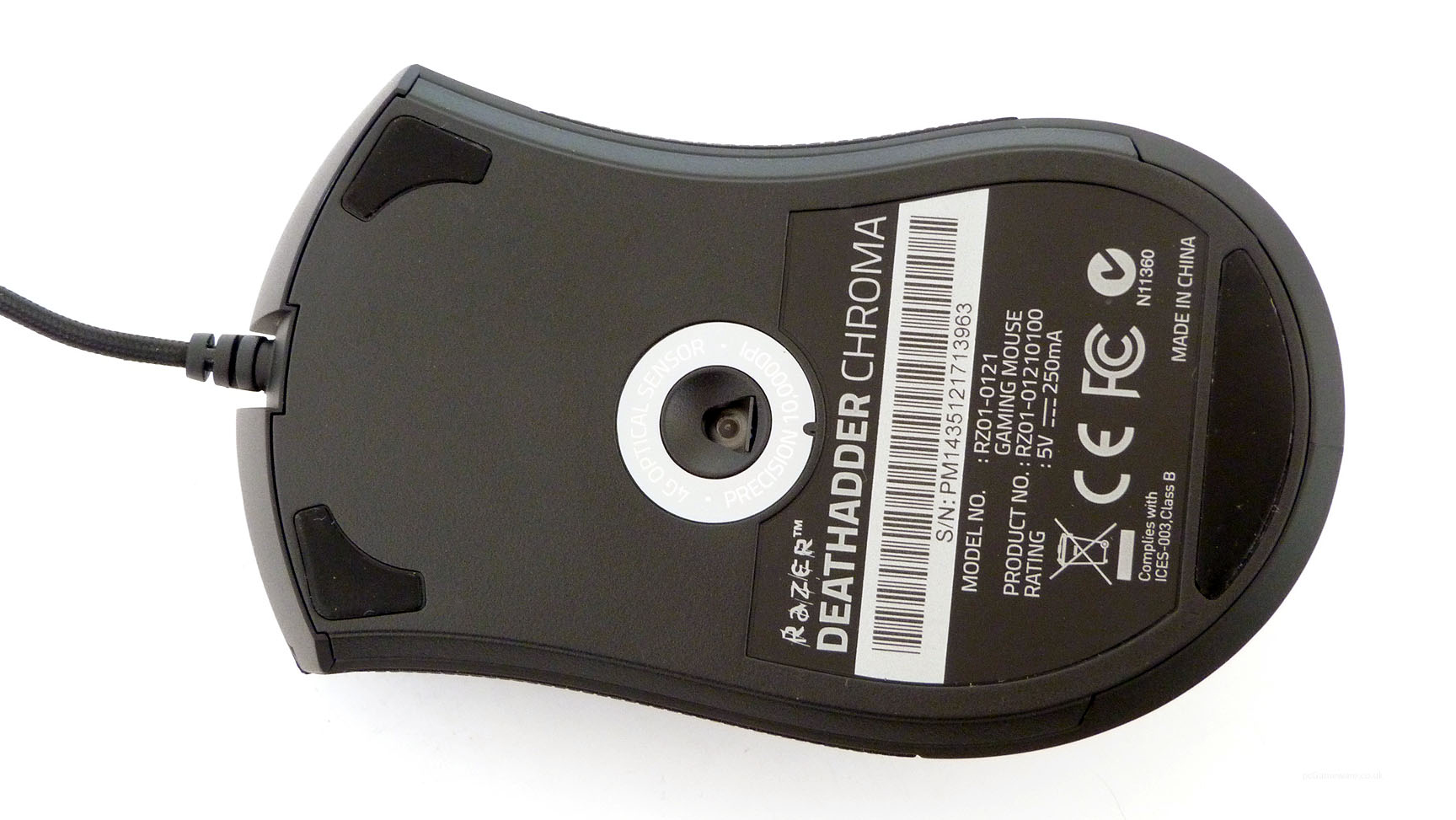
Lastly, the bottom of the mouse features an optical sensor which makes for an impressive responsiveness regardless of the surface you are using your mouse on, unlike the laser technology which very often will require a mousepad and will have problems working on surfaces such as glass or anything that is not perfectly smooth.

Razer DeathAdder Bottom

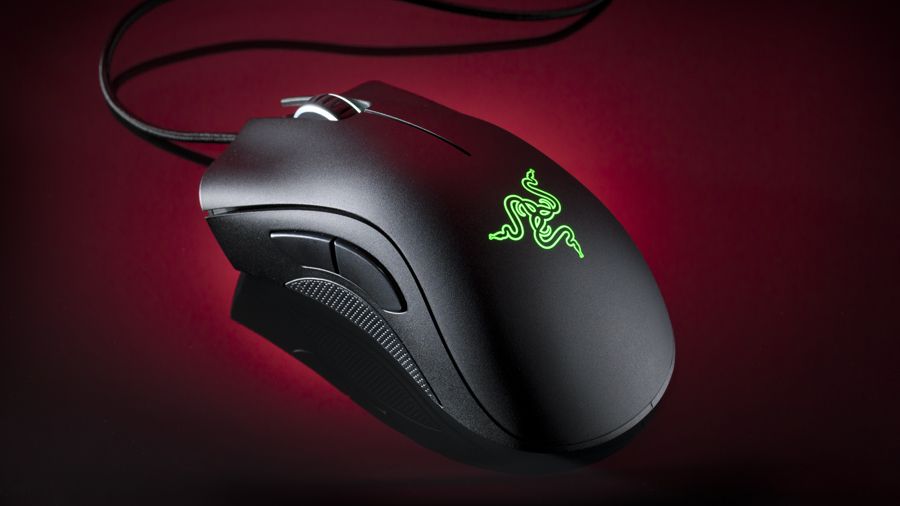
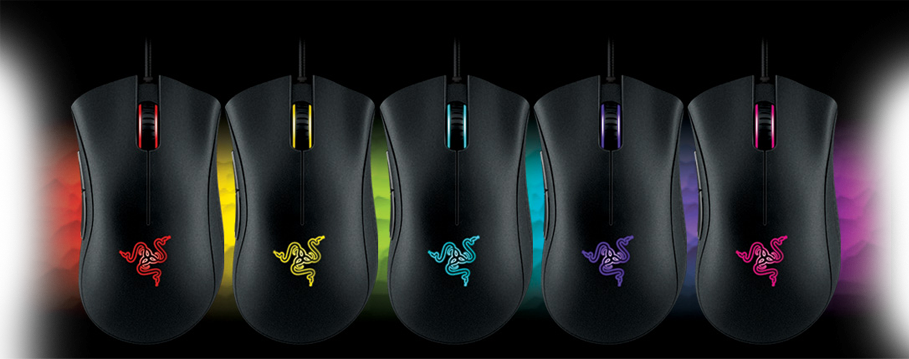
There is one aspect where the Chroma differs from the 2013 version: the Chroma comes with personalized lighting on the body of the mouse – more specifically the scrolling wheel and logo that sits on the top portion of the mouse. The LEDs behind them can switch through 16.8 million colors  which you can set up to either remain static on a selected color or constantly change hues automatically.

Razer DeathAdder Chroma Color Variants

In terms of size and weight, both variants of the DeathAdder have the same 127 x 70 x 44 mm build and weigh 105 grams.

Razer DeathAdder Specs

The most important specification that individuals will be looking at when picking out a gaming mouse is DPI (dots per inch). A higher value will translate into a faster moving cursor without having to move the mouse as much. While a very high DPI might accelerate your mouse movements too much to be able to keep them in control, it is not the only aspect that it improves. A high DPI will allow you to travel larger distances with your cursor in a short amount of time, while small detail accuracy will benefit more from lower DPI scores. The Razer DeathAdder 2013 features a 6400 DPI 4G optical sensor, while its Chroma counterpart hikes up all the way to 10000 DPI. Considering these are maximum values which can be optimized via software and your operating system, that’s a lot of room to work with for any type of game you desire to play.

Polling rate is another feature that you’ll be wanting to consider when purchasing gaming mice. In essence, the polling rate is a mouse’s capability, or rather frequency with which it reports its position to the computer it’s attached to. Both the 2013 and the Razer DeathAdder Chroma variants come with 1000 Hz Ultrapolling capability – that basically means that the mouse sends its signal to the computer every 1 millisecond, or alternatively 1000 times a second. This considerably decreases and downright removes any kind of input lag in the communication between the peripheral and the host computer.

The DeathAdder Classic also brings 200 inches per second max speed as well as 50 g acceleration, while its Chroma iteration takes it up to 300 inches per second. The acceleration factor weighs in close dependency to how fast you move your mouse physically. That means that slower movements will translate into a 1:1 ratio with the crosshair, while rapid movements will allow the movement in the game to be ampler, and circumstantially longer.

Razer DeathAdder Software

Both of the Razer DeathAdder models come with their own software – Razer Synapse 2.0 – a highly customizable mouse configurator. Before we delve into everything that you can do with this piece of software, it’s vital to note one aspect in which the DeathAdder really lacks in comparison to other gaming mice – there is no dedicated physical button that can allow you to change your DPI or sensitivity settings on the fly – something that some professional gamers will have to take the full brunt of if they require different DPI settings for different actions in a game.

The Razer DeathAdder driver per se installs automatically as soon as you plug in the mouse. Synapse software will allow you to do everything starting with rebinding controls, assigning macros to buttons as well as track statistics for your mouse usage over time. And the greatest part of it all is that Razer Synapse 2.0 also offers cloud services meaning you won’t have to redo all of your preferred settings every time you switch the machine you use it on – great for individuals who participate in LAN competitions or other tournaments.

There are four major menus that you will find on the Synapse software after you’ve installed it – Mouse settings, Macros, Chroma Apps and Stats.

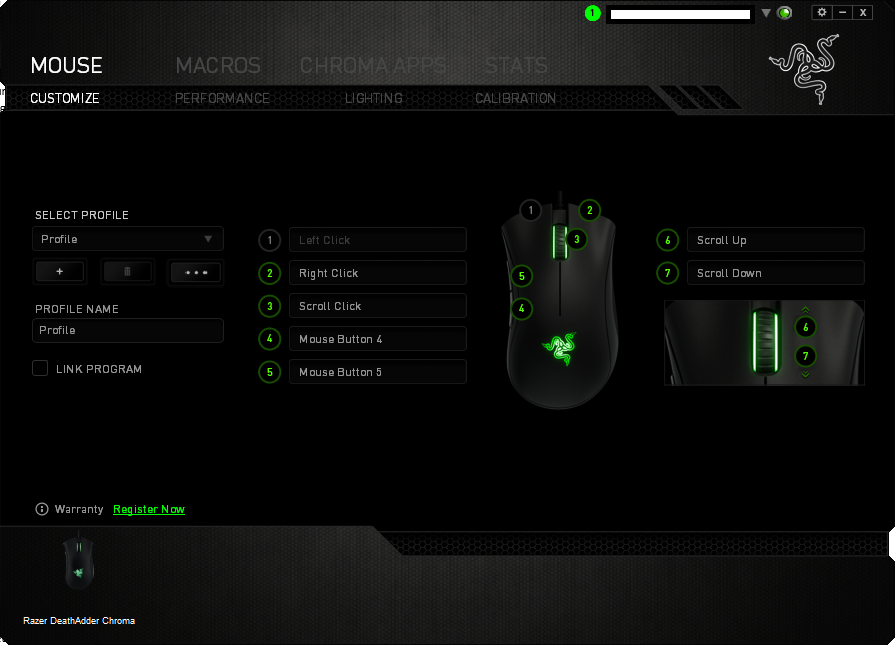
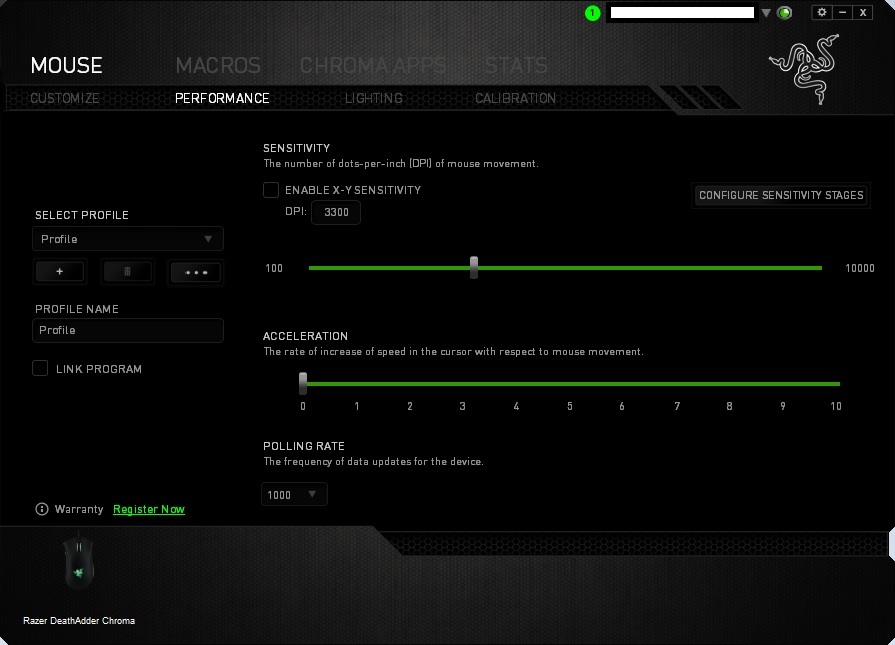
The Mouse section comes with 4 sub-menus that will give you a particularly ample control of all of your DeathAdder’s aspects. The Customize sub-menu is where you can create or select different settings profiles – complete with button mapping and other functionalities. Under the Performance sub-menu you get a wide array of sensitivity, acceleration and polling rate that you can select from; on top of that there is an option that allows you to even configure sensitivity stages manually. Acceleration customization is set in stone, allowing you to choose from 10 different levels that you can set it at.

Razer DeathAdder Synapse Customization

Razer DeathAdder Synapse Customization

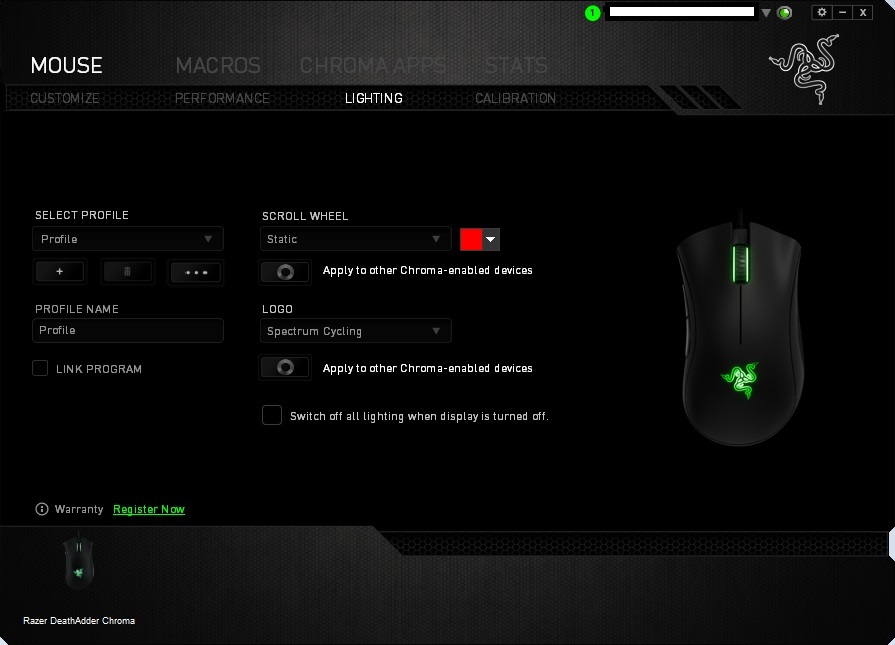
Lighting of the mouse for the DeathAdder Chroma variant is done from the third submenu available in the Synapse 2.0 – allowing you to do more than just turn your scrolling wheel and logo lights on or off to save power. There is a wide selection of color patterns that you can set for your mouse as well as an option that allows the mouse to turn off when the display it’s connected to is also off.

Razer DeathAdder Synapse Chroma Lighting

Lastly, the calibration sub-menu is a more recent addition to the software that allows you to calibrate your mouse to a specific surface – for example your preferred mousepad – which will record the surface’s properties such as color or topography and provide you with improved accuracy as the optic sensor moves over it.

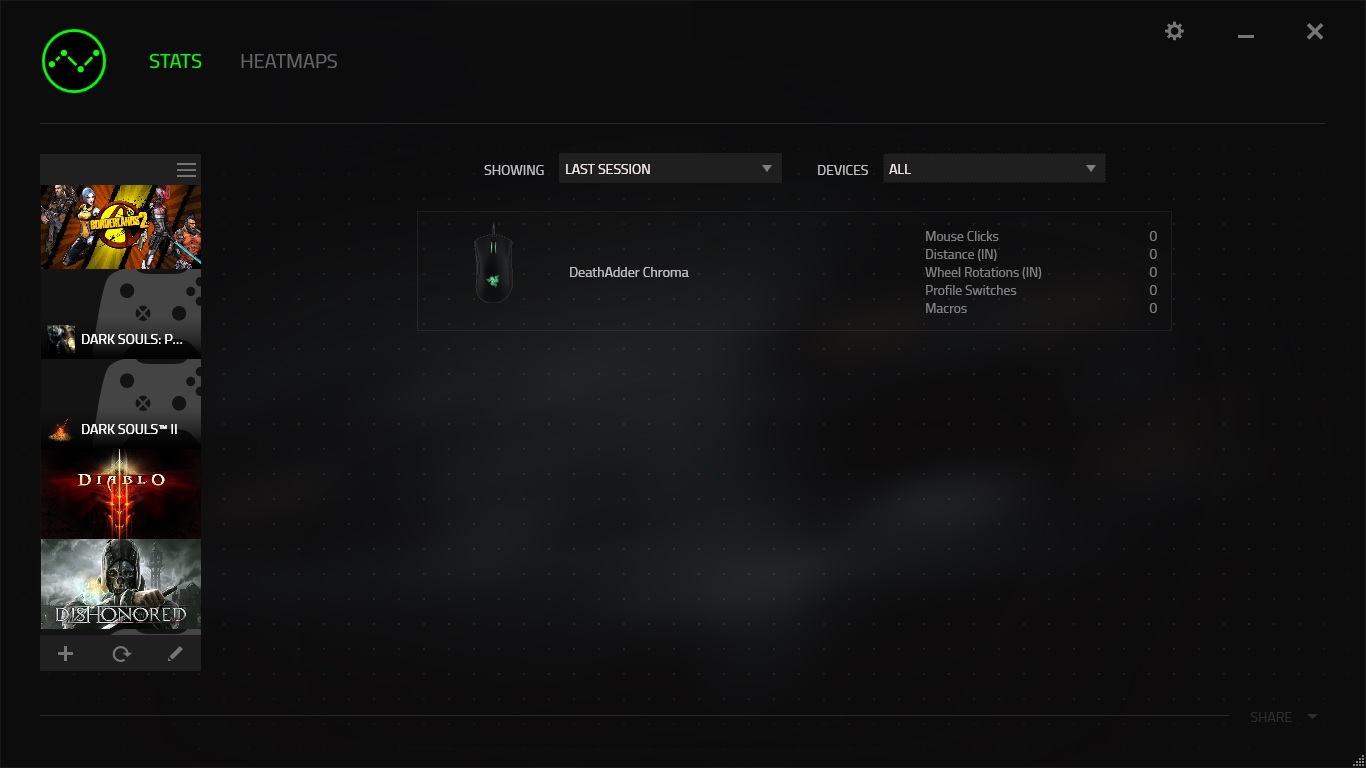
The type of stats that you can track via the software mostly regard the areas where you click most, total distance travelled with your mouse movements or the number of clicks – average per session, specific sessions or total.

Razer DeathAdder Stats

Razer DeathAdder Competing Models

To list the entire selection of gaming mice on the market would take us about half of the day. However, there are at least a few models out there that may be an alternative to the Razer DeathAdder mouse for willing buyers. Do keep in mind that most gaming mice manufacturers release entire families of hardware that are usually each specialized in a particular sense – just like the Razer Naga is dedicated to the MMO player, thanks to its numerous side buttons. Most of the mice we have chosen for our list are all-round utility models – mice that will perform well in any game genre if you can rid yourself of specific utilities.

Roccat Kone XTD. This Roccat mouse comes close in build and utility to the DeathAdder Razer: with just two side buttons, relatively minimal design but with a solid looking case. Considerably taller than its Razer counterpart, it also features 2 additional buttons right below its scroll wheel which give you more room for mapping macros and commands. An aspect where the Roccat Kone XTD Gaming Mouse really shines is the software that comes with it. The Roccat Kone XTD driver and software interface provides even more customization than the Synapse does, in addition to its very own R.A.D. – Roccat Achievements Display.

Mad Catz Office R.A.T. Definitely not something I would normally even consider adding into a gaming mice list simply because it’s wireless, but I feel like the Mad Catz RAT needs some praise the very least. In terms of design it’s DeathAdder’s polar opposite: adorned with straight lines and sharp edges and a downright crazy design where you can see inside the mouse and whatnot – it’s quite something. This Mad Catz gaming mouse differentiates itself by the fact that it can adjust its size to fit your hand – through a mechanism that’s right below the upper side of the case.

Steelseries Sensei Raw. The Steelseries Sensei family has run for a long time in the gaming world. Everything that the series had to show for itself is not contained in the Sensei Raw, but caught into a minimalistic and smooth design. Currently known as one of the best gaming mice on the market and another tournament favorite for e-sports tournament organizers, what this mouse deserves is a SteelSeries Sensei review of its own. Along with the SteelSeries Engine 3 software, the customization of this mouse’s settings is near endless and its performance scaling up to amazing numbers. When comparing the Sensei to the DeathAdder, one always turns out better than the other in some respect, but overall their quality and performance average pretty much the same.

Razer DeathAdder Verdict & Price

In essence, the Razer DeathAdder – regardless of the model you opt for – is a very solid and robust mouse that specializes in professional gaming but isn’t limited to that, albeit you’ll get the most of it in that type of activity. The fine tuning and the specs it comes with, in addition to the ergonomic design give you an incredibly high rate of accuracy regardless of what you play. It is one of the best options you can find on the market, along with few others.

The price category that the Razer DeathAdder falls in is not that high given regular professional gaming devices, but will spike up to an impressive number if you compare it to regular use mice. You can get the Razer DeathAdder 2013 for $59.99 for either right-handed or left-handed models, the Razer DeathAdder Chroma for $69.99 and various personalized variants such as eSports Edition Counter Logic Gaming or World of Tanks Edition for $79.99.

Image Source: 1, 2, 3, 4, 5, 6, 7,

Filed Under: Headlines Tagged With: deathadder review, razer deathadder, razer deathadder 2013, razer deathadder chroma, razer mice, razer reviewd, razer synapse

Microsoft Shuts Down Zune Music Player

November 16, 2015 By Roxanne Briean Leave a Comment

Microsoft Shuts Down Zune Music Player

Microsoft shuts down Zune Music Player, officially – and it was about time they did so. The Zune music service was dead and gone, its body tucked away in a coffin, and all the nails in place.

Zune was dead, but not a ghost town as Yahoo. A few users were still coming back to Microsoft’s music service, even though Xbox Music launched – which, by the way, is now called Groove Music.

On the 15th of November 2015, Microsoft discontinued the Zune service for good. It was a dark Sunday for some, and for others, it was just an average day. Lucky Zune users can’t download or stream content any more. The gate has been closed.

You can read the official Zune retirement FAQ for more details.

But don’t despair, die-hard Zune fans. Microsoft is trying to entice you, the Zune core, to switch to their Groove Music service – it’s the company’s music streaming platform that has about 38 million songs.

Those of you who own a Zune music device can continue to listen and transfer music as usual. Yet, if you plan on using these devices to side with Groove Music, you are out of luck. Zune devices aren’t Groove-enabled, the following are.

  • Any Windows 10 capable device
  • Xbox One
  • Xbox 360
  • iOS
  • Android
  • Sonos
  • Any web browser

Unfortunately, don’t expect the same traits you used to have as a Zune user. The 10 free tracks per month feature is gone forever. Microsoft hasn’t specified if it will reiterate it within Groove Music, but I’m sceptical they ever will.

The main difference between Groove Music and Zune Music is that the Groove platform allows to store digital content on OneDrive – Zune didn’t. Also, the fact that Groove Music is available on a plethora of platforms – see above.

The Zune Player has been considered a failure since 2011 when reports showed really low sales. It was a means to compete with the ever-growing iTunes and the iPod era. Yet, Apple maintained its position as head dog, and controlled what music listeners tuned into. Hence, how now Apple Music has a big shot of becoming one of the biggest music streaming platforms in the world – along with Spotify and Google Play Music.

Microsoft’s Groove Music is witnessing more success than Zune. Go figure, giving users the possibility of listening to music on a plethora of devices and OSs actually means turning a profit.

If you are a Zune die-hard fan, you should know that if you want to switch over to Groove Music you have to cough up $9.99 a month. Want more? $99 per year to download and stream unlimited music.

Image Source: 1

Filed Under: Headlines Tagged With: microsoft, Microsoft Zune, Music Platform, music streaming platform, Music streaming service, Zune

  • « Previous Page
  • 1
  • …
  • 8
  • 9
  • 10
  • 11
  • 12
  • …
  • 58
  • Next Page »

Subscribe to Blog via Email

Enter your email address to subscribe to this blog and receive notifications of new posts by email.

Join 11 other subscribers

Recent Articles

police handcuffs man

German Man Probed In Poisoning That Killed 21 Employees Since 2000

June 29, 2018 By Kenneth Scott Leave a Comment

Chicken wings bar

Intoxicated South Carolina Man Punches Waitress Who Refused to Serve Him Alcohol

June 29, 2018 By Karen Jackson Leave a Comment

gaming

New Zealand gamer Who Flew Halfway Across The World for Virginia Teen Gets Shots By Her Mother

June 28, 2018 By Cristopher Hall Leave a Comment

party

Former Virginia Tech Freshman Sentenced to 50 Years in Prison for Stabbing a Girl to Death

June 28, 2018 By Roxanne Briean Leave a Comment

bonfire

British Couple Sentenced to Life in Prison for Torturing and Murdering French Nanny

June 27, 2018 By Deborah Campbell Leave a Comment

pay phone

Texas Father of Girl Disappeared in the 80s Ignored by Authorities

June 26, 2018 By Cristopher Hall Leave a Comment

bottled water

San Francisco Woman Threatened to Call Police on Girl Who Sold Ice Water for Disneyland Trip

June 25, 2018 By Roxanne Briean Leave a Comment

Maplewood Park

Missouri Man Robbed by Date and Accomplice in Park

June 22, 2018 By Nancy Young Leave a Comment

coding

New York Man Sentenced in Cyberstalking Former Girlfriend, Mailing Drugs to Her Dorm

June 22, 2018 By Deborah Campbell Leave a Comment

headphones

Bose Poised to Launch Sleepbuds, In-Ear Headphones That Help You Sleep

June 21, 2018 By Nancy Young Leave a Comment

Police light

Intoxicated Female Driver in Custody for Pulling Arresting Officer by the Hair

June 21, 2018 By Kenneth Scott Leave a Comment

kitchen

Restaurant Manager Arrested and Charged in Shooting Death of Co-Worker over Negative Yelp Reviews

June 20, 2018 By Karen Jackson Leave a Comment

plastic container

Pennsylvania Couple Charged in Violent Death of Infant Discovered Buried in Cat Litter

June 19, 2018 By Cristopher Hall Leave a Comment

tailpipe

Minnesota Teen Gets Head Stuck In Oversized Tailpipe Winstock Music Festival

June 18, 2018 By Karen Jackson Leave a Comment

Pages

  • About Us
  • Contact us
  • Privacy Policy
  • Privacy Policy GDPR
  • Staff
  • Terms and Conditions

Recent Posts

  • German Man Probed In Poisoning That Killed 21 Employees Since 2000 June 29, 2018
  • Intoxicated South Carolina Man Punches Waitress Who Refused to Serve Him Alcohol June 29, 2018
  • New Zealand gamer Who Flew Halfway Across The World for Virginia Teen Gets Shots By Her Mother June 28, 2018
  • Former Virginia Tech Freshman Sentenced to 50 Years in Prison for Stabbing a Girl to Death June 28, 2018
  • British Couple Sentenced to Life in Prison for Torturing and Murdering French Nanny June 27, 2018
  • Texas Father of Girl Disappeared in the 80s Ignored by Authorities June 26, 2018
  • San Francisco Woman Threatened to Call Police on Girl Who Sold Ice Water for Disneyland Trip June 25, 2018

Categories

  • Business
  • Entertainment
  • Finance
  • Headlines
  • Health
  • Life
  • Nature
  • Science
  • Sports
  • Tech & Science
  • Travel
  • Uncategorized
  • United States
  • World

Copyright © 2026 ArgyllFreePress.com
About · Privacy Policy · Terms of Use · Contact