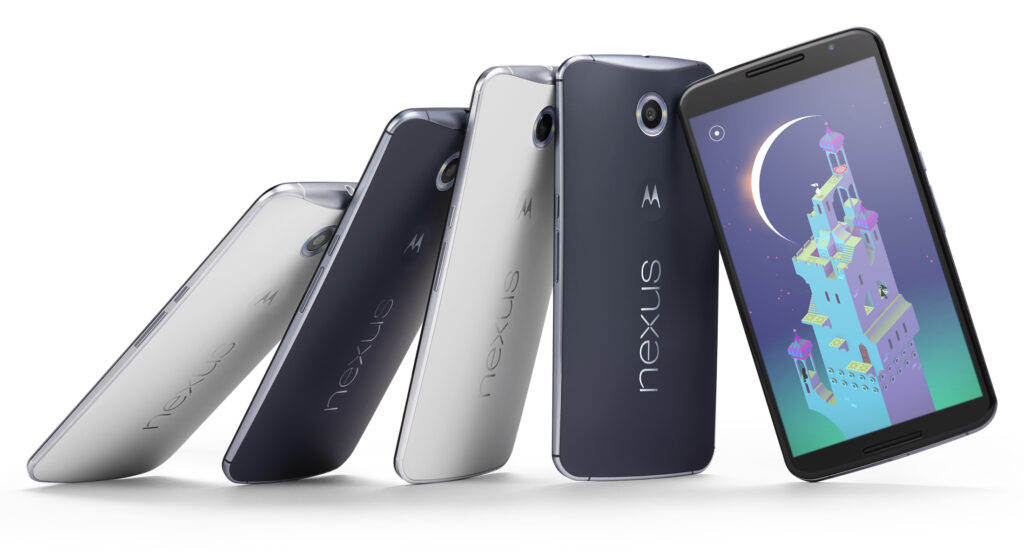
Google finally announced late last year its new smartphone called the Nexus 6 along with the Nexus 9 tablet, Android 5.0 Lollipop and the Nexus Player. While Lollipop and the new smartphone do have a lot to offer we present to you some settings to change in the Nexus 6.
There are numerous reasons to get a Nexus 6 instead of an iPhone or a Samsung Galaxy S5, especially hardware wise. There are also some software, features and settings that also make this quite an impressive smartphone. Here are some settings to change on the Nexus 6.
These settings can really improve the battery life, experience and will help you take full advantage of your new Nexus 6. Increasing the font on the phone, enabling the battery saver setting and adding some additional security are only a few of the numerous settings you can change on the Motorola-made Nexus 6.
Google announced yesterday that the new Android 5.1 Lollipop will be coming to the Nexus 6. While our Nexus 6 isn’t running the latest software, the device will do so in the near future. It’s highly unlikely that the settings and options we present to you will change so there’s no need to panic. With that being said, let’s dive right in.
The Nexus 6 has a great 2K 6 inch display that everyone will love. You can really enjoy watching a movie on the huge screen and because of the dual speakers on the front of the device. Not to mention that this is the first Nexus that comes with great battery life. While there definitely are numerous things you can love about the device, there are some that may be improved on it.
Font size
The large display of the Nexus 6 combined with the very high resolution of 2,560 x 1,440 means that the text may appear small to some people. Even though every graphic and line is clear and crisp, some people will still find that the text is a little too small for the screen. But thankfully, there is a way to change the font size on the Nexus 6 and it doesn’t even require any effort.
Inside the app browser, go to Settings or swipe two fingers downward on the screen then select the settings menu. After you select it, tap on Display. Search for a setting called Fonts and tap on it. There you will find four different options to choose from: Huge, Large, Normal (this one is the default) and Small. While most people tend to use Normal, the Large one may suit you better.
Disable the emergency broadcast alerts
It’s true that this isn’t the most in your face feature available on the new smartphone, but when you have to deal with it, it can get a little annoying. I’m talking about the emergency broadcast alerts, of course. This will make your phone start an alarm out of nowhere, in full volume, regardless of what settings you use. Most of the times, this is to alert you of severe weather conditions, Amber alerts or other broadcasts sent out by your city or state.
You may want to keep some of them enabled just for emergencies, but they tend to be very loud and annoying so make sure you disable the ones that you don’t want to have anything to do with.
Go into Settings and tap on More, then on Emergency broadcasts. From this menu simply deselect all the ones you don’t need. I left the Extreme alerts still turned on but I’ve turned off all of the rest, mostly because I don’t want my phone to scare me half to death when I least expect it. Make sure you also deactivate the vibration option as it will vibrate for a long time and very loud, at full power.
Enable battery saver mode
The huge display on the new smartphone is the biggest battery killer. Even though the Nexus 6 has a 3,220 mAh battery and a Turbo Charge feature that allows you to use the phone for 6 hours with only a 15 minute charge, sometimes this is simply not enough. Google added a Battery Saver option in the Android Lollipop and you’ll definitely want to turn this on from time to time.
Go into Settings, then Battery at the bottom, tap on the three dots on the right of the upper part of the screen and tap on Battery Saver. Even though this isn’t a setting that you should use permanently, it does come in handy occasionally. The Battery Saver option kills background data and lowers the brightness of the screen to give you more battery life.
It’s true that you won’t be allowed to do most things but your Nexus will last for a very long time and you will be able to make phone calls or send texts. It’s a very useful feature that you should be aware of. Make it enable itself when your battery reaches 15% and it will automatically do so, giving you enough battery life when you absolutely need it.
Security
Android is great for syncing your Gmail account and other features but it generally lacks one important thing: security. You can set up a pattern lock or a passcode in under one minute which will protect your smartphone against strangers in the event that you lose it or that it’s stolen. Android 5.1 even brings a new security feature that’s called device protection. When this feature is enabled, even after a factory reset, your phone won’t be able to be used unless your Google account is signed in. This being said, you will want to secure your smartphone.
Slide the notification bar down and go to settings then Security, Screen Lock and from that select PIN, Password or Pattern.
In this menu there’s also an option called “Owner info” that will appear on the lockscreen. You can add your phone number, Facebook account or any other information. Be sure to fill in some information that will help you get your phone back in case an honest person finds it.
There are two more useful security options that you should be aware of. Go to the Google Play Store and enable the password protection for in-app purchases in the settings menu. This will make sure that you won’t get billed with app purchases in case you lose your phone. Also, your kids won’t be able to make purchases without your permission. Go to the Android Device Manager and prepare your smartphone for the services. By doing this, you will be allowed to lock, call and erase the data on your phone in case you lose it or it’s stolen.
Many people should think about securing their devices, but most of them don’t. This is the first thing you need to make sure when using a new device and the Nexus 6 is no exception.
Disable ambient light
A cool feature on the Moto X and many Motorola smartphones called Active Display (Moto Display) is the ability of the phone to pulse off and on with information and notifications. This was also added to the Nexus 6 but it was renamed Ambient Display. The phone knows when you pick it up and will give you a black and white screen with recent notifications and it’ll turn itself off shortly after. While this is a great feature, a single tap of the screen will fully light it up and you’ll often pocket dial people and will cause your screen to be on when you don’t need it which will drain the battery.
The feature is pretty cool in theory but it was one of the first features I turned off on the Nexus 6. Slide the notification bar down and tap the settings button. Go to Display and you will find the setting there. Tap on the Ambient Display option and you will turn it off. That’s the only thing you need to do to get rid of the feature.
This is a great feature and I really like it but Google should update this to be more precise or I’ll always keep it turned off.
Change default text messenger app
The default text messenger app was changed to Hangouts ever since Android KitKat. The new Nexus 6 also uses the Hangouts app as the default one but you may want to change this. You will be happy to know that you can actually do this.
To change the default app head to Settings and then More. Tap on the Default SMS option and you will see all the apps that are installed on your device. I personally like Textra SMS but feel free to use whatever you want if the stock one isn’t to your liking.
This is all that you have to do to change the default text messenger app.
Conclusion
There are numerous options, features and settings you can change on the Nexus 6 running on Android Lollipop. A few other features you might be interested in are the Do Not Disturb Notification options, the Smart Lock option and several other new ones in the Lollipop operating system.
The Nexus 6 is certainly a great device but everyone has different needs and you will have to play around with its settings to see what works for you. This was our list of settings to change on the Nexus 6.
Image source: 1

Roxanne Briean
Latest posts by Roxanne Briean (see all)
- Former Virginia Tech Freshman Sentenced to 50 Years in Prison for Stabbing a Girl to Death - June 28, 2018
- San Francisco Woman Threatened to Call Police on Girl Who Sold Ice Water for Disneyland Trip - June 25, 2018
- Epping Woman Sentence to 20 Years of Prison for Mutilating Homeless Woman’s Children - June 12, 2018